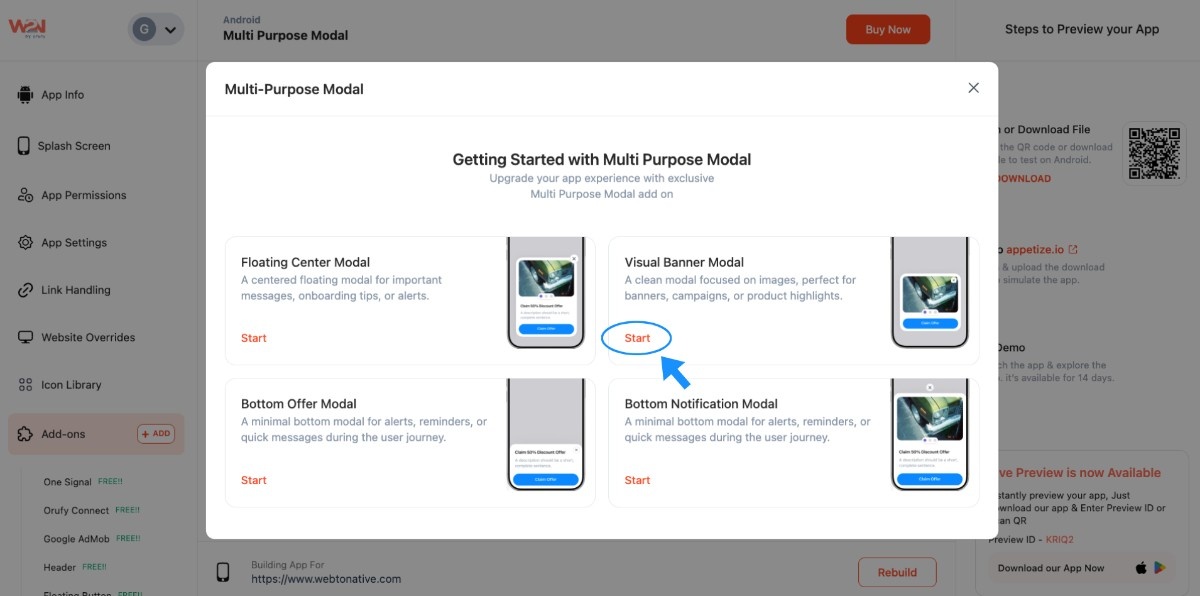
Visual Banner Modal
A visual banner modal pop-up appears in the form of a banner inside your app. You can place it anywhere, on top, or at the bottom. It often includes images and colours to quickly grab attention. This way, the user keeps interacting with the page while noticing the message.
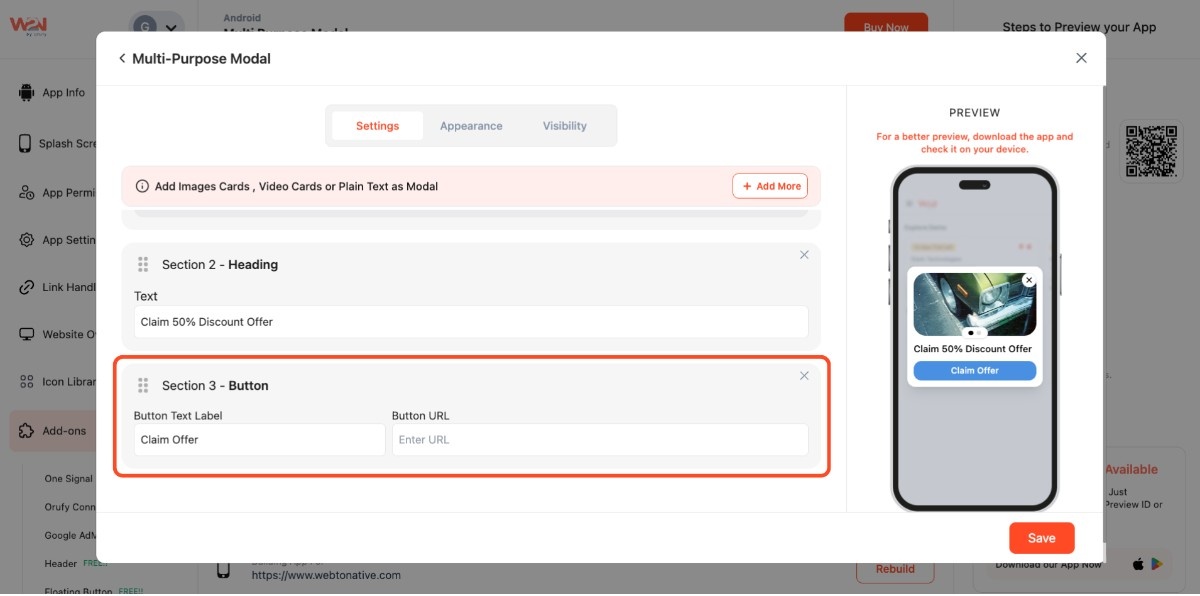
Step 1: Tap on Start to add a visual banner to your app
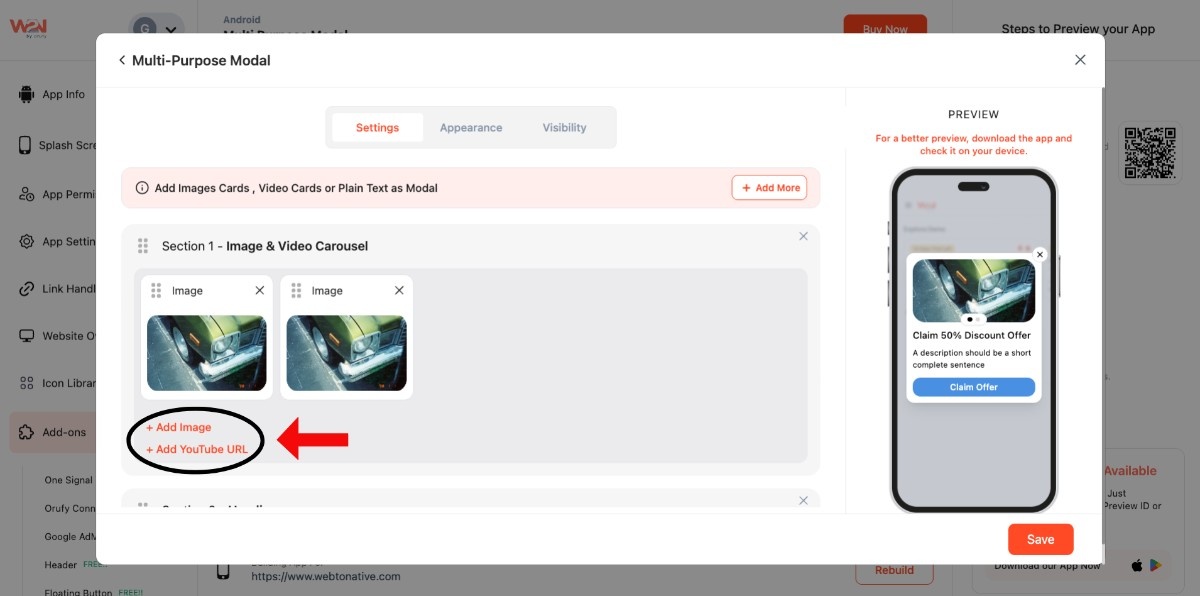
- You have the option to add both an image and a YouTube video using + Add Image and + Add YouTube URL
- Describe your heading in the heading section for the offer or alert
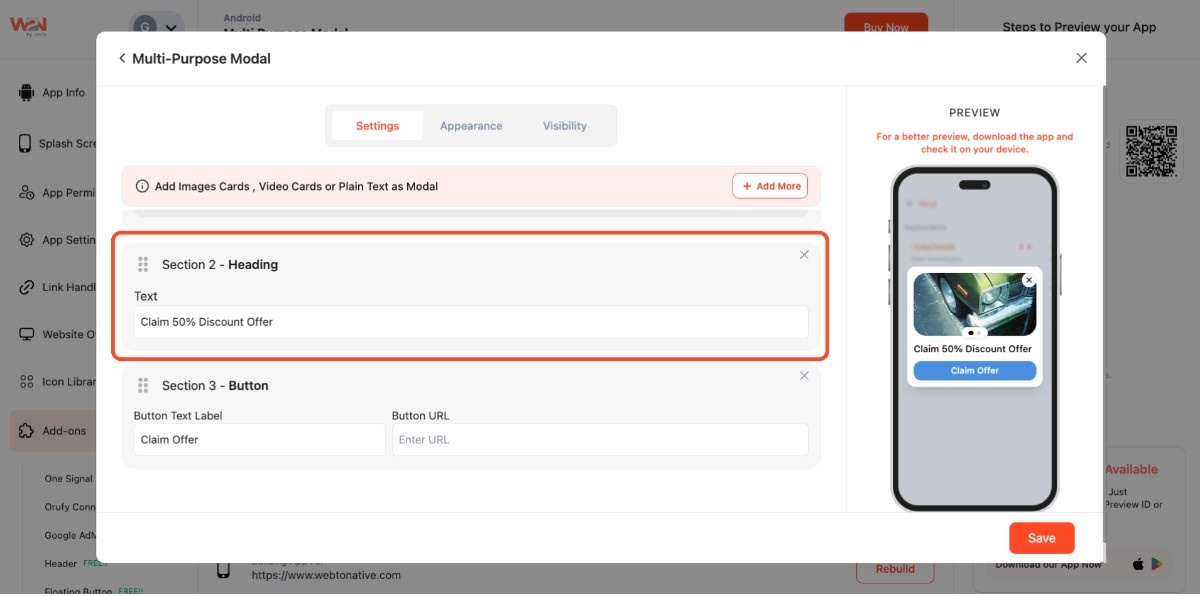
- Add a button with a URL below the message to direct users to a specific action.
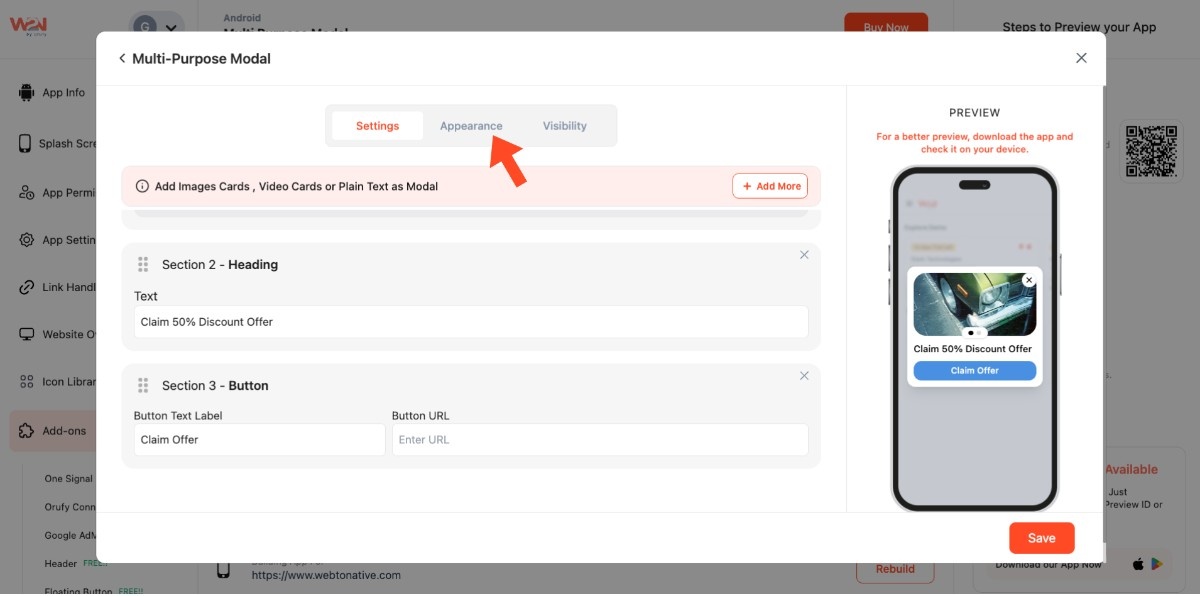
Step 2: Open the Appearance Settings
- Personalize the modal layout and style
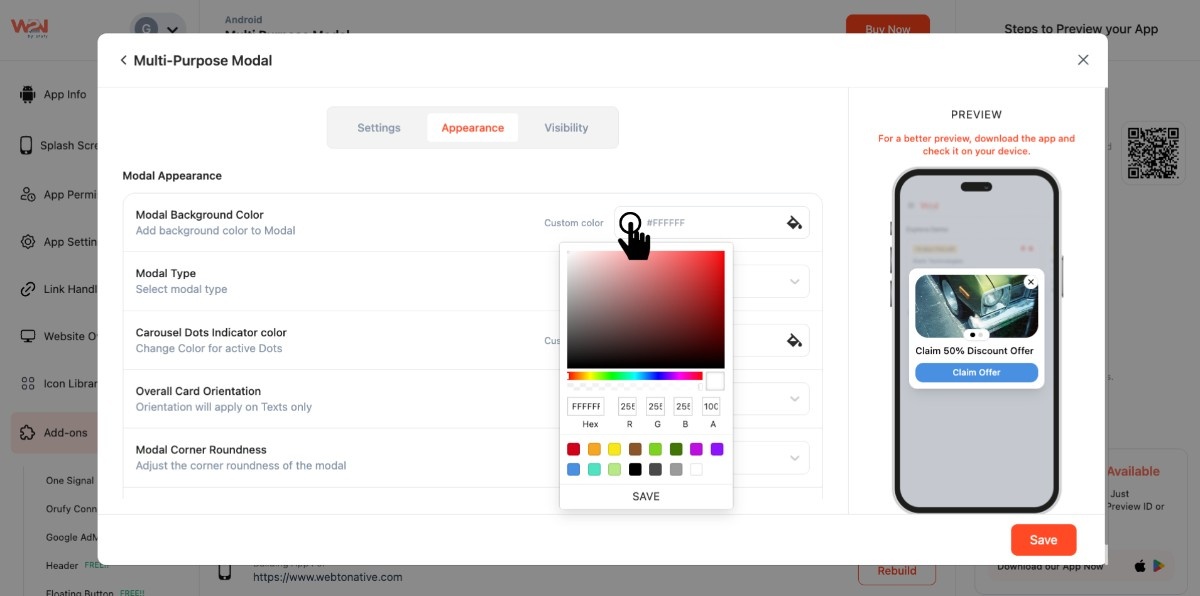
- Click on the colour picker to change the background theme
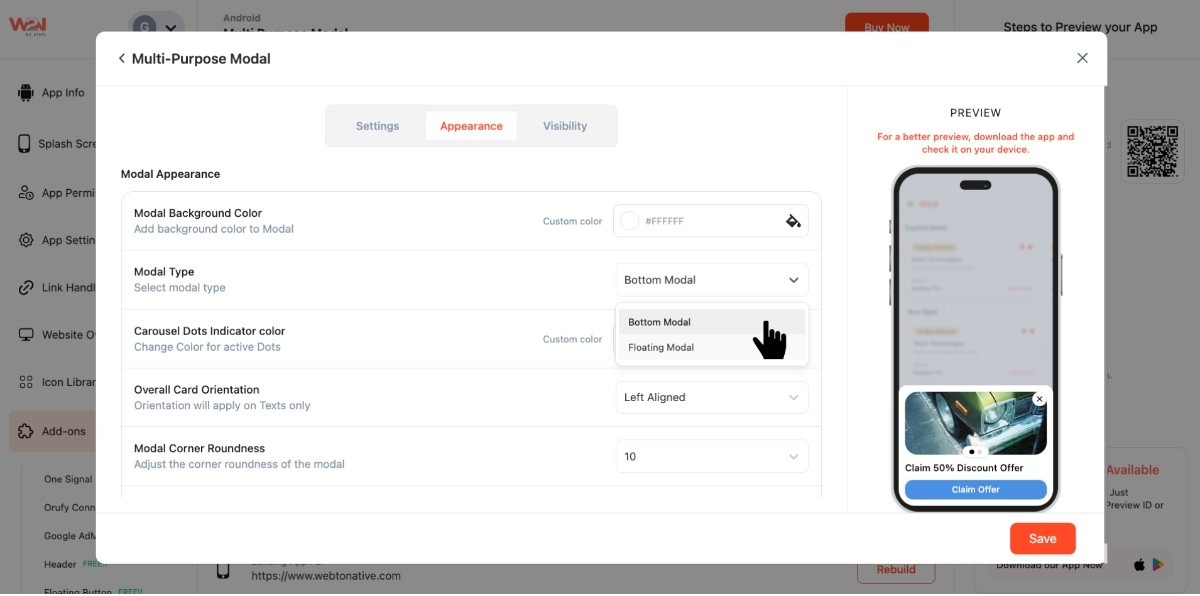
- Select how the modal will appear: Bottom or Floating
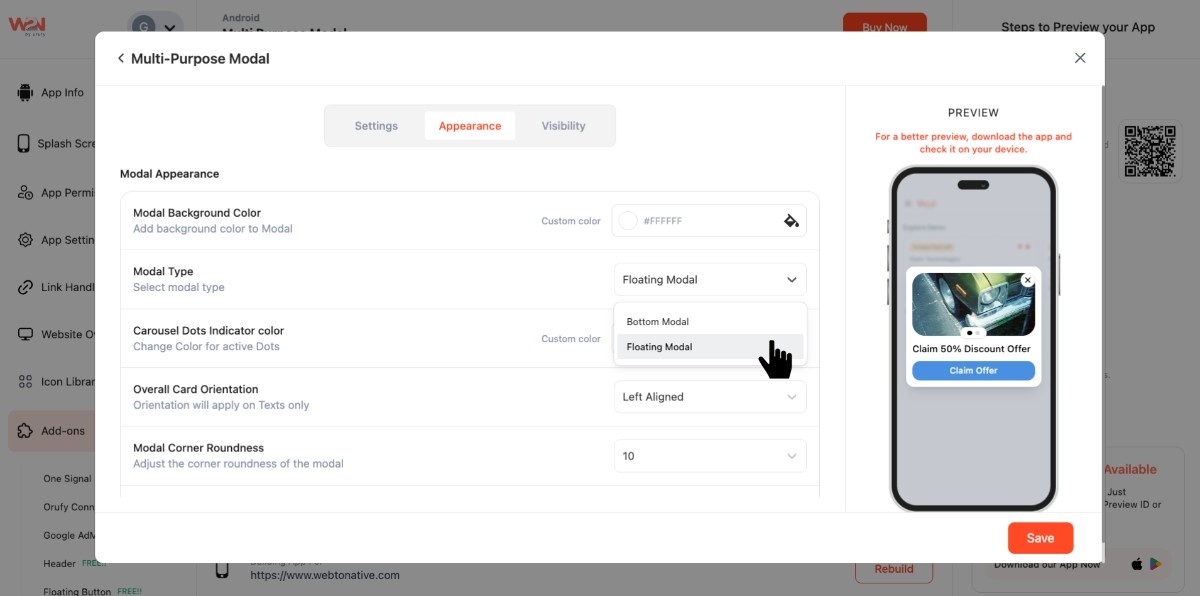
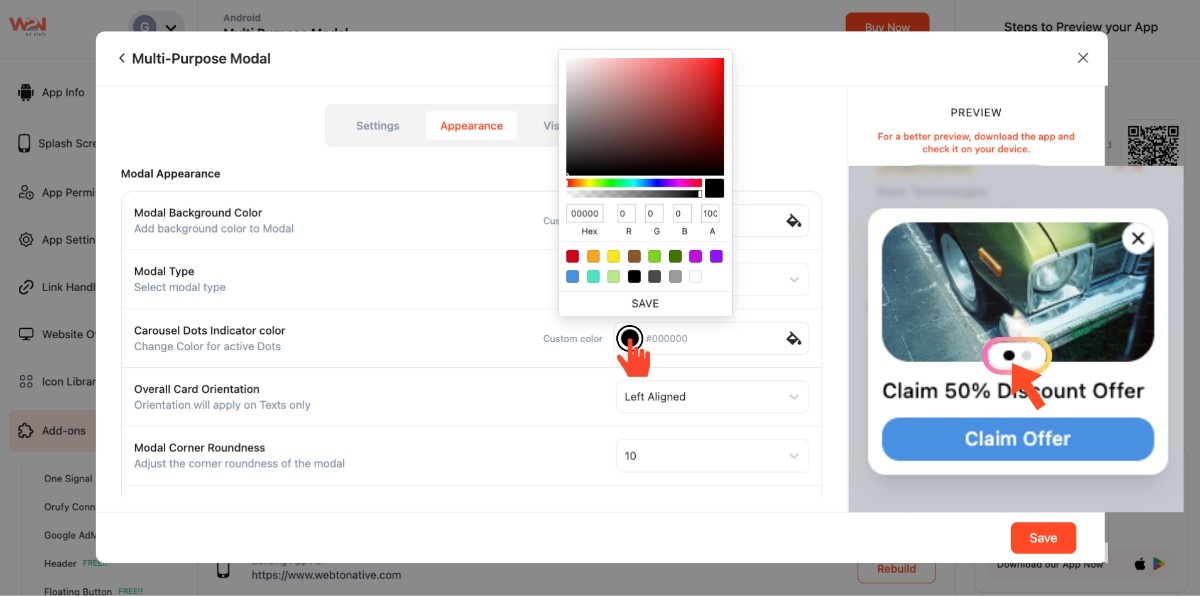
- Update the dot colour using the colour picker. These dots show how many slides are available.
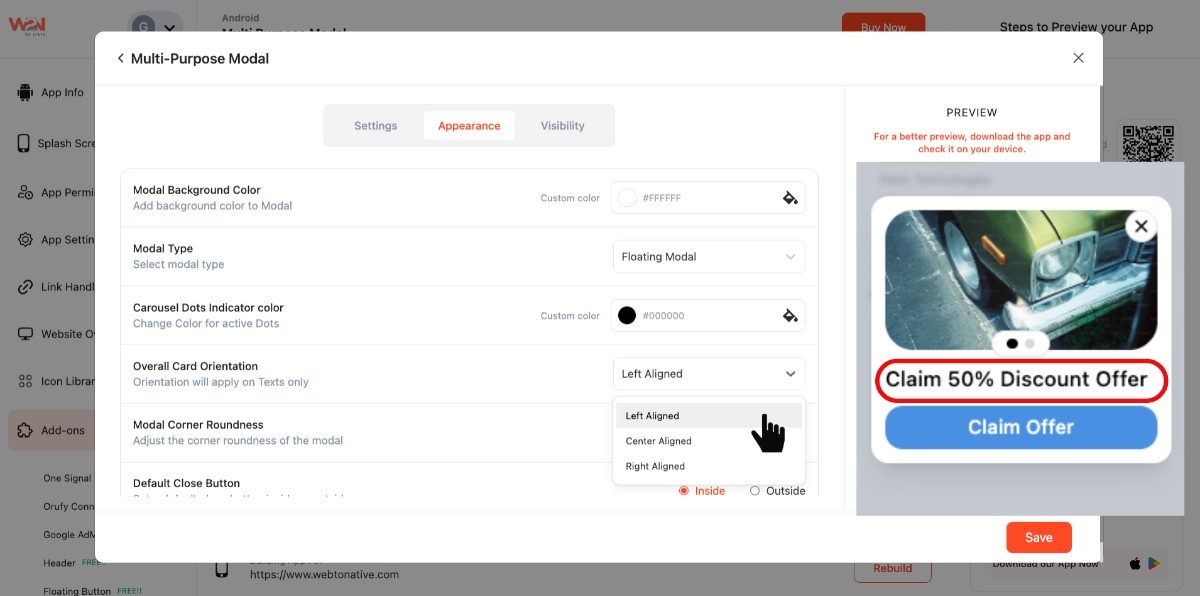
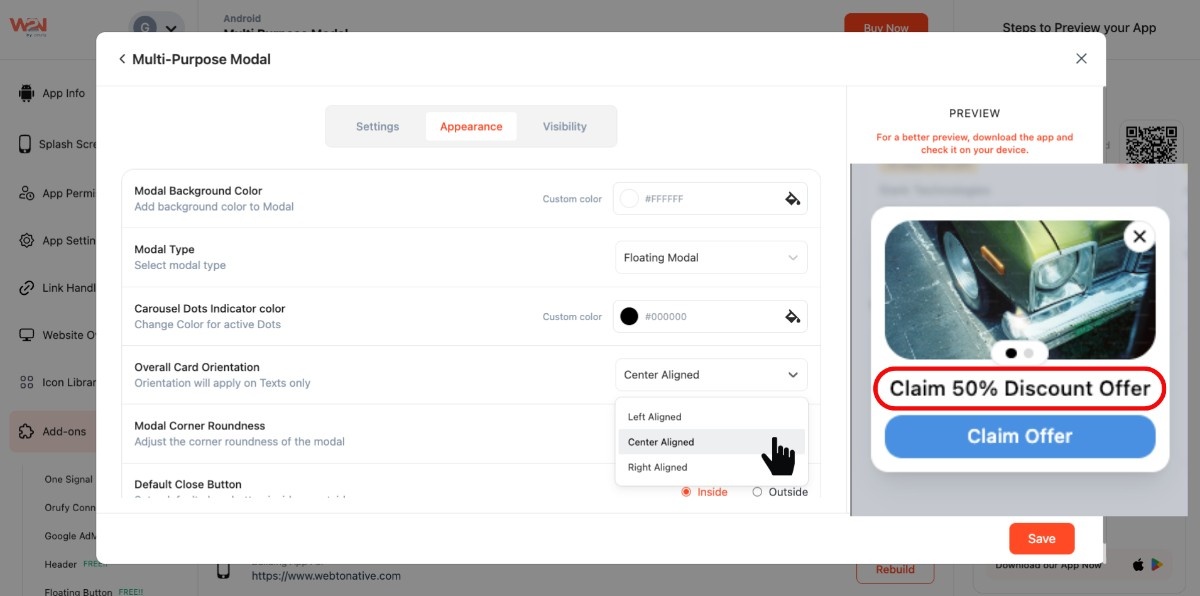
- Use Overall Card Orientation to place text on the desired side- left, center, or right
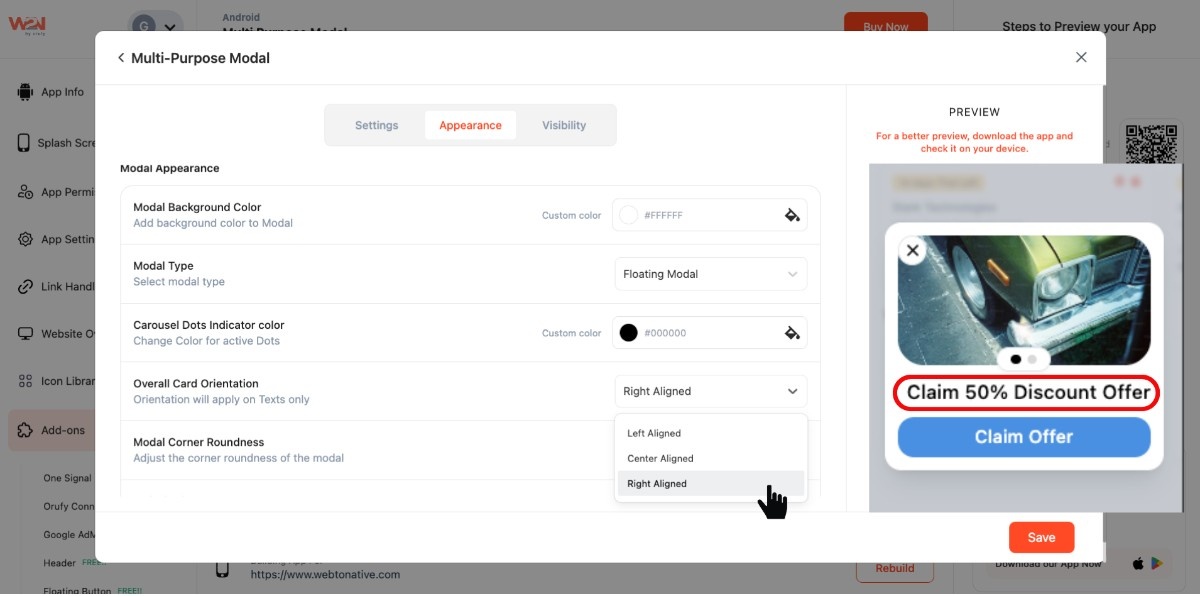
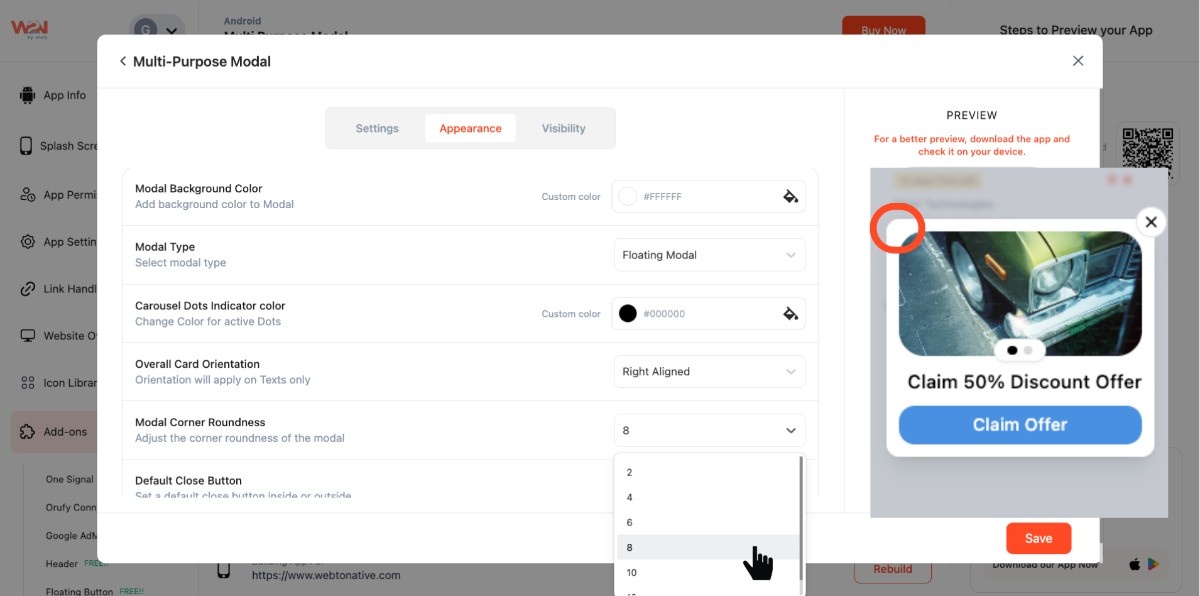
- Change the modal corner shape (sharp to rounded)
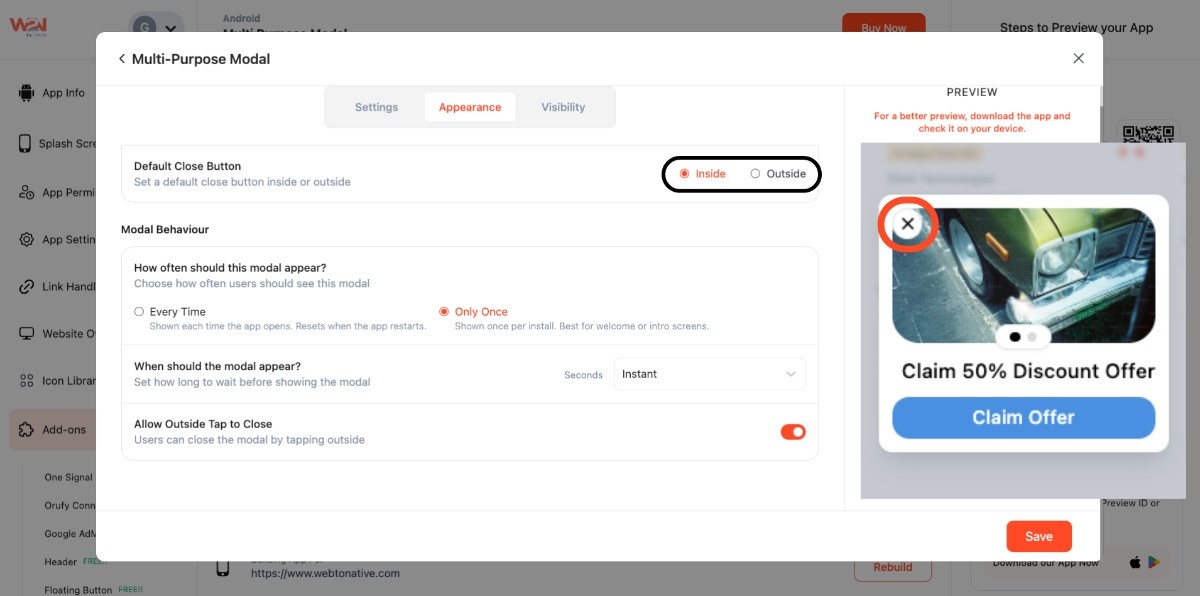
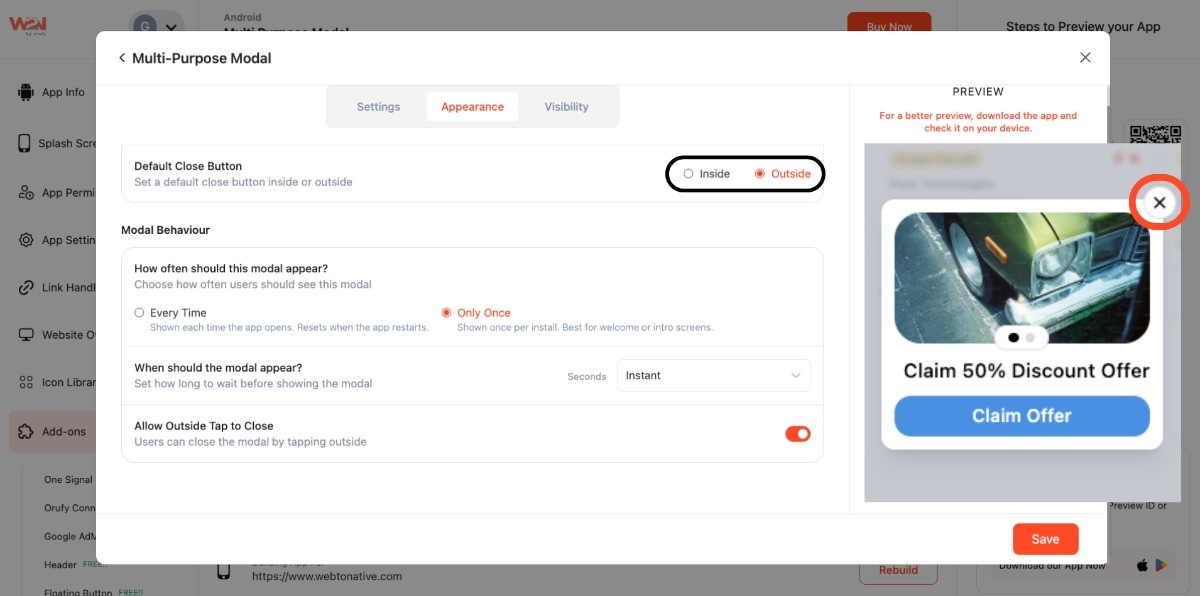
- Configure the close button position: inside or outside
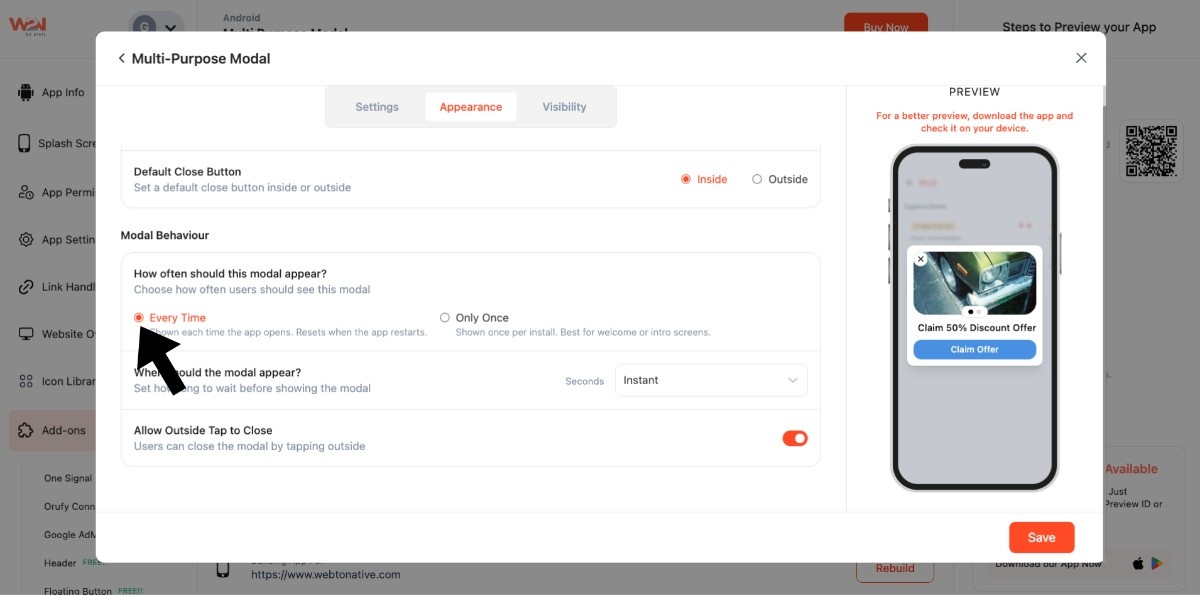
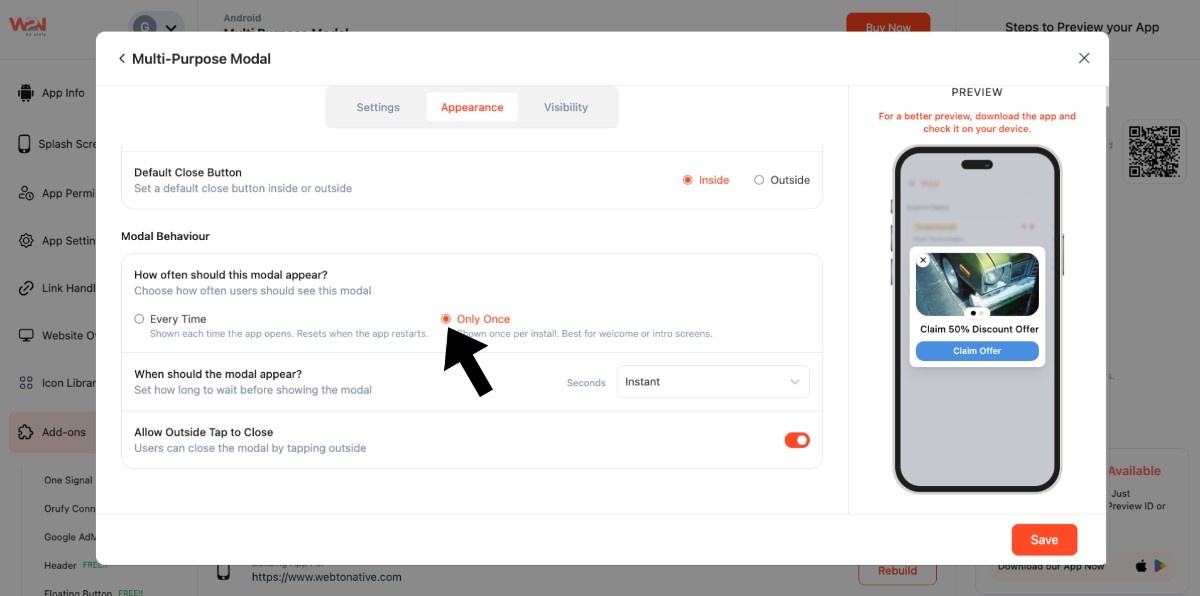
- Set how often the modal appears for users, whether it will show every time they open the app, or only once during the first installation. So, if you select the option Every Time, the modal will display on each app launch and restart. But choosing Only Once will show only once when the app is installed and opened for the first time.
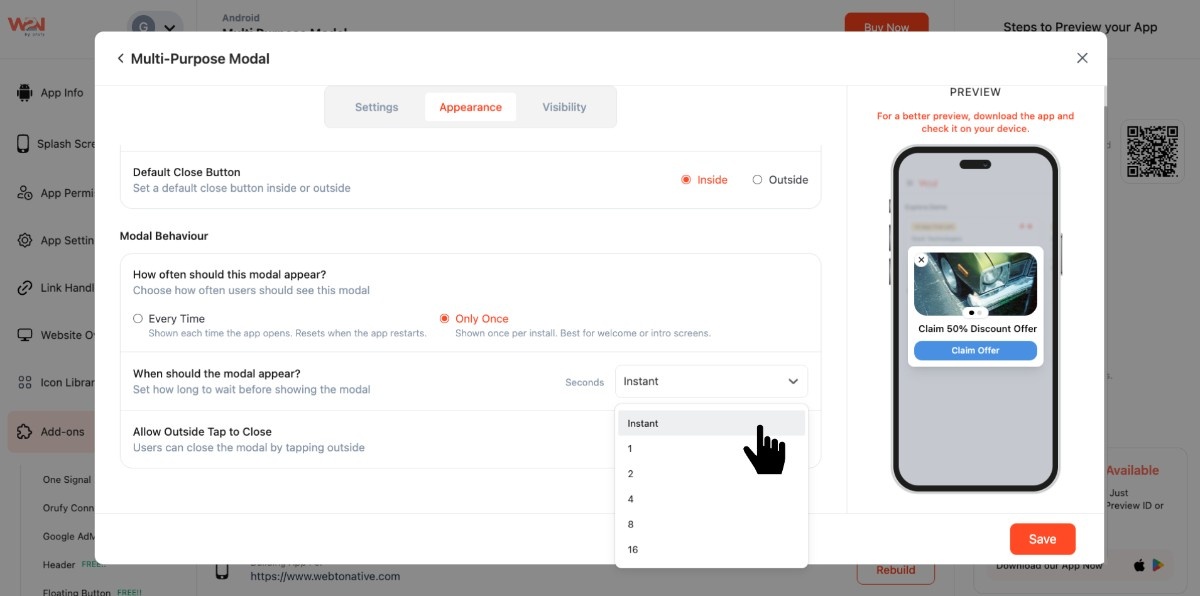
- Set the display delay before the modal is shown
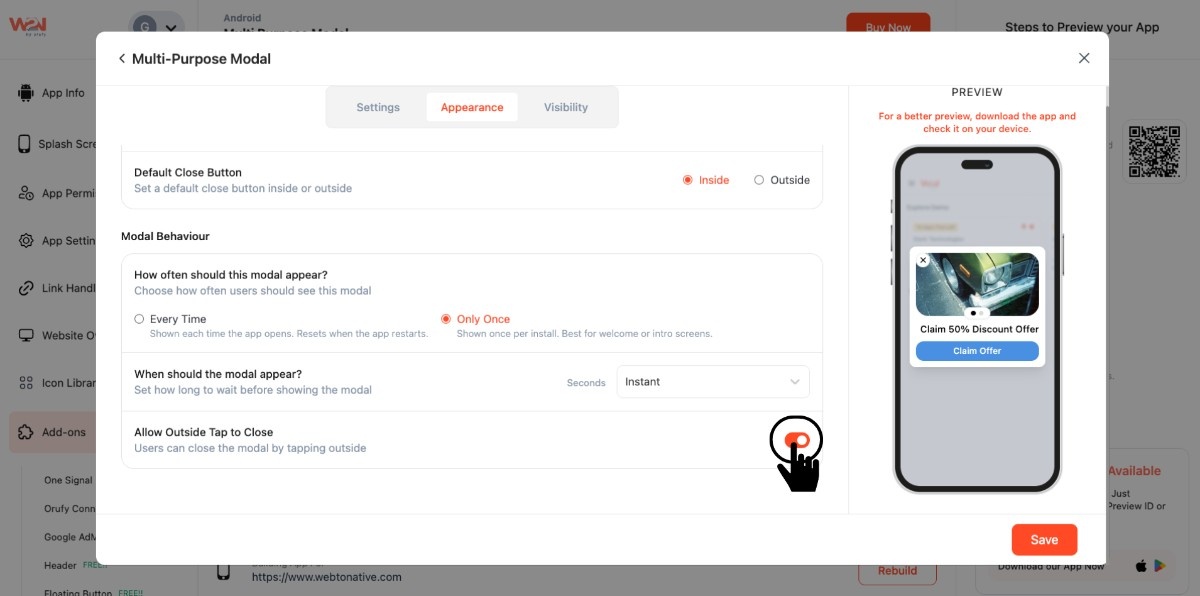
- The modal will automatically close if users click anywhere outside of the modal. To apply this setting, turn on the Allow Outside Tap to Close.
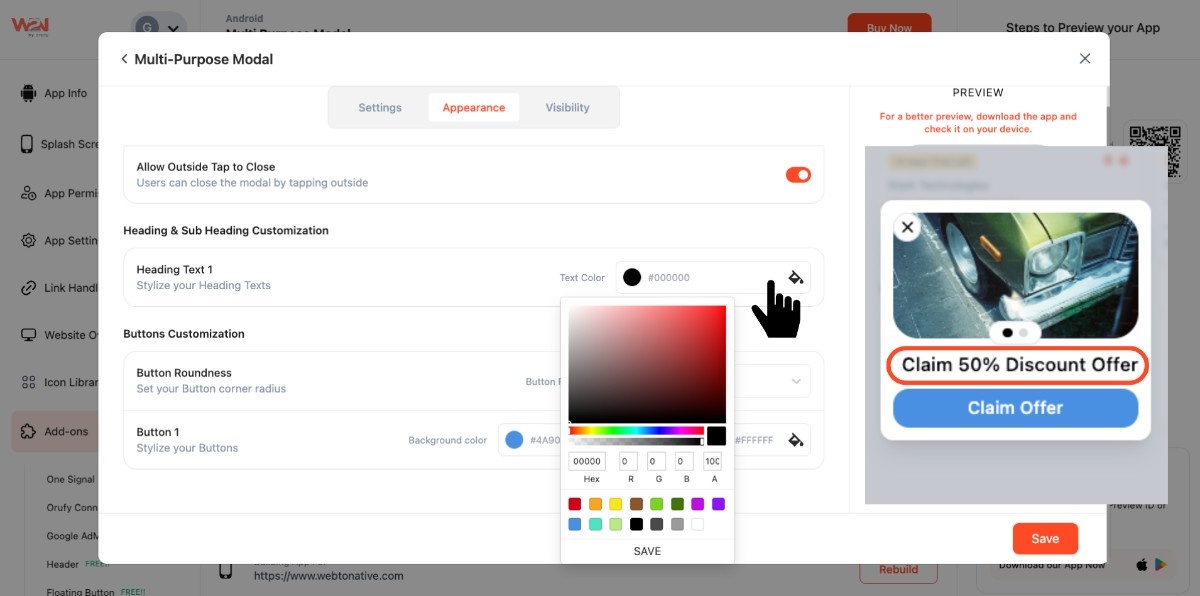
- You can also modify the colour of the heading
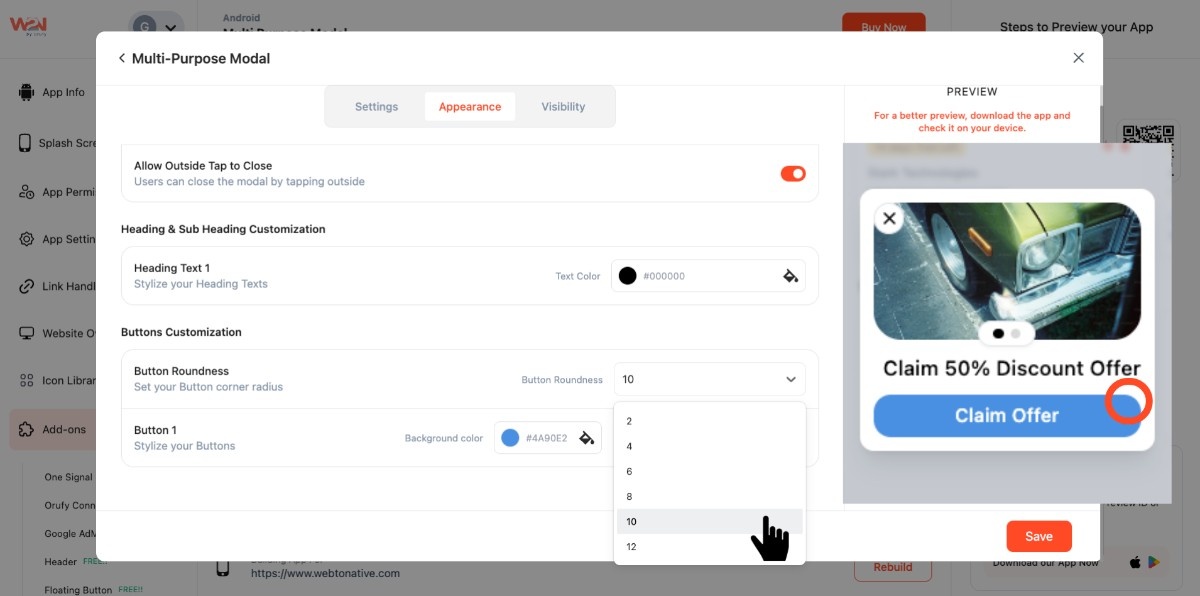
- Adjust the roundness of the action button
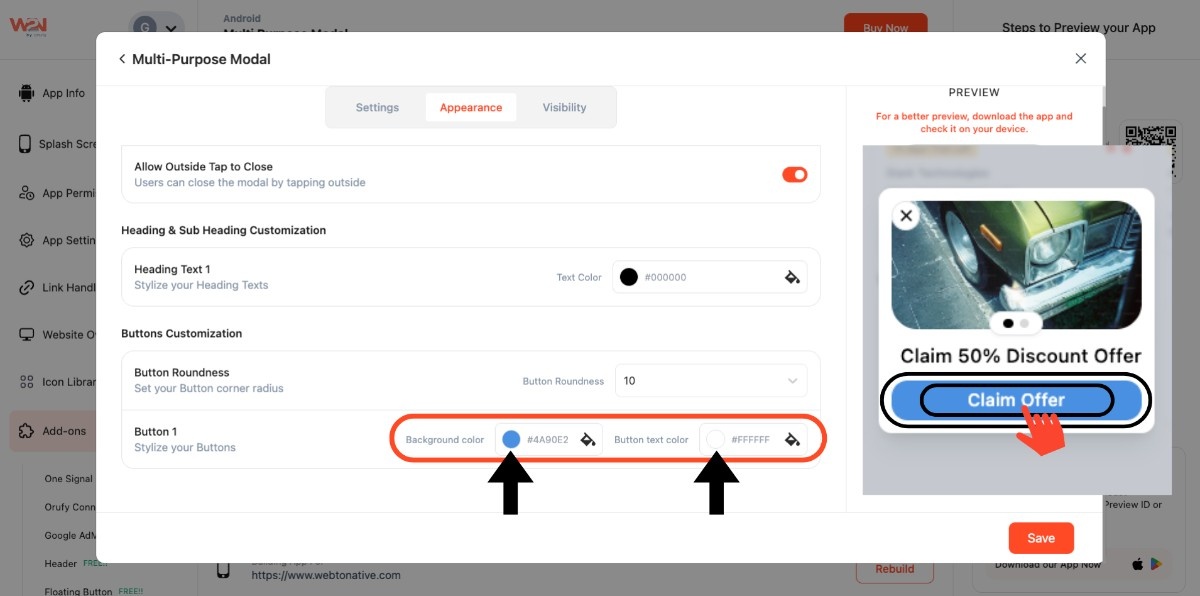
- Choose the action button colour theme for background and text
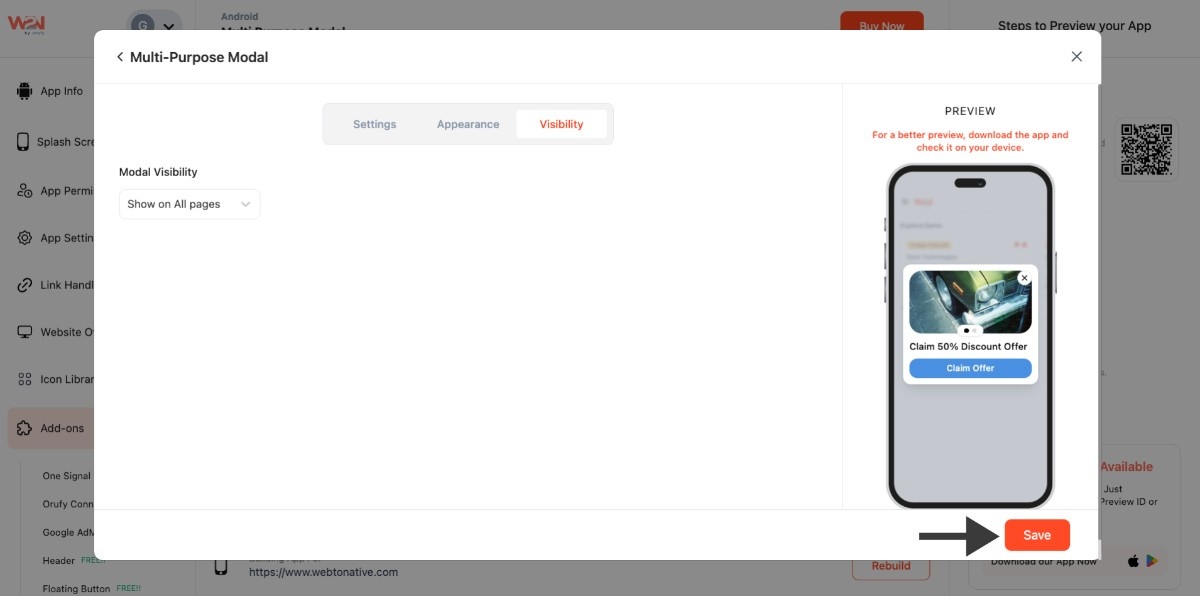
Step 3: Move to the Visibility Menu
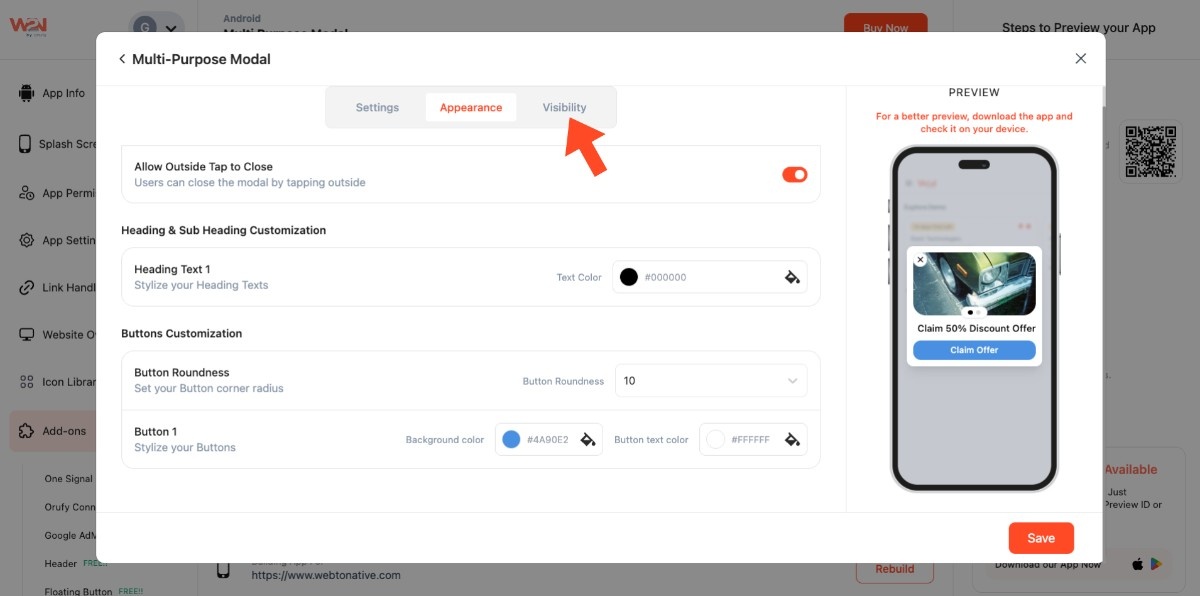
Pick how the modal should trigger:
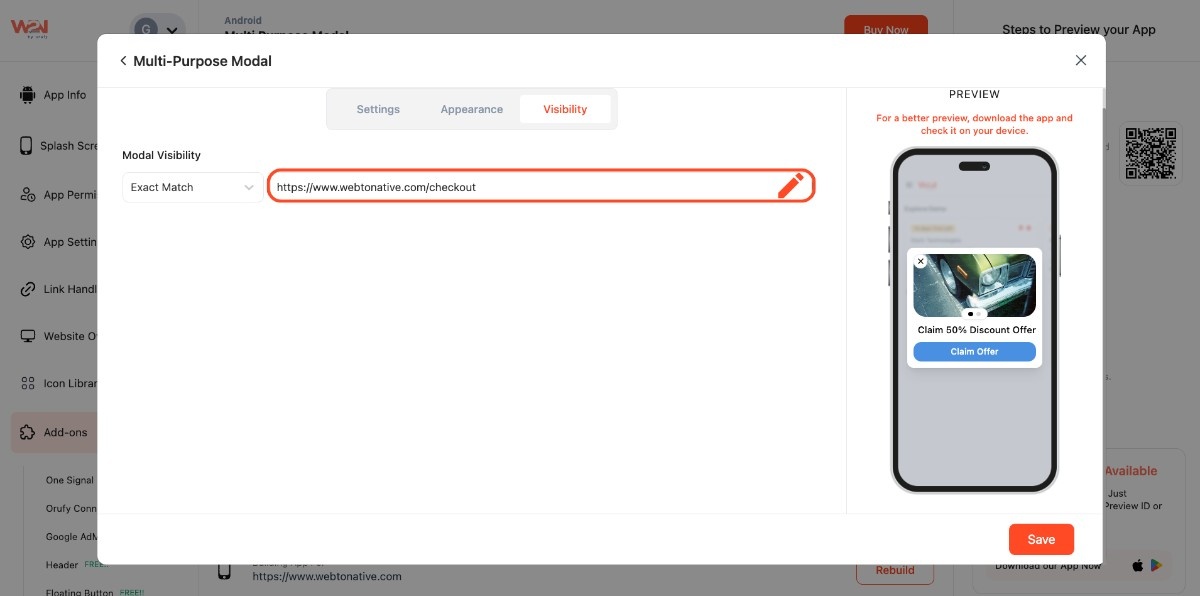
- Exact URL: https://www.webtonative.com/checkout (opens in a new tab)
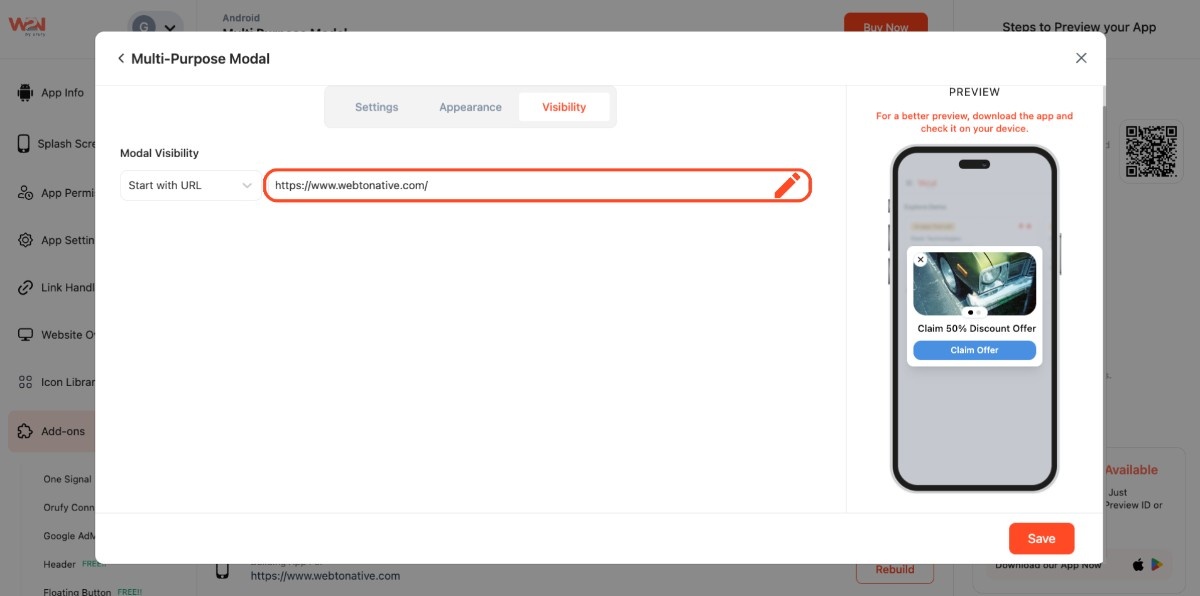
- Start with URL: https://www.webtonative.com/ (opens in a new tab)
- Custom Regex: ^https://webtonative.com/?$ (opens in a new tab)
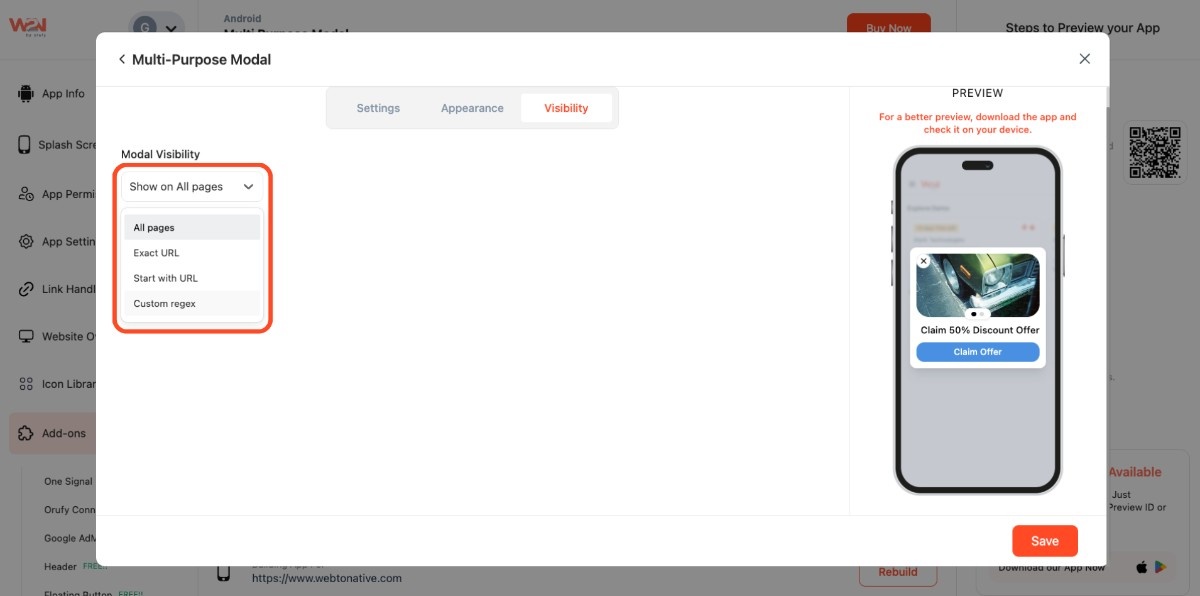
- Enter the URL in the provided field, whether selected Exact URL or Start with URL
Custom Regex
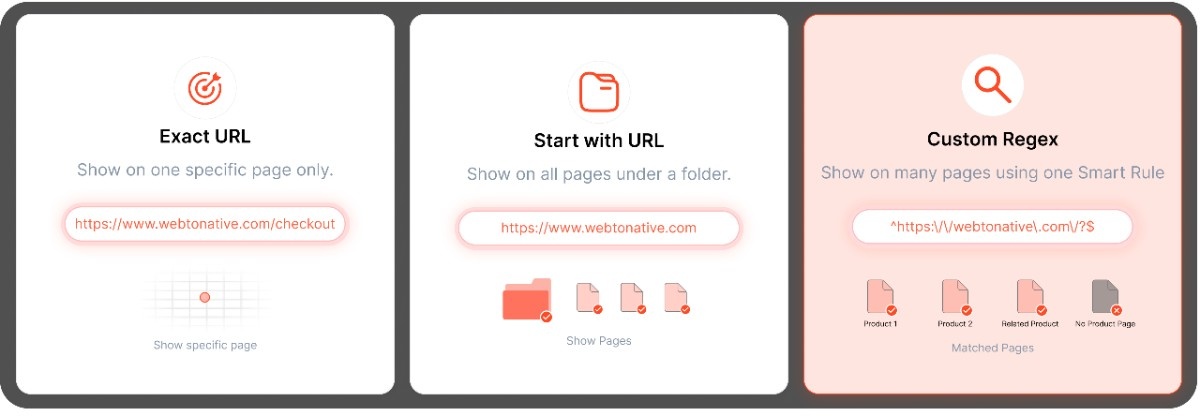
What is a Custom Regex
Think of it like a smart filter for your pages. You do not need to go to each page manually and find all its matching pages. This is like when you want to show all those pages that have the word . */ product /. * , you set a rule only once, and it will apply to all of your pages, like:
yoursite.com/product/shoes yoursite.com/product/red-kurta yoursite.com/mango-juice

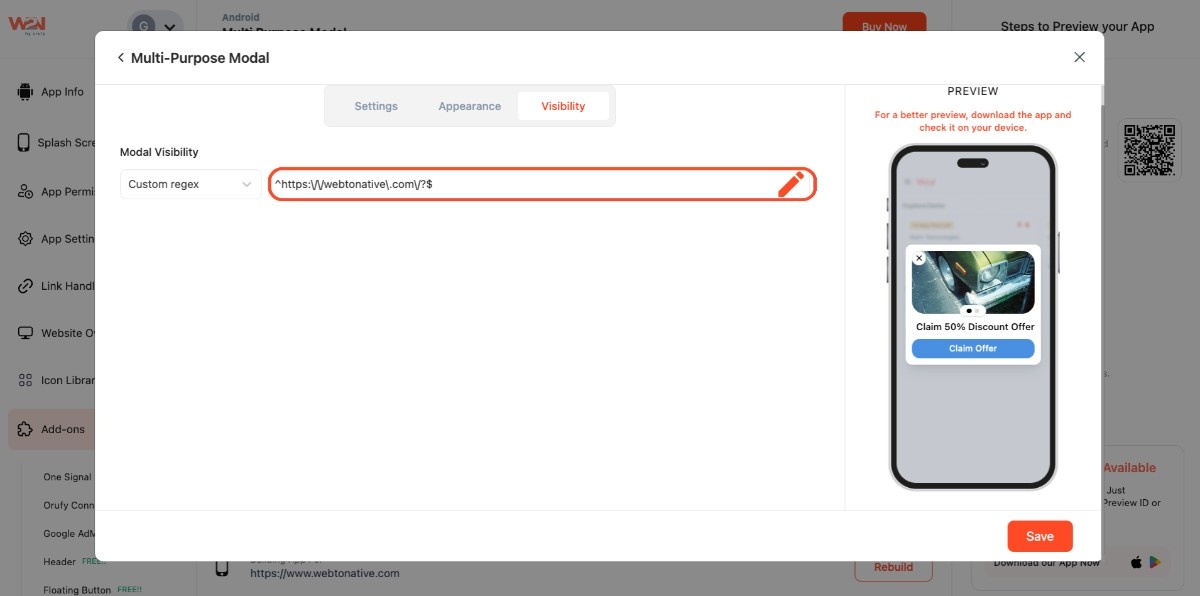
- Save the changes to use this modal