
Allow HTTP (Insecure Content)
The Allow HTTP (Insecure Content) option enables the app to load content from non-secure HTTP links as well as secure HTTPS URLs. By default, apps only load HTTPS content to protect your data. You can use this option if your site and some of its resources are still on HTTP (images, scripts, fonts, iframes).
Steps to Enable Allow HTTP (Insecure Content)
Step 1: Navigate to Link Handling
-
Sign in to your WebToNative dashboard and select your app
-
Click on “Link Handling” from the left sidebar menu
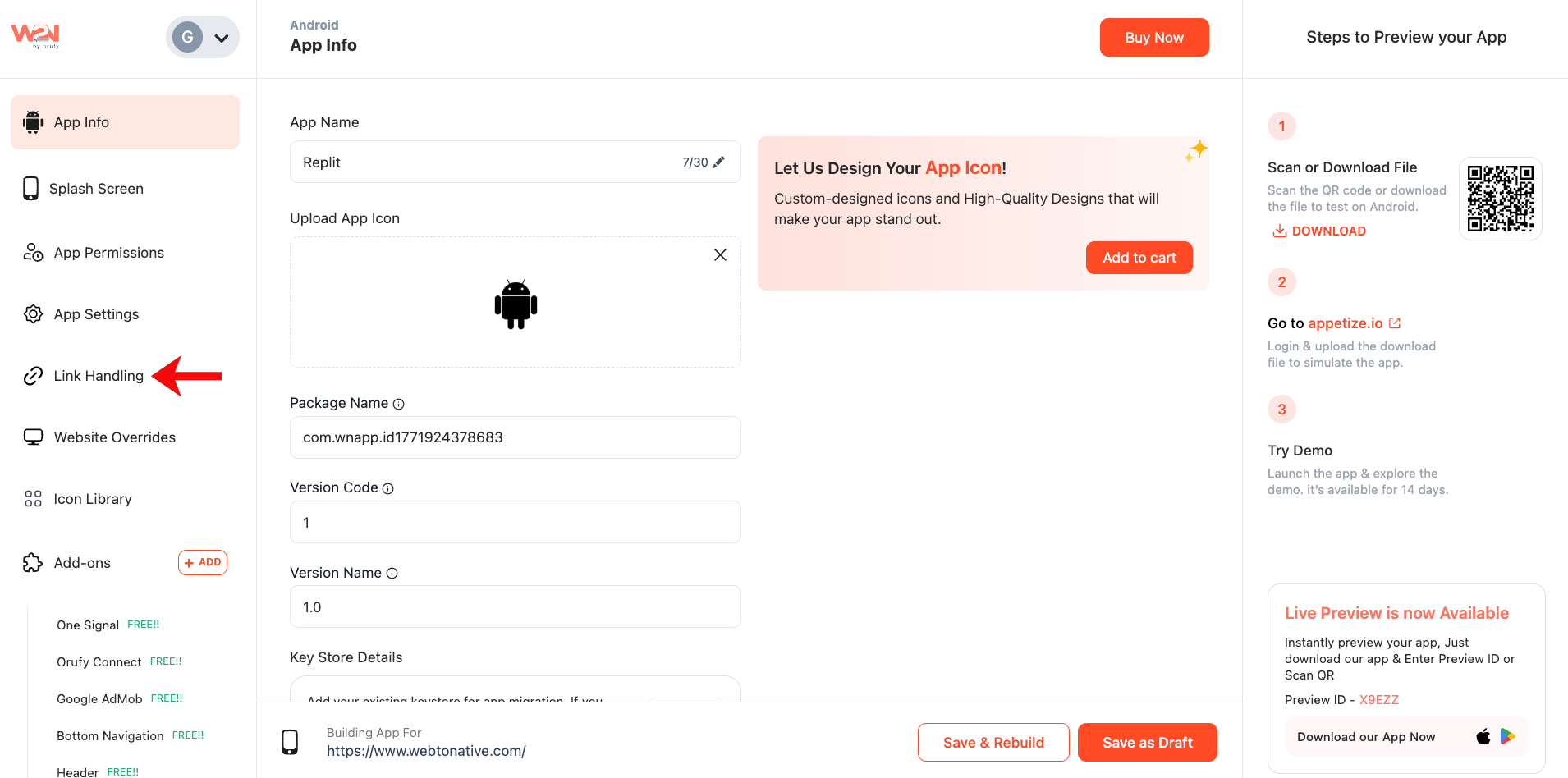
Step 2: Find the “Allow HTTP (Insecure Content)” Card
-
In the “Link-Handling section, locate the Allow HTTP (Insecure Content) card
-
This feature showcases that apps usually allow only HTTPS content
-
Tap on “Configure” right under the card
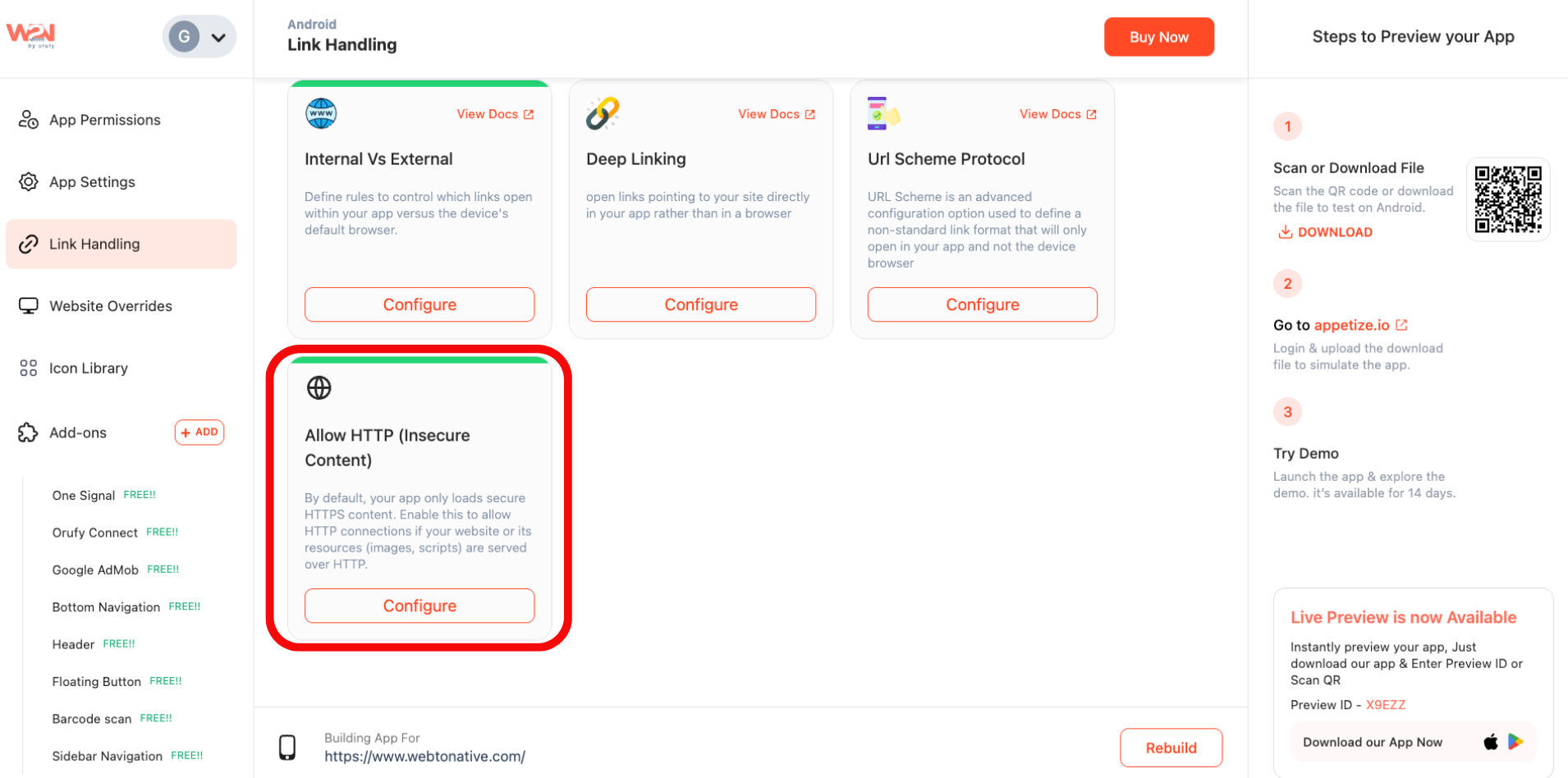
Step 3: Open the Configuration Popup
-
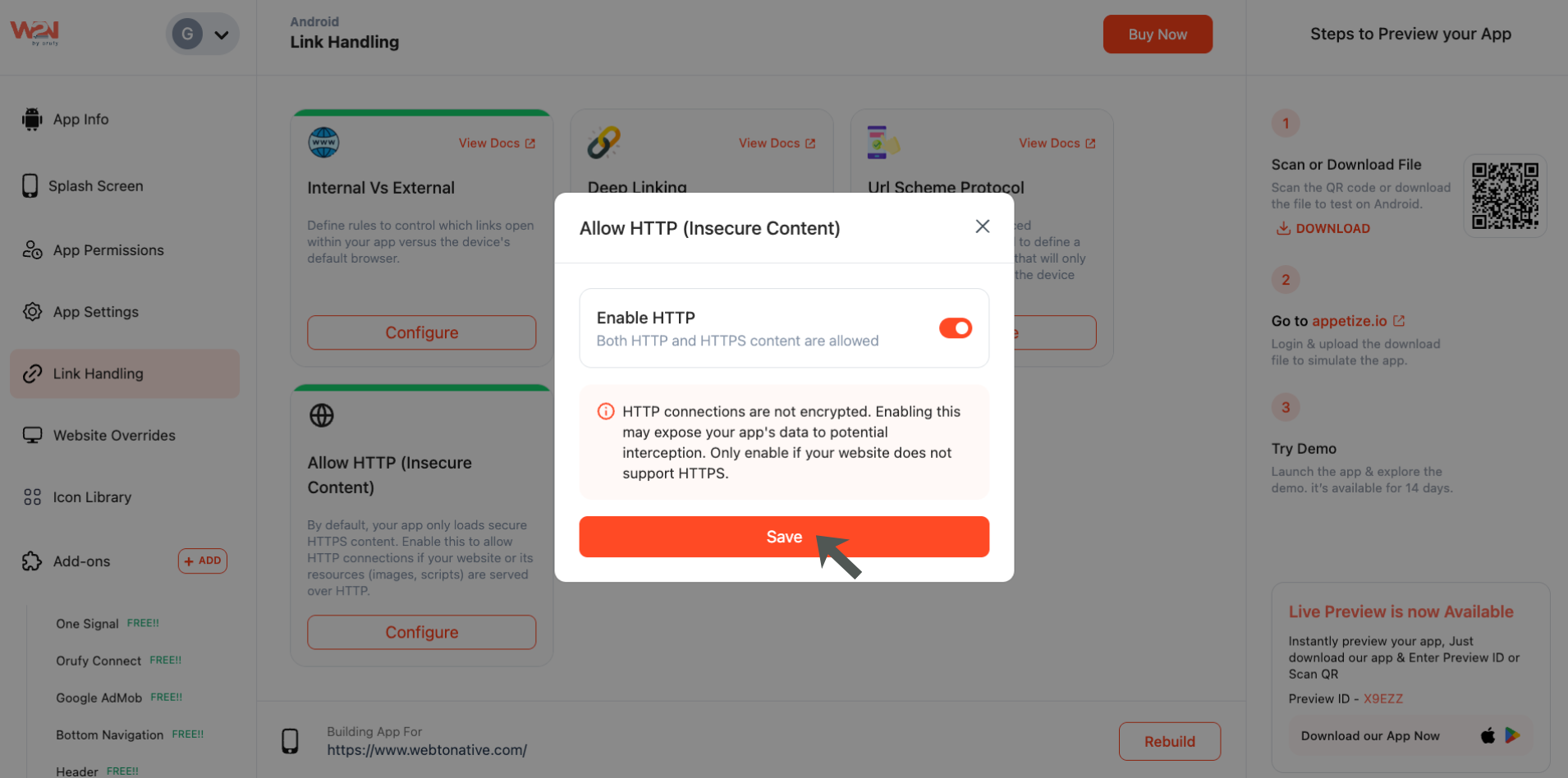
Once you click on Configure, a popup appears.
-
This allows you to enable or disable HTTP content in your app.
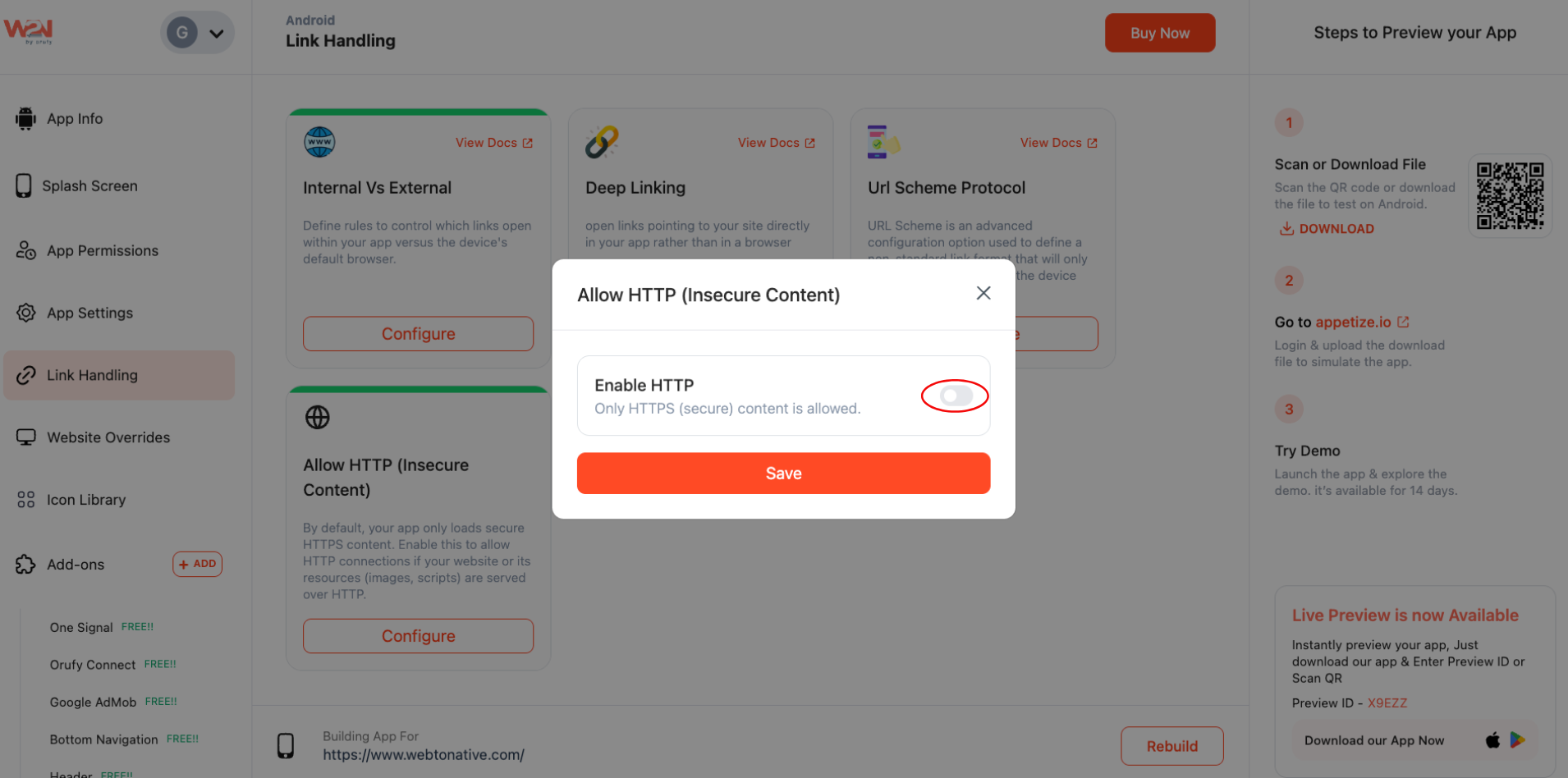
Step 4: Enable HTTP Content
-
Inside the popup, switch the Enable HTTP toggle to ON.
-
Enabling this allows HTTP and HTTPS content to load in your application.
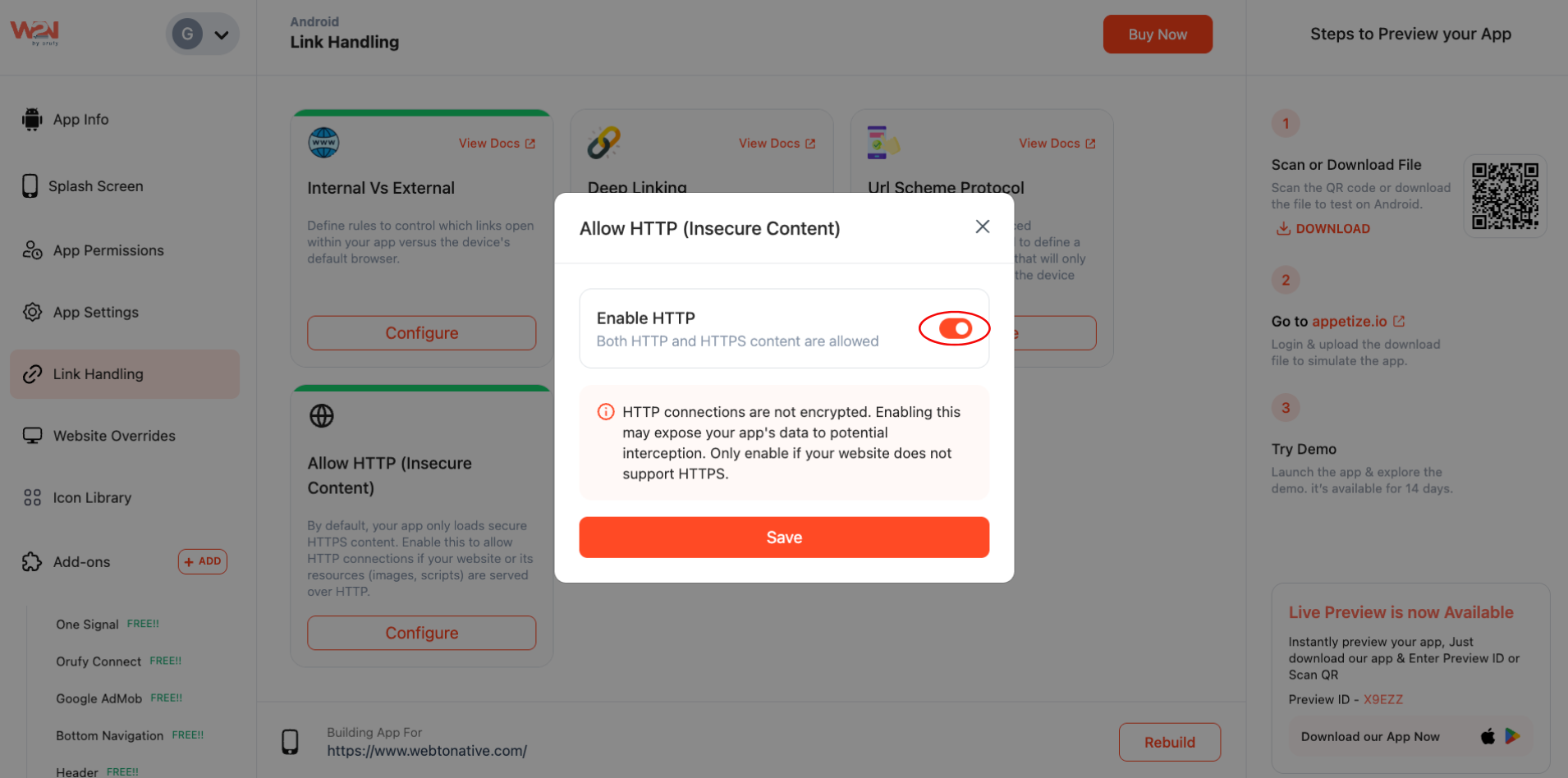
Step 5: Save Your Changes
Now, click on the “Save” button to apply changes.
Step 6: Rebuild Your App
-
The change does not apply to your app right away.
-
You must create a new app build to take advantage of this setting.
-
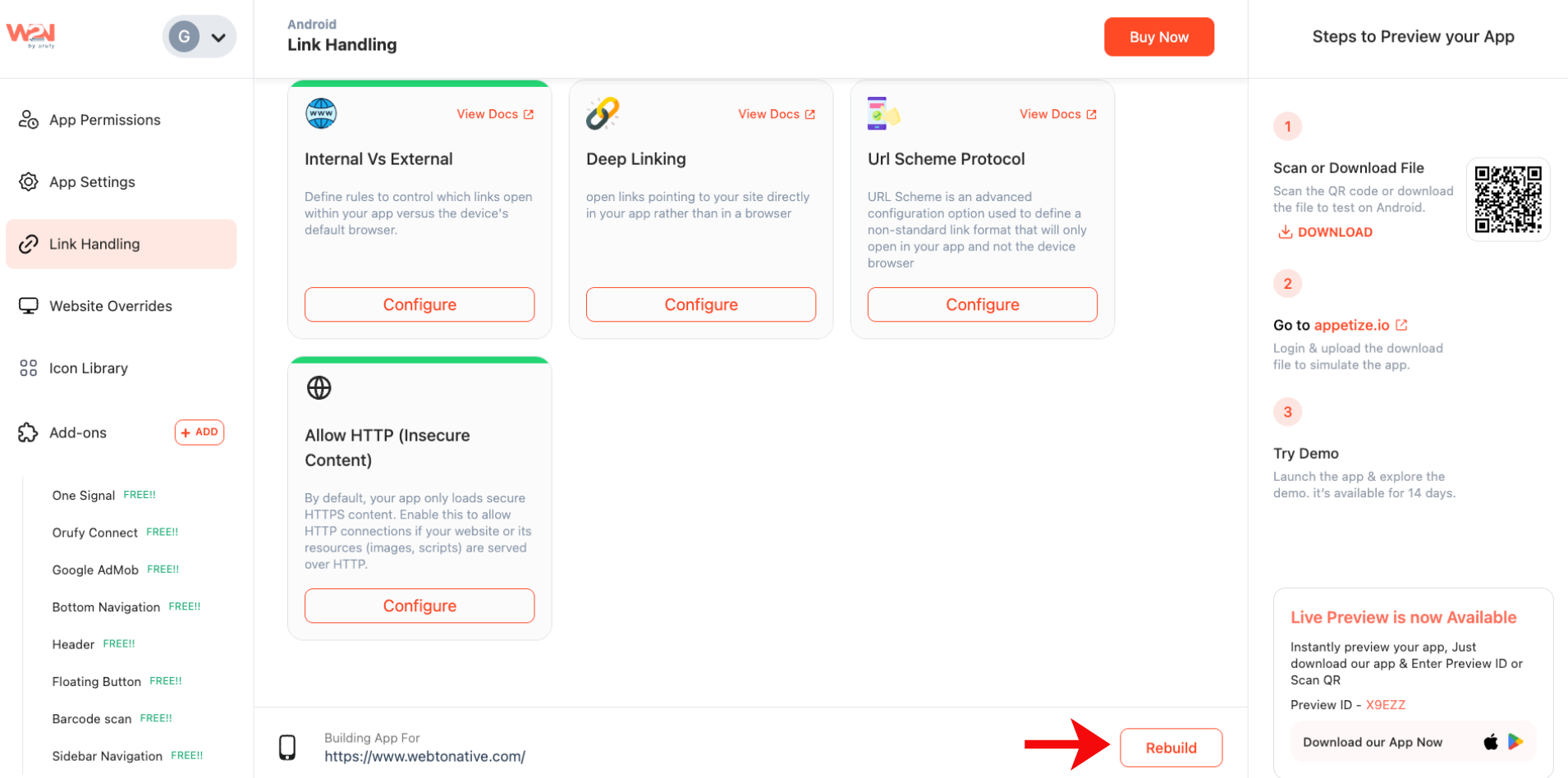
Click on “Rebuild, then publish the updated build.
When Should You Enable Allow HTTP?
Enable this setting when:
-
Your site still uses HTTP instead of HTTPS.
-
Your site is mostly HTTPS, but some resources are from HTTP URLs.
-
Inside your app, there are blank screens, missing images, or layouts that display incorrectly.
Important Things to Consider
-
HTTP connections are not secure, so transferring data over HTTP can be intercepted.
-
We strongly recommend upgrading your website to HTTPS rather than relying on this setting. Also, many web hosts offer free SSL certificates.
-
This setting only works when you submit a new app build
-
After moving your site fully to HTTPS, you can turn this setting OFF, rebuild the app to apply the change.


