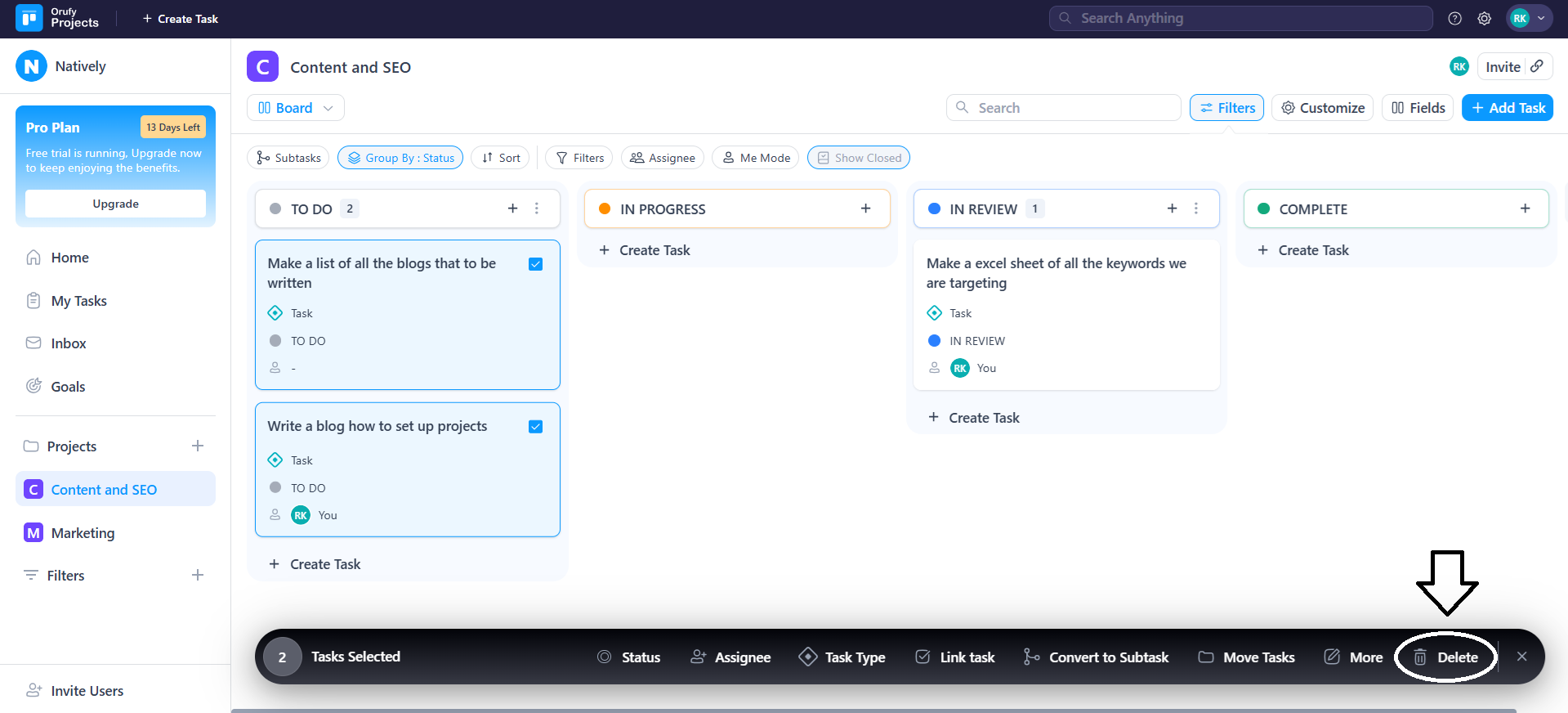
Bulk Actions allows to manage multiple tasks at once. It helps saveIn time and effort when working with large task lists.
Selecting Multiple Tasks
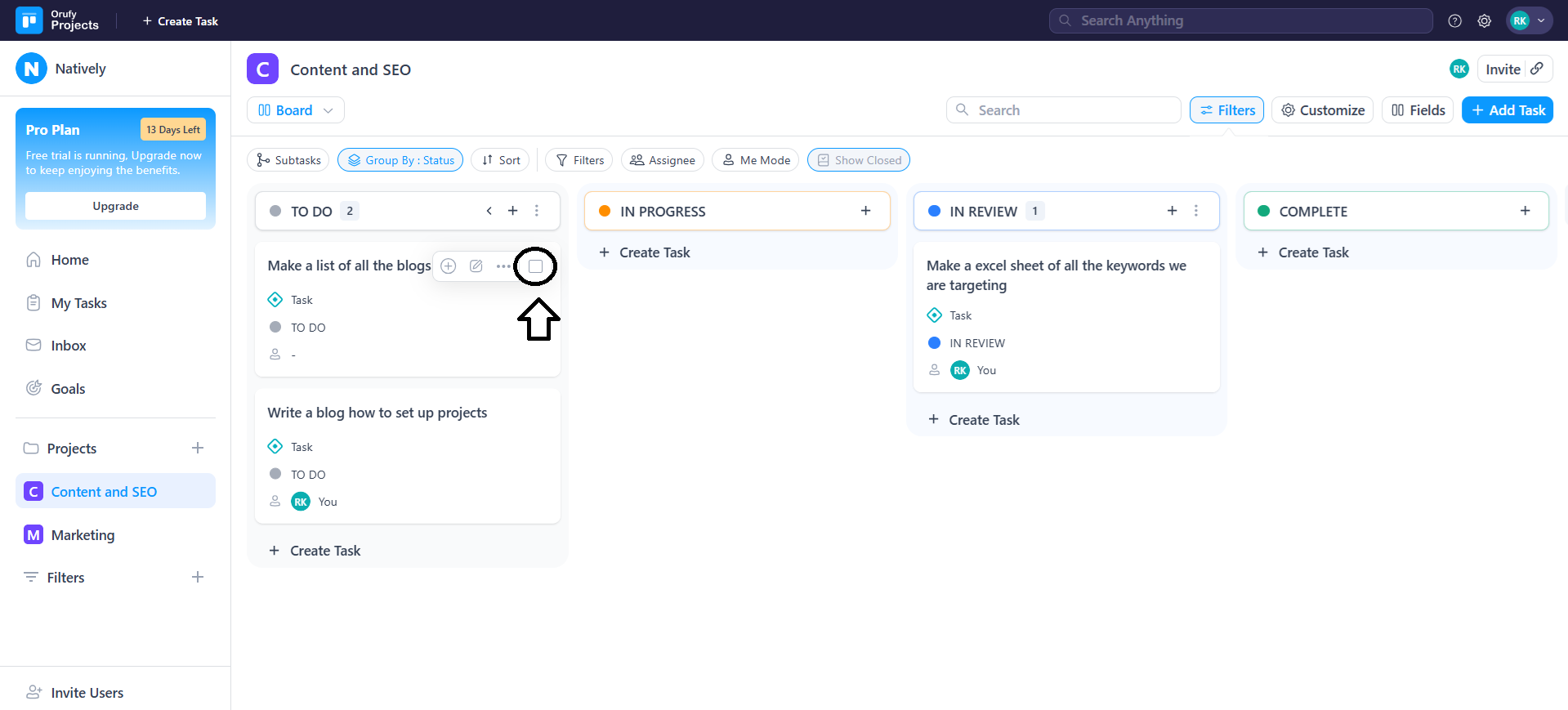
1. Board View
-
You can select from the Group By category column for which category you want to perform the bulk action.
-
Now, click on More Options at the top of the column.
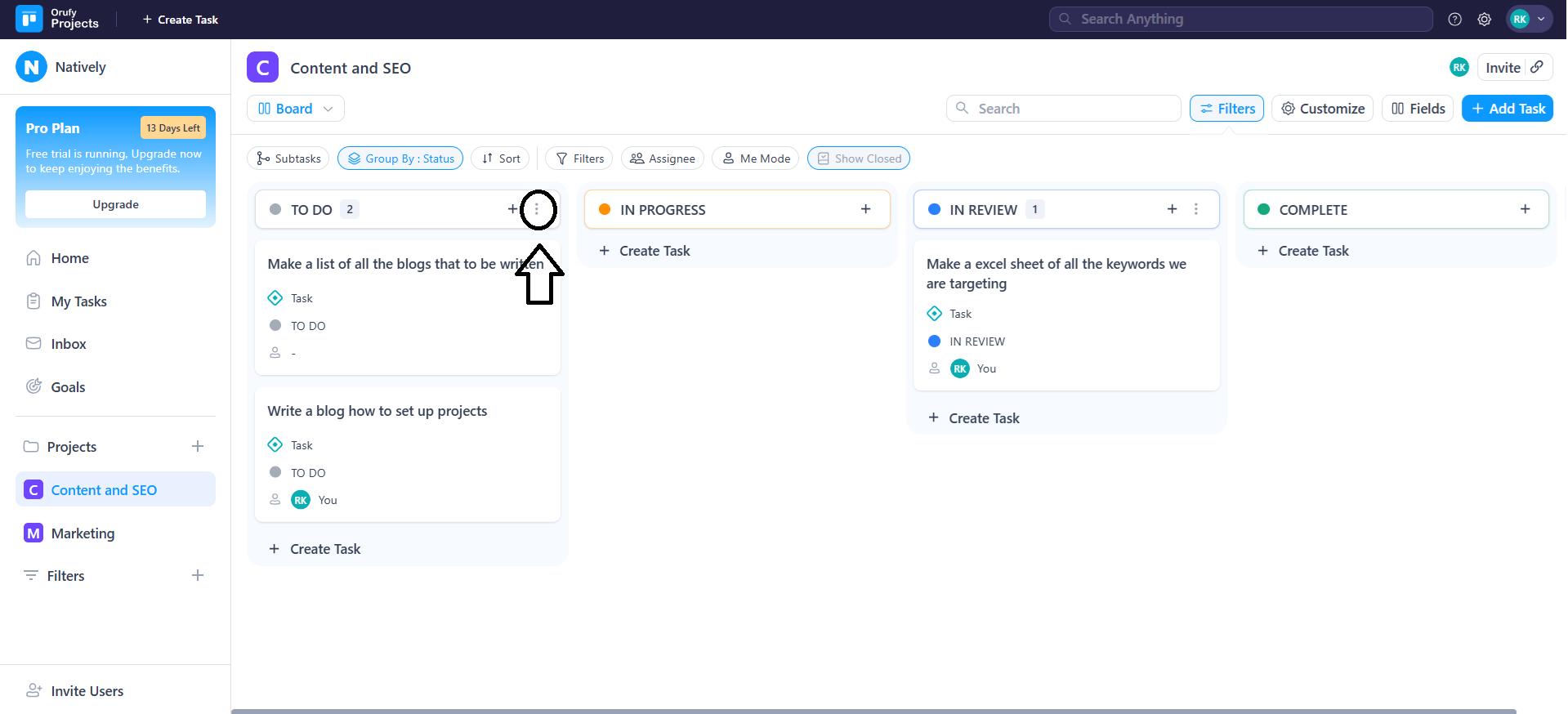
- Select from the two options:
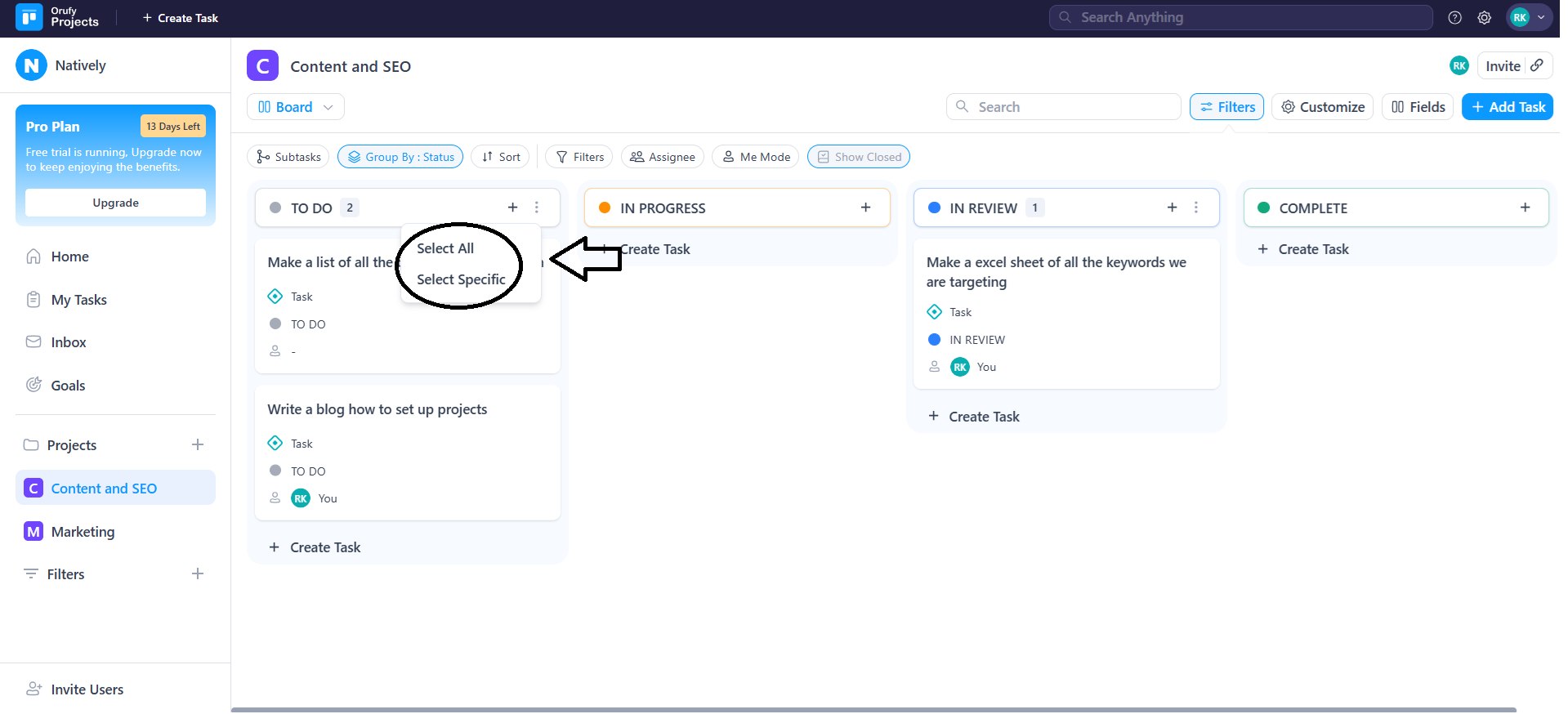
1. Select All
2. Select Specific
- As clicked on Select All, every task in that column is selected automatically.
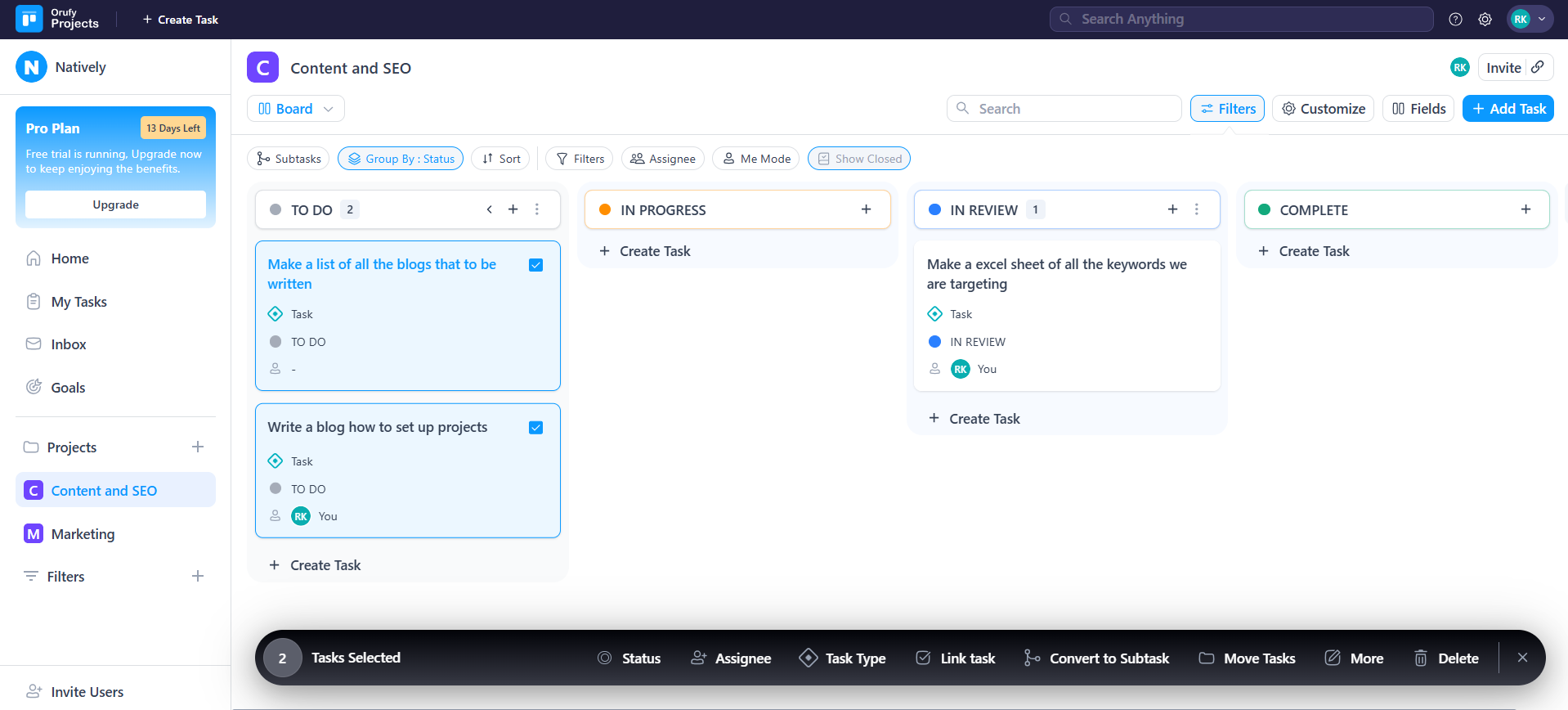
- As clicked on Select Specific, you have to manually select the tasks in that column from the checkbox.
2. List View
-
You can select from the Group By category column for which category you want to perform the bulk action.
-
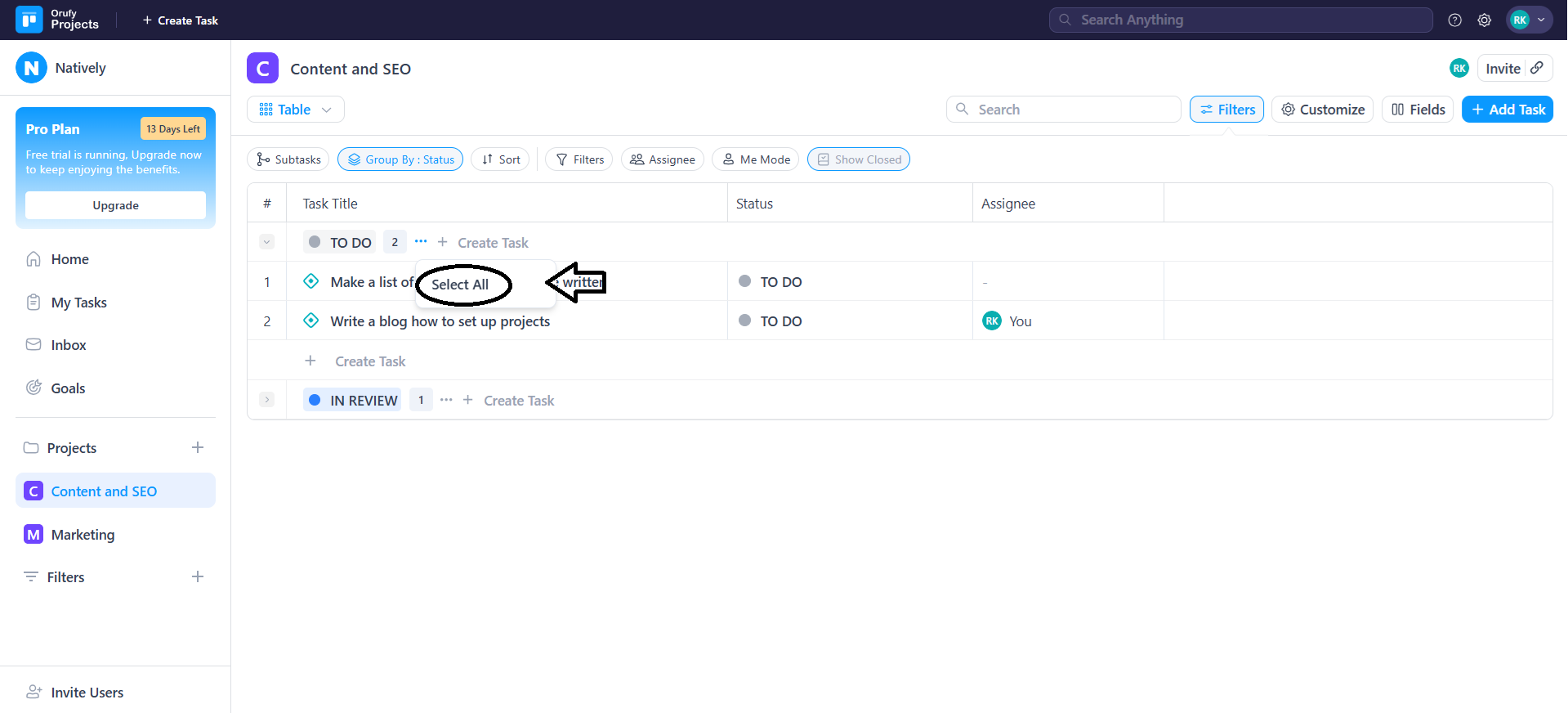
Click on More Options next to the column name.
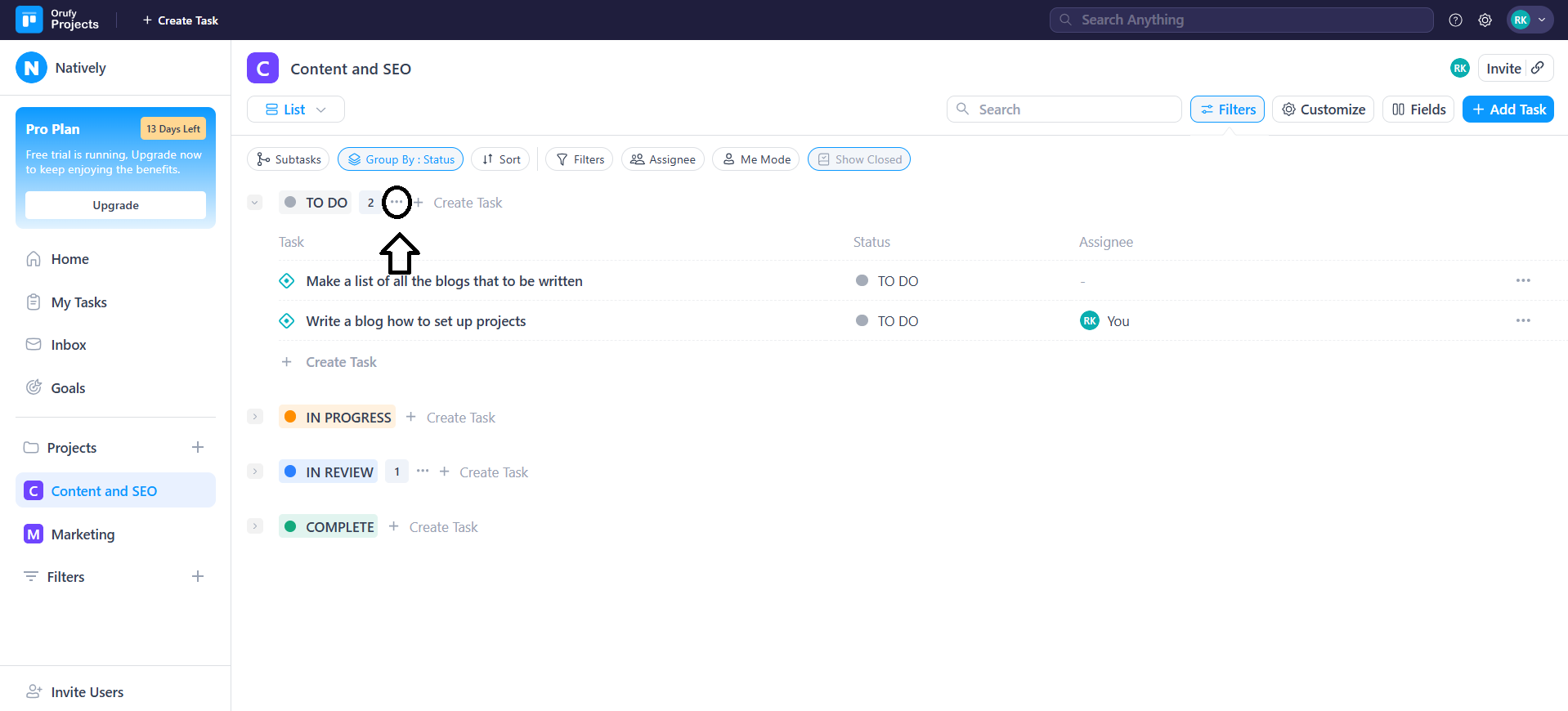
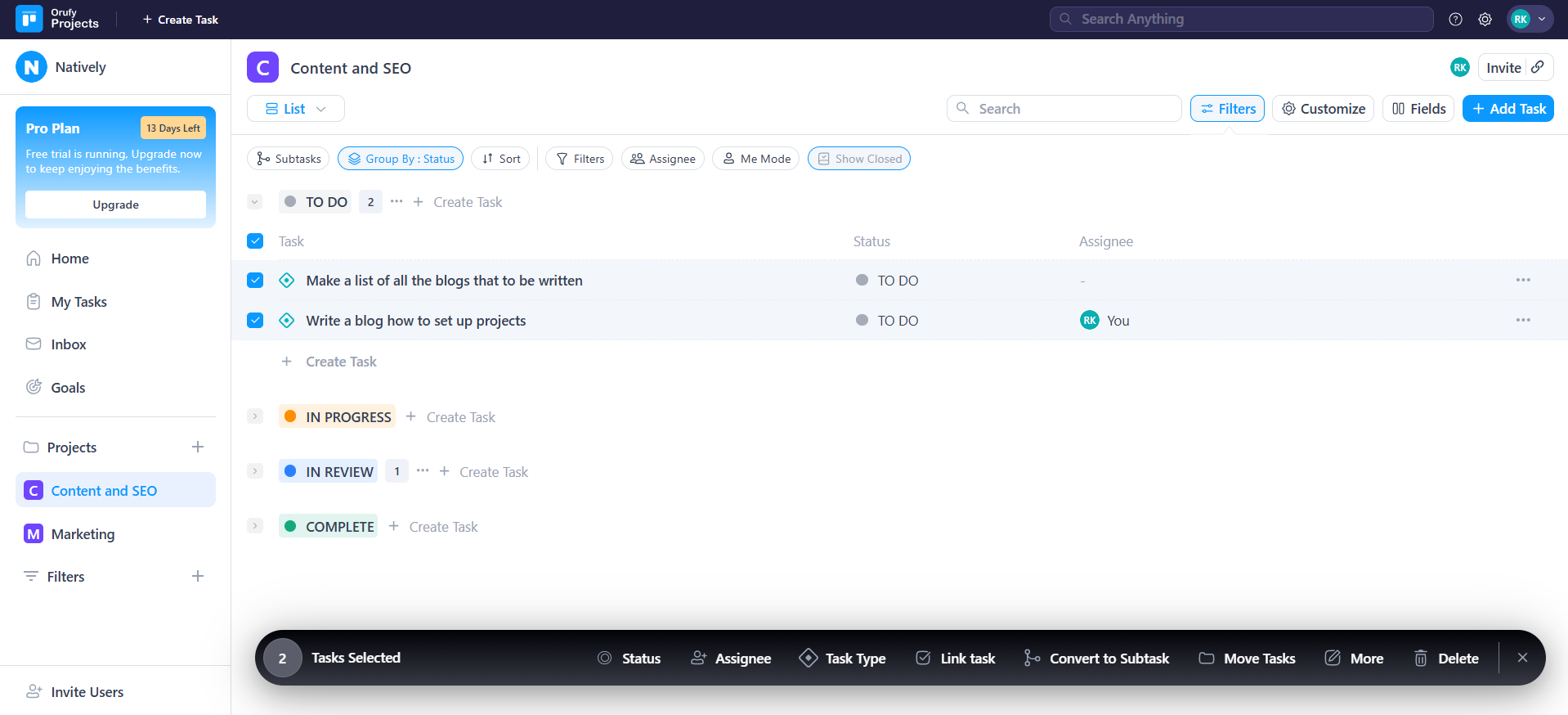
- As you click on Select All, every task in that column will be selected automatically.
3. Table View
-
You can select from the Group By category column for which category you want to perform the bulk action.
-
Click on More Options next to the column name.
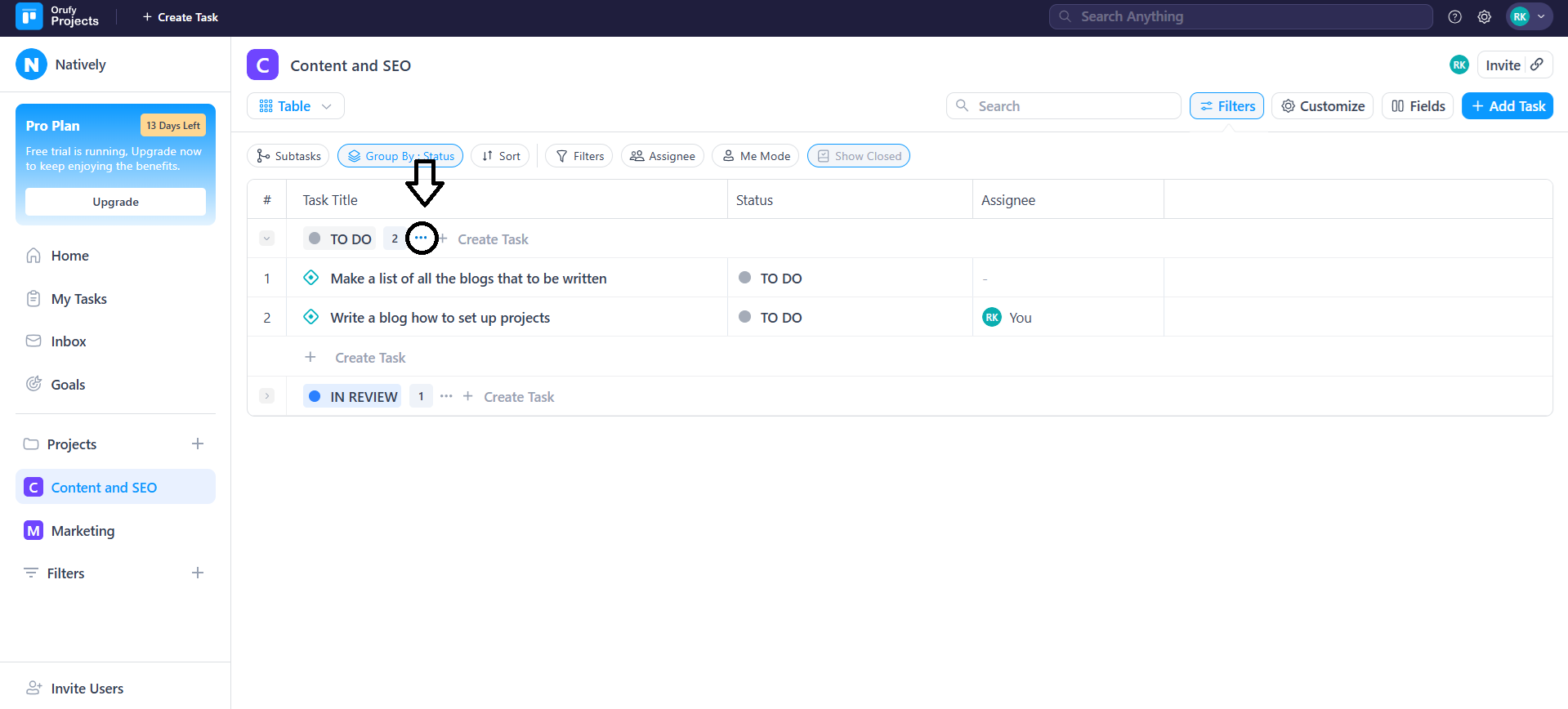
- As you click on Select All, every task in that column will be selected automatically.
Bulk Actions
1. Status
You can change the status of all the selected tasks at once.
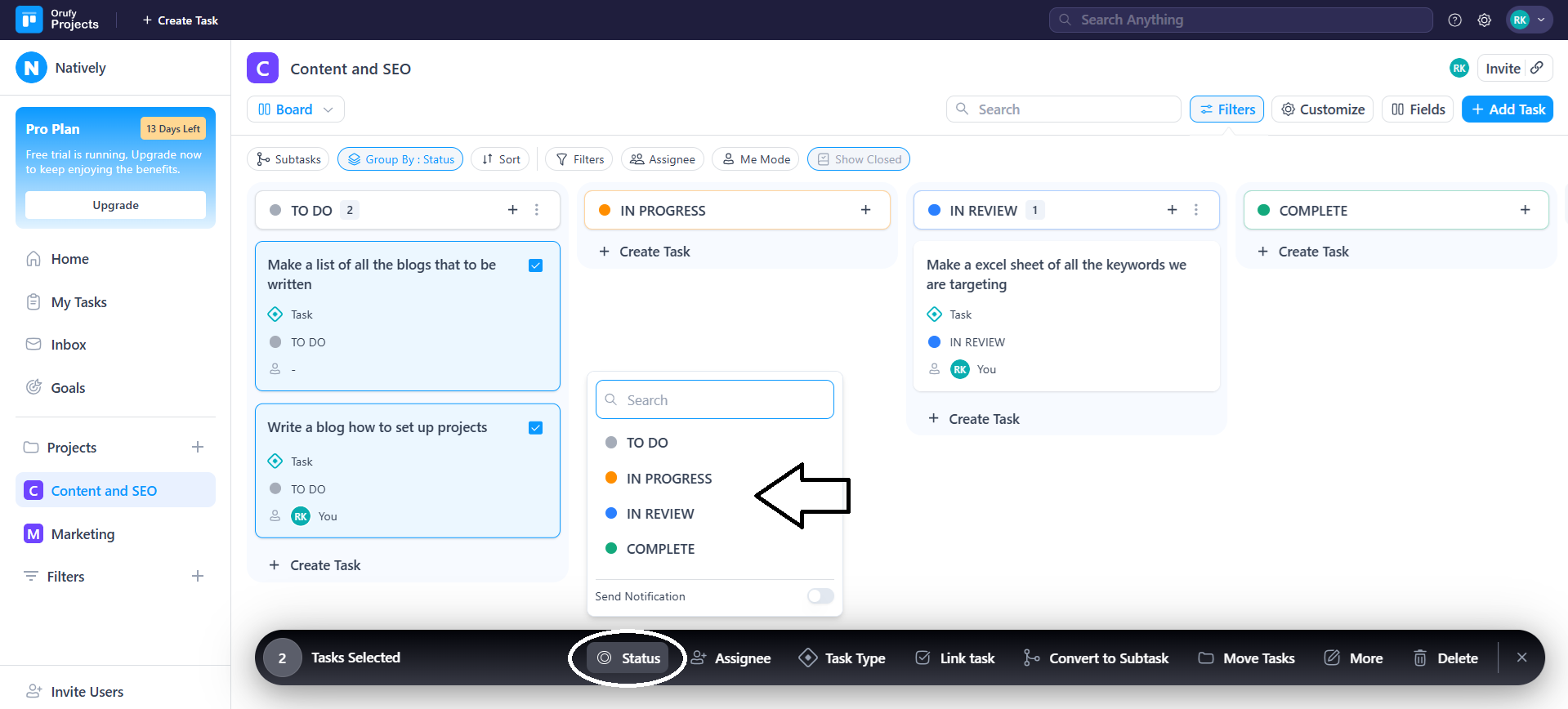
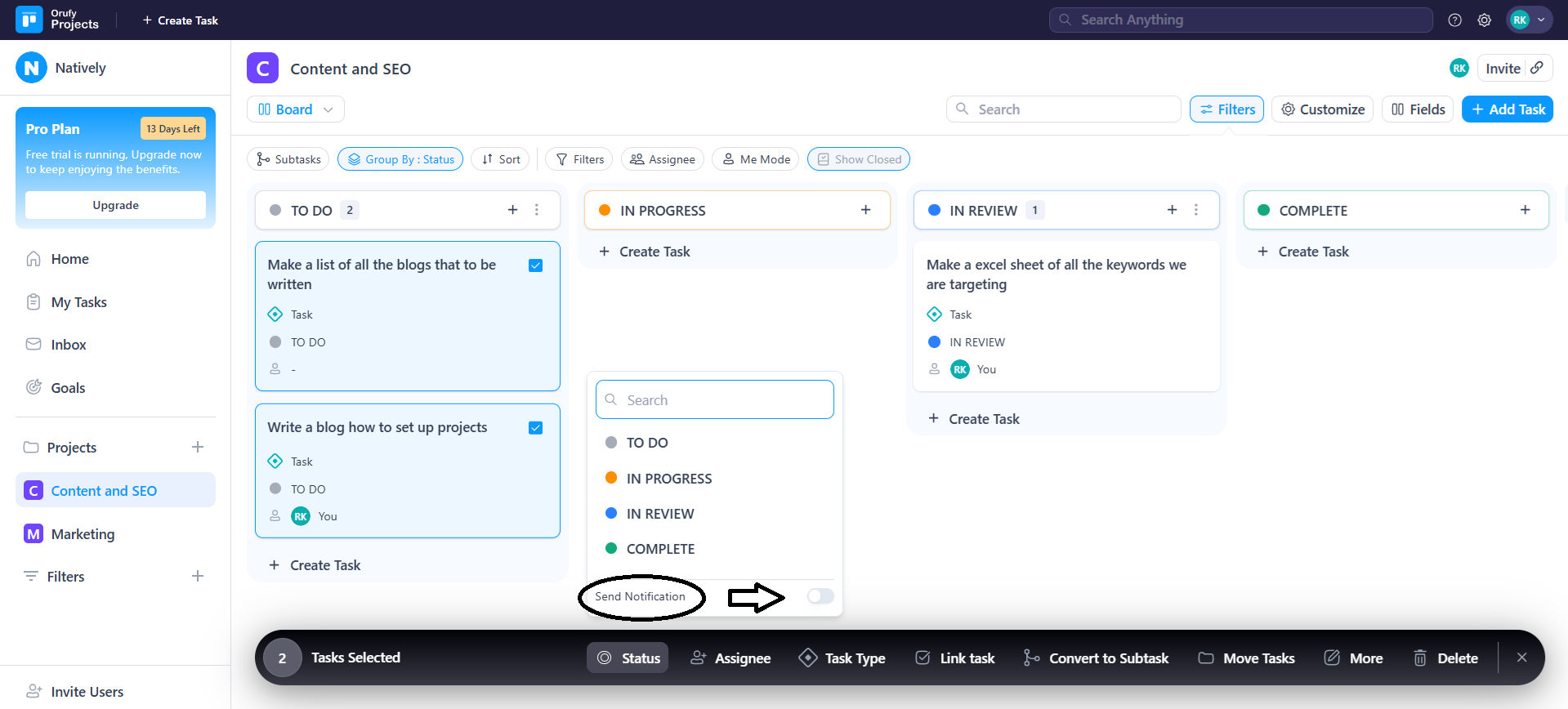
You can also toggle the Notification option as enabled or disabled to send notifications for status changes.
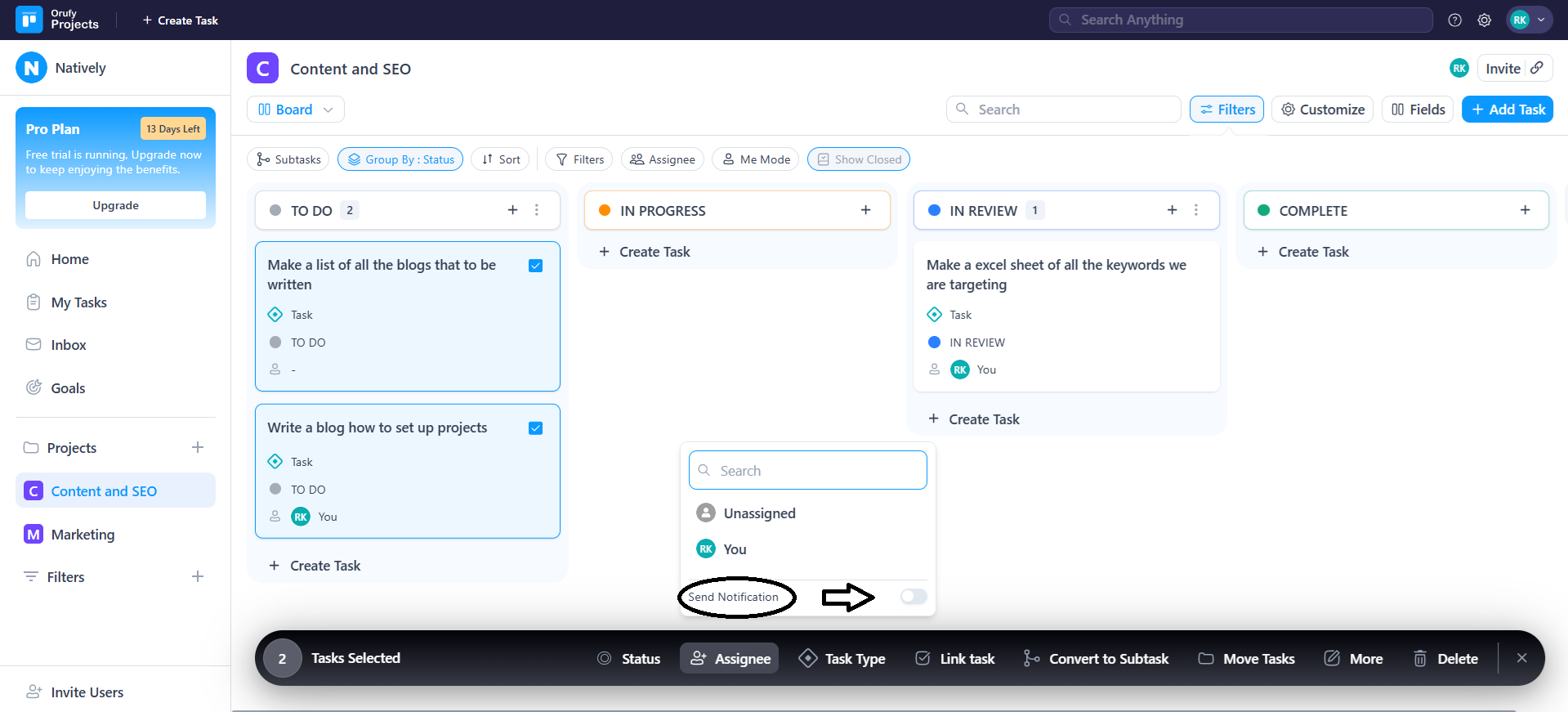
2. Assignee
You can change the assignee for the selected tasks. Or, assign the assignee for the selected tasks at once.
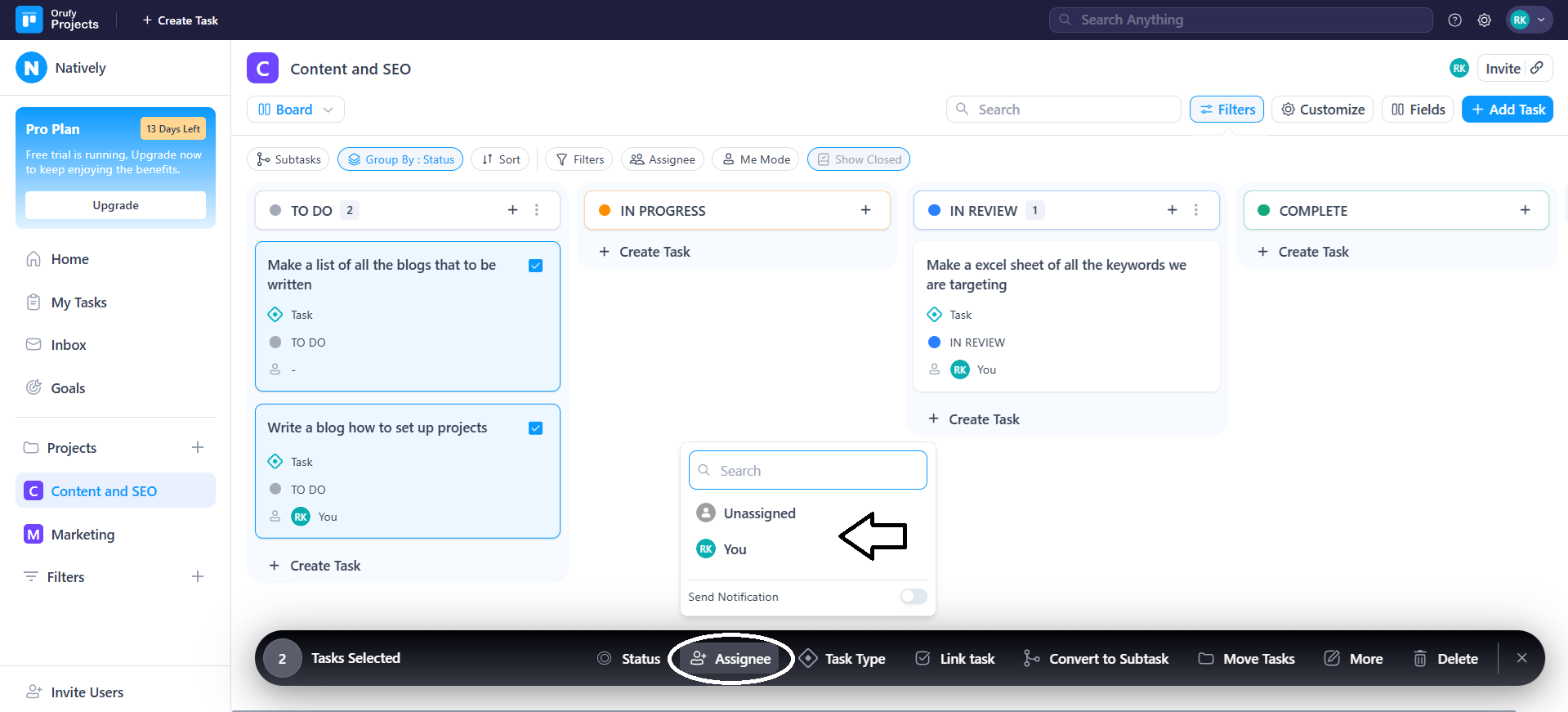
You can also toggle the Notification option as enabled or disabled to send notifications for the changes.
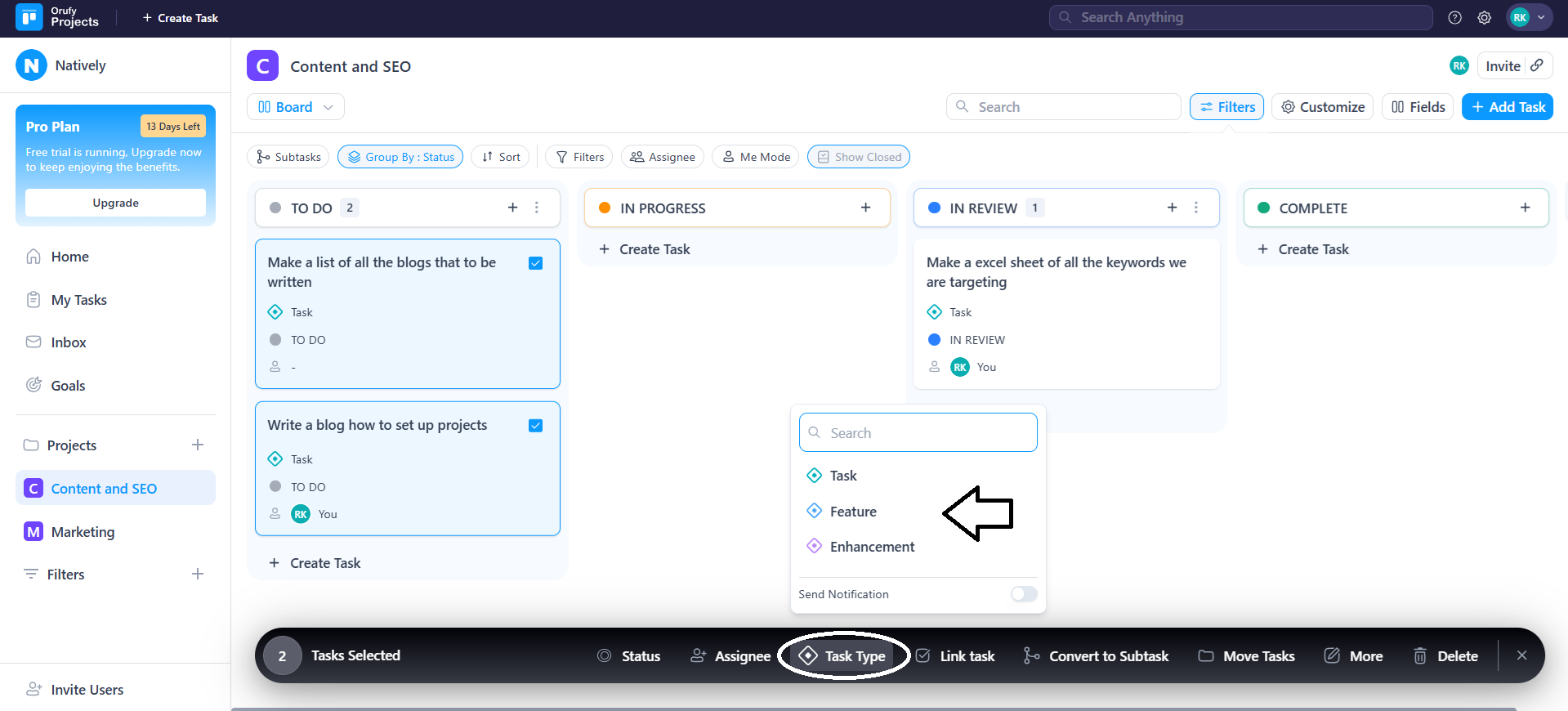
3. Task Type
You can change the task type of the selected tasks.
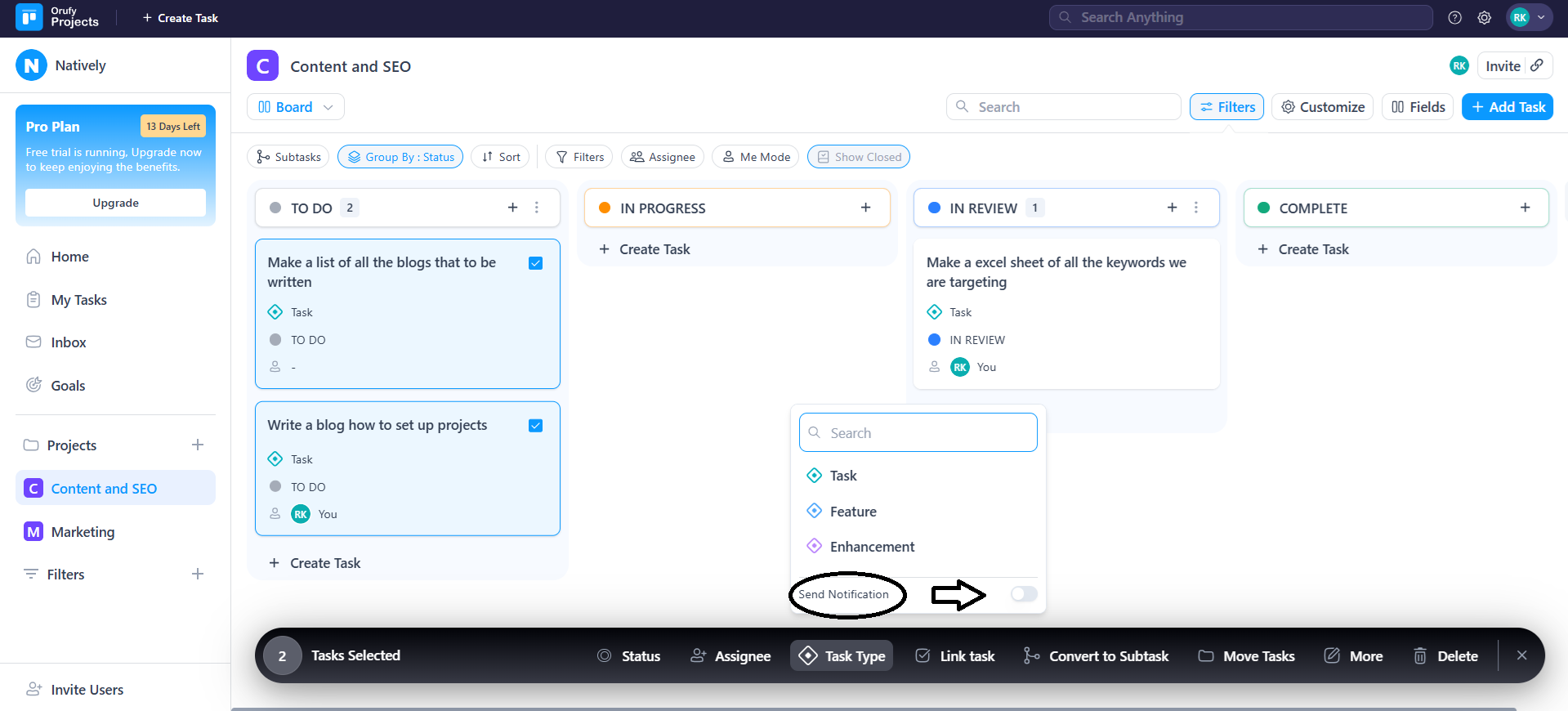
You can also toggle the Notification option as enabled or disabled to send notifications for the changes.
4. Link Task
You can link the selected tasks across all the tasks existing in different projects.
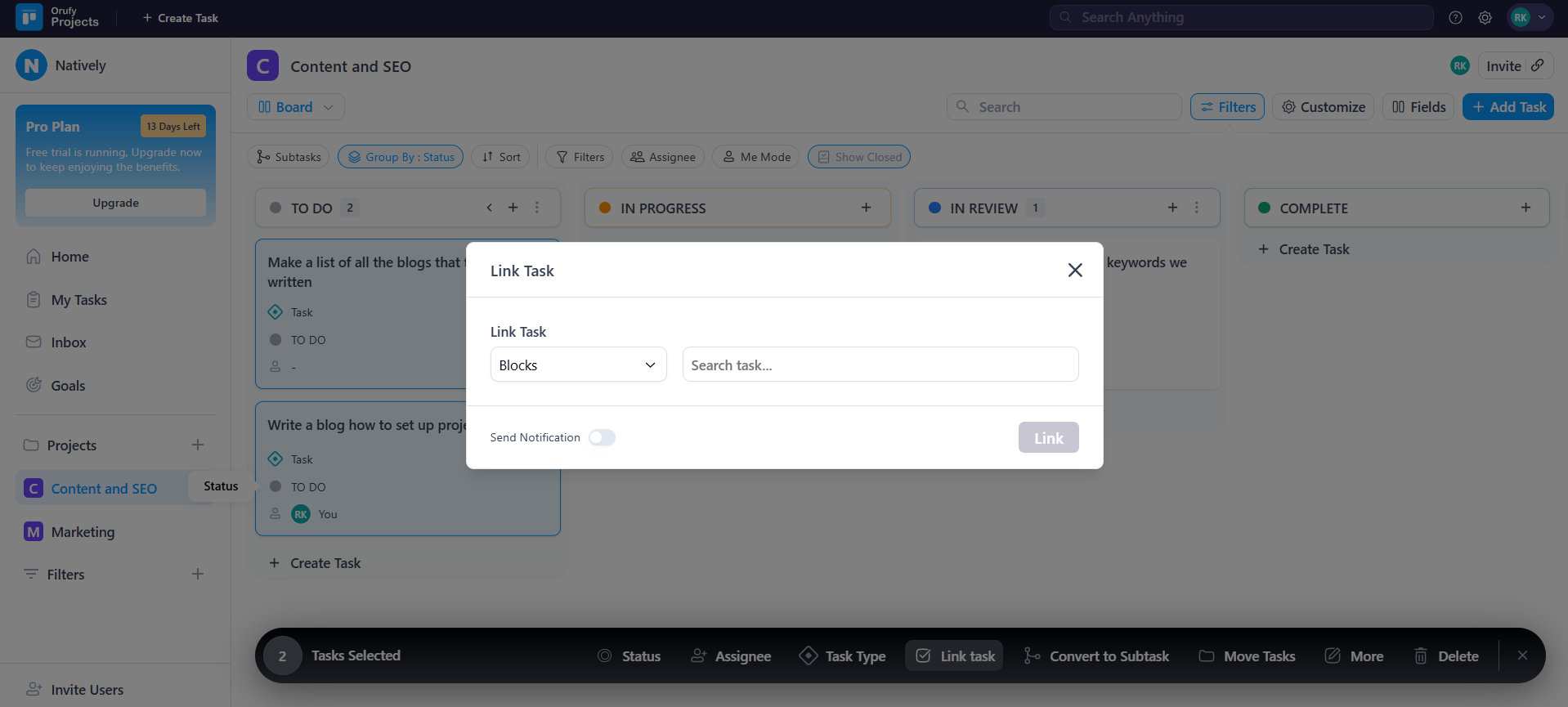
You can also toggle the Notification option as enabled or disabled to send notifications for the changes.
5. Convert to Subtask
You can convert the selected tasks into subtasks for the selected parent task.
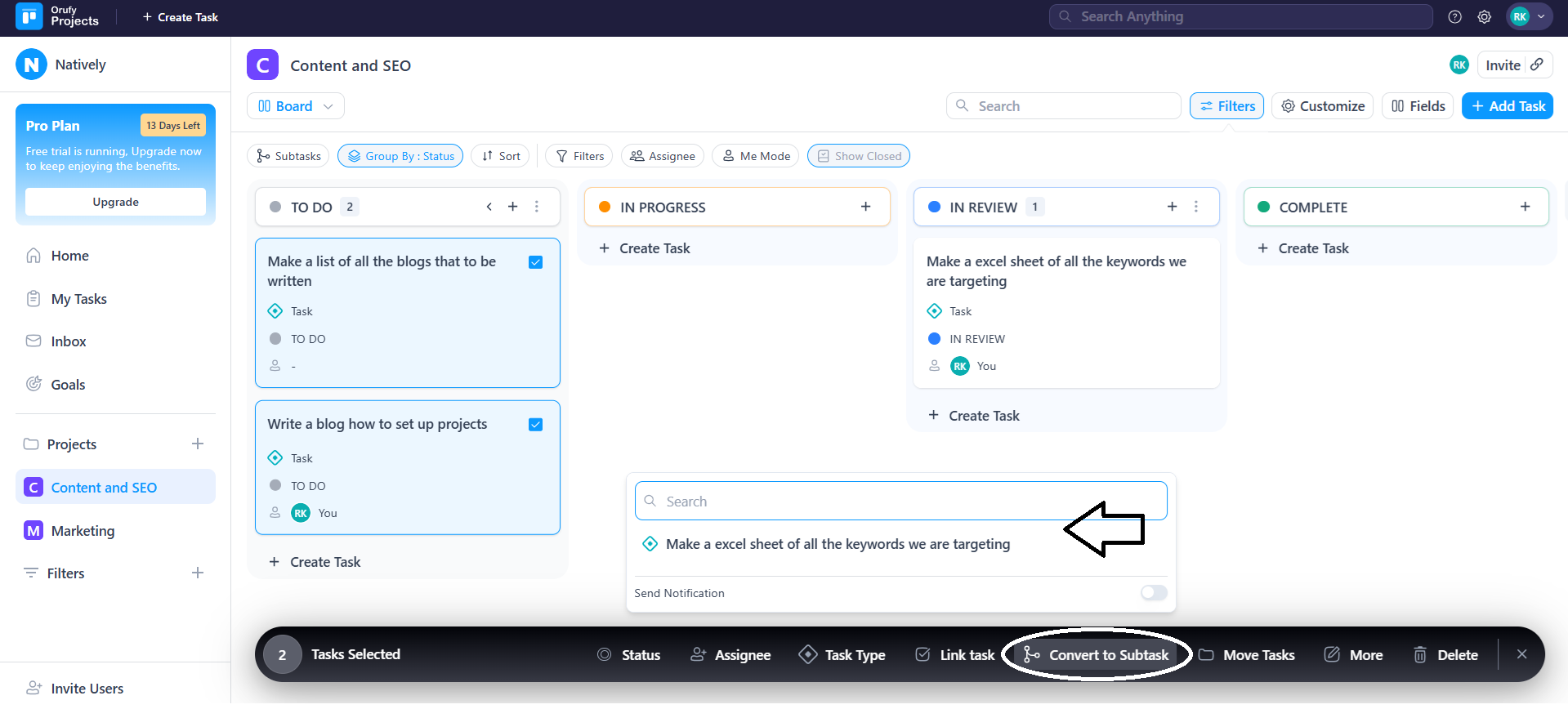
You can also toggle the Notification option as enabled or disabled to send notifications for the changes.
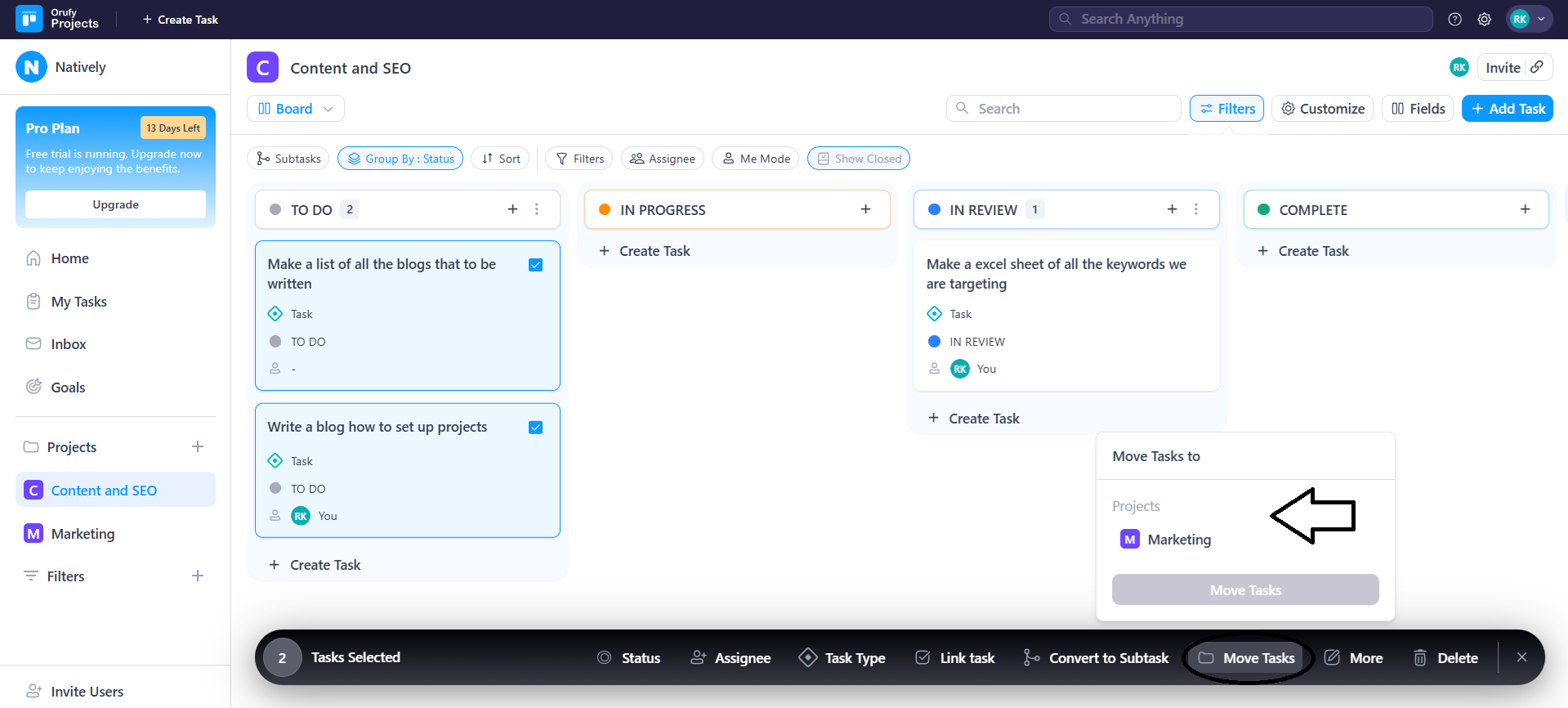
6. Move Tasks
The selected tasks will be moved to the selected existing project.
7. More
It has a few more actions, such as:
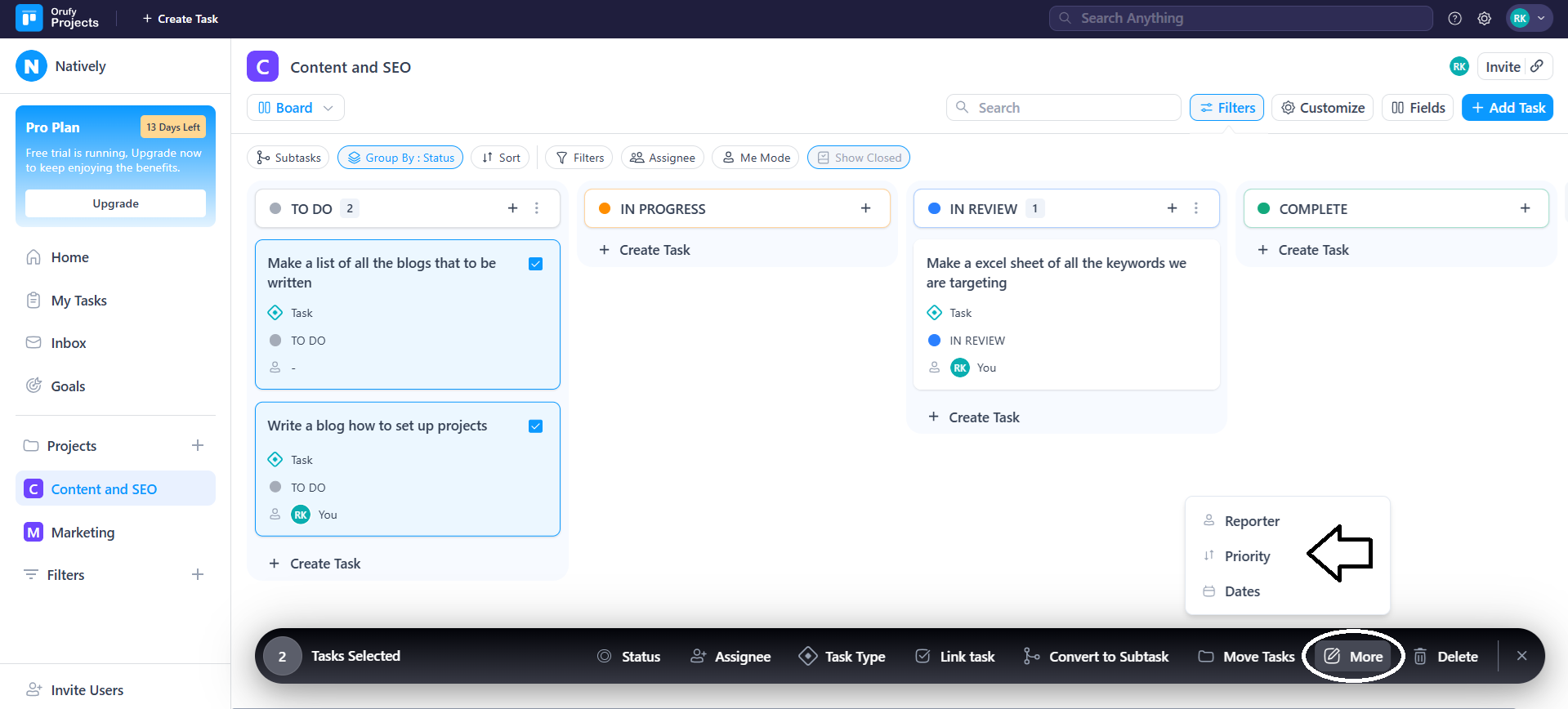
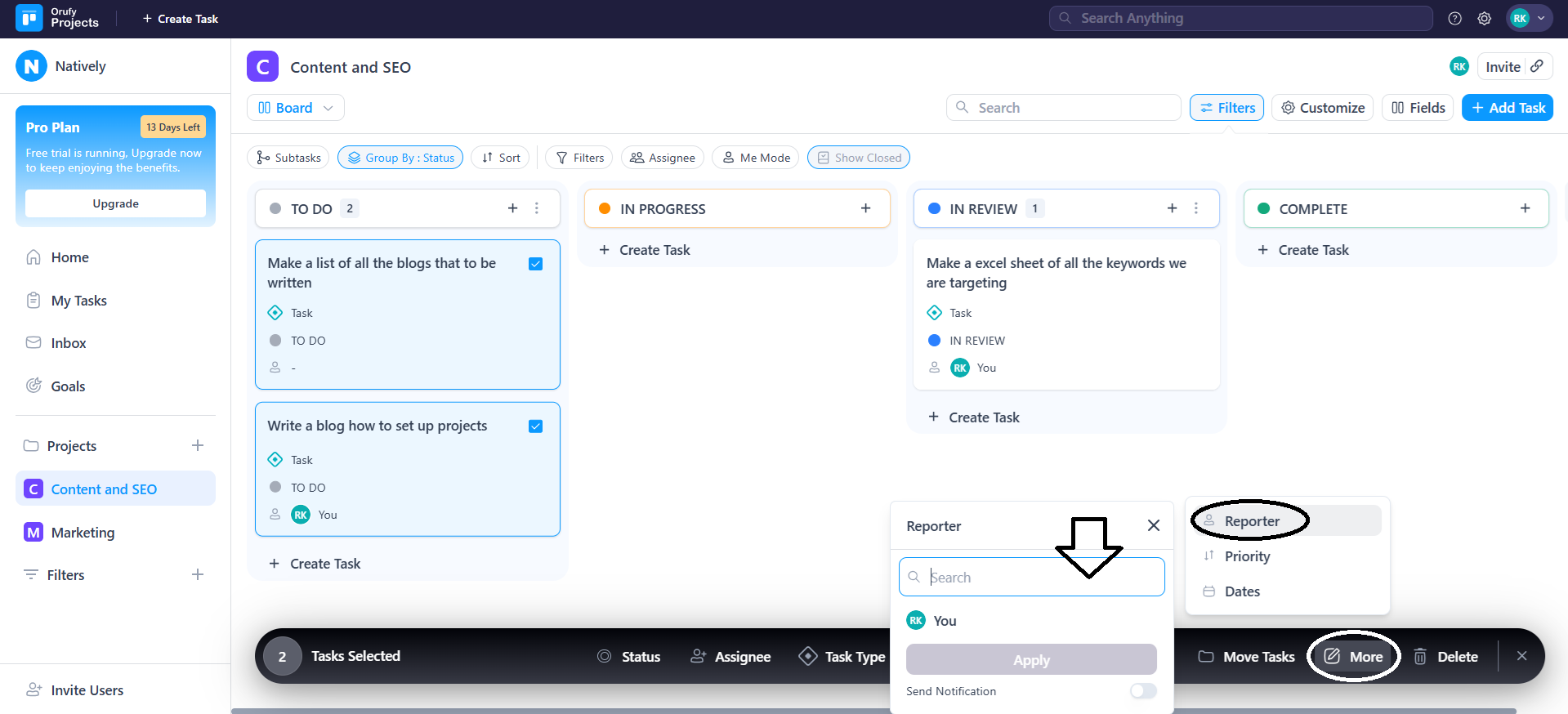
1. Reporter
You can change the reporter of the selected tasks.
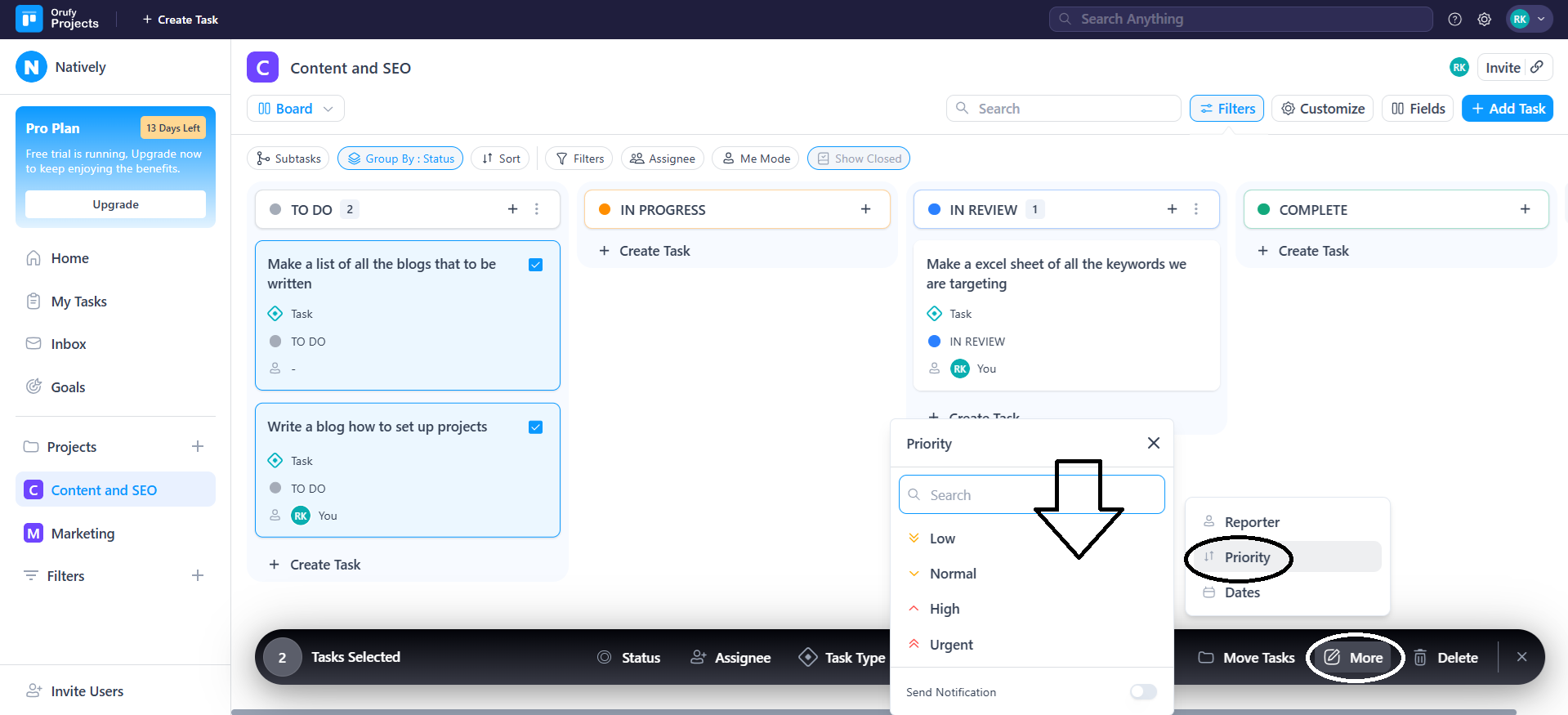
2. Priority
You can set or change the priority for the selected tasks.
3. Dates
You can set or change the start and due date for the selected tasks.
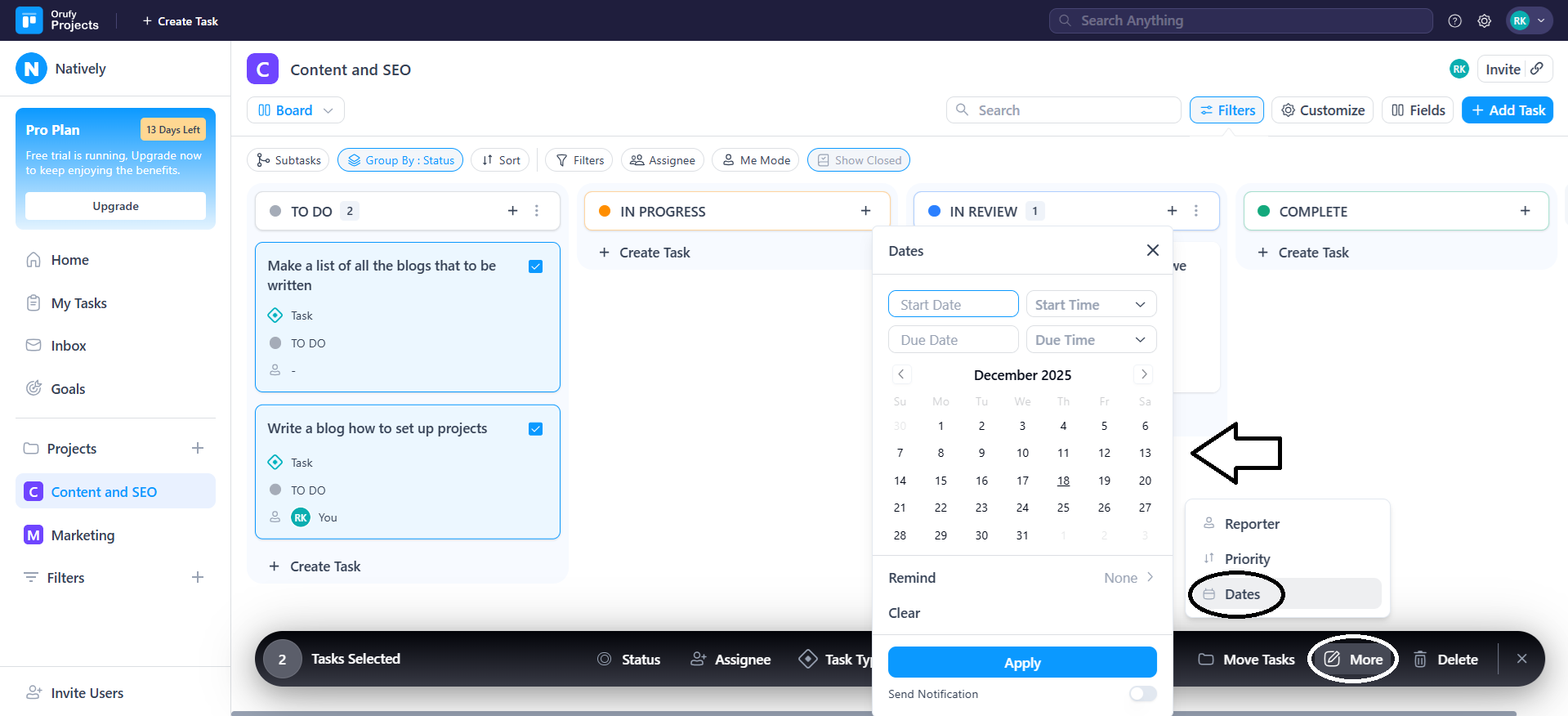
You can also toggle the Notification option as enabled or disabled to send notifications for the changes.
8. Delete
All the selected tasks will be deleted.