
The Personal GitHub connection is managed by individual users and is linked to their own GitHub account.
With Personal GitHub Connection, individual users can:
-
Create branches and pull requests directly from tasks
-
Manually add GitHub links to tasks
NOTE: Only the activities created from the project task are shown. Orufy Projects will track those activities, maintaining proper linking between activities and GitHub actions.
Personal GitHub Integration
It allows individual users to connect their own GitHub account with Orufy Projects. This integration is user-driven and focuses on task-level GitHub actions.
Configuration:
-
Any user from the workspace can connect their personal GitHub account.
-
Each connection is linked only to the user who sets it up.
-
Admin’s approval is not required in personal GitHub integration.
Step-by-Step Process to Connect Personal GitHub
Step 1: Go to Settings.
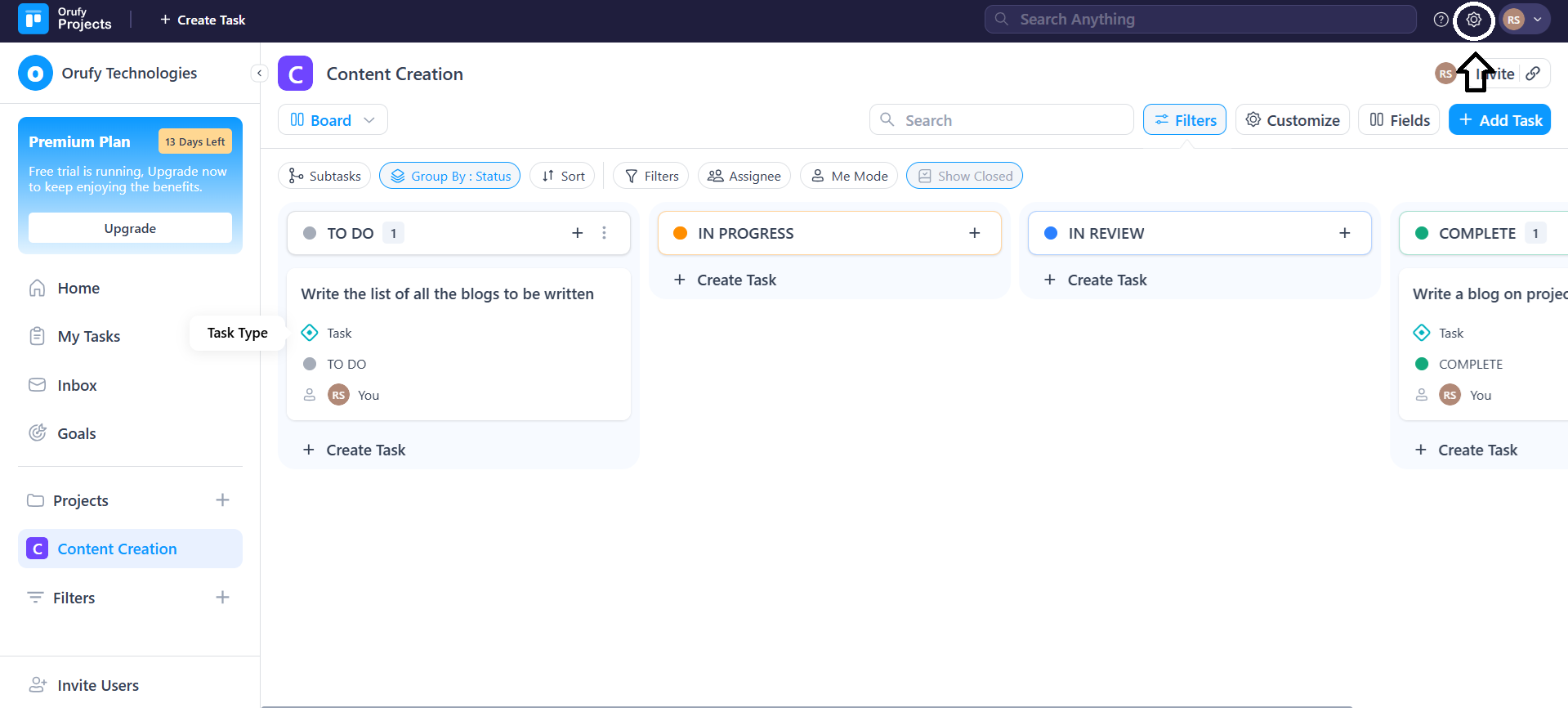
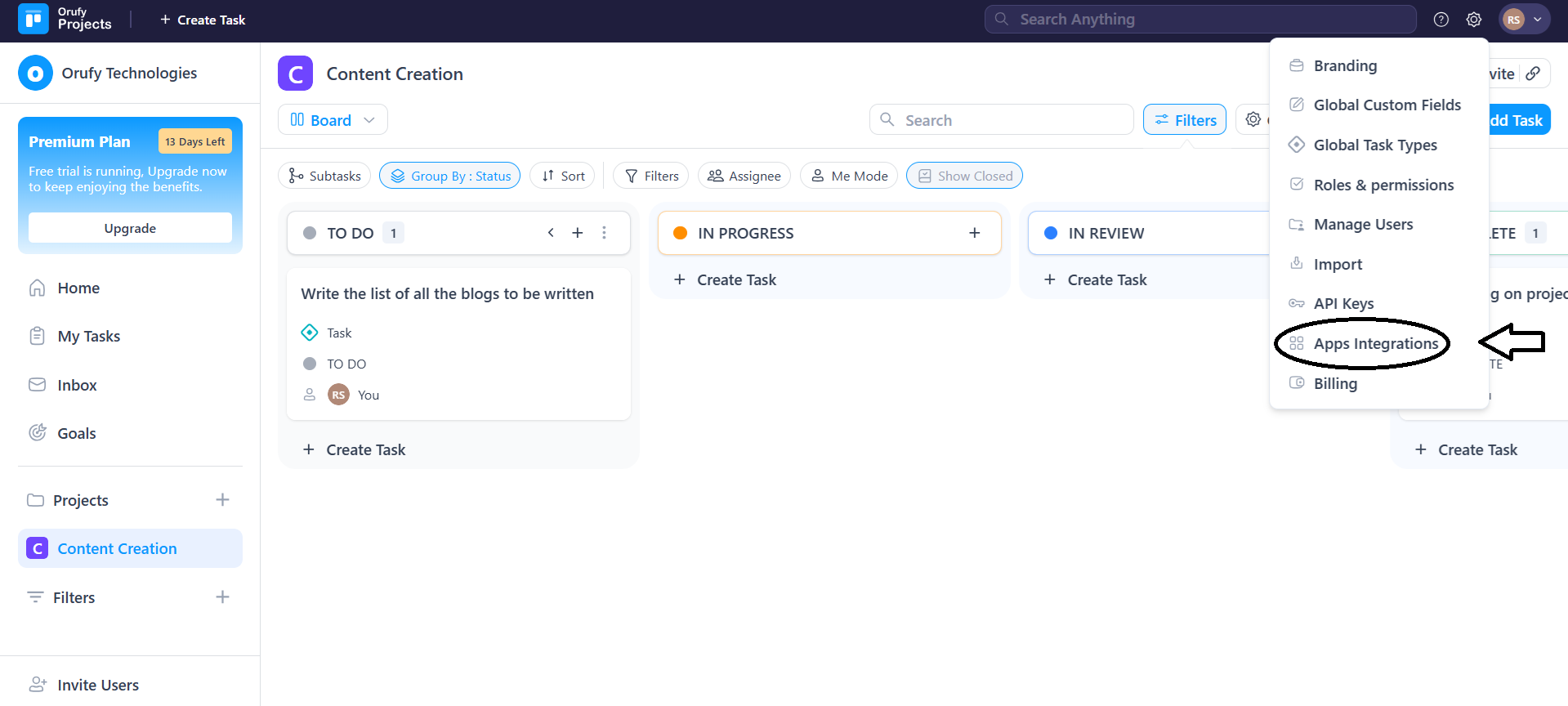
Step 2: Click on Apps Integrations
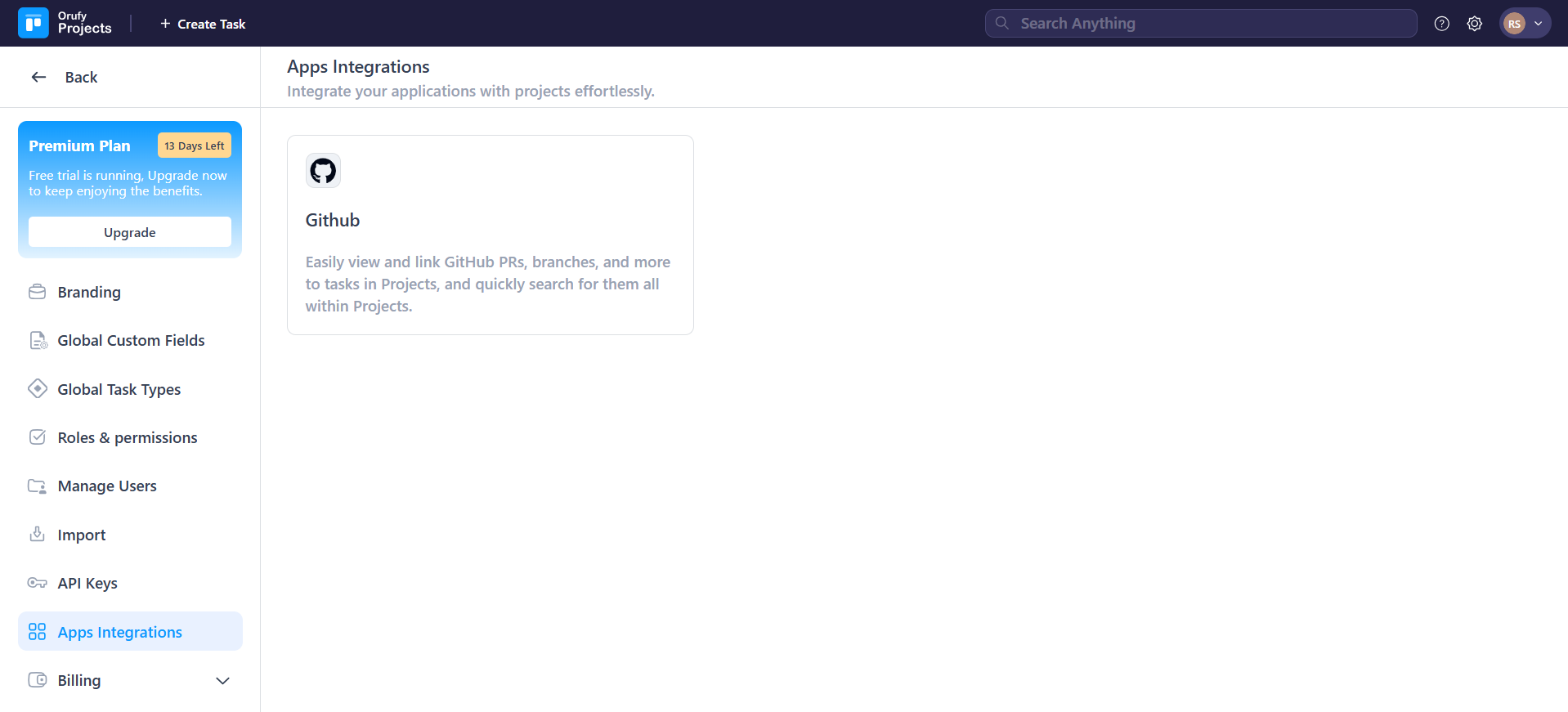
Step 3: Click on GitHub.
Step 4: From the GitHub integration settings, open the Personal tab.
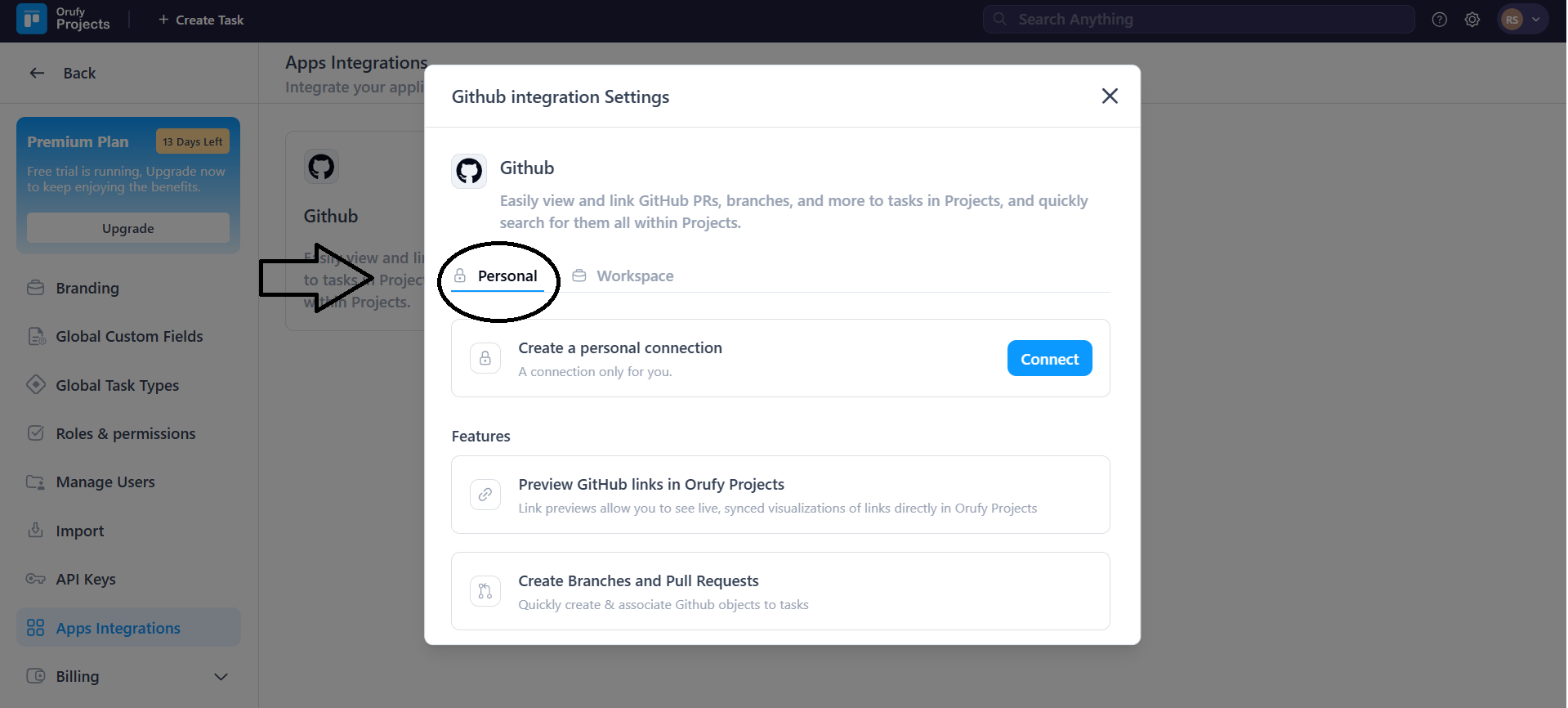
Step 5: Connect the personal with your GitHub account.
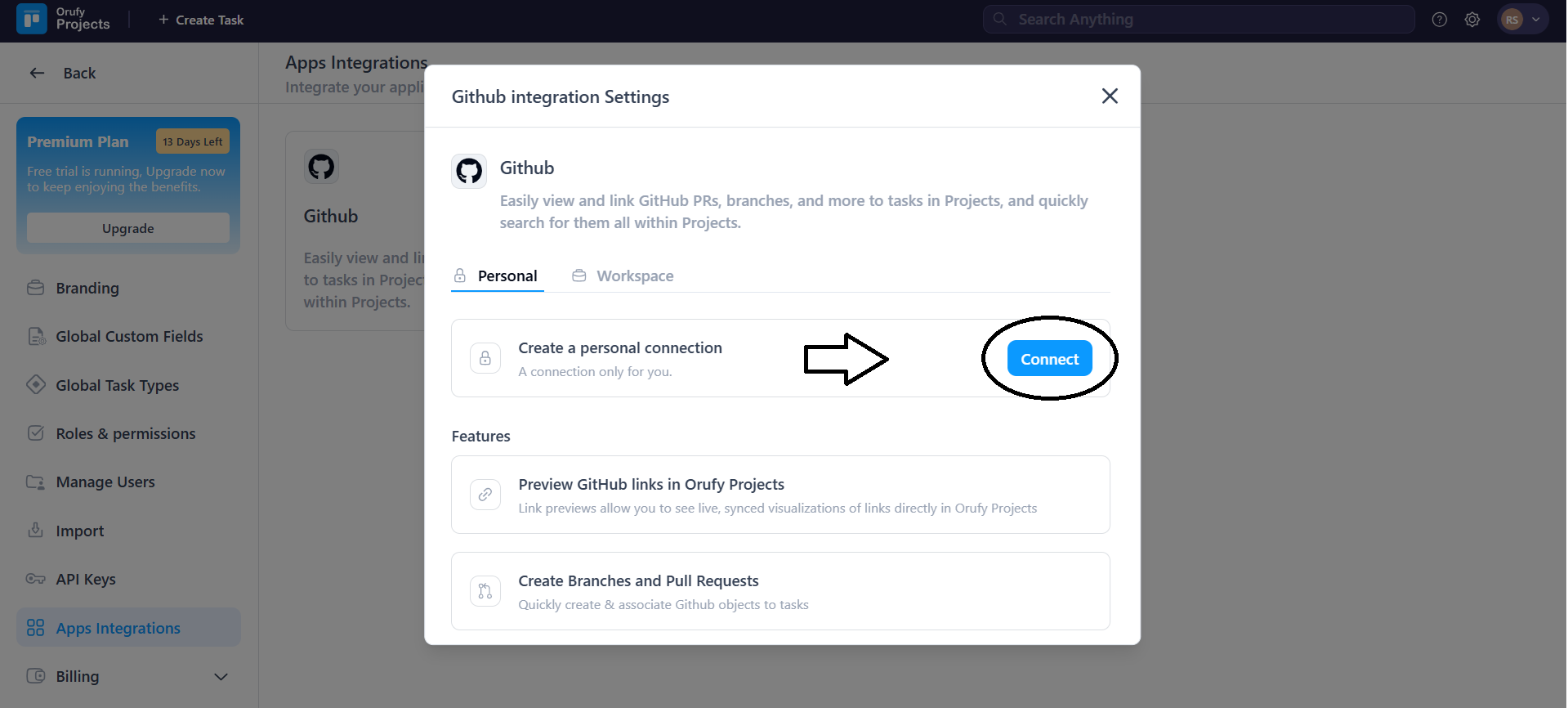
After successfully connecting your personal GitHub account to Orufy Projects.
The user can:
1. Add GitHub links manually to tasks
- Click on Add GitHub Link.
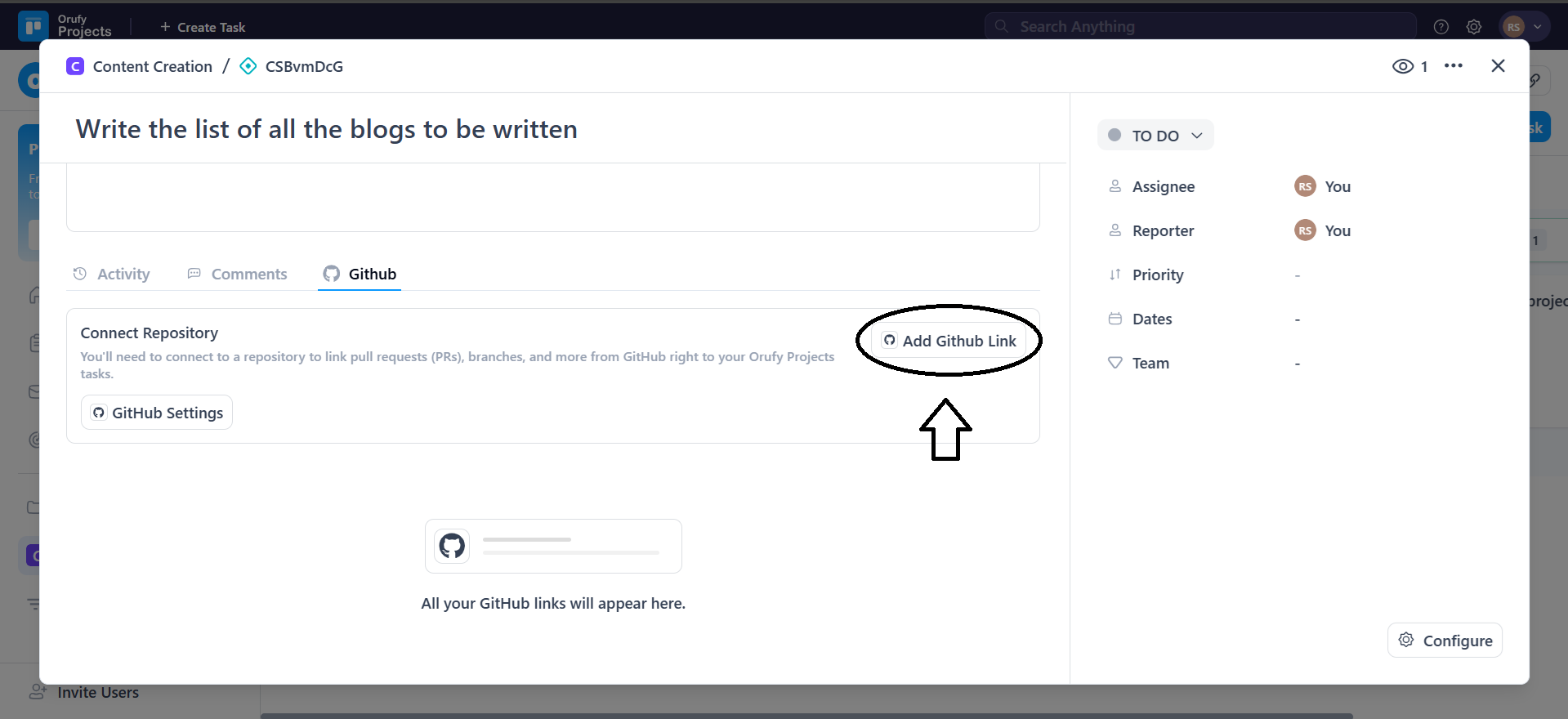
- You can paste the GitHub link into a task.
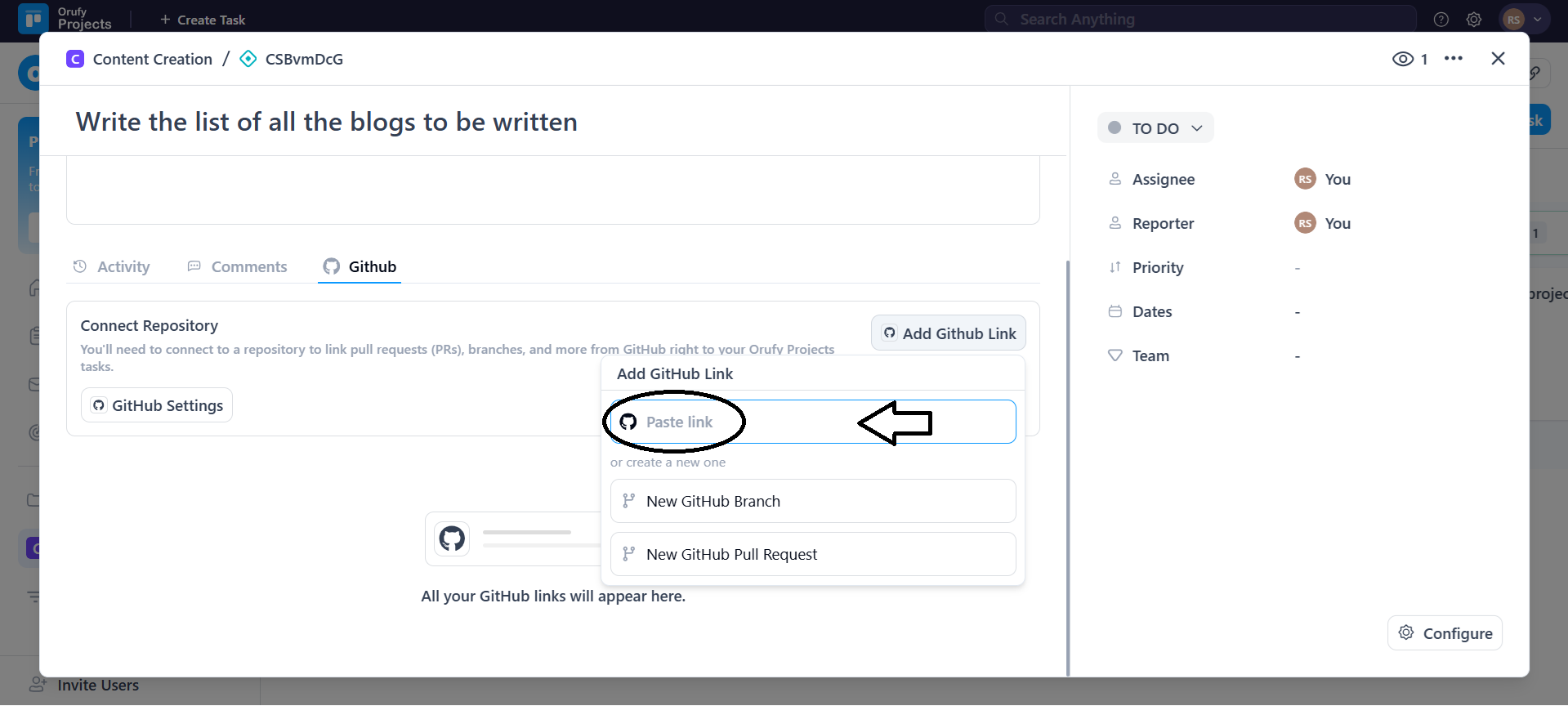
2. Create branches directly from tasks.
- Click on New GitHub Branch to create a new GitHub branch.

- Enter the details for Create New Github Branch.
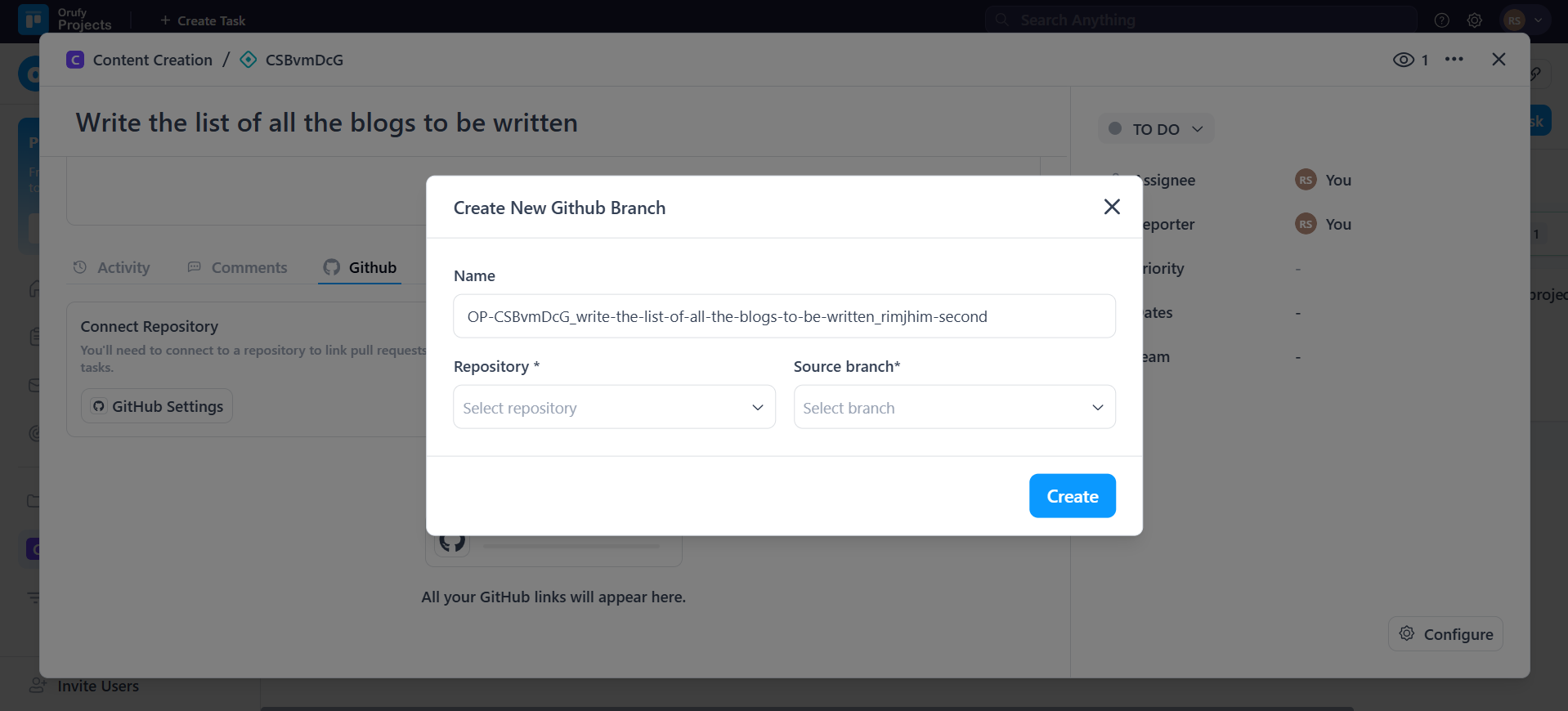
- Name: Enter the name for the new GitHub branch. By default, the name is given, but you can edit the name of the branch.
- Repository: Select the repository from the drop-down.
- Source branch: After selecting the repository, select the source branch from the drop-down.
3. Create a pull request directly from the task.
-
Click on New GitHub Pull Request to create a new pull request.
-
Enter the details for Create New GitHub Pull Request.
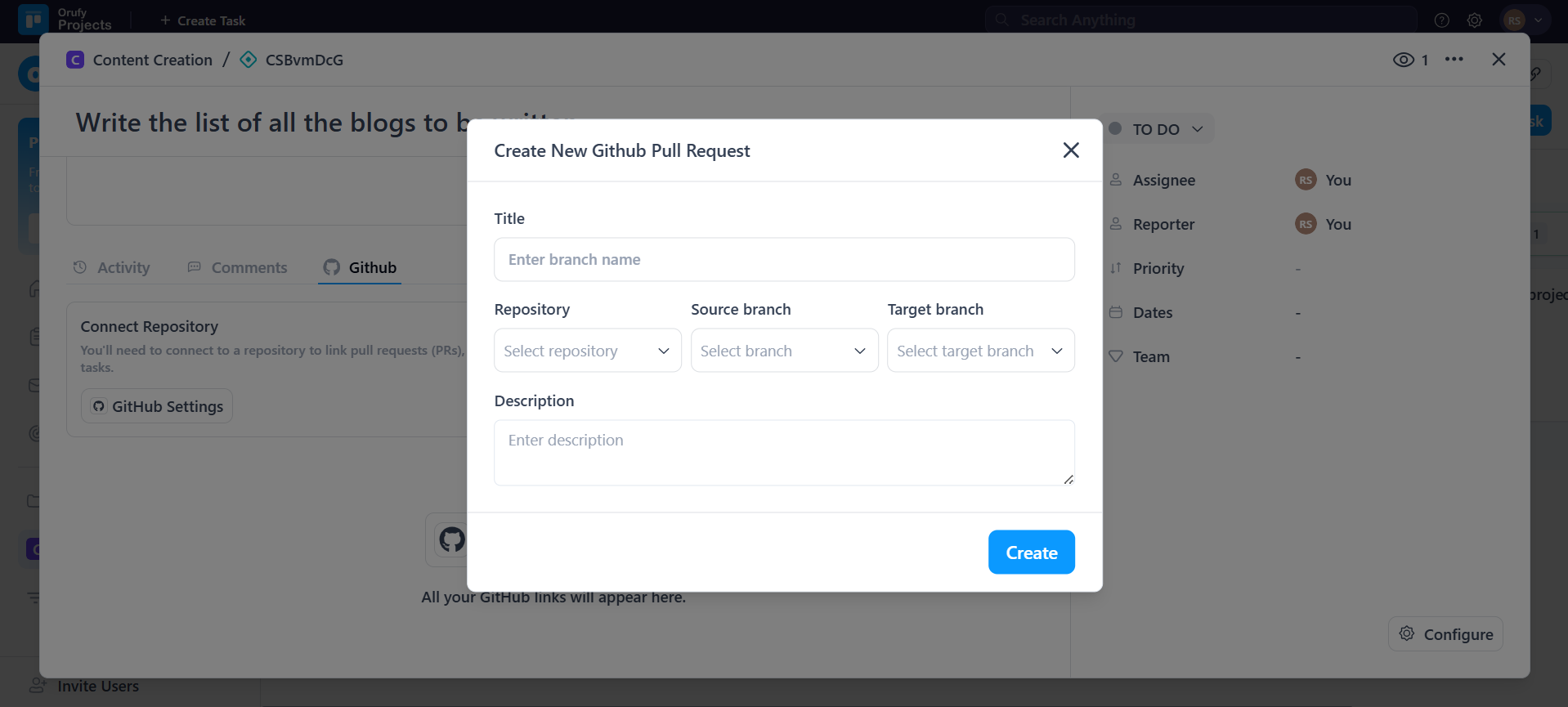
- Title: Enter the name for the branch.
- Repository: Select the repository from the drop-down list.
- Source branch: Select the branch source from the drop-down.
- Target branch: Select the target branch.
- Description: Write the description about the pull request.
Click on Create to save the details for the pull request.
NOTE: Github Settings—this button defines connecting to a repository to link pull requests (PRs), branches, and more from GitHub right to your Orufy Projects tasks.
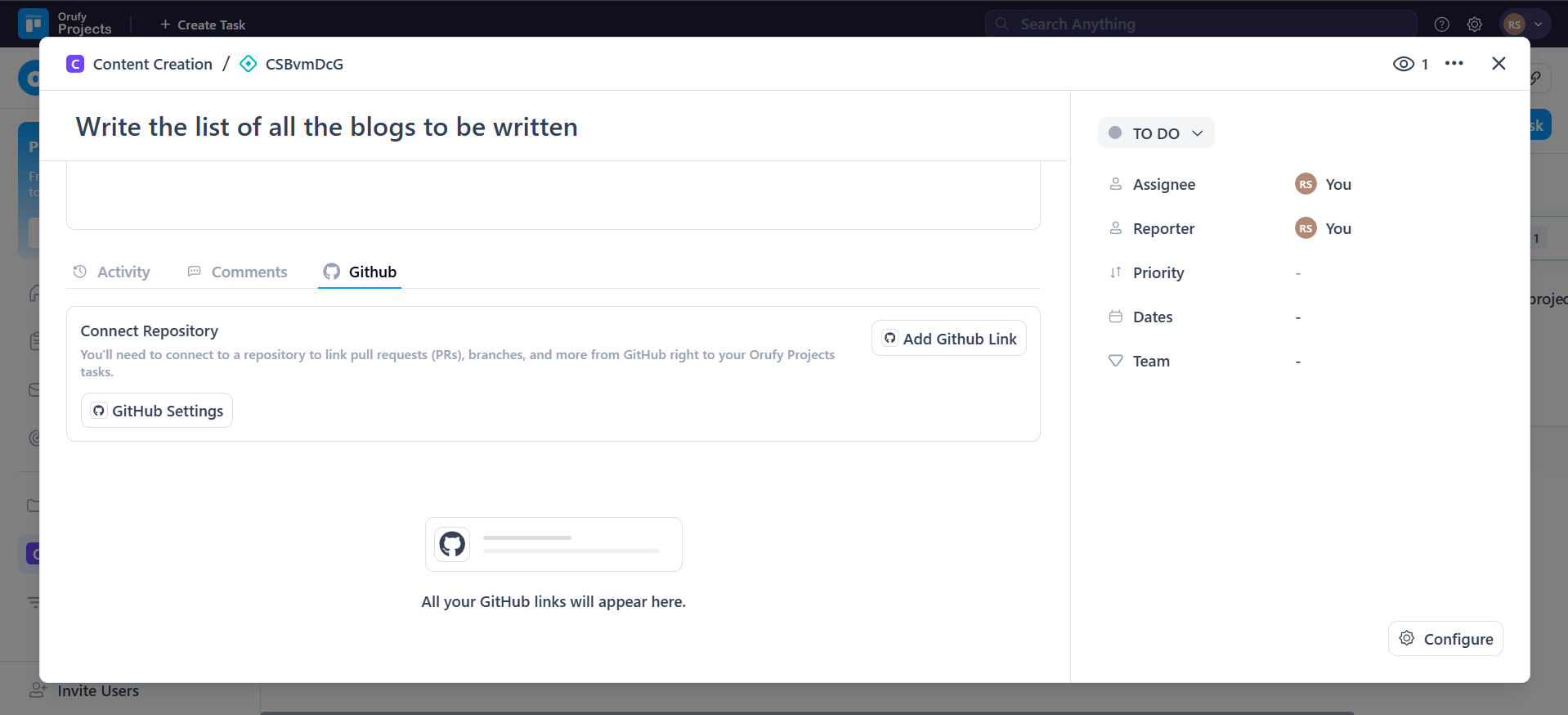
In this case, you have to connect your workspace account. Or, map the project with a repository.
NOTE: Personal GitHub integration is required to create branches and pull requests from within Orufy Projects.
The GitHub section will appear inside the task beside comments. Users connected with their personal GitHub account will only see GitHub options inside tasks in projects.


