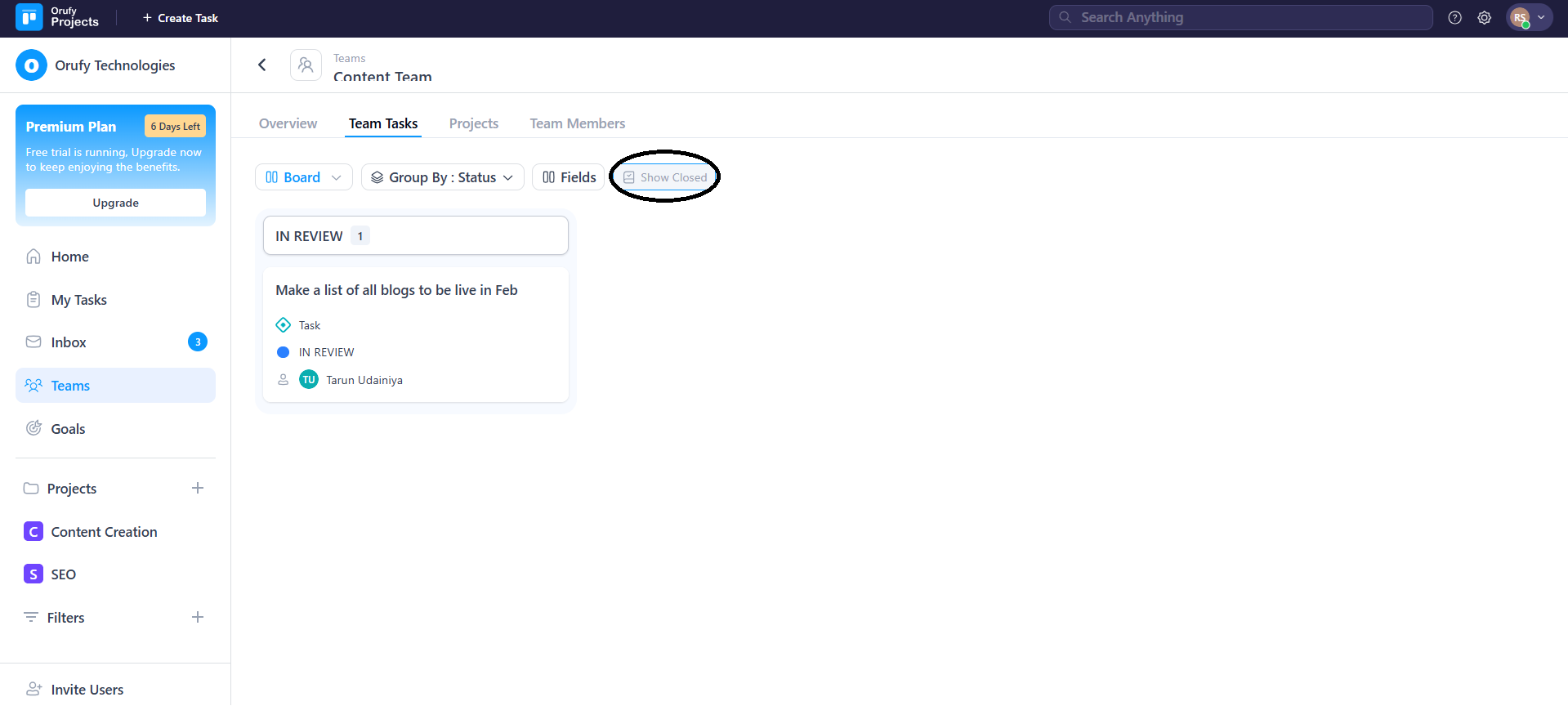
Team Tasks
It shows tasks from all the projects associated with the teams.
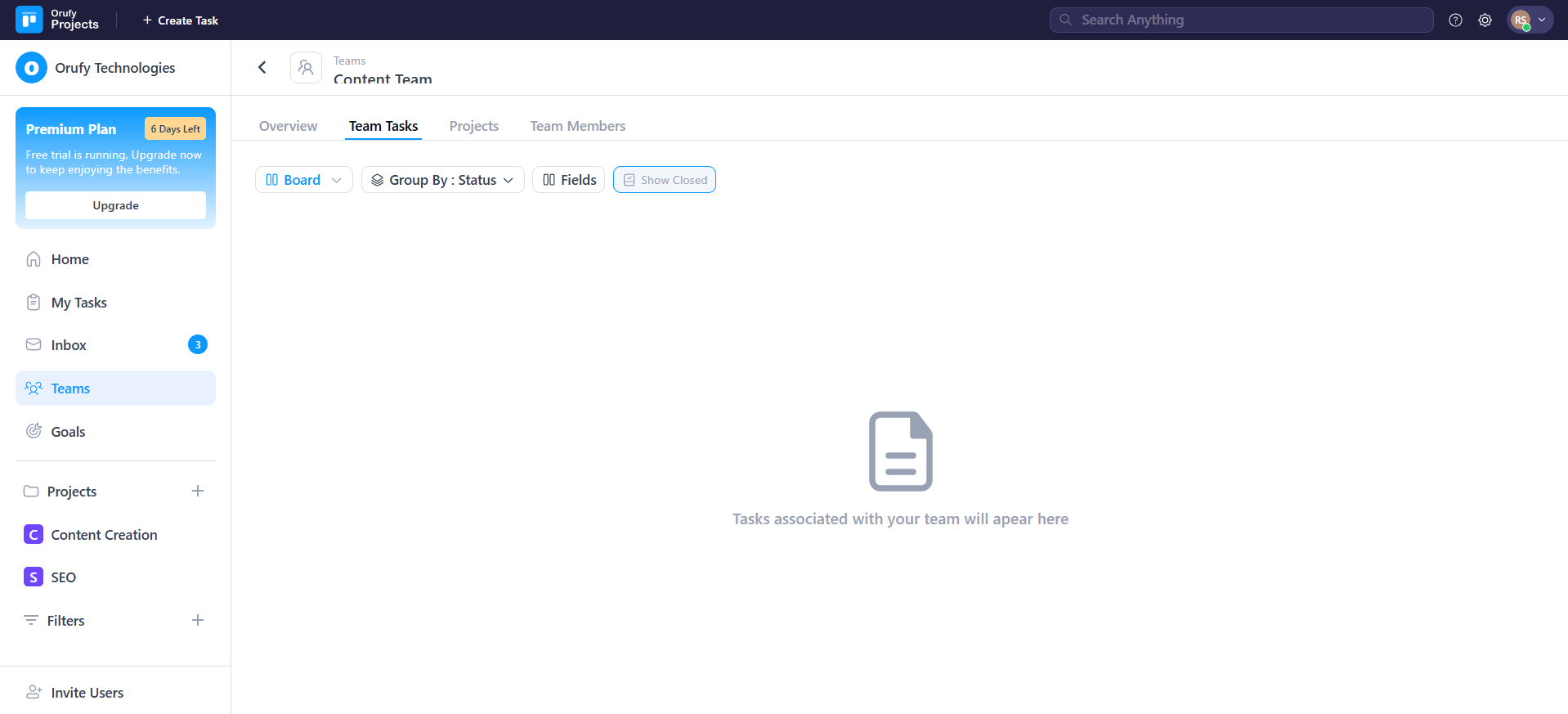
NOTE: In plans where the Teams feature is available, it is provided as a default field (Team) change in Global Custom Fields.
If you want to add the Teams features to any project, the Team’s Global Custom Field must be added to that project.
Add a Task to a Team
-
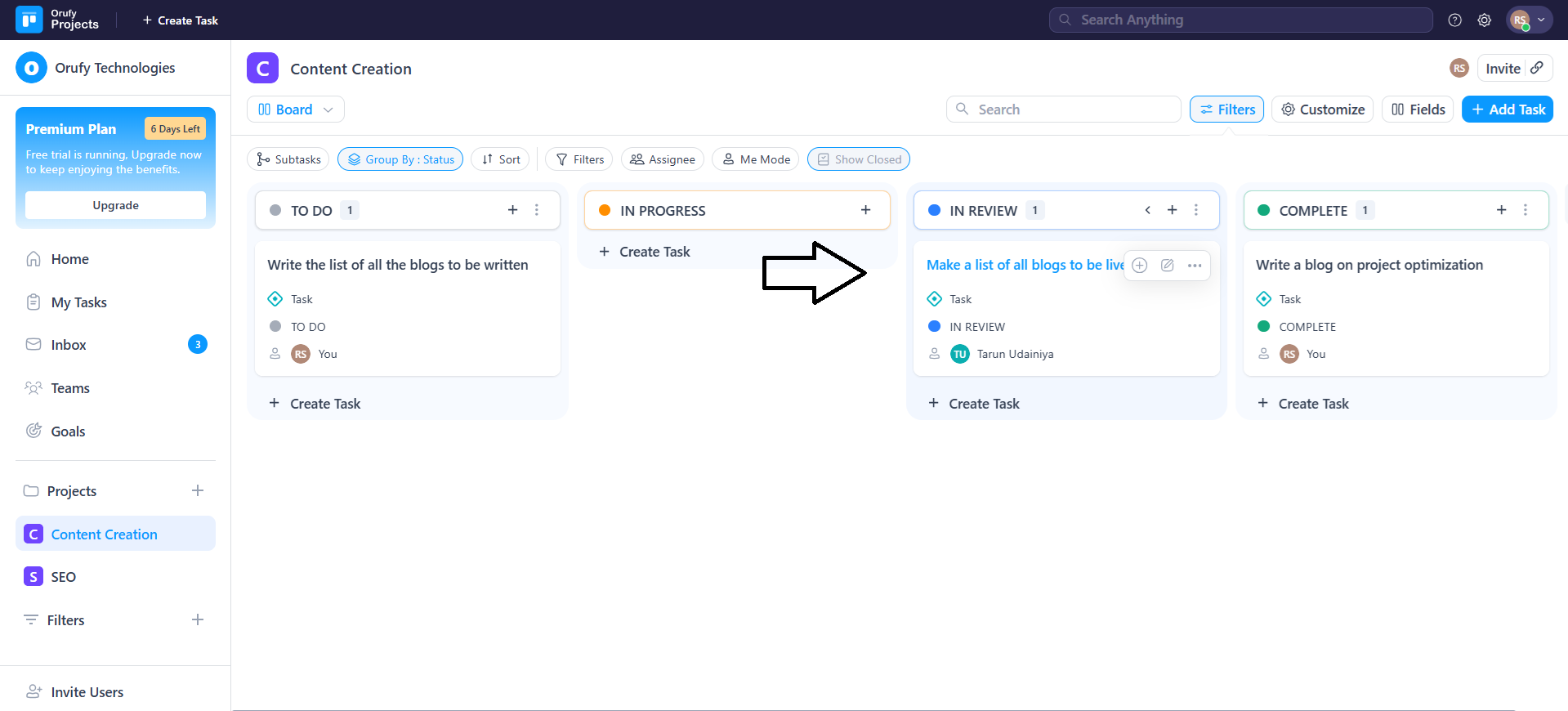
Navigate to the project whose task you want to add to the team.
-
Click on the task that you want to add.
- A pop-up will open with all task details.
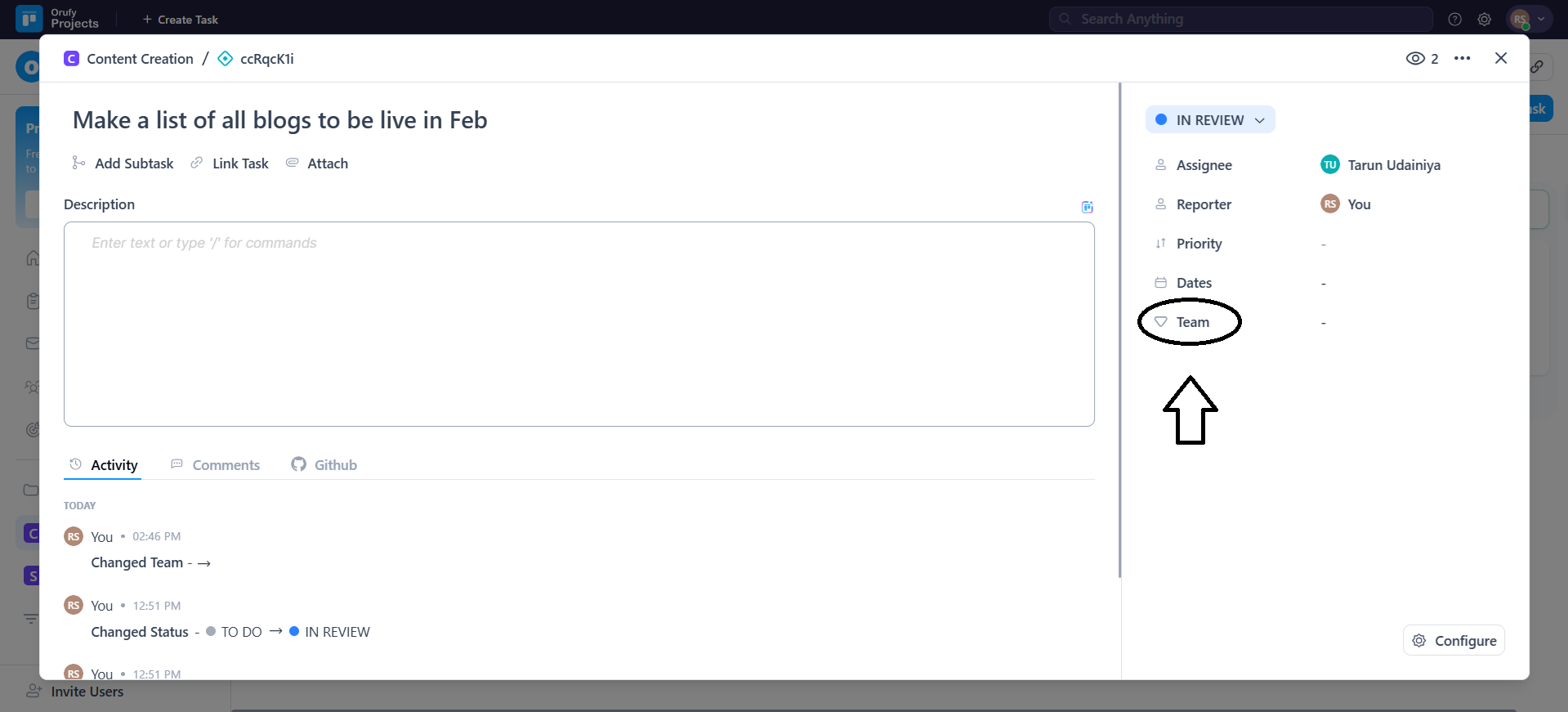
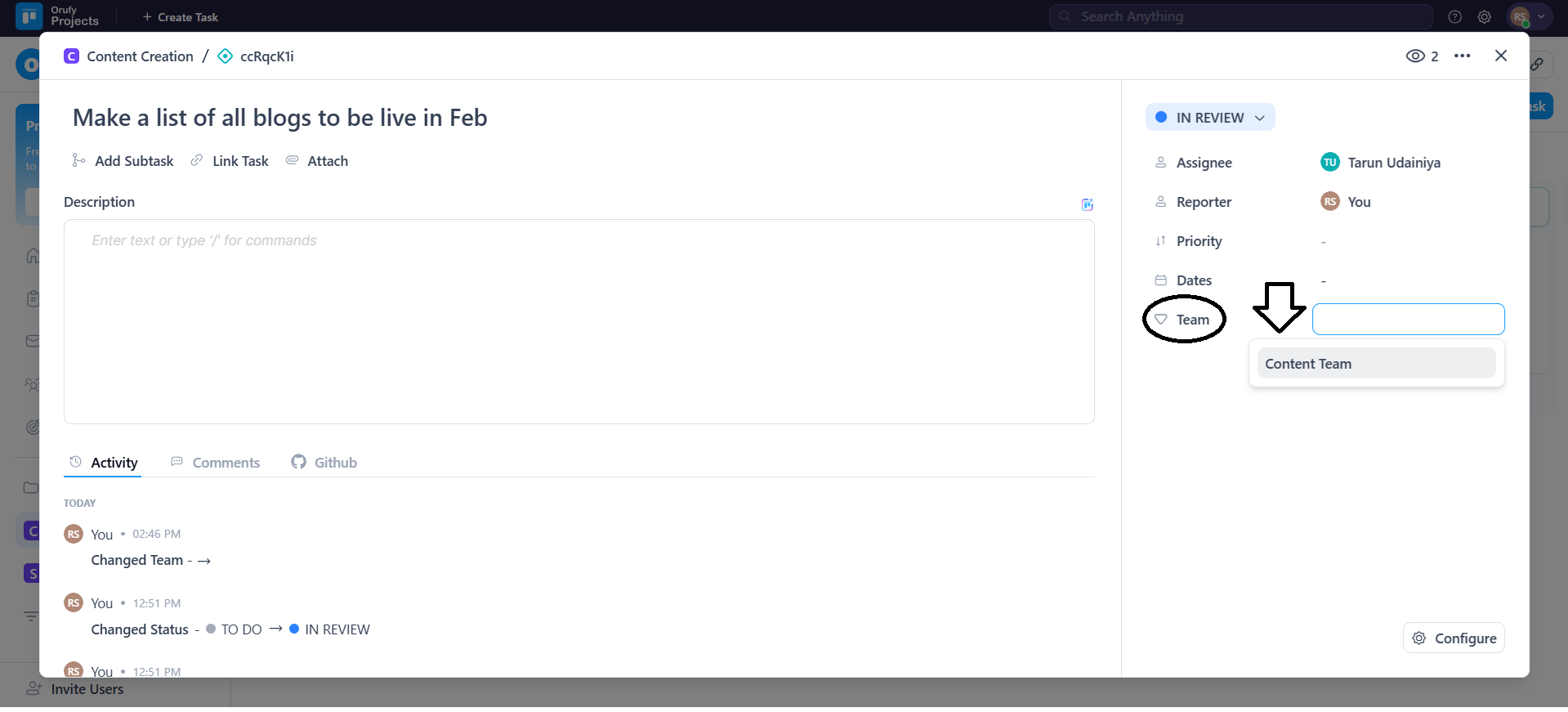
- Now, in the Team field. Select the team into which the task will be added.
Task View
1. Task Display
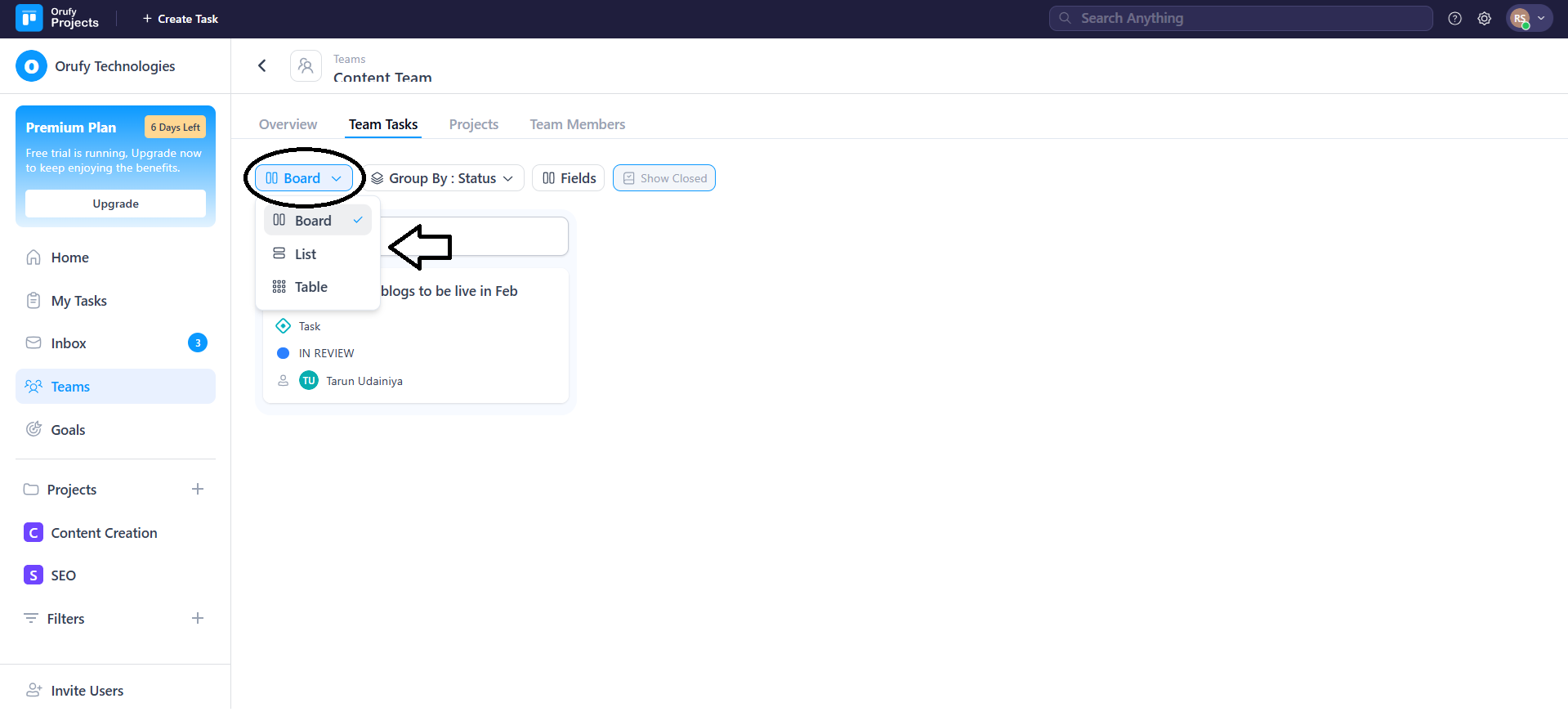
You can view tasks in different views, such as Board, Table, or List view.
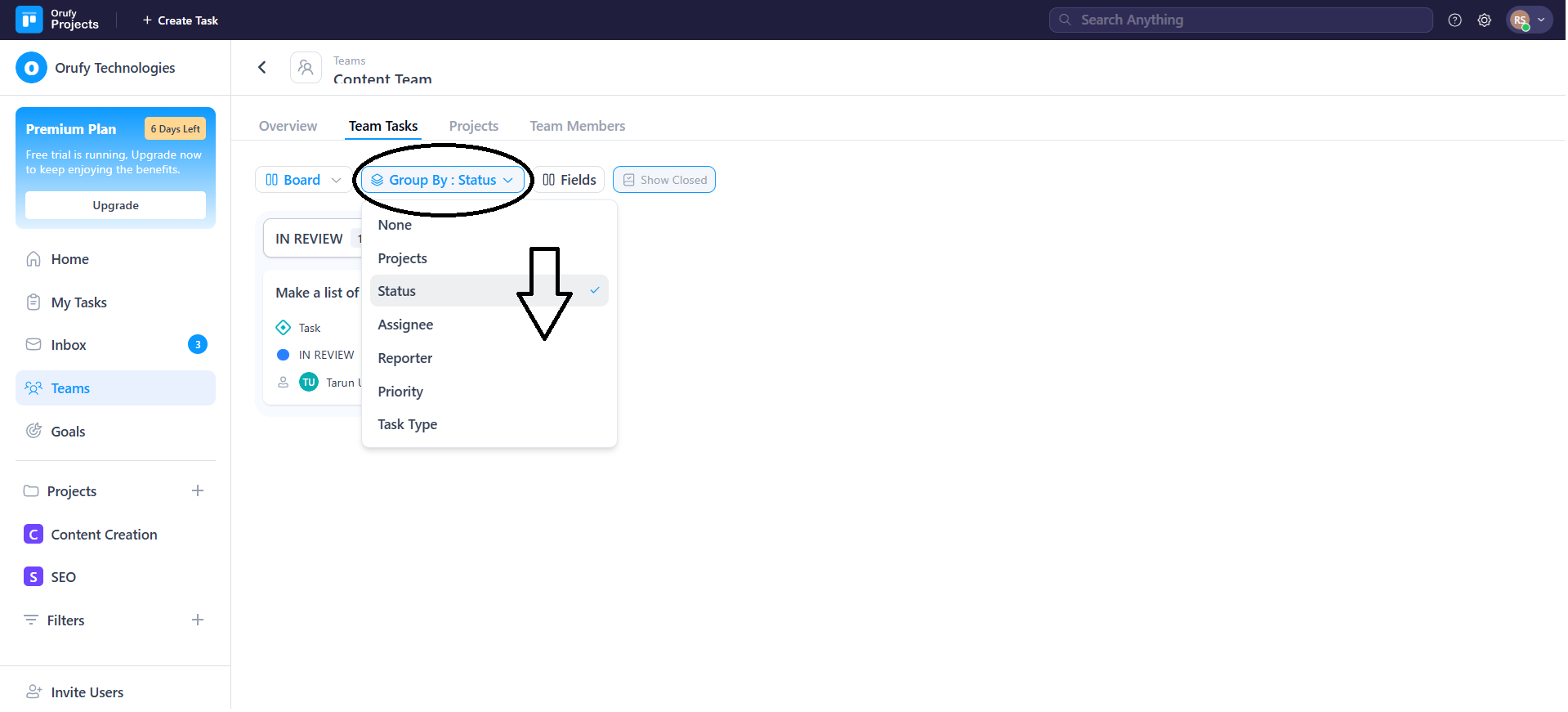
2. Group By
It allows you to view and organize tasks by different categories in a project, such as status, assignee, reporter, and more. The selected category tasks will appear.
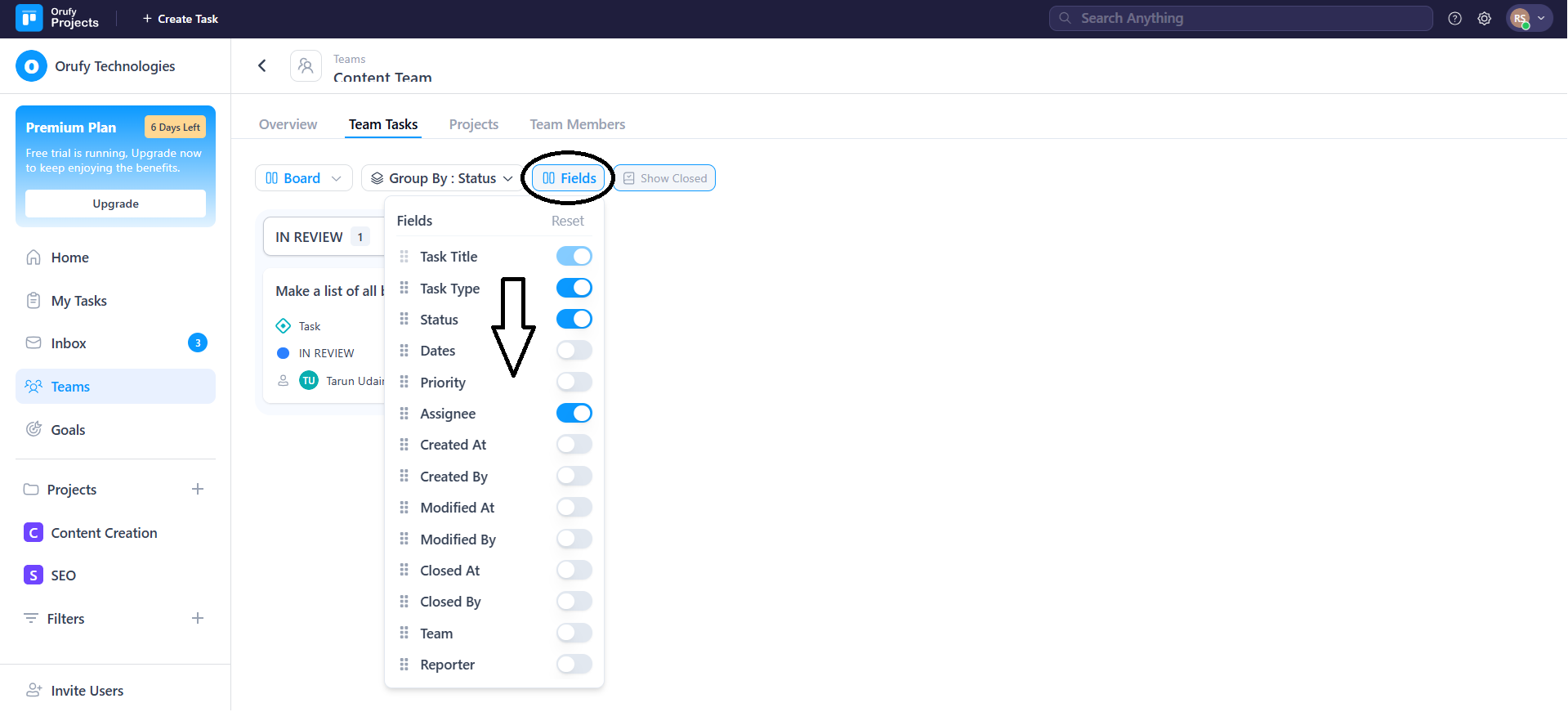
3. Fields
It allows you to organize the task view with different corresponding fields, such as status, task type, assignee, and more. The selected field will be shown within the task view.
4. Show Closed
It shows all the tasks that are completed successfully.