Targets are the smaller and measurable units that roll into the main goal.
Creating a Target in a Goal
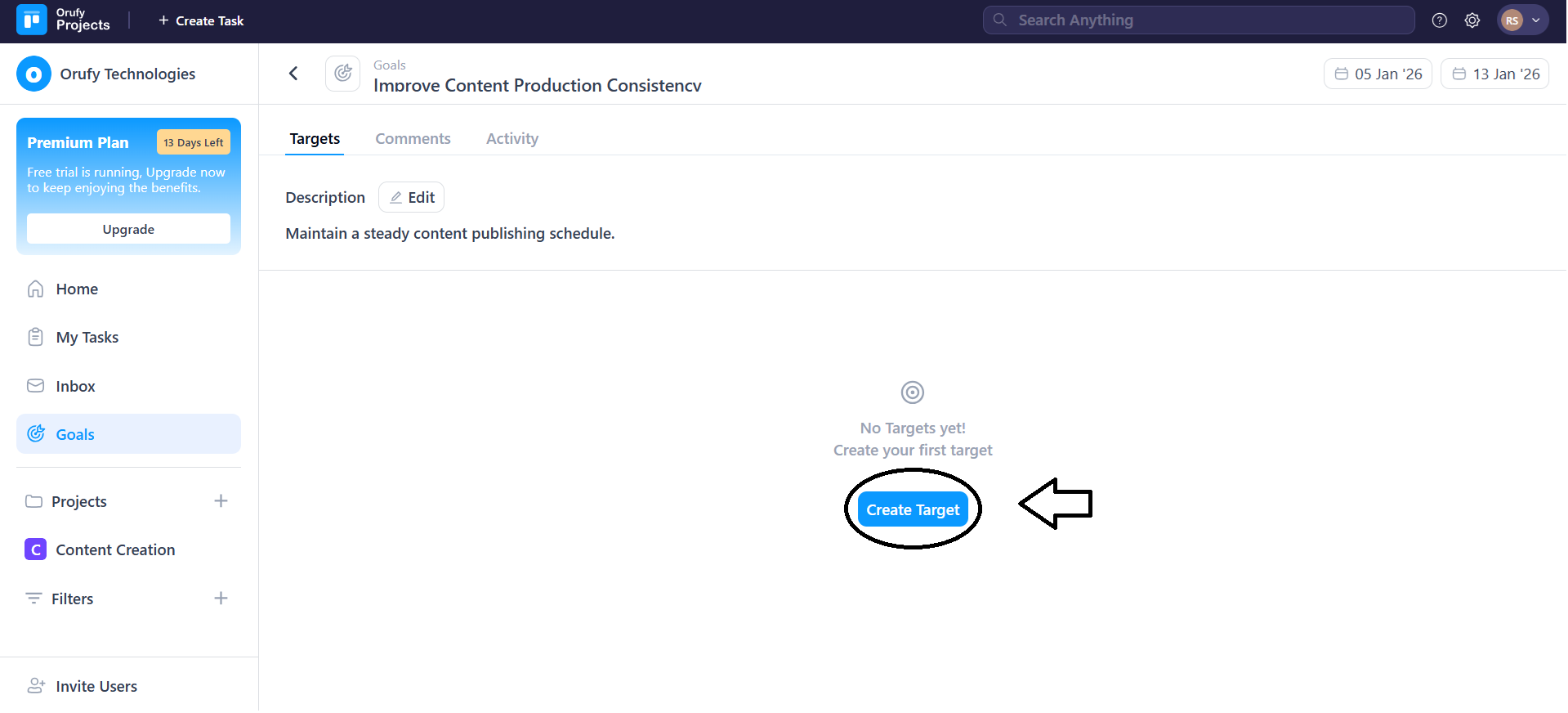
1. Click on Create Target.
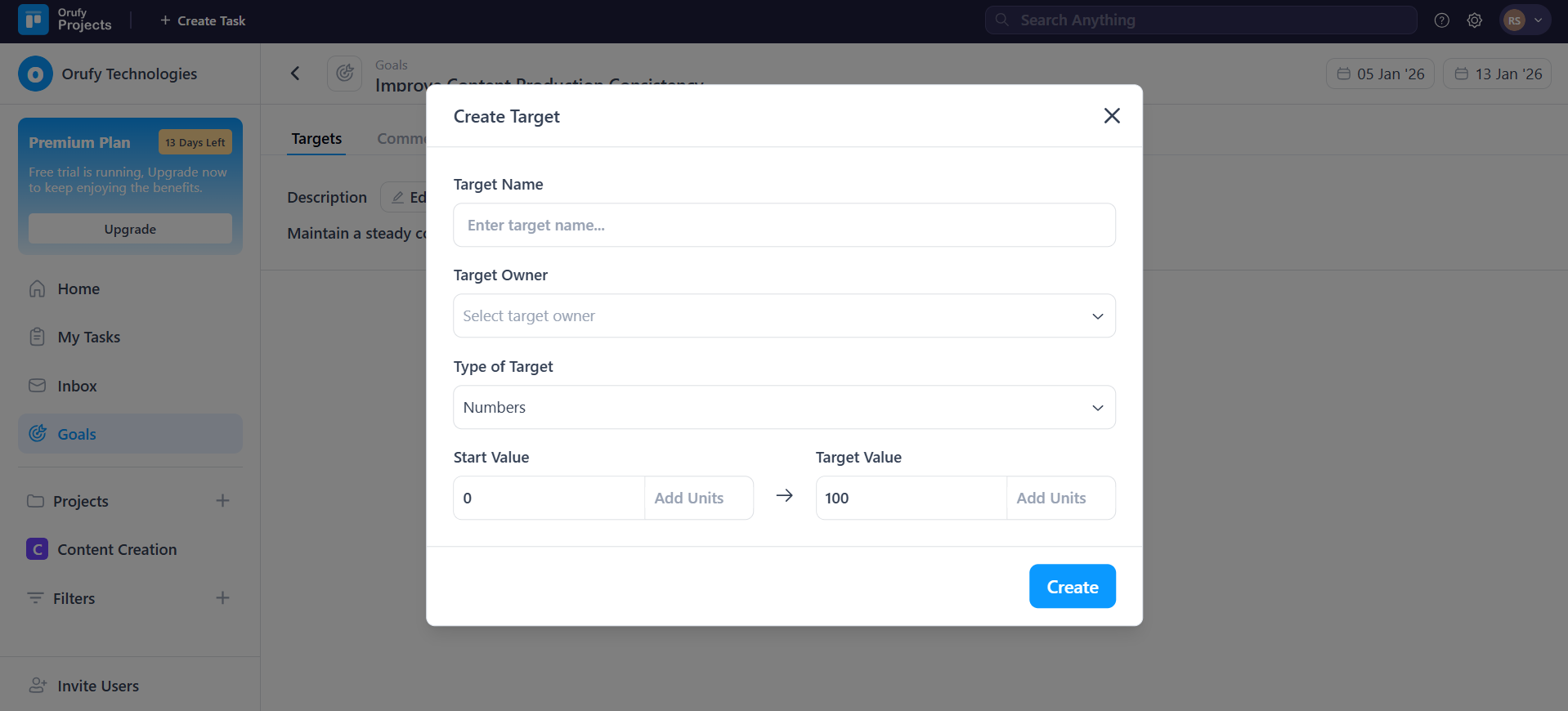
2. Enter Target details.
-
Target Name: Enter the titleof the target.
-
Target Owner: The person responsible for the target completion.
-
Type of Target: Select the type of target, defining how the progress will be measured.
- Numbers: Tracks progress using numerical values.
- Currency: Measure targets based on the currency.
- Boolean: Mark the targets as completed or not completed.
- Tasks: Track progress based on the completion of the linked tasks.
-
Start Value: The starting point of the target.
-
Target Value: The target value you want to reach as the target is completed.
Click on Create to save the build target.
- You can create multiple targets for a goal from + Create Target.
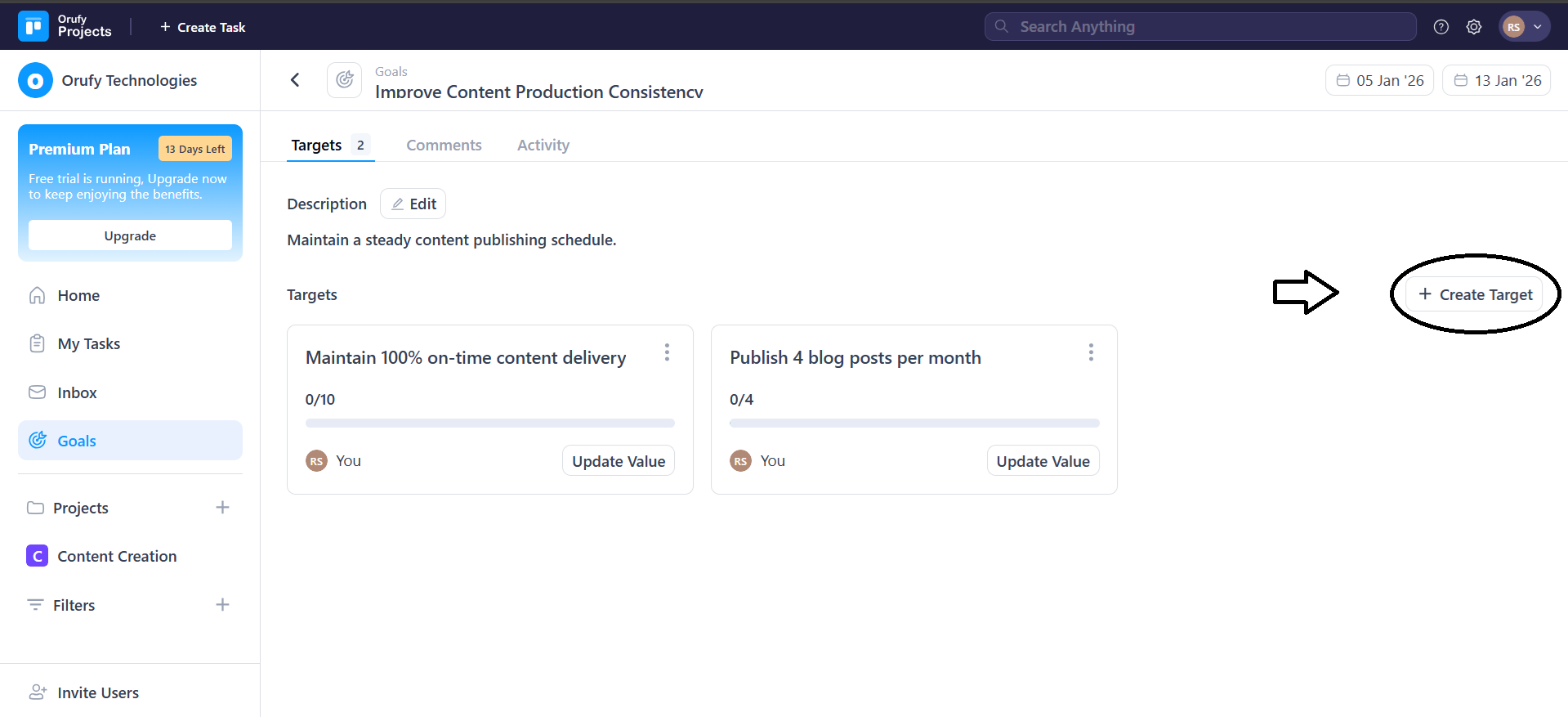
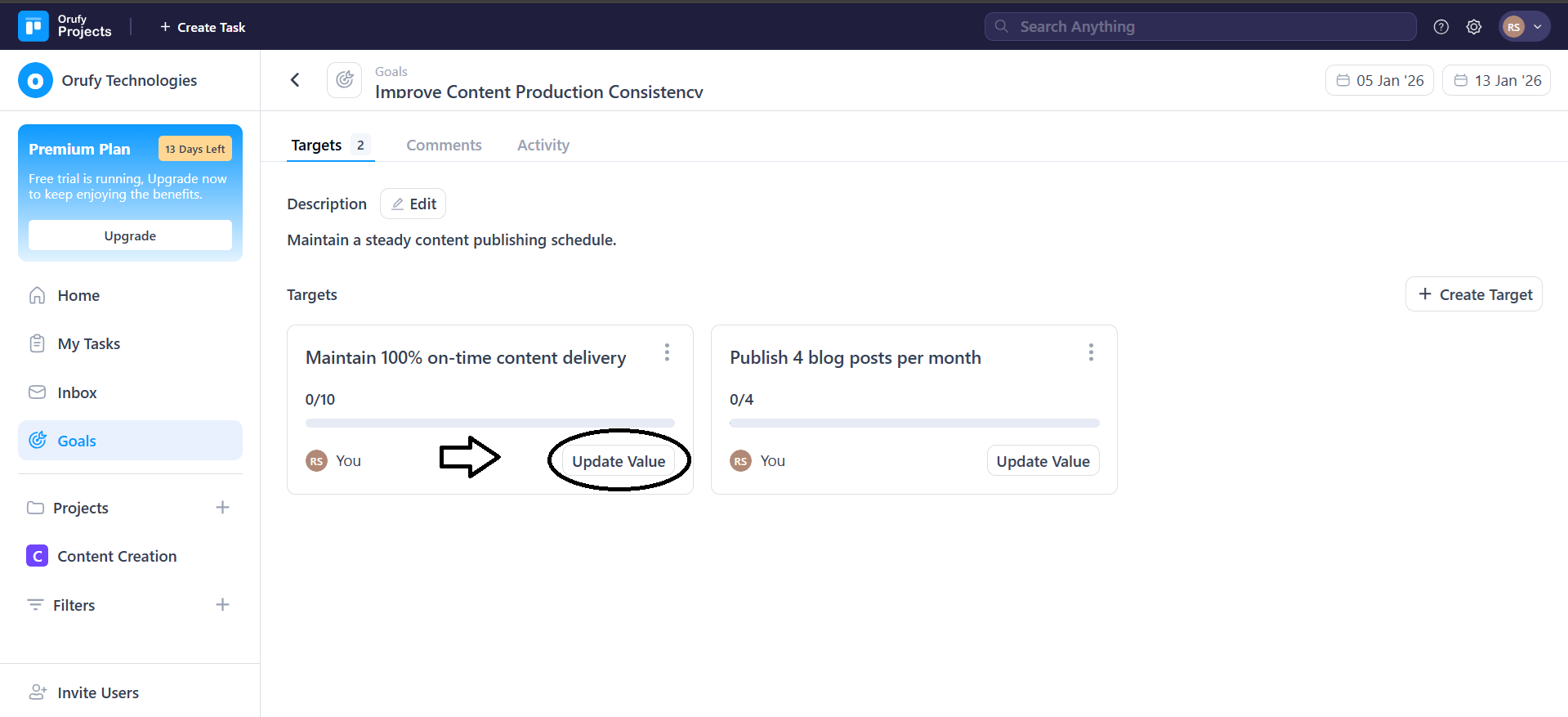
- You can update the value of the target from the Update Value button inside the target tab.
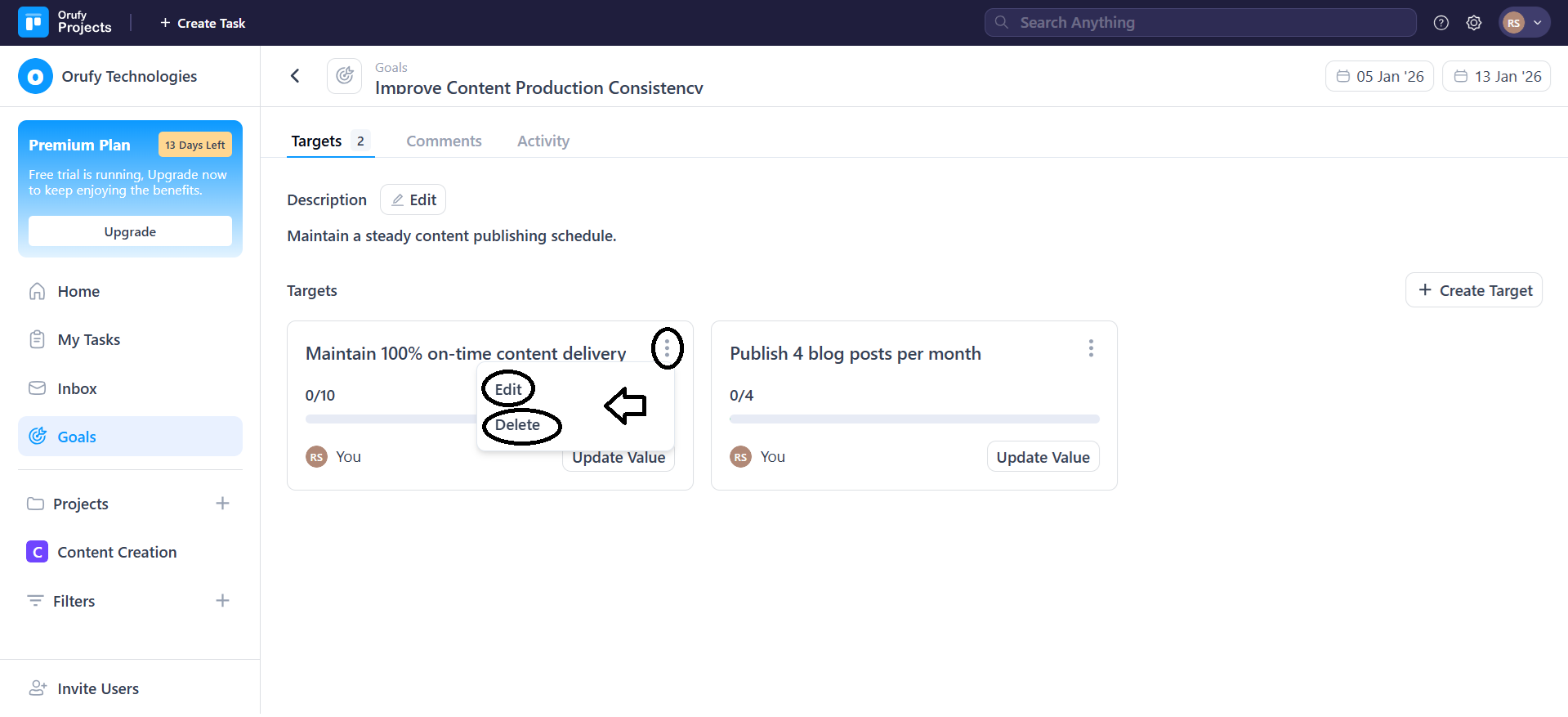
- You can edit or delete the target from the More Options.
Goal Tabs
Goal Tabs provide a view of goal targets and comments raised and activity. history.
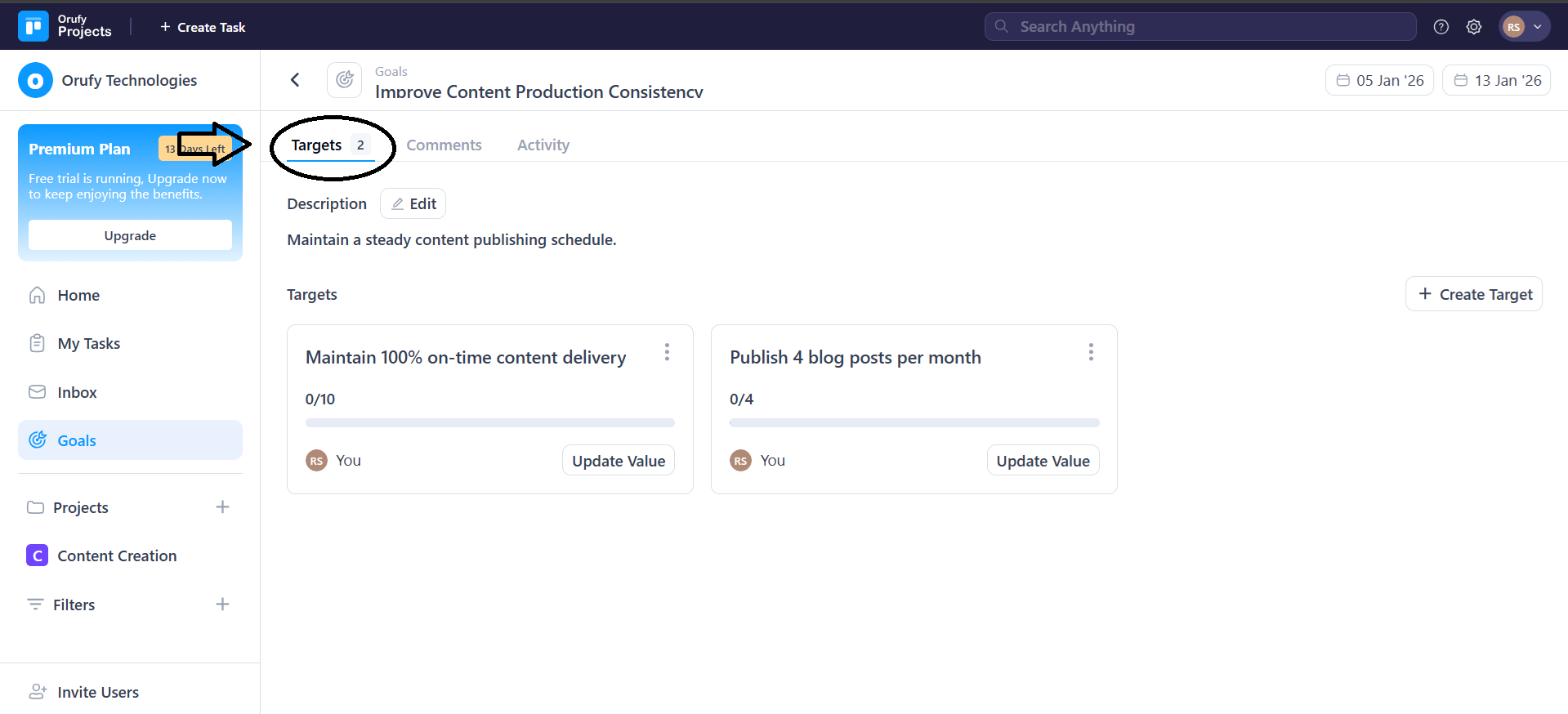
1. Targets
See all the targets related to the goal and monitor the progress visually. This will make you know how near you are to the overall objective. You are able to update and control targets when the priorities vary.
2. Comments
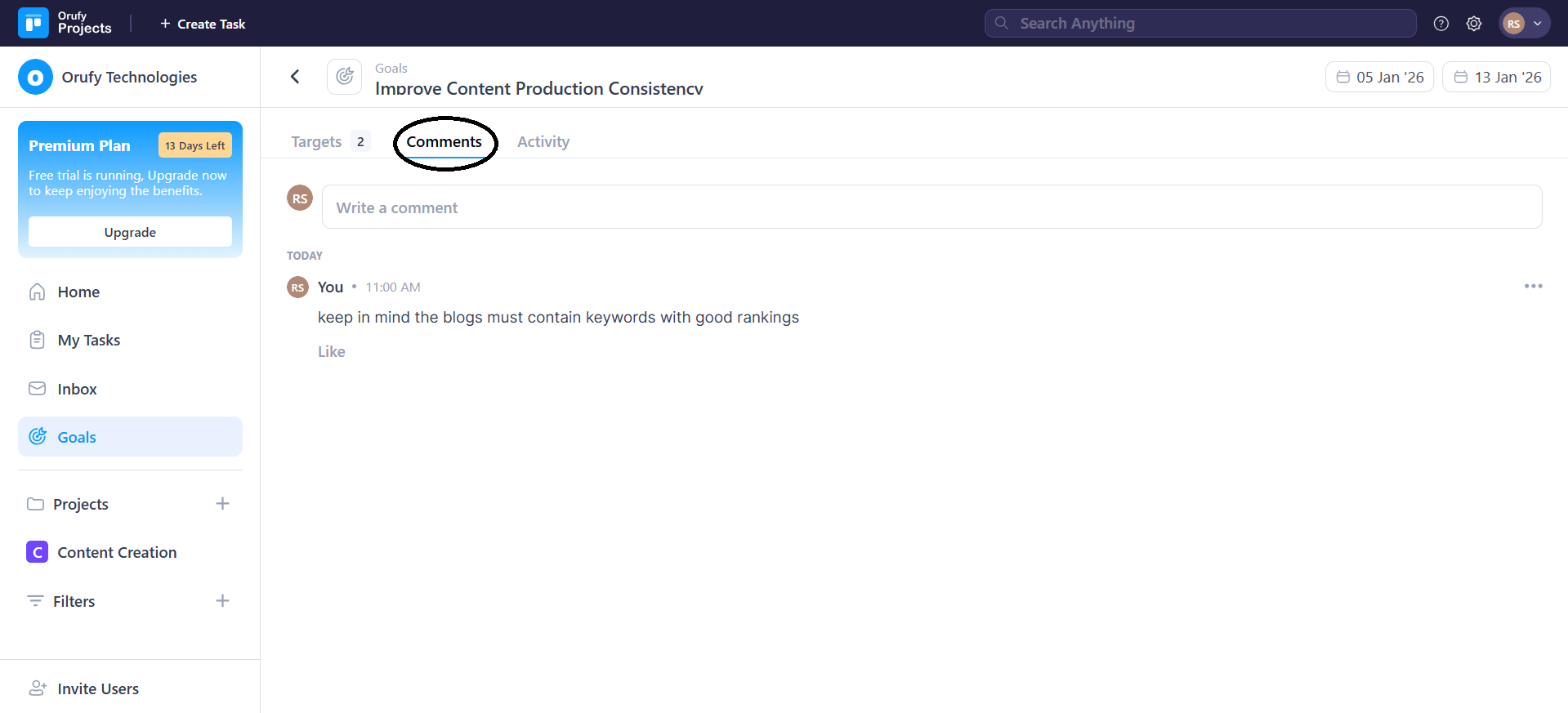
Communicate progress, give updates, and leave notes using comments. It simplifies working together with colleagues and keeps all people on track. Every conversation remains connected to provide improved context.
-
Enter comment in the write a comment section
-
You can edit or delete the comment from More Options.
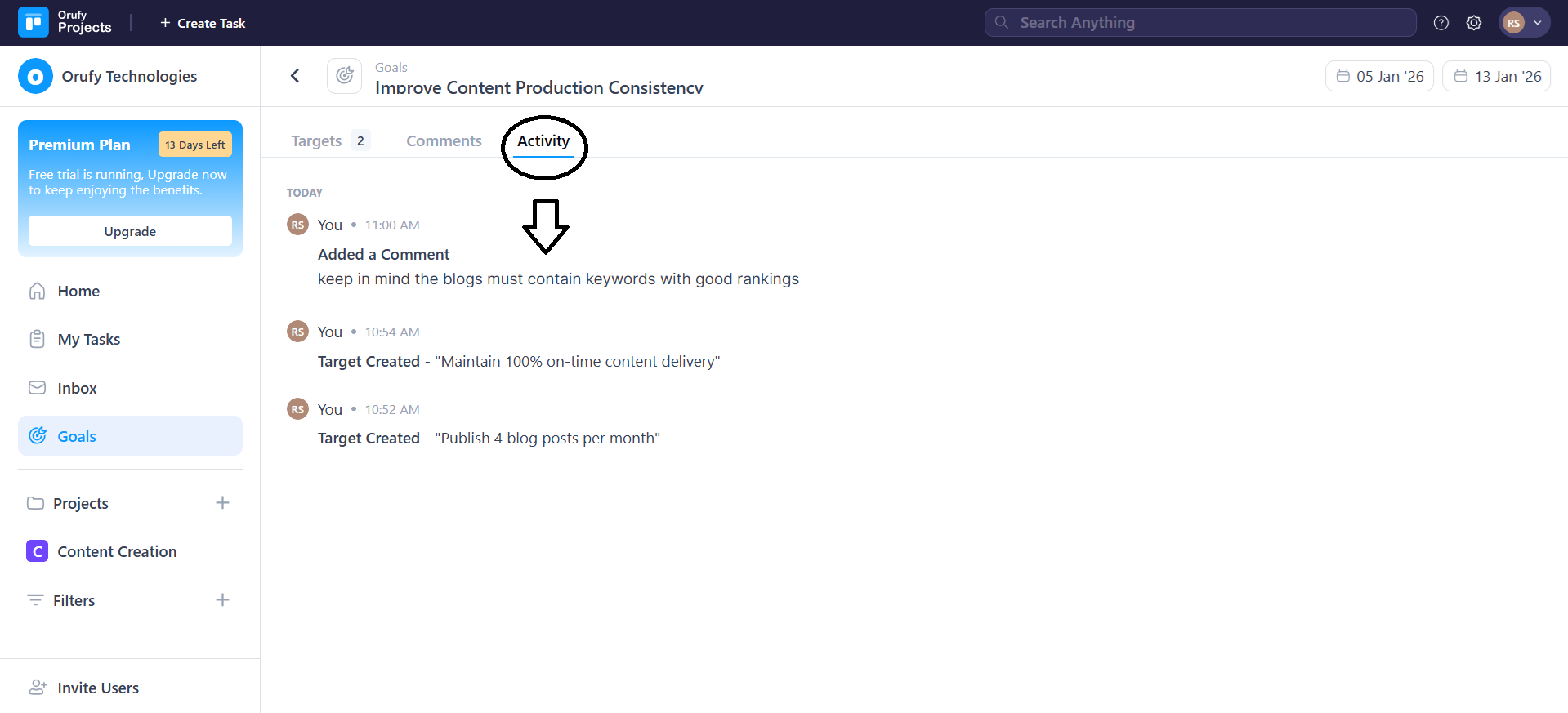
3. Activity
All the changes to the goal are automatically logged into the activity section. It assists you to trace update and editing history and progression history. This allows transparency and accountability throughout the team.