
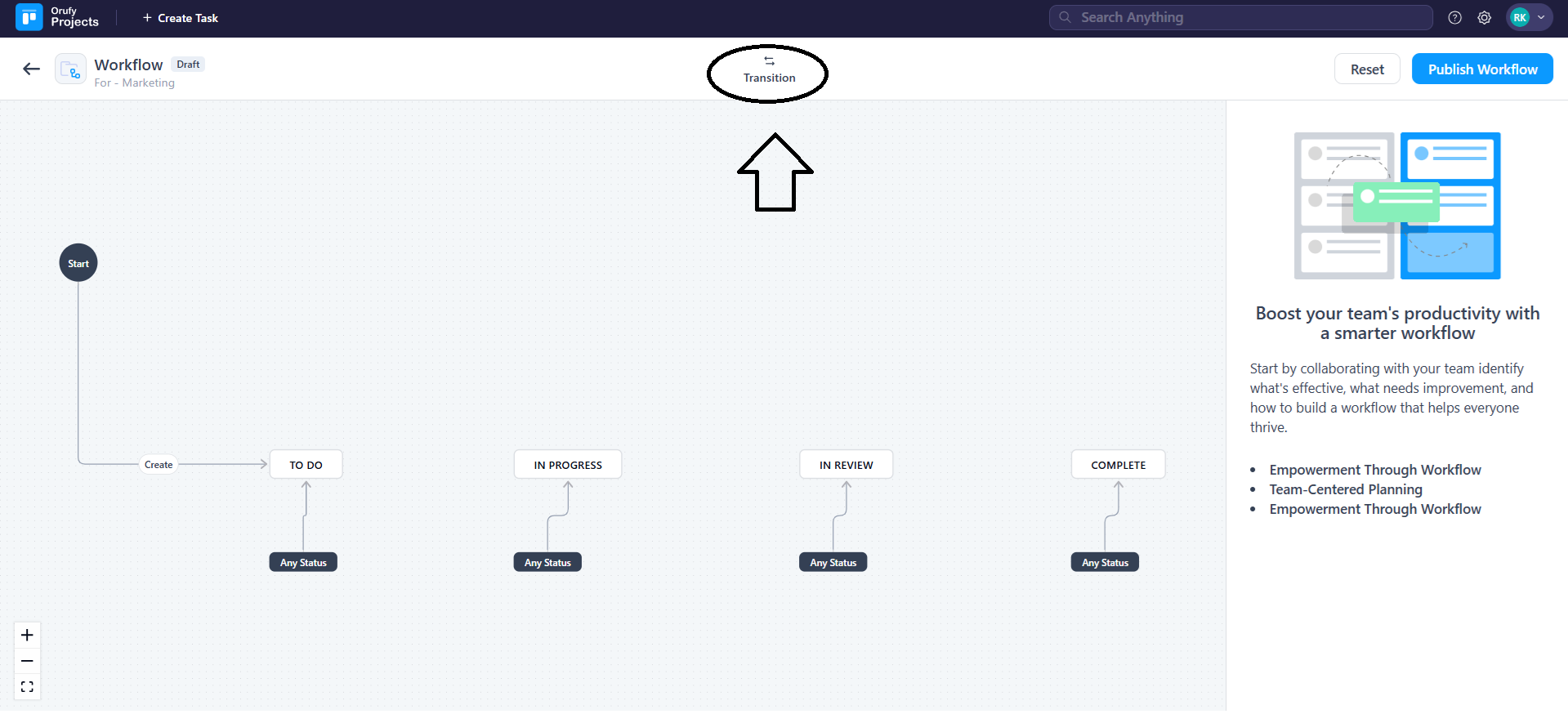
Orufy Projects operates as a status-based workflow system. Workflow is a visual representation of how tasks move through different stages of work using transitions, actions, and rules.
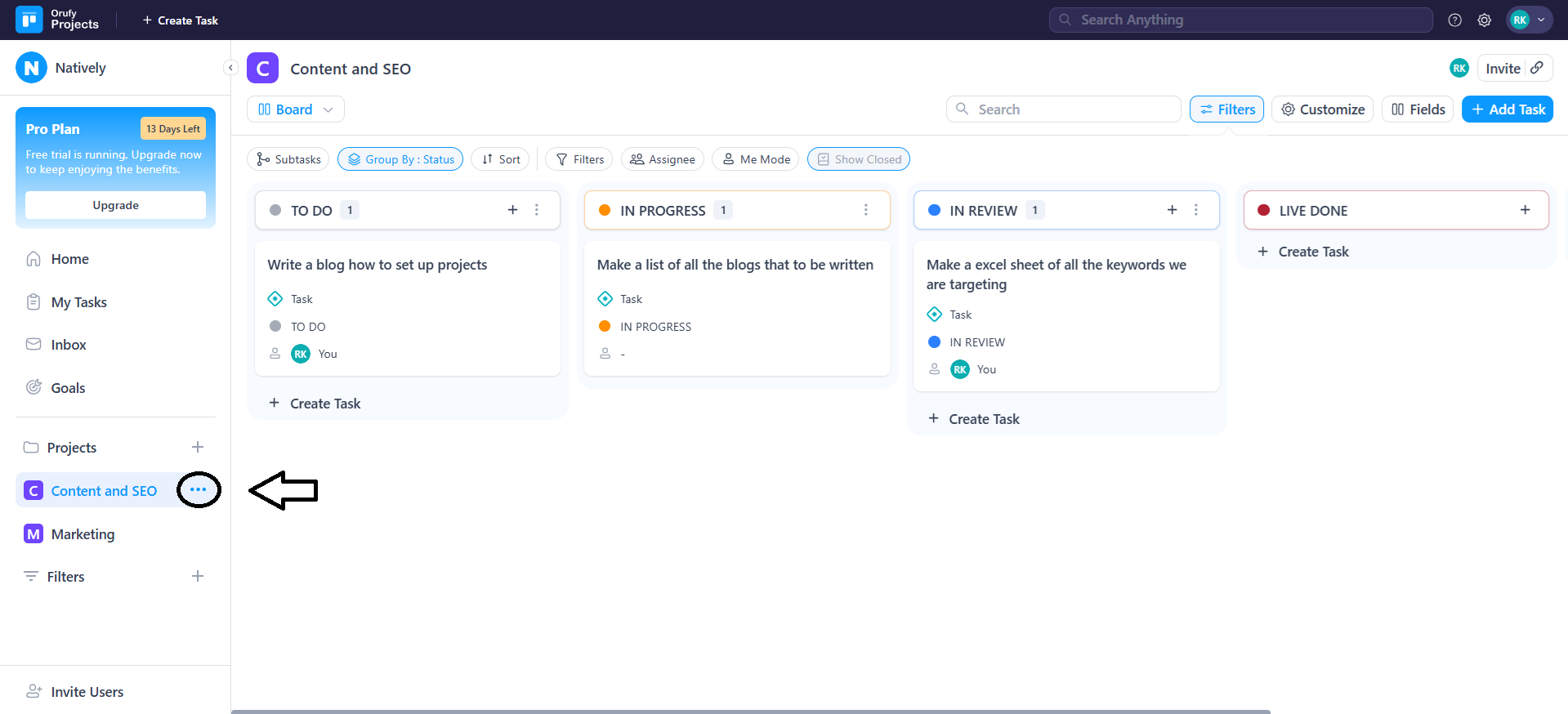
- Click on More Options of a specific project.
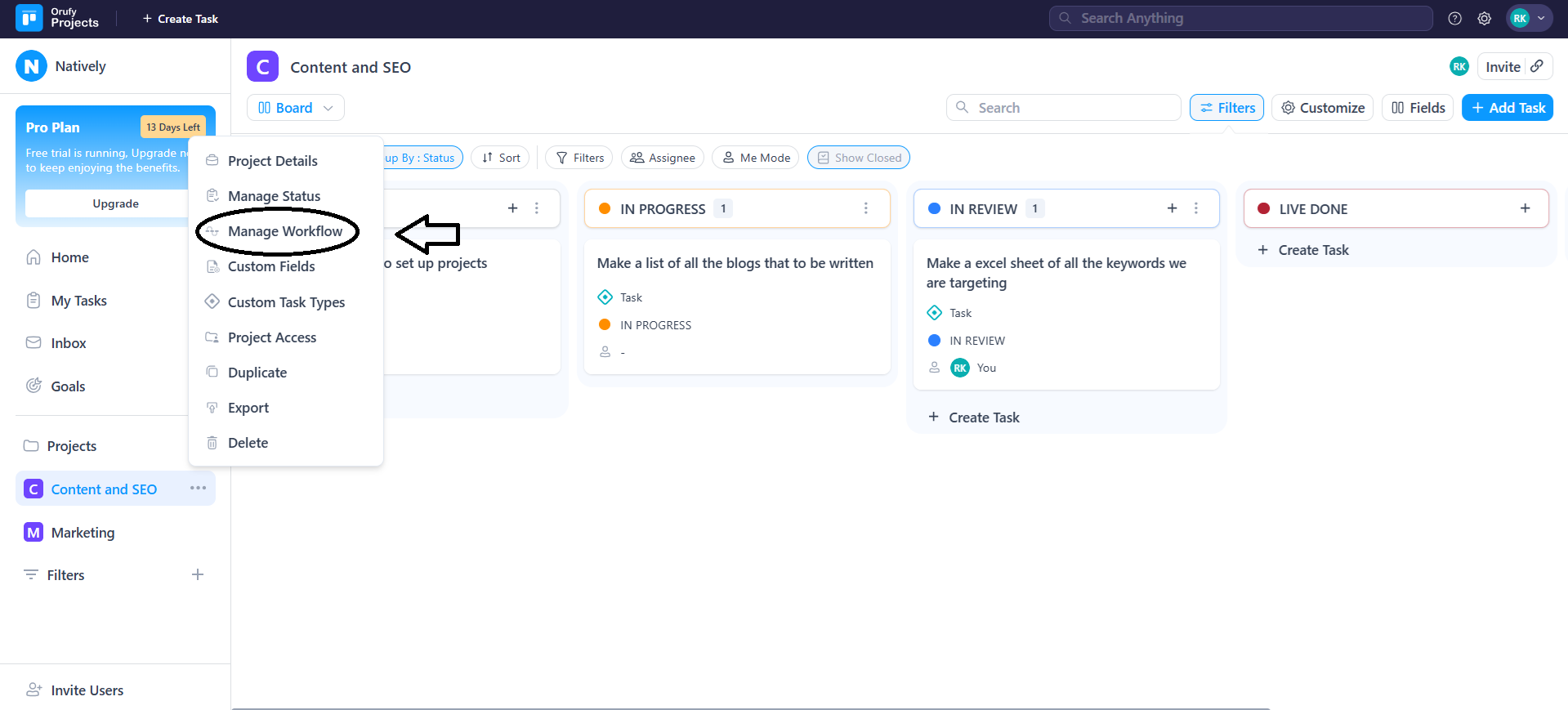
- Click on Manage Workflow.
Each workflow consists of:
-
Statuses: The different stages of work, such as to do, in progress, in review and complete.
-
Transitions: The paths that connect different statues.
-
Rules: The conditions that restrict when a transition can be used.
-
Actions: The automatic updates performed during a transition.
Workflow Statuses
The statuses are used to represent the current state or status of a task. A task can only be in one status at a time.
1. To Do: The task is created and waiting to get started.
2. In Progress: The task is actively in progress.
3. In Review: The task is under review or approval.
4. Complete: The task is completed.
Transitions
A transition is how a task moves from one status to another. It acts as a drop zone on boards that allows users to drag and drop tasks between statuses.
For example, To Do —> In Progress, In Progress —> In Review, and In Review —> Complete.
Creating a Transition
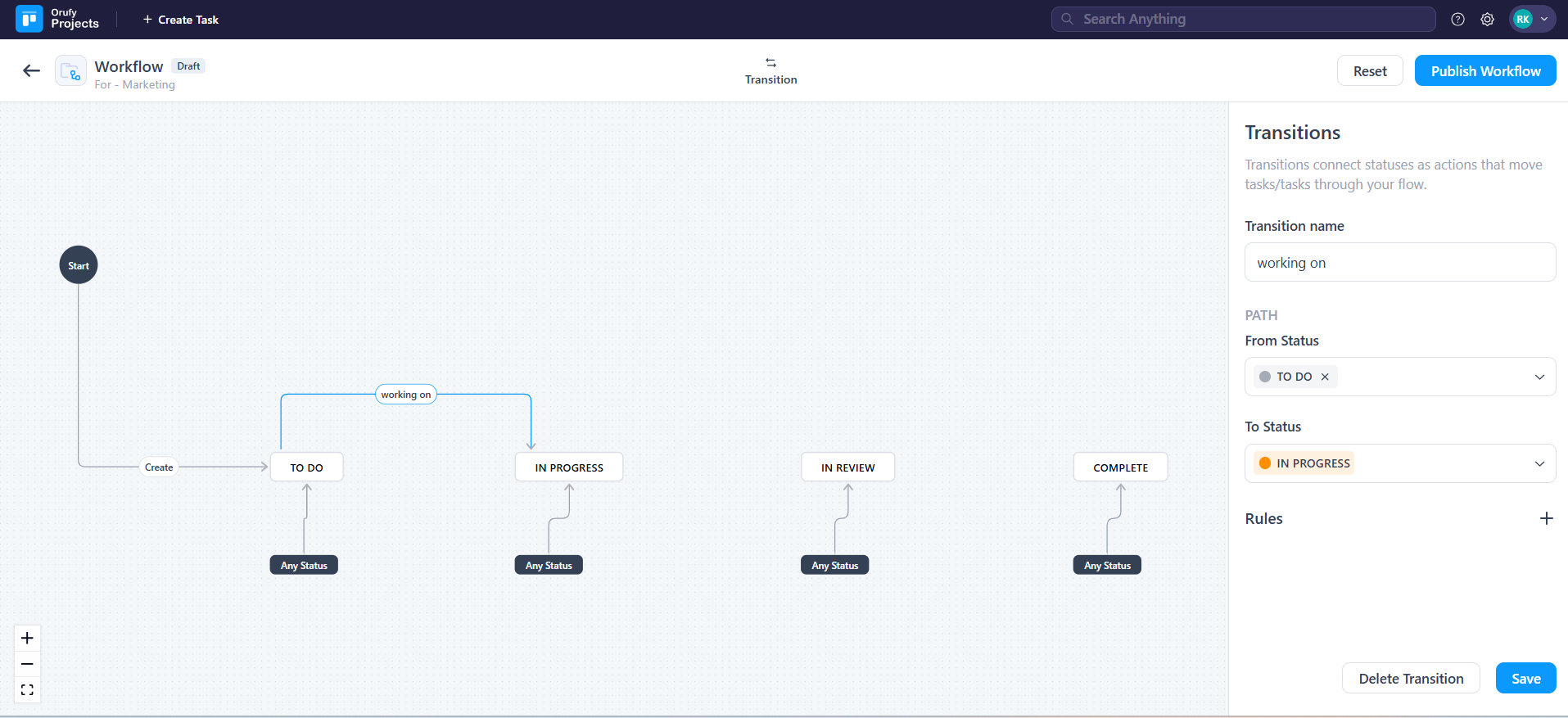
- Click on Transition.
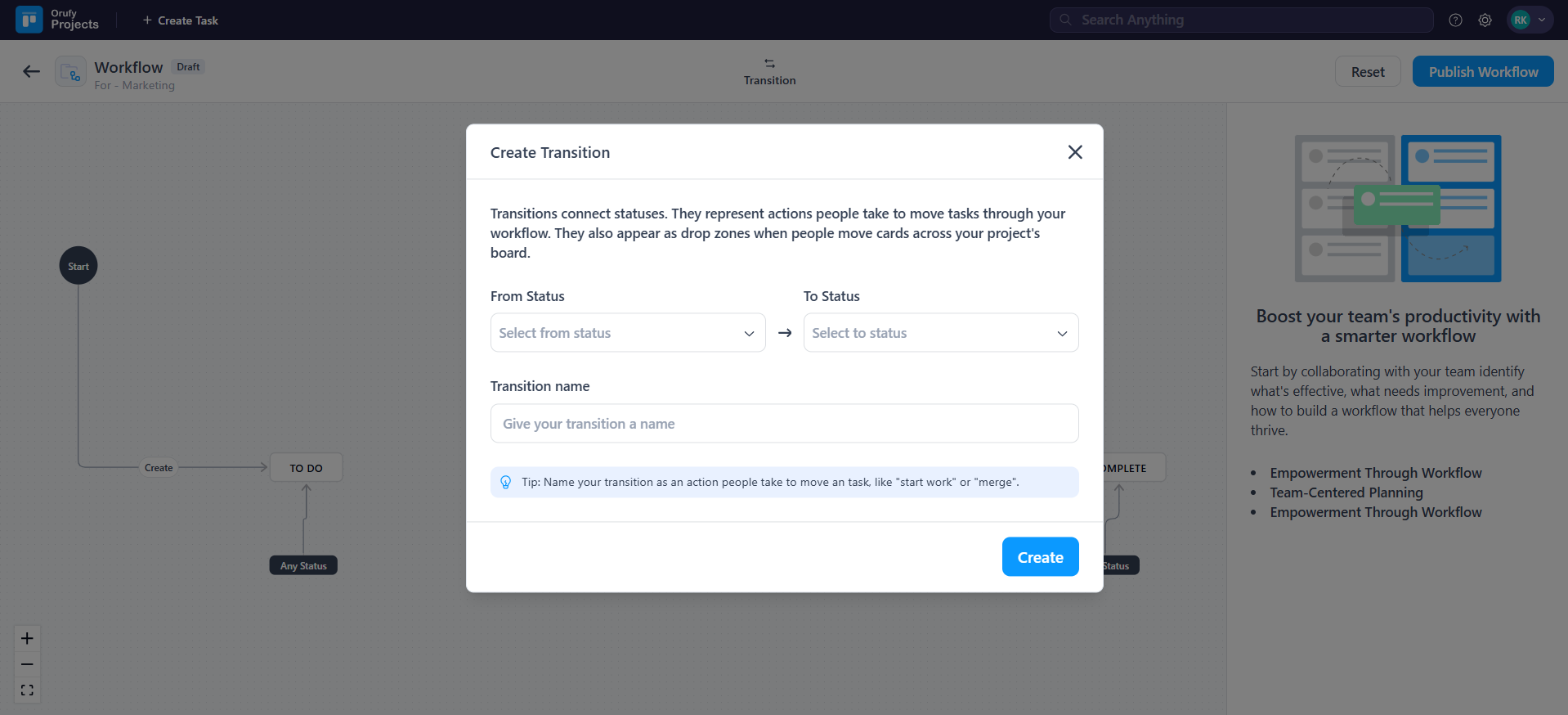
While creating or editing a transition, you have to configure,
- Select the From Status.
The current status that a task needs to be in. For example, To Do.
- Select the To Status.
The status the task will move to. For example, In Progress.
- Enter the Transition Name.
Enter the name of the transition that addresses the action taken by the people.
Editing the Transition
-
Edit the name of the transition.
-
Change the Path of the From Status and To Status from the drop down.
-
From the + icon edit rules for the transition.
Transition Rules
It allows you to control when a transition can be made. Multiple rules can be merged using AND/OR.
- Rule Logic
- AND: All conditions should be fulfilled. - OR: Any one of the conditions should be fulfilled.
If the rule condition is not fulfilled:
-
The transition is hidden
-
Users cannot select it from the status dropdown
-
Tasks cannot be moved without using the transition
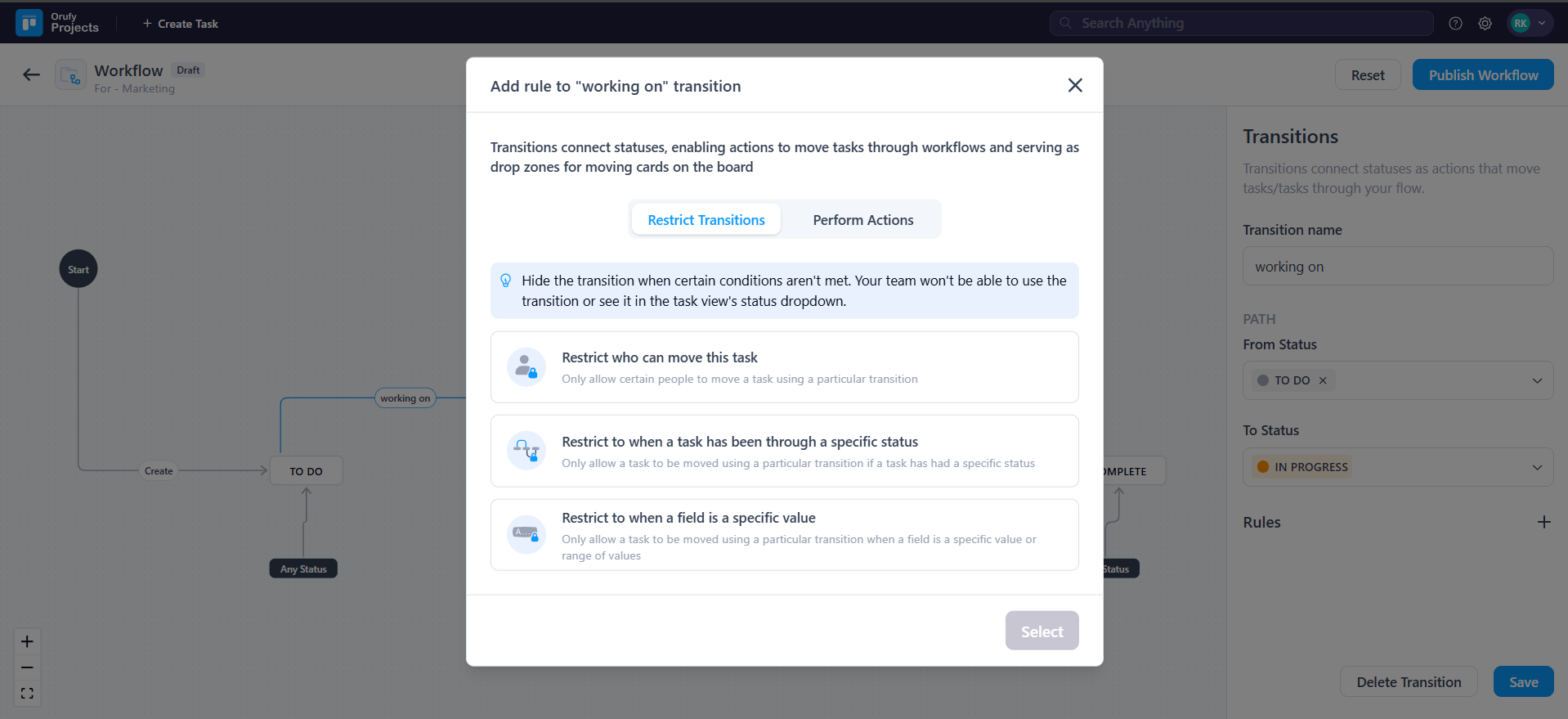
The Transition Restriction Rules are:
1. Restrict who can move this task It restricts the transition to specific users or roles.
2. Restrict to when a task has been through a specific status It allows the transition to happen only if the task has previously passed through a required status.
3. Restrict to when a field has a specific value It allows the transition to happen only when a task field has a specific value.
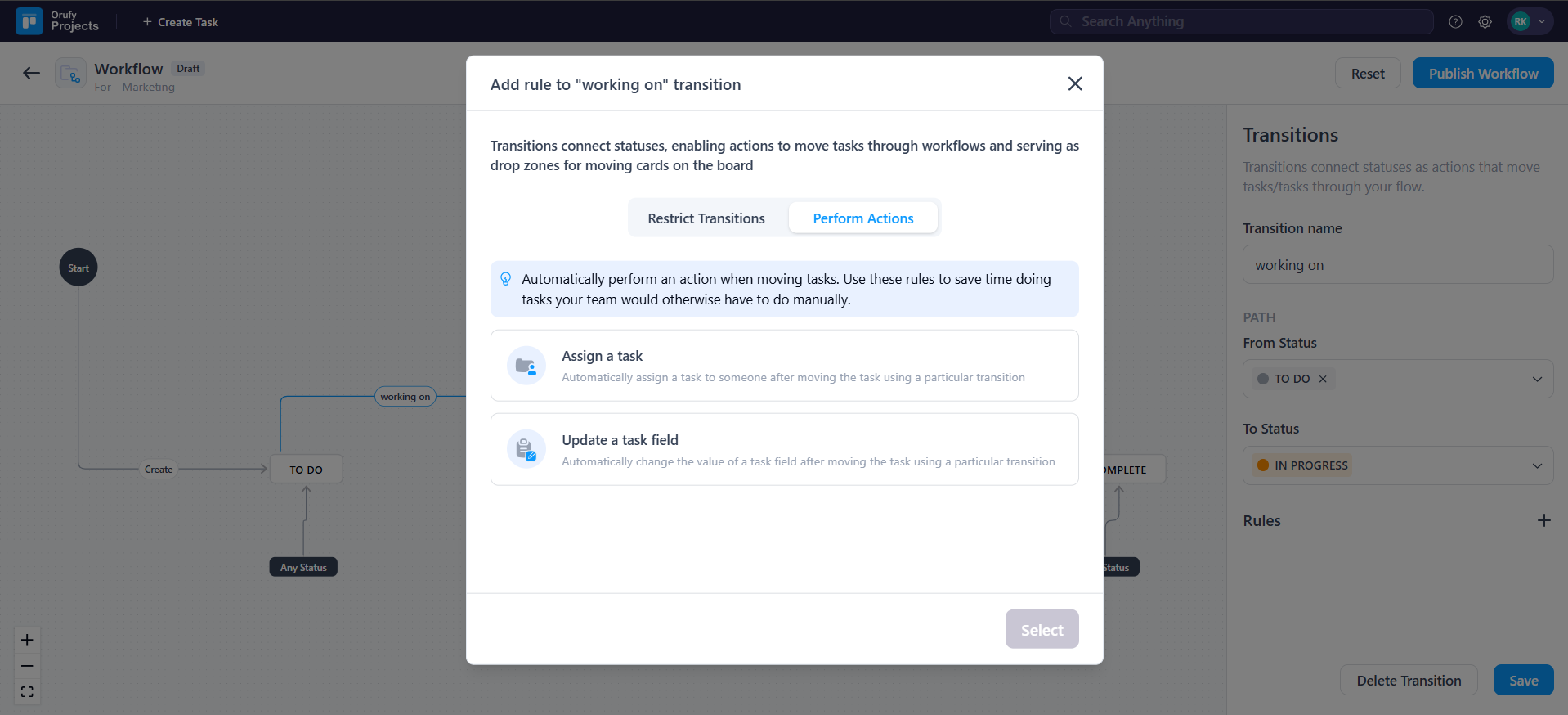
The Perform Actions are:
It allows Orufy Projects to automatically update tasks when a transition occurs. Actions reduce the manual work, maintaining consistency.
1. Assign a Task
You can automatically assign a task to a member after the task moves through a particular transition.
2. Update a Task Field
The value of the task field automatically changes after moving the task using a particular transition.
Publishing workflow
Workflow remains in draft until it gets published.
-
Review all statutes, rules, and transitions.
-
Click on Publish Workflow.
-
The workflow becomes active for the specific project.
Reset Workflow
Workflow resets with the current workflow. Click on the Reset button beside the publish workflow button.


