Teams helps you manage people across multiple projects into separate, structured teams. It provides a shared space where members can track work, collaborate, and view tasks assigned at the team level.
Who Can Create a Team?
- Team creation depends on roles and permissions.
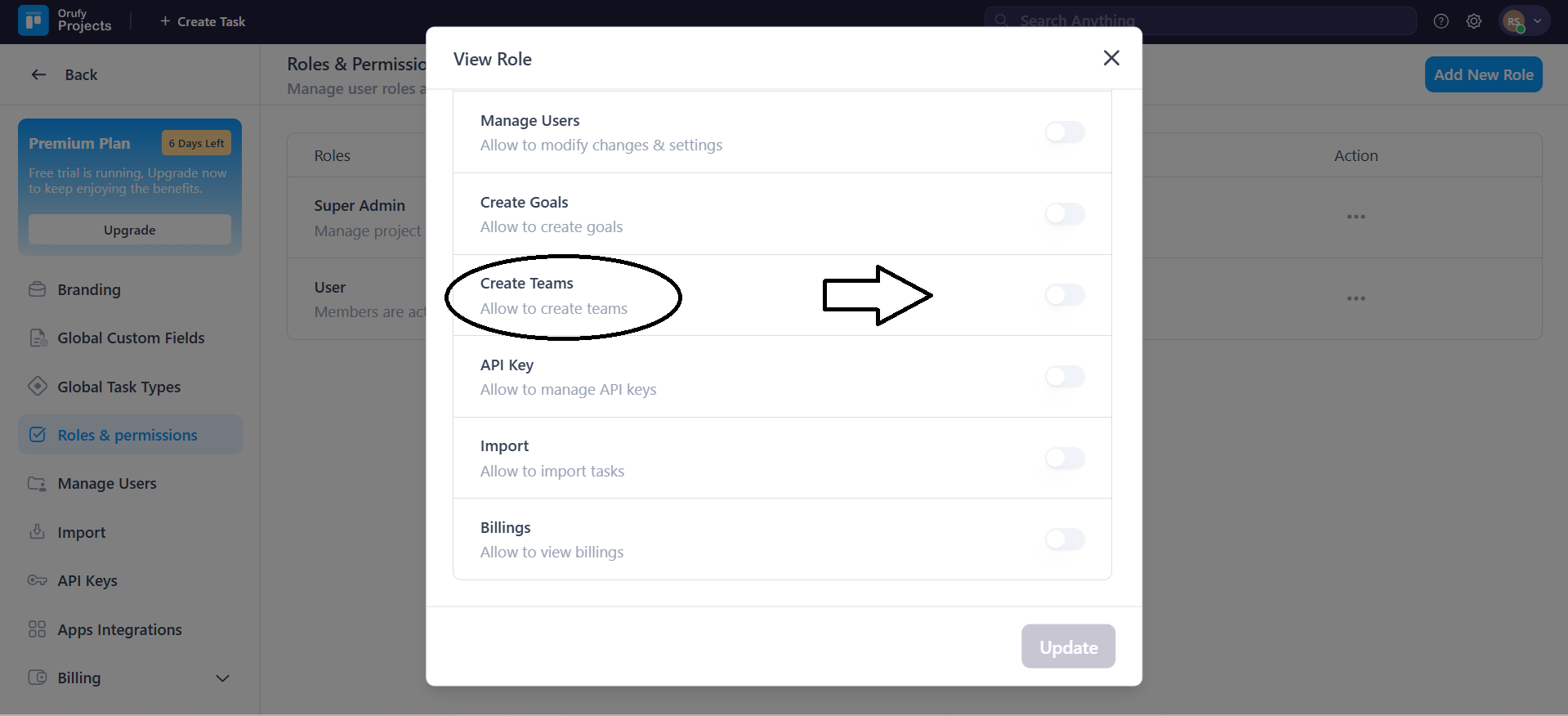
Super admins are permitted to create teams with complete flexibility. However, other roles, such as User or Manager, need to be given permissions to create a team.
- People with Create Team permission will see an enabled Create Team or Add Team button.
Create / Add a Team
The create or add team allows you to set up new teams so members can collaborate and manage tasks together across projects.
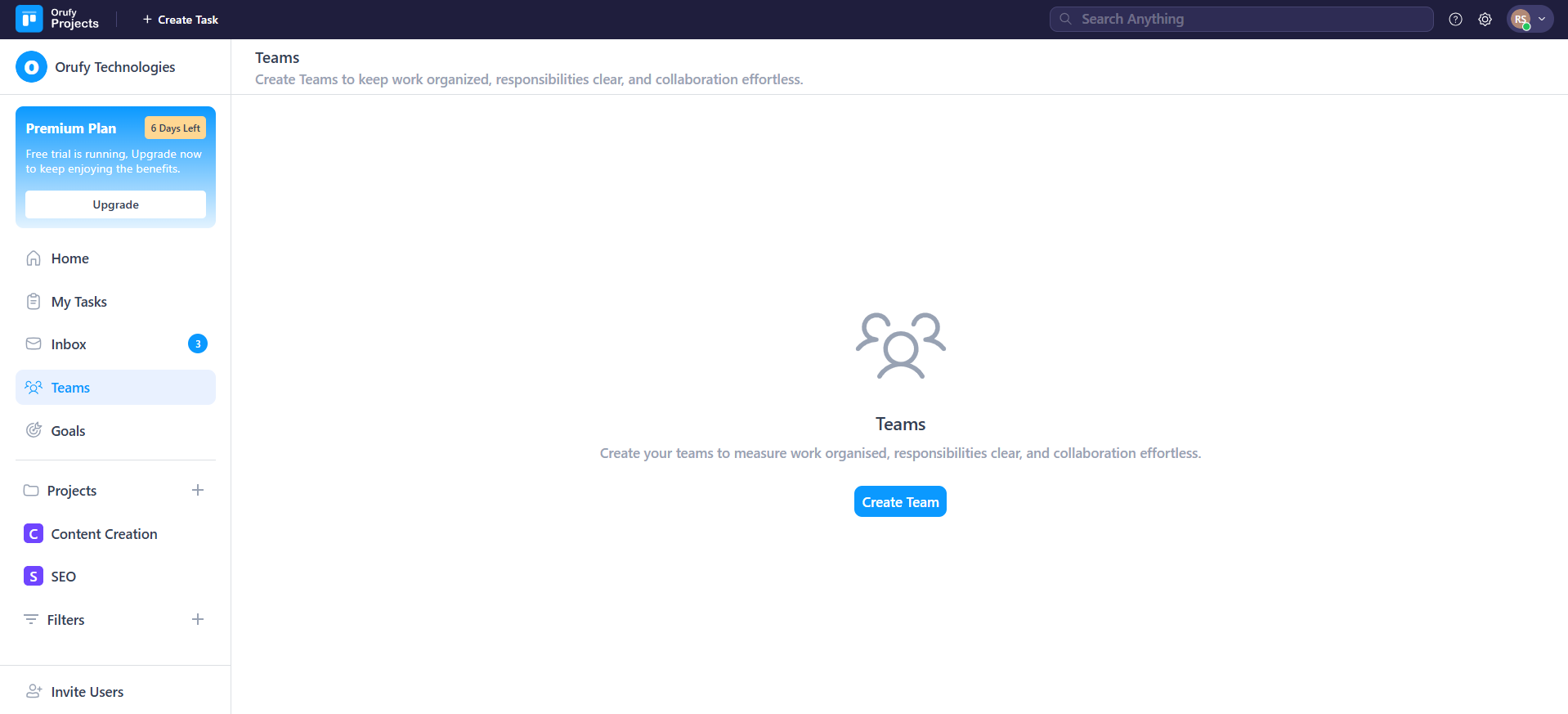
Click on Create Team if you're creating your team for the first time.
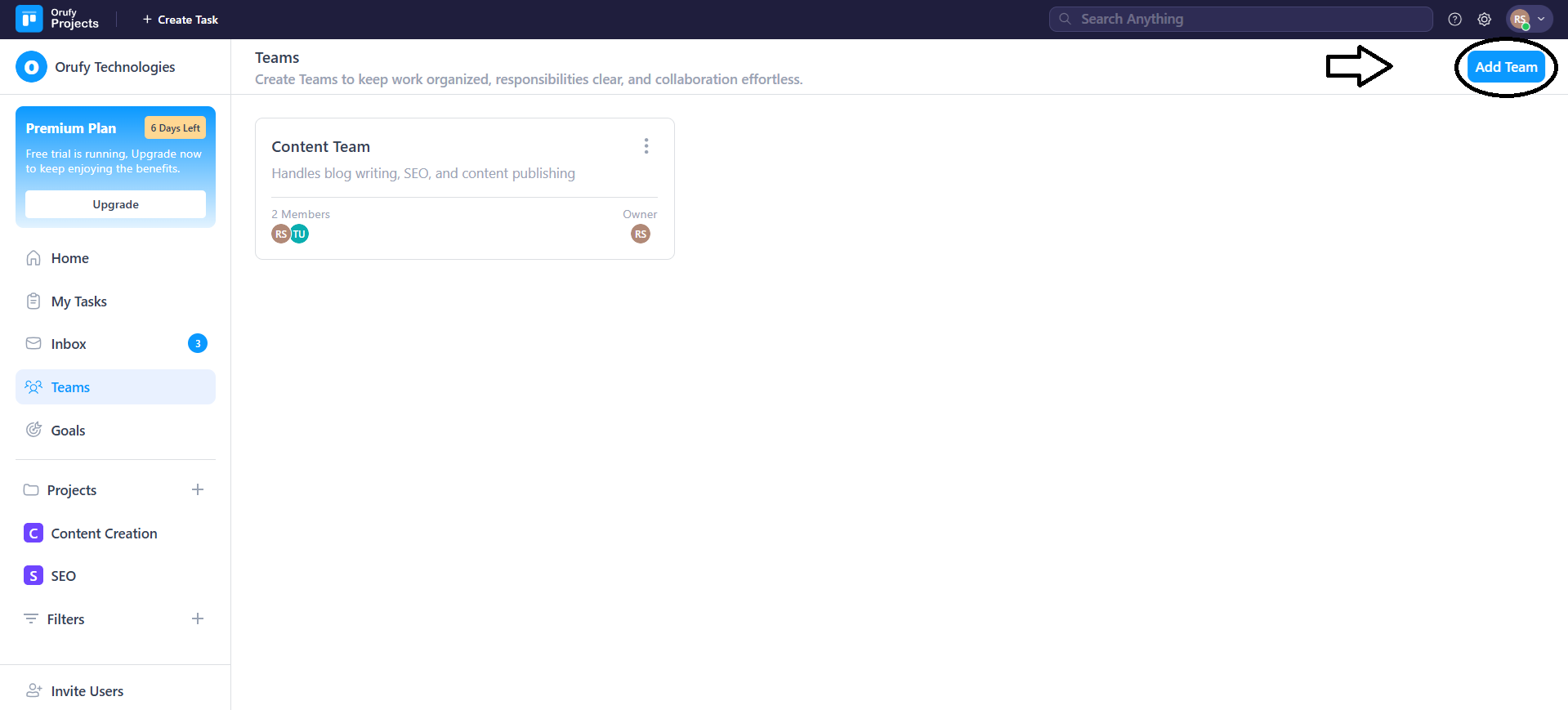
Or, click on Add Team if you have created a team.
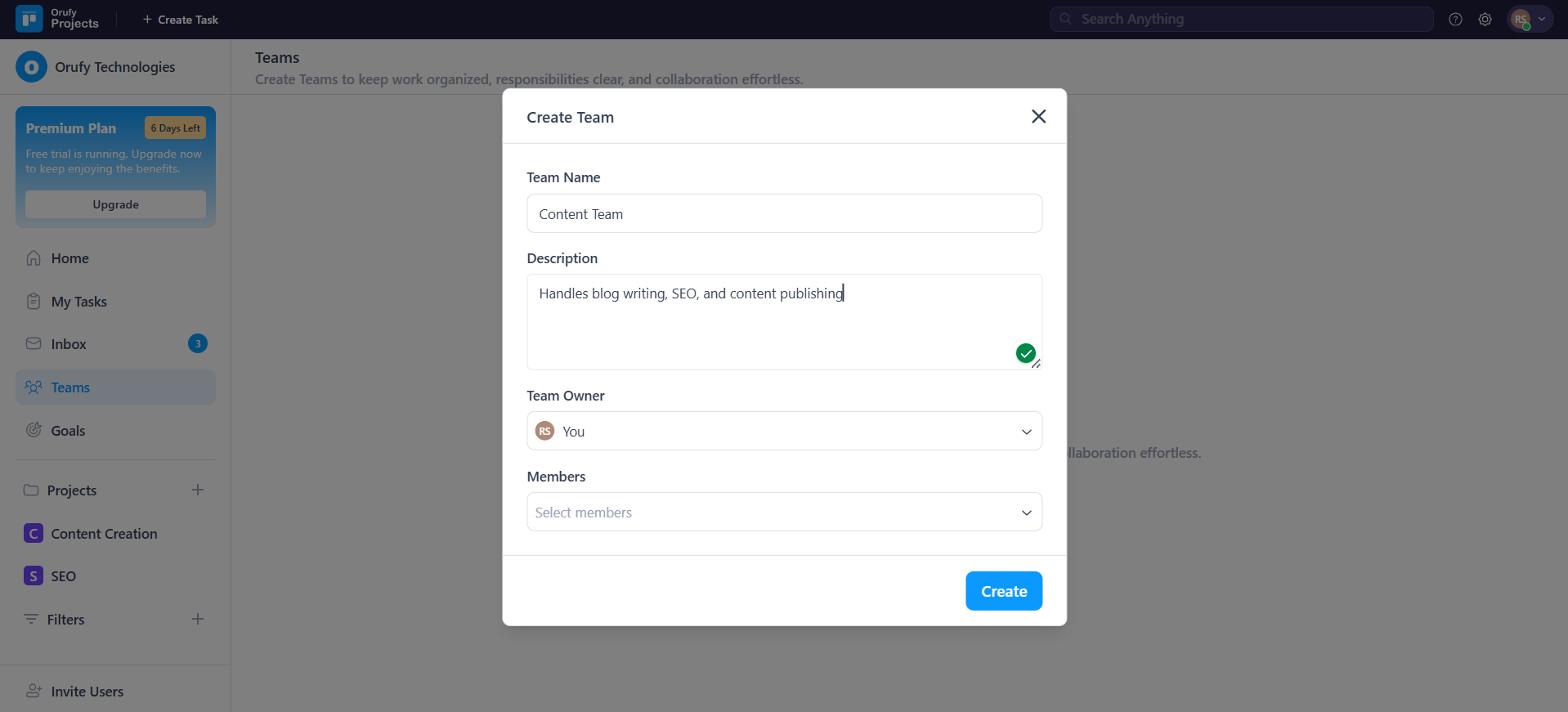
Enter the Team details.
-
Team Name: Enter the name of your team.
-
Description: Add a short description about the team and its purpose.
-
Team Owner: Select from the members drop-down menu who will be the owner of the team. By default, the owner of the team is the person creating the team.
-
Members: Select the members to add as team members.
After successfully creating a team, the member can view four sections. It includes Overview, Team tasks, Projects, and Team members.
More Options
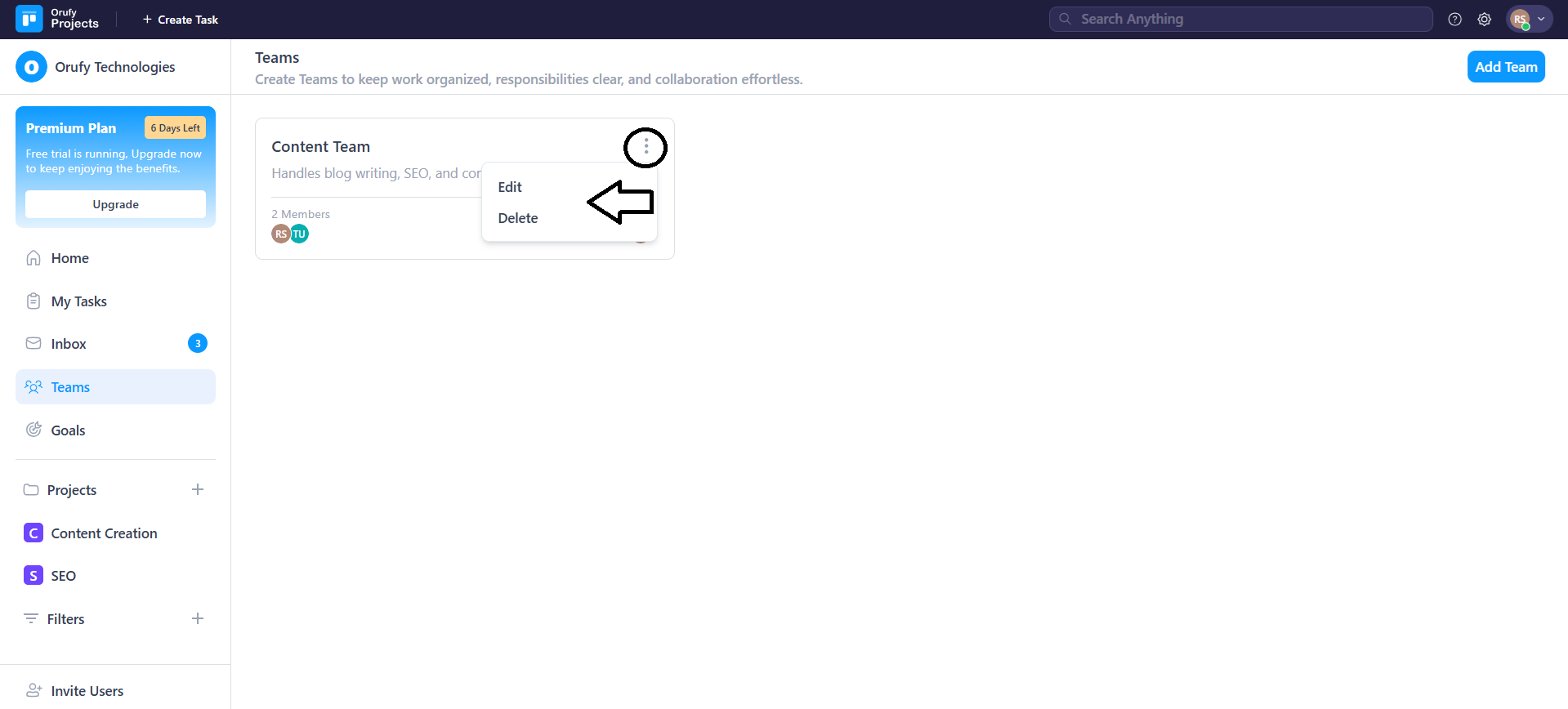
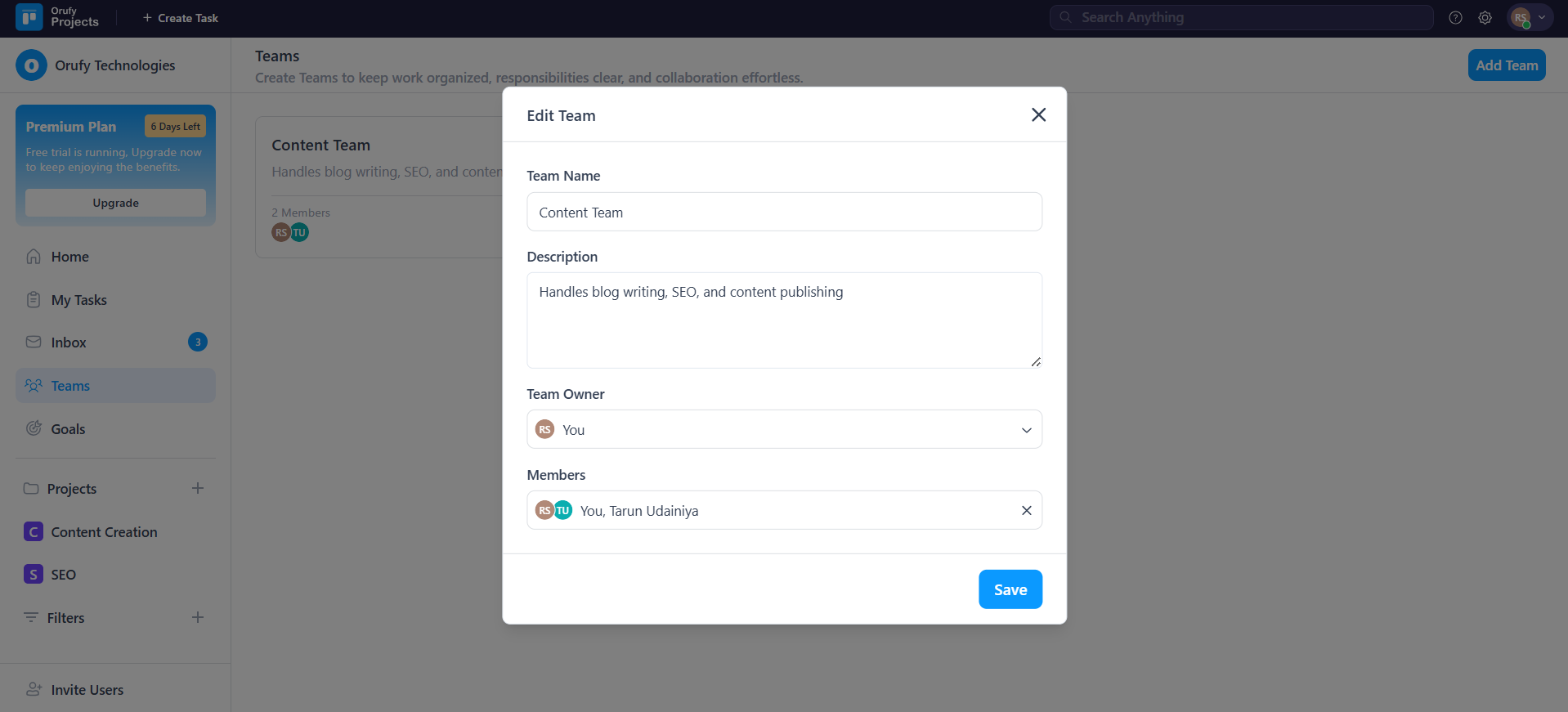
- Edit: It allows the team owner and the person who has created the team to edit or update all the team details.
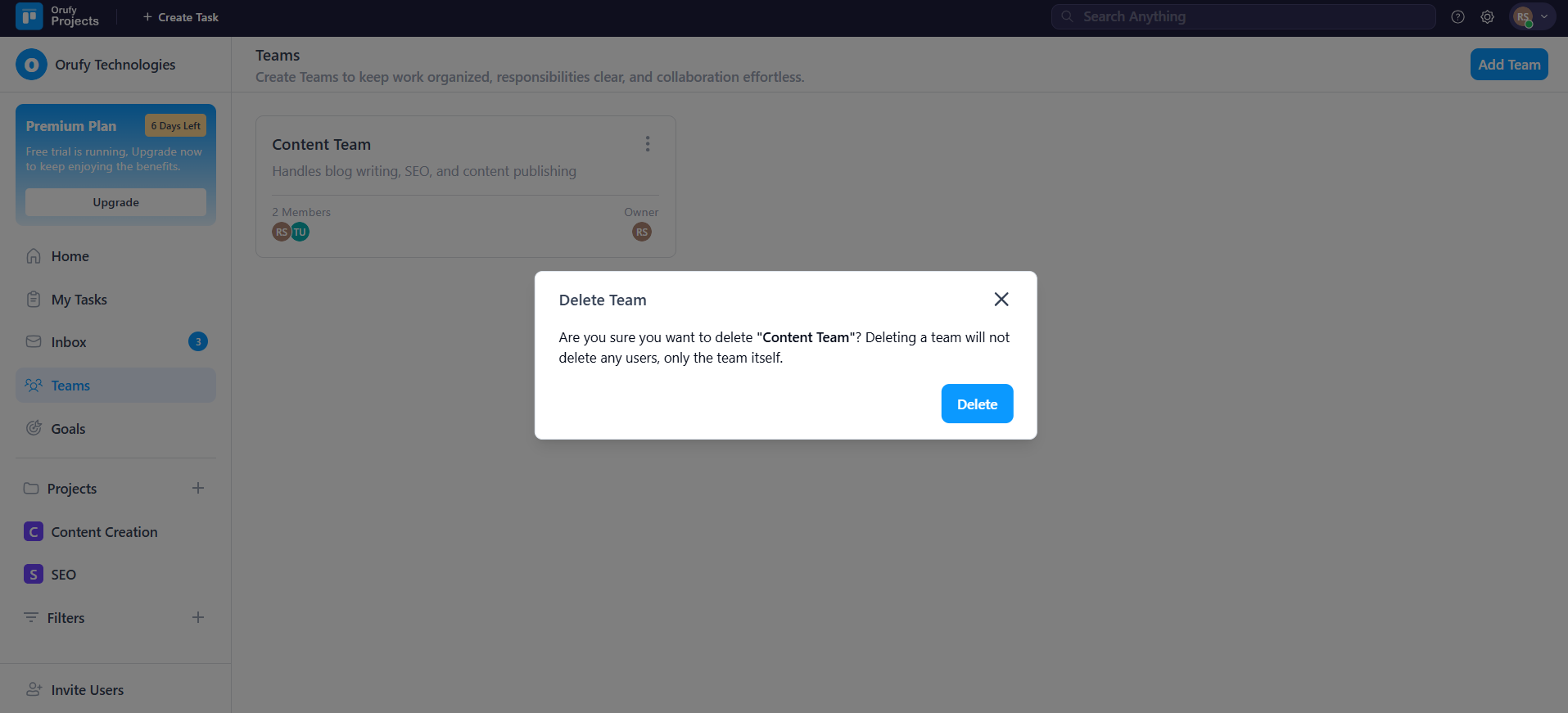
- Delete: It allows the team owner and the person who has created the team to delete the team.