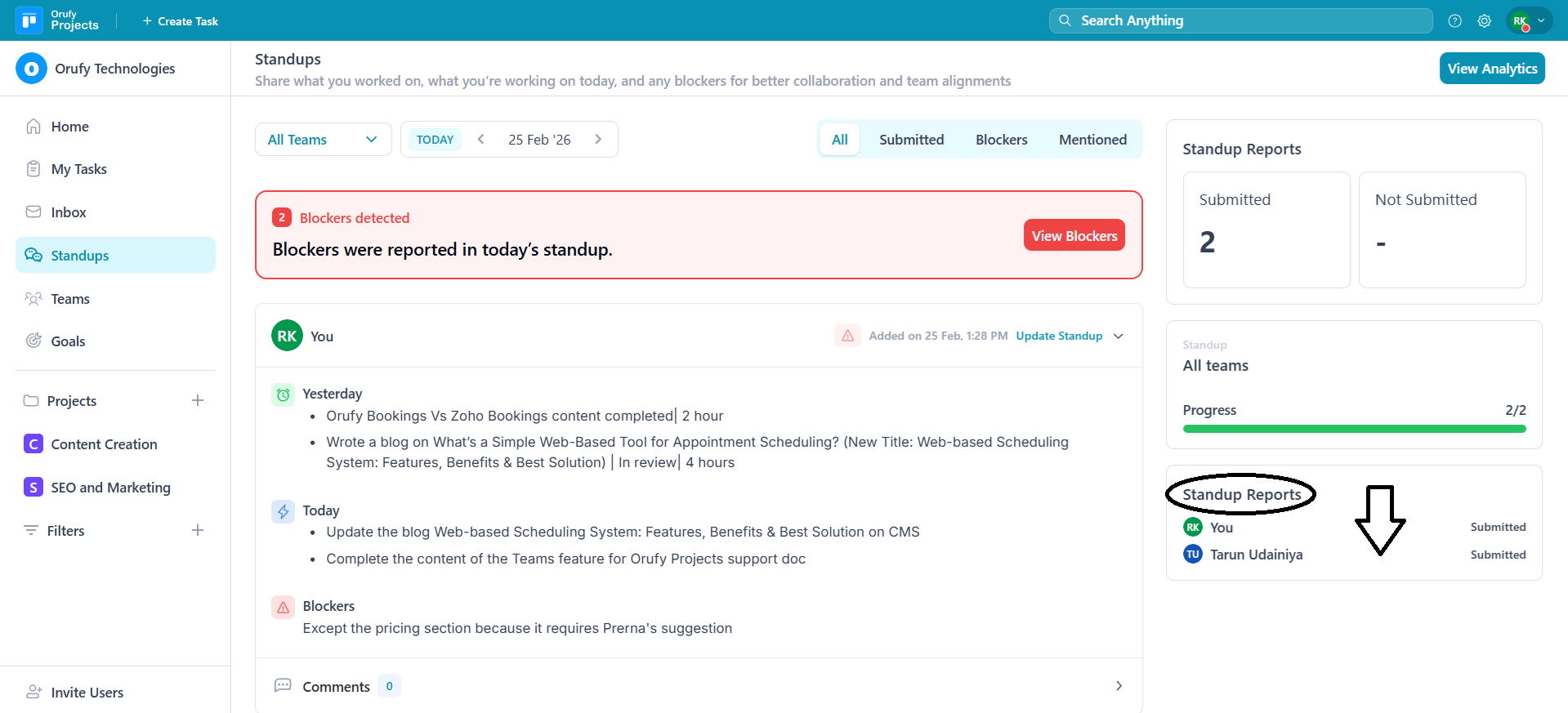
The standup dashboard allows members to add, view, track, and manage their standups.
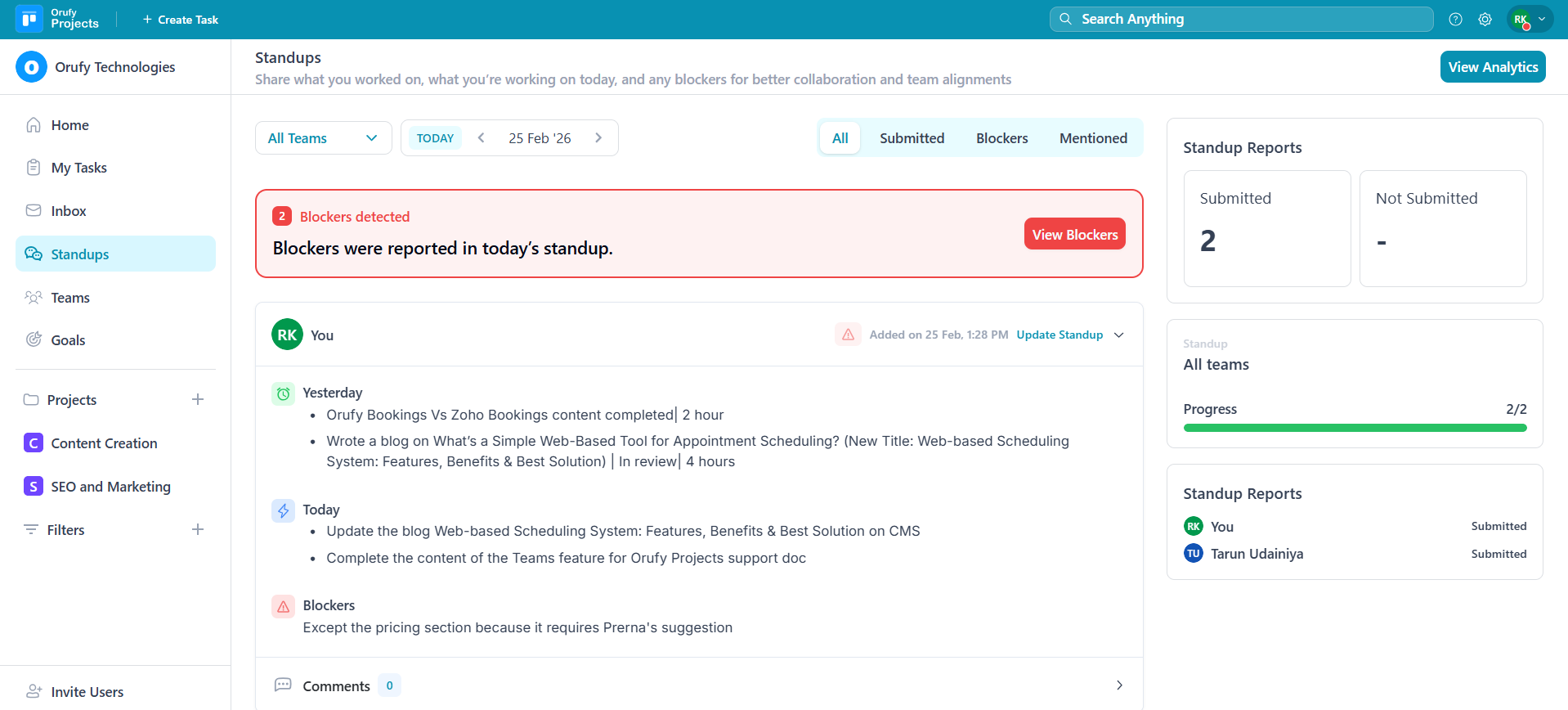
Filters
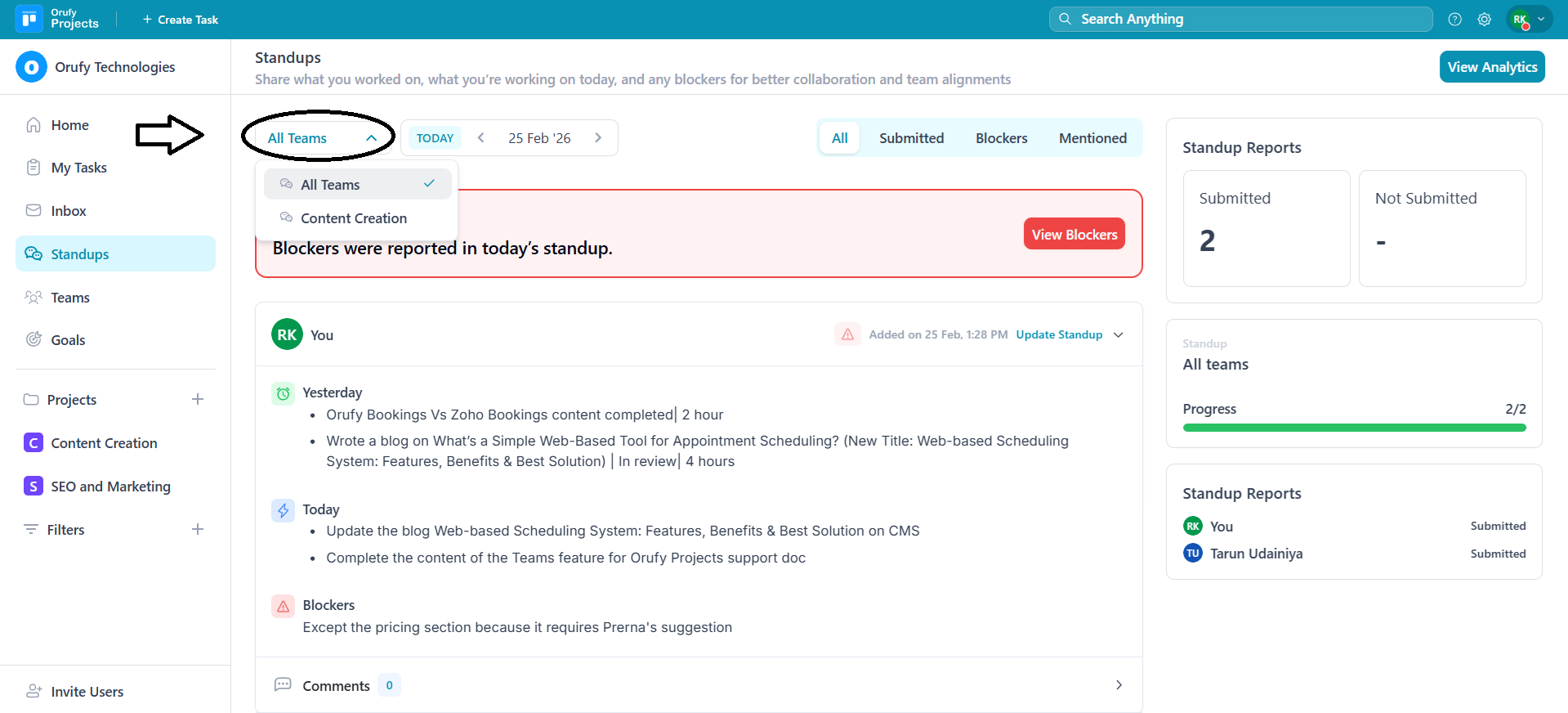
1. Teams
Select from the drop-down which team's stand-ups you want to view. The drop-down menu will include all the teams in which you are a team member.
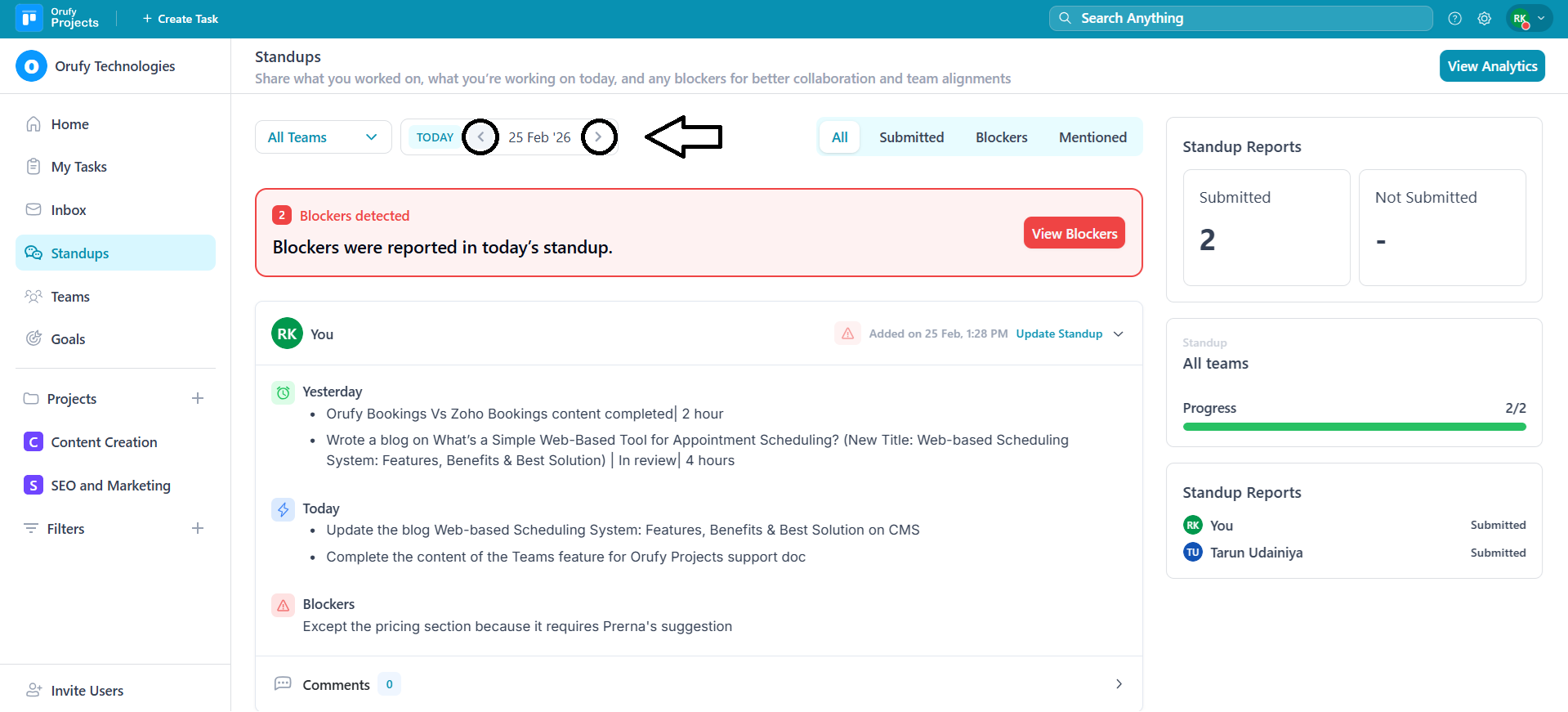
2. Day
The left and right arrows allow members to navigate within dates to view the selected date’s standup.
Standup Progress Filters
Filter the standup’s progress with
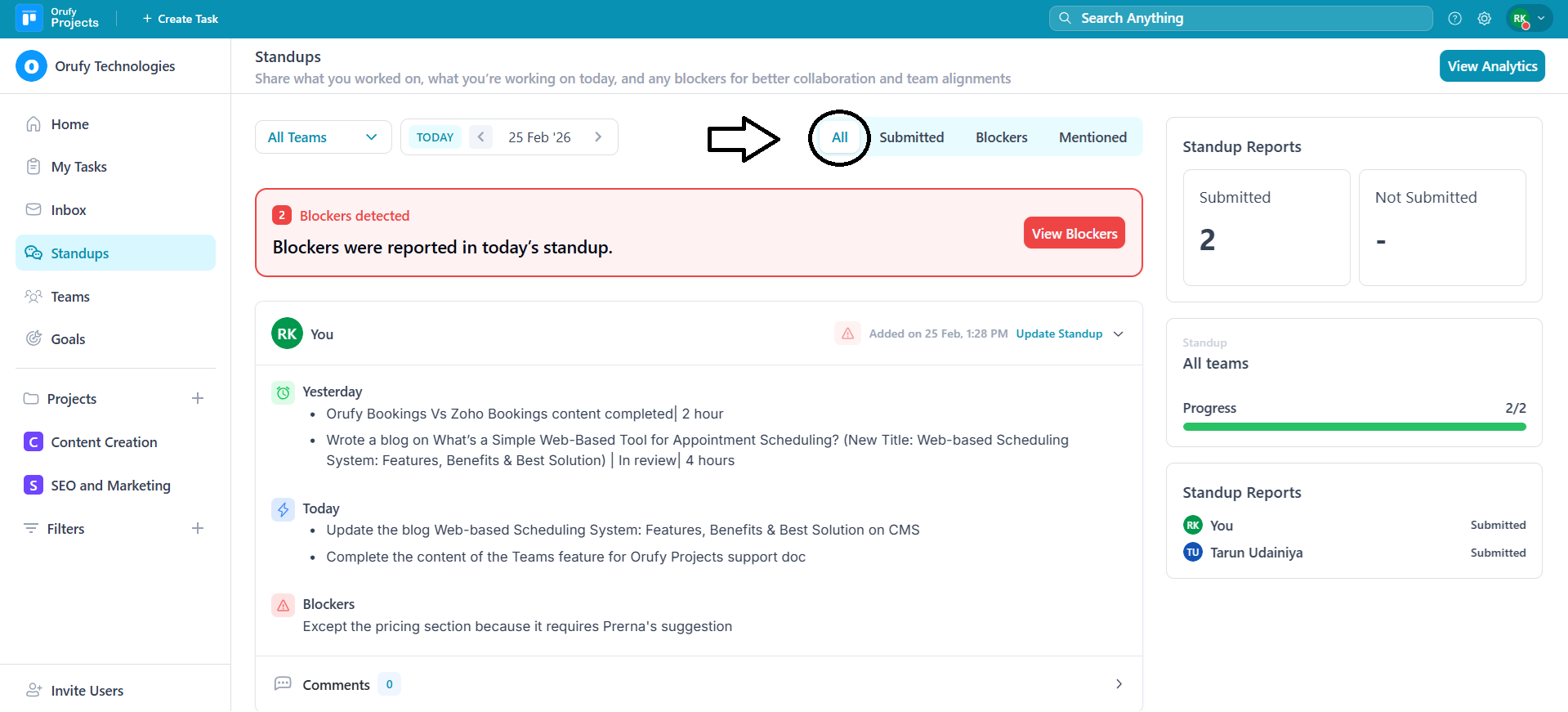
- All It shows all the stand-ups by team members of the selected team on a particular date.
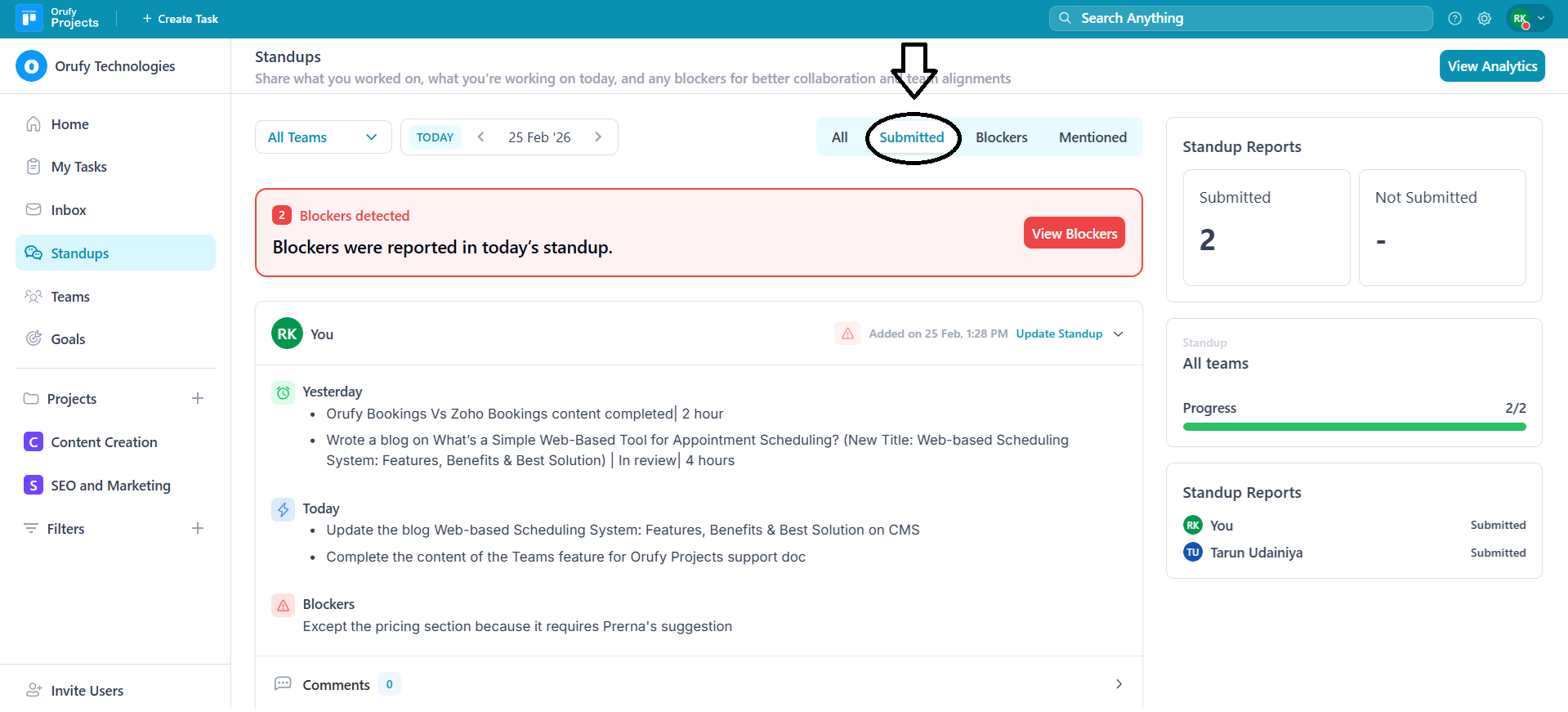
- Submitted It will display all the published standups by the selected team’s members on that date.
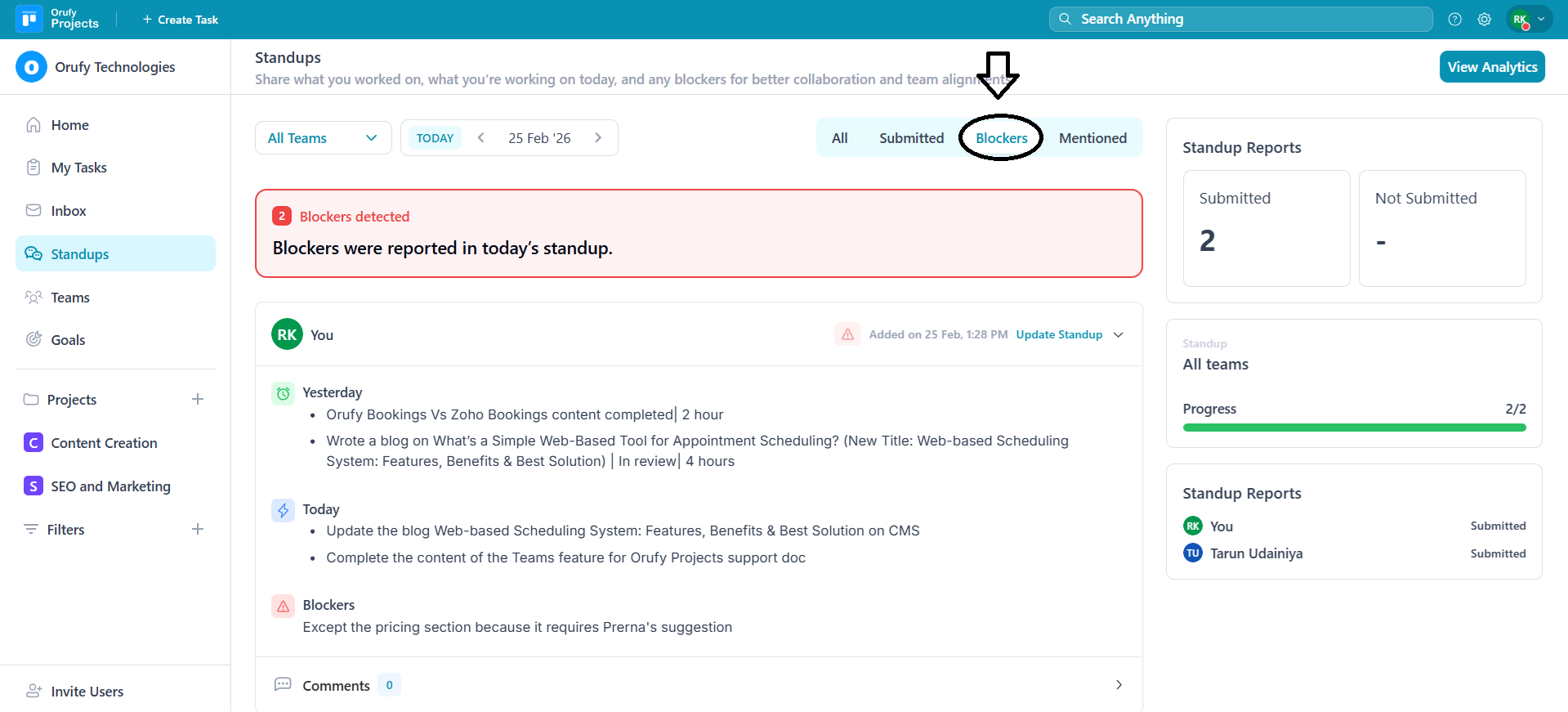
- Blockers It shows standups that include blockers. This identifies issues or delays in work.
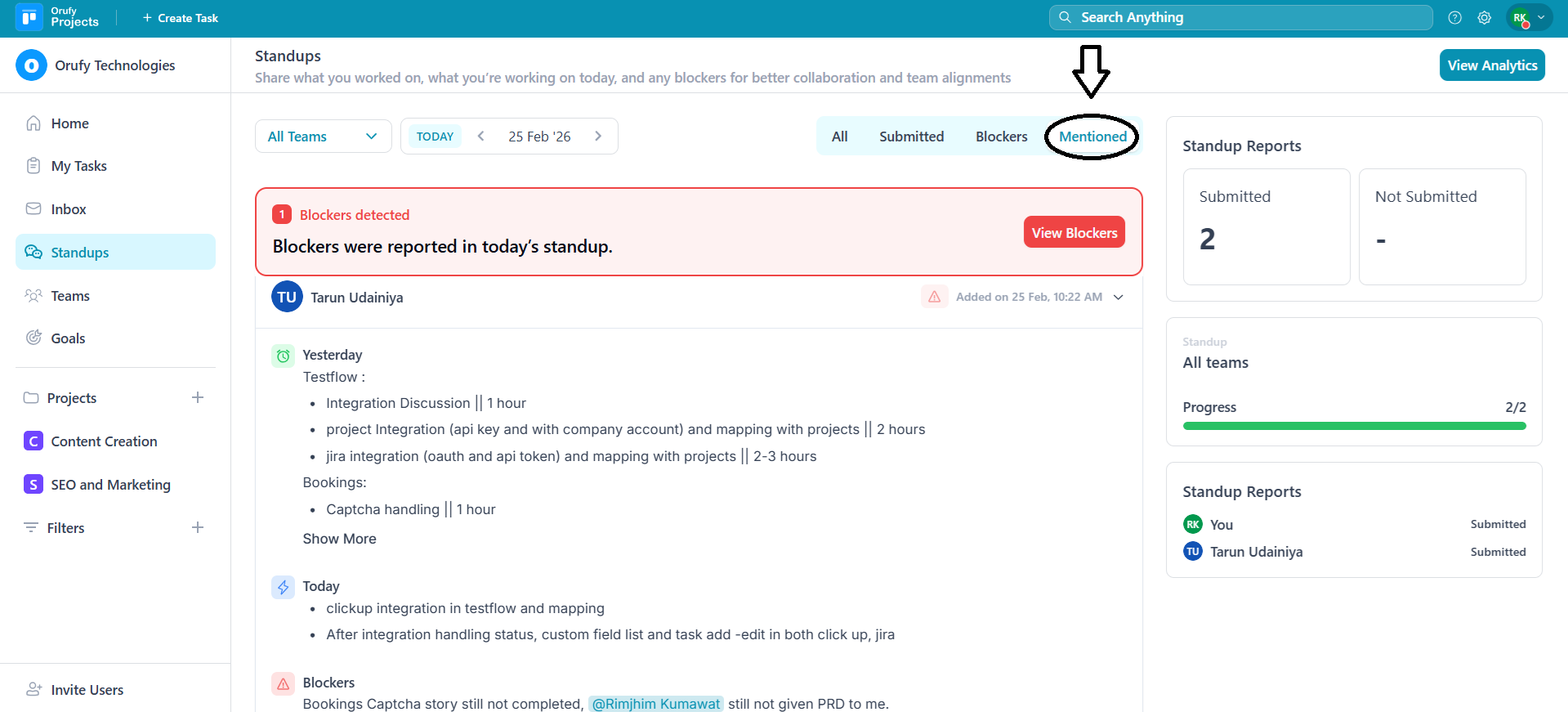
- Mentioned It shows standups where a team member is mentioned by another team member.
Standup Section
It shows all the stand-ups submitted by team members of a specific team.
Each standup includes:
-
The blockers reported in the standup can be viewed by clicking on View Blockers.
-
The team member submitted the standup.
-
The date and time when the standup was submitted.
-
Work done yesterday
-
Today’s tasks to work upon
-
A comment section where team members can comment or discuss the standup.
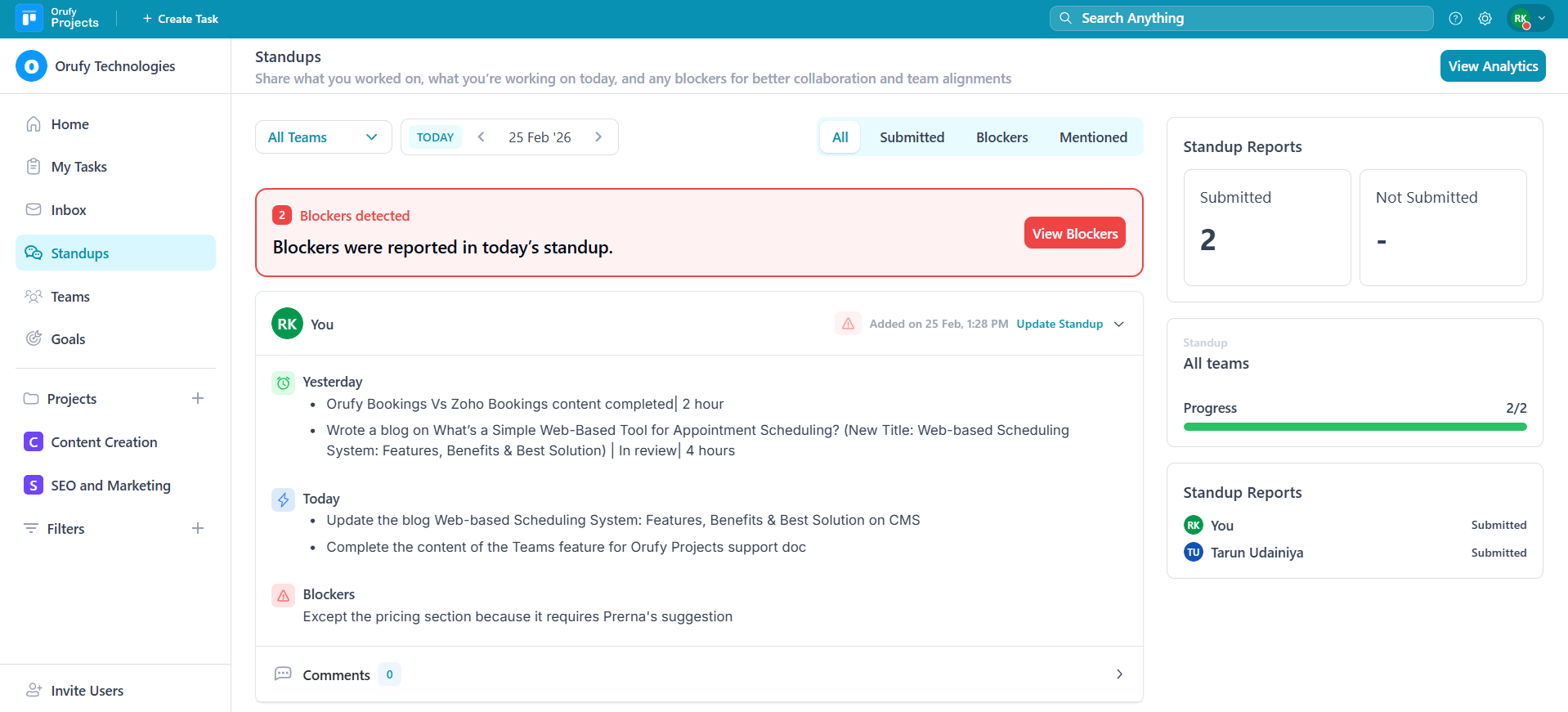
Stand-up Reports
It shows team members' reporting on the standup submissions.
1. Submitted It shows the total number of team members who have published their standups.
2. Not Submitted It shows the total number of team members who have not published their standups.
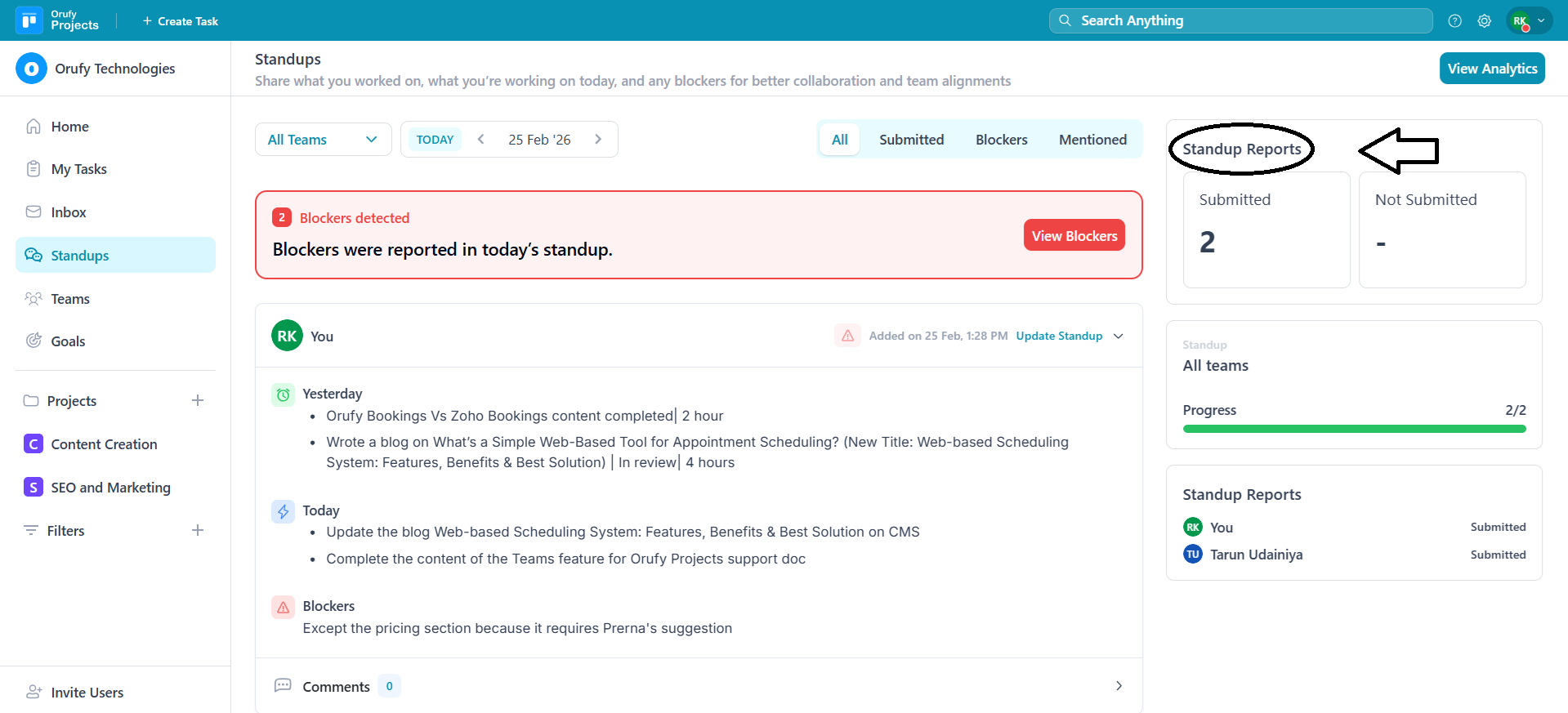
Standup Progress
It shows the progress of the selected team from the filter. This indicated submission of standups using the progress bar.
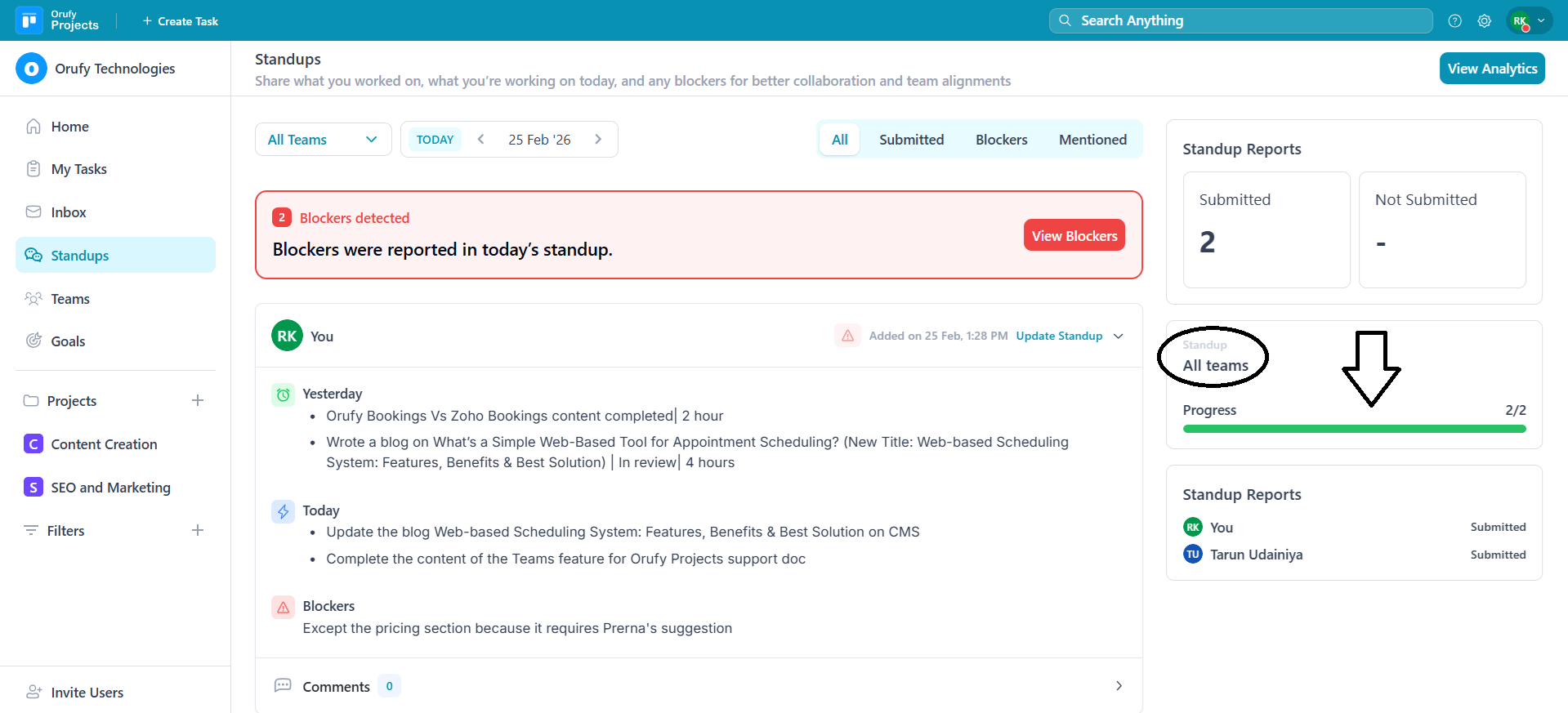
Stand-up Reports
It shows the stand-up submissions in tabular form. This includes the name of the team member and the status of their stand-up submission.
You can view more details about the team member by clicking on their Name inside the Stand-up reports.
It includes:
-
The date filter allows you to view the standup for a particular date.
-
By default, it shows today’s standup of the team member.
-
On the right side, the name of the team member, their email address, and the name of the team.
-
Basic statistics about the team member showcasing the submitted standups and blockers reported.