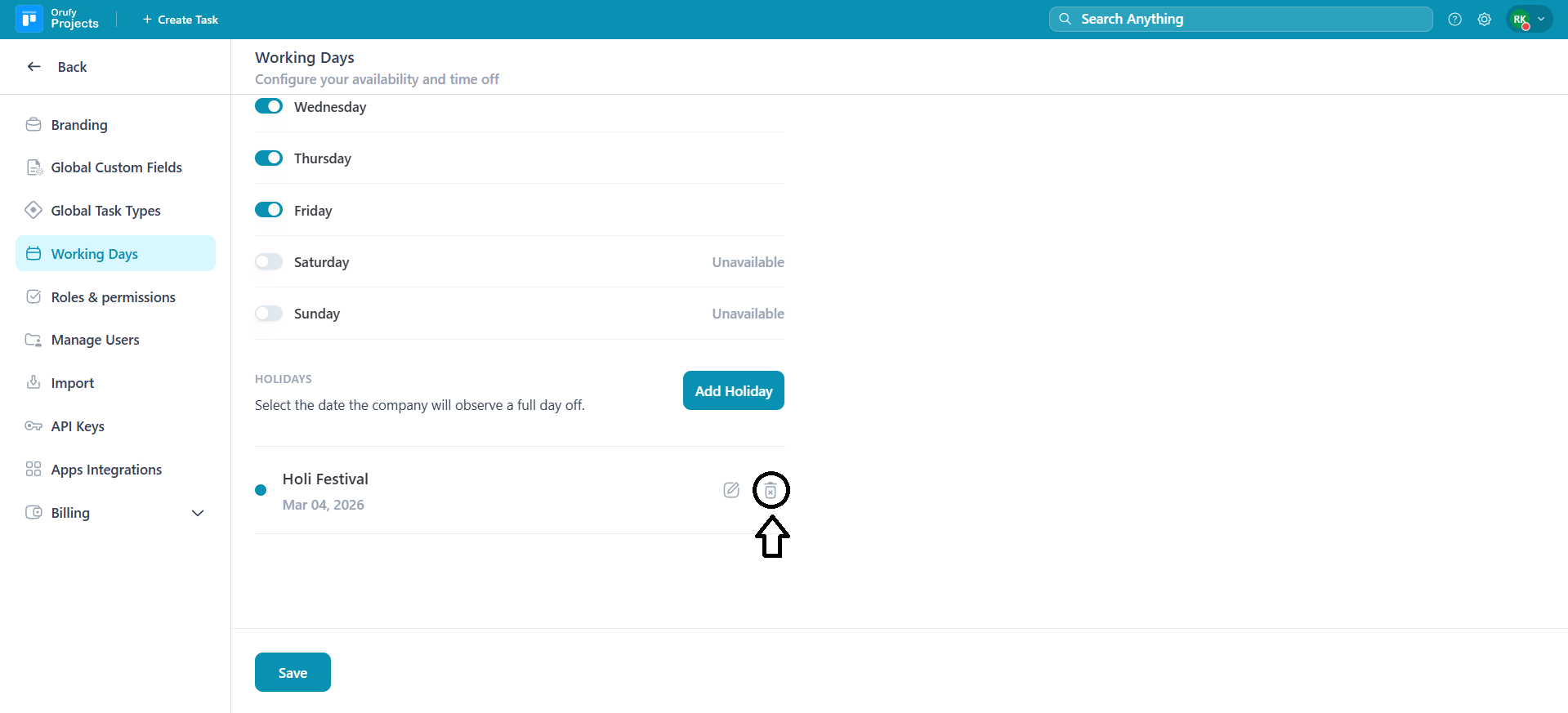
Here, you have to set your official working days for tracking progress, deadlines, and planning tasks based on the working days.
It is divided into three parts:
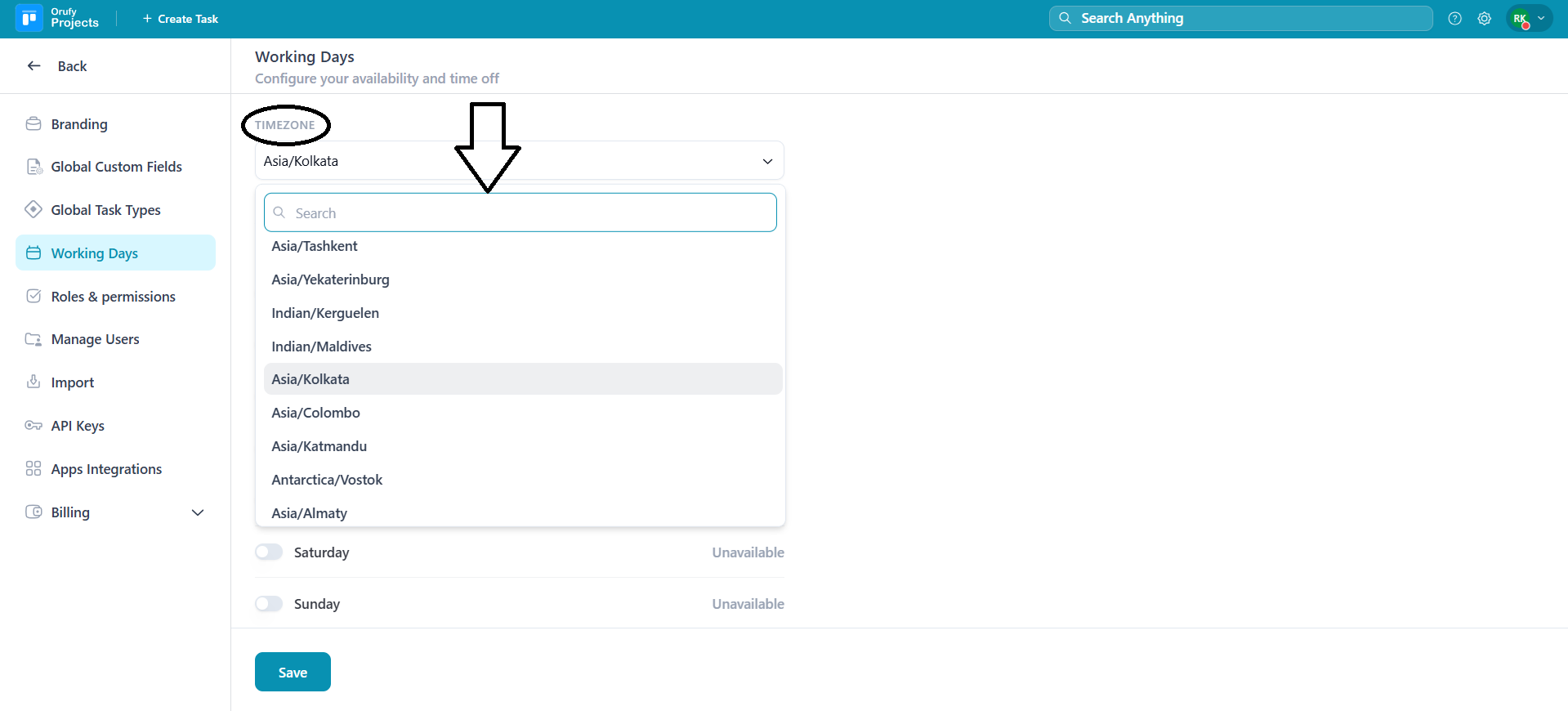
1. Time zone
Select the time zone from the drop-down menu for your business. All activities, standups, and updates will be displayed according to the selected time zone.
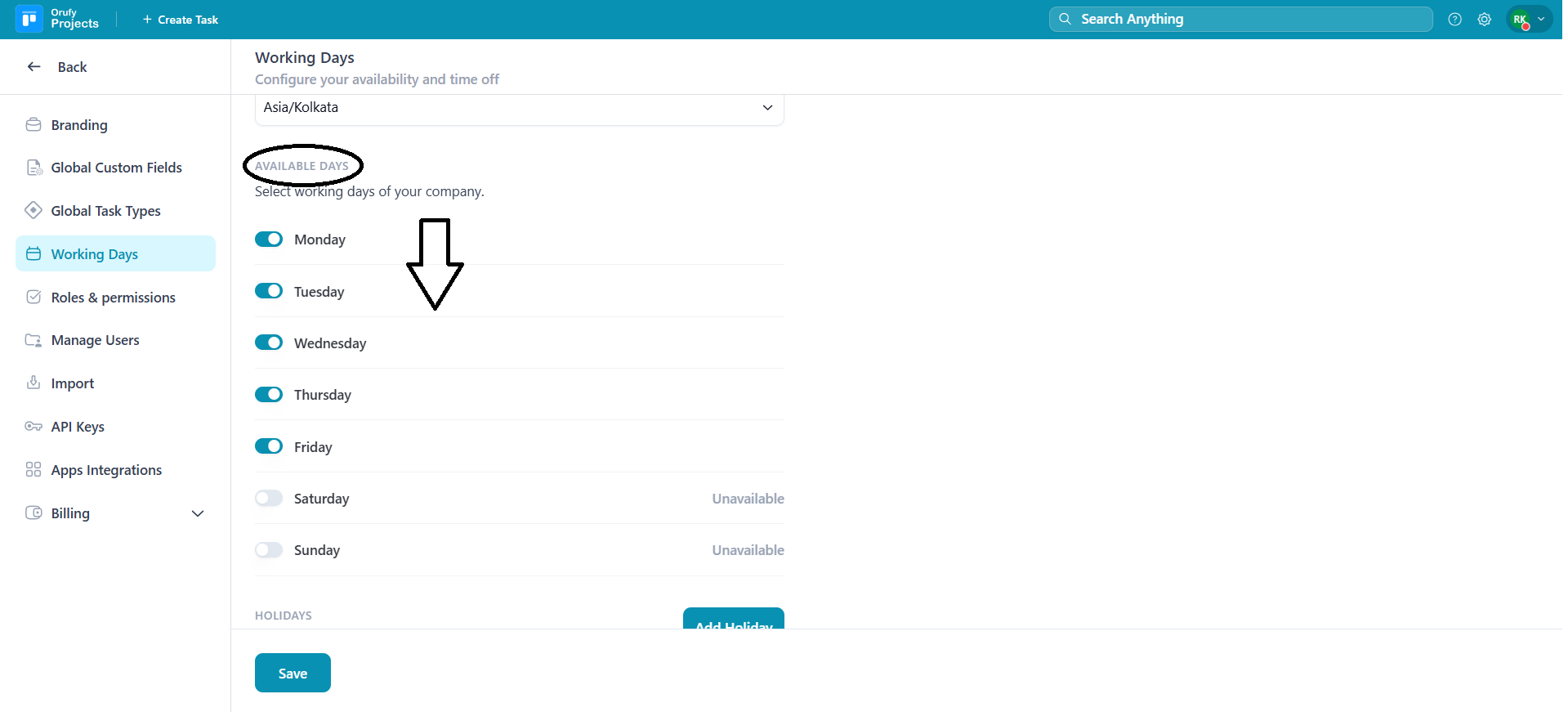
2. Available Days
You have to toggle available or unavailable for the days of the week. Days that are not toggled as available will be marked as unavailable or non-working days of the week.
3. Holidays
You have to add the official holidays. When a holiday is added, the system automatically marks the day as unavailable.
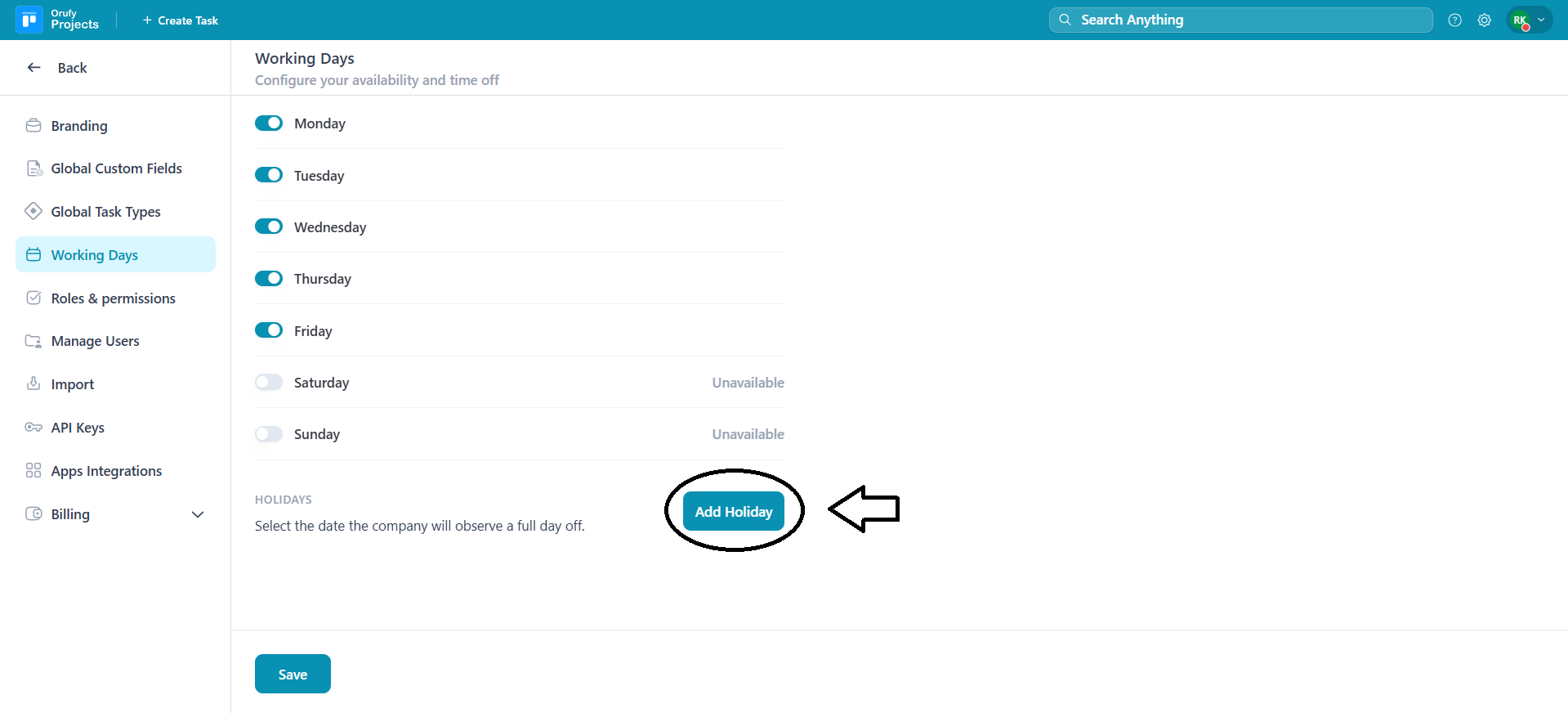
How to add a holiday
-
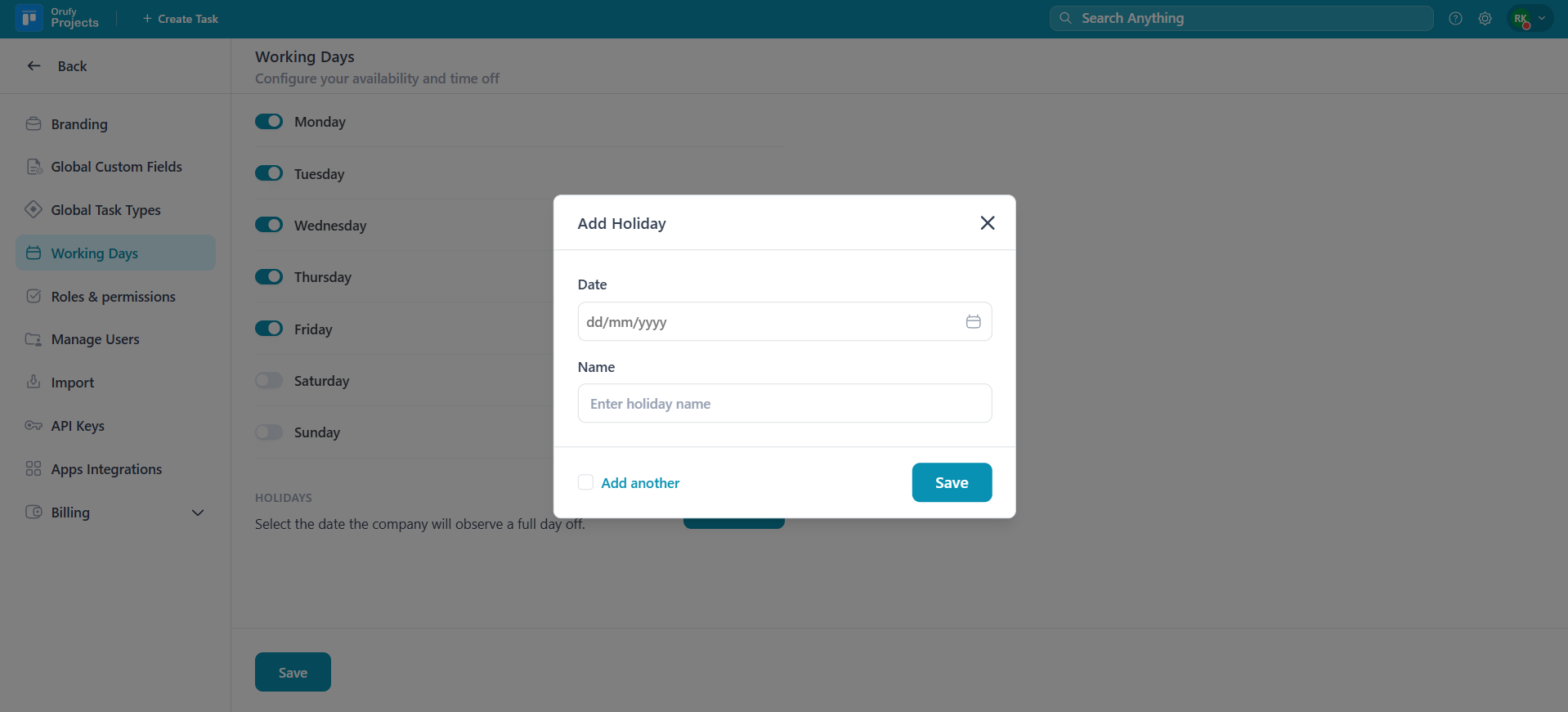
Click on Add Holiday.
-
Select the date.
-
Enter the name of the holiday.
-
Click on Save to add the holiday.
-
Add another: If checked, you don't have to click on "Add Holiday" to add a new holiday. It will automatically add that holiday, and you can add a new one.
-
You can edit the added holiday from the Edit icon.
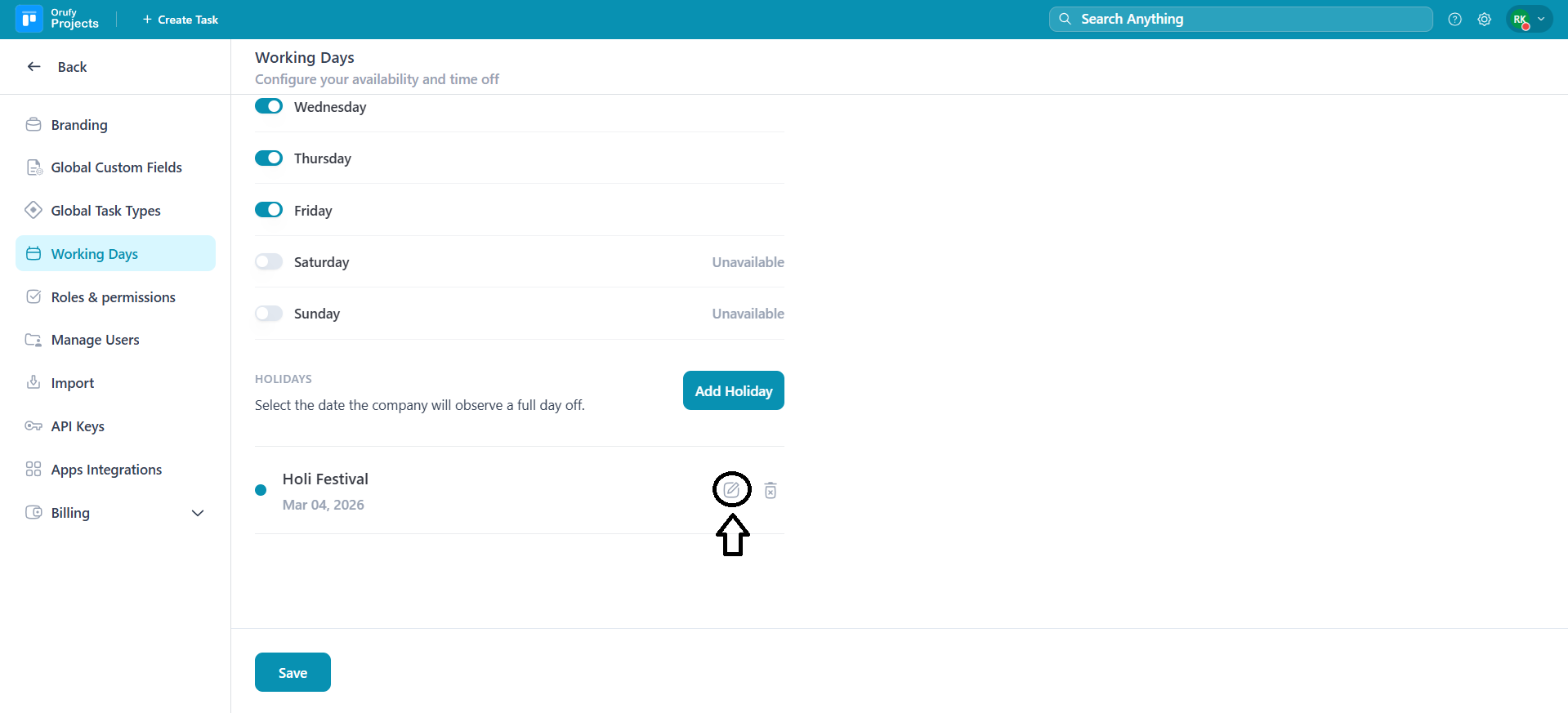
- You can also delete the added holiday from the Delete icon.