
The Workspace GitHub Connection is managed only by workspace admins. It enables automatic syncing between Orufy Projects and GitHub repositories.
With Workspace GitHub Connection, Orufy Projects can automatically sync:
-
Commits
-
Pull Requests
-
Branches
This connection works only for repositories that are mapped to specific projects in Orufy Projects. GitHub activity is reflected automatically.
Workspace GitHub Integration
It allows admins to integrate GitHub at the workspace level and sync development activity with Orufy Projects automatically.
Configuration:
-
It allows workspace admins to configure the Workspace GitHub integration.
-
If a person who is not an admin opens the Workspace tab: A message is displayed: Only Admins can modify settings of the app.
-
All the configuration settings will be disabled, ensuring integration is secure and managed.
Step-by-Step Process to Connect Workspace GitHub
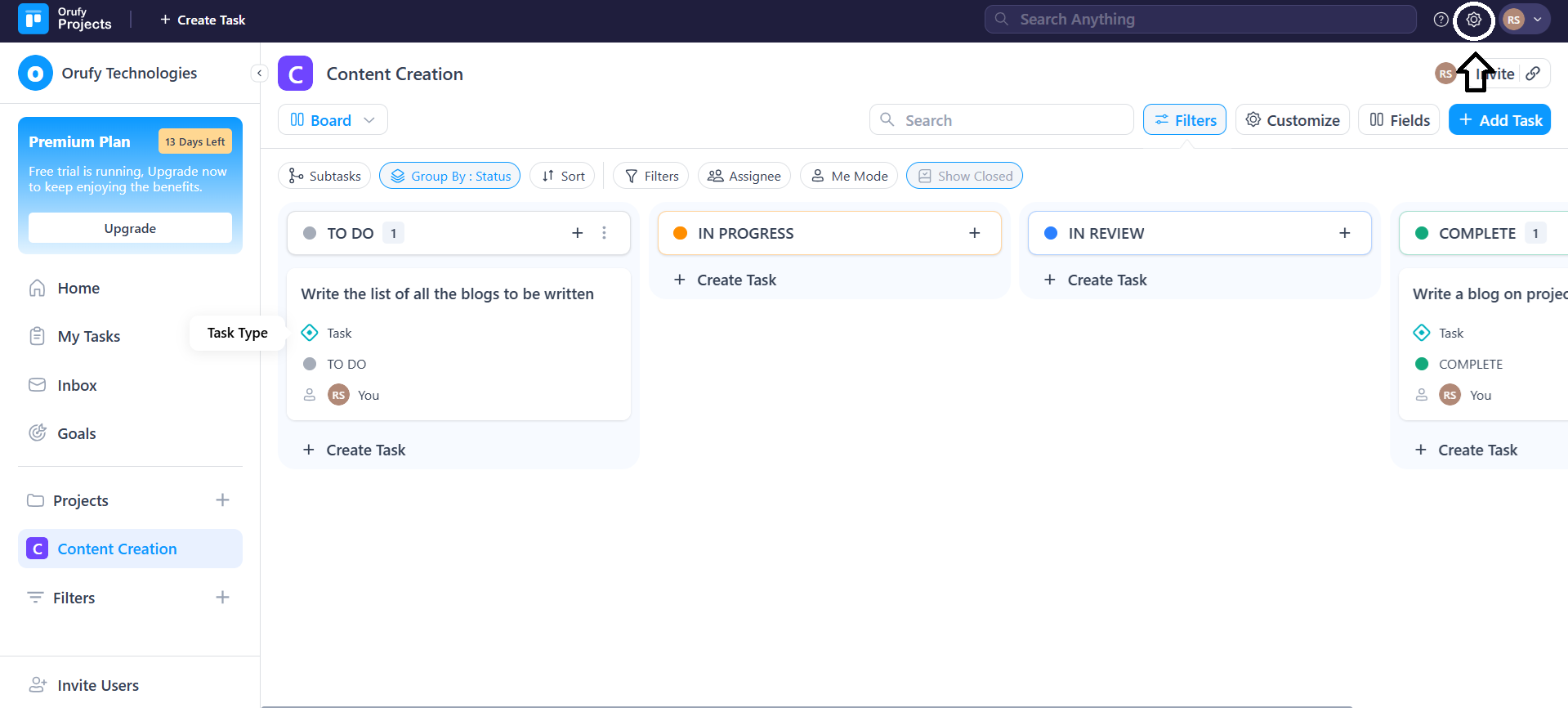
Step 1: Go to Settings.
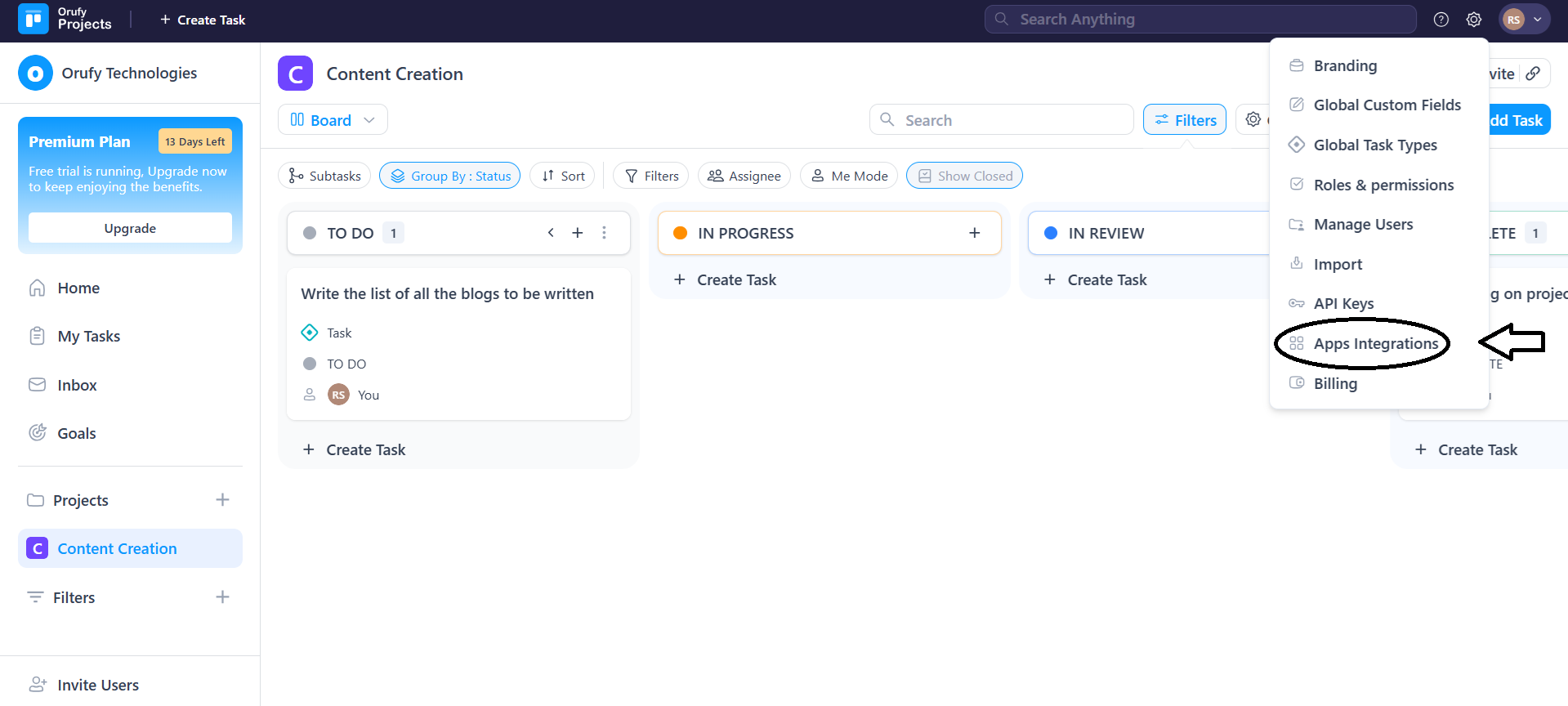
Step 2: Click on Apps Integrations
Step 3: Click on GitHub.

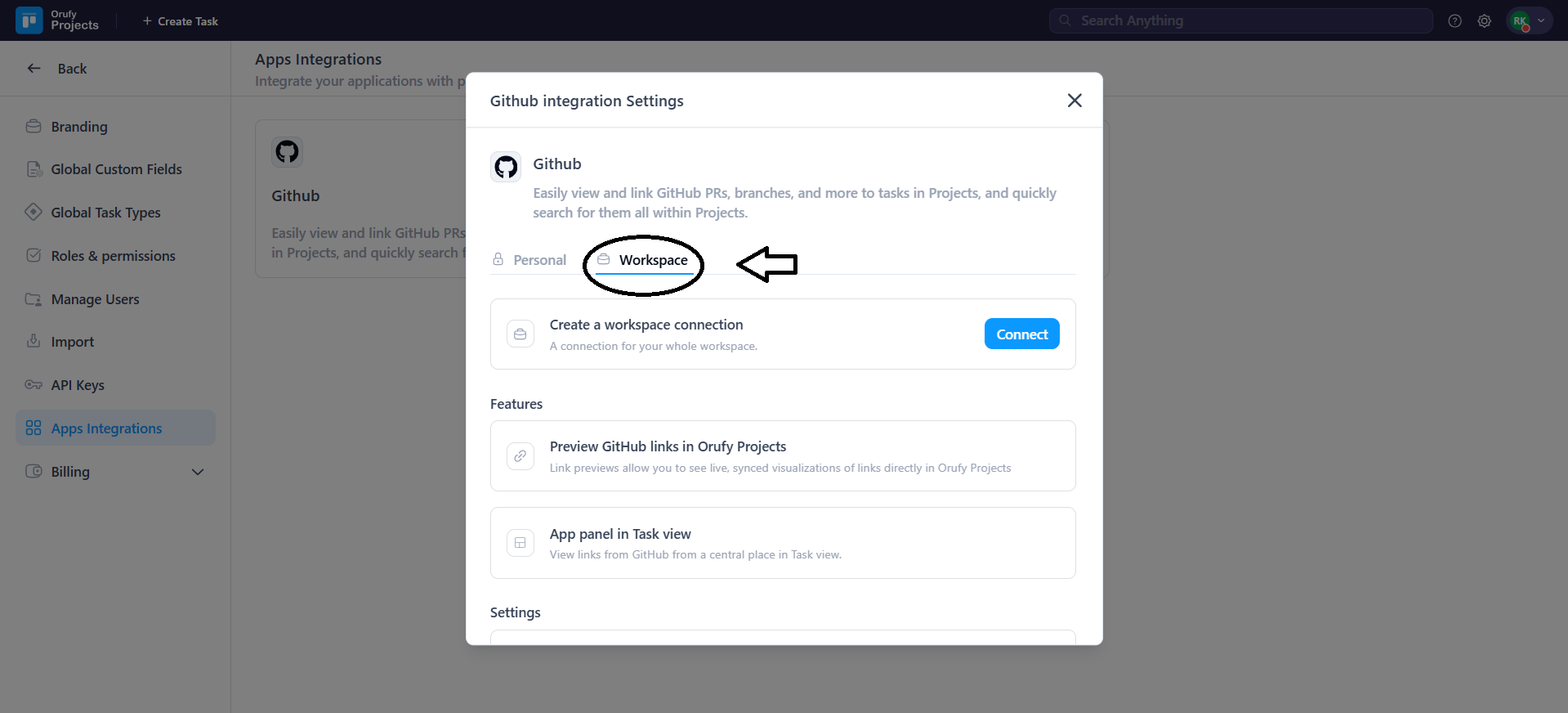
Step 4: From the GitHub integration settings, open the Workspace tab.
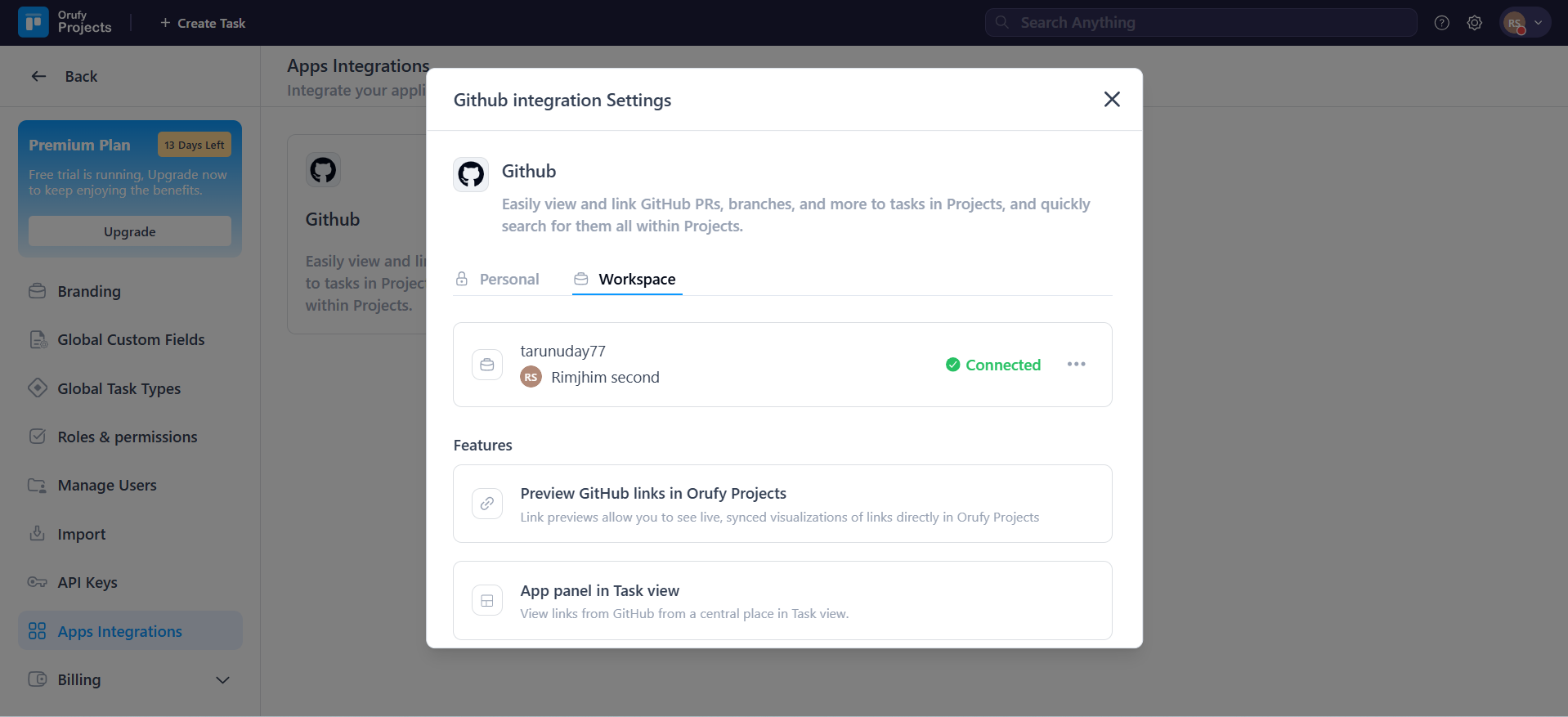
Step 5: Connect the workspace with your GitHub account.
Step 6: Selecting Repositories
-
Navigate to Settings in the workspace space tab.
-
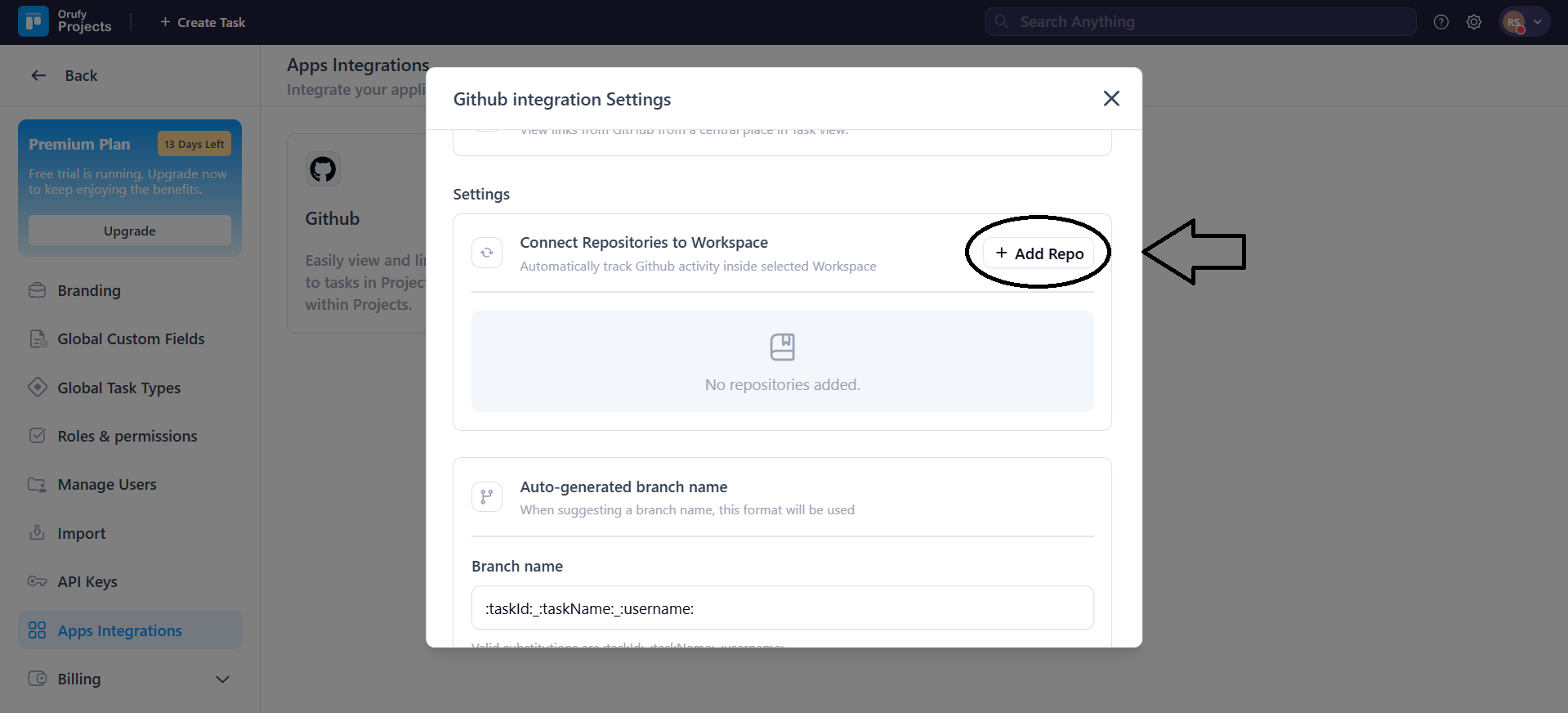
Click on + Add Repo to select the repository from the drop-down menu.
Keep in Mind:
-
By default, selected repositories are not mapped to any project.
-
Admins can skip this step and connect repositories later.
-
Selected repositories become available for project mapping.
-
Only repositories that are connected with GitHub account has permission to access will appear.
Step 7: Mapping Repository to Projects
After selecting the repositories:
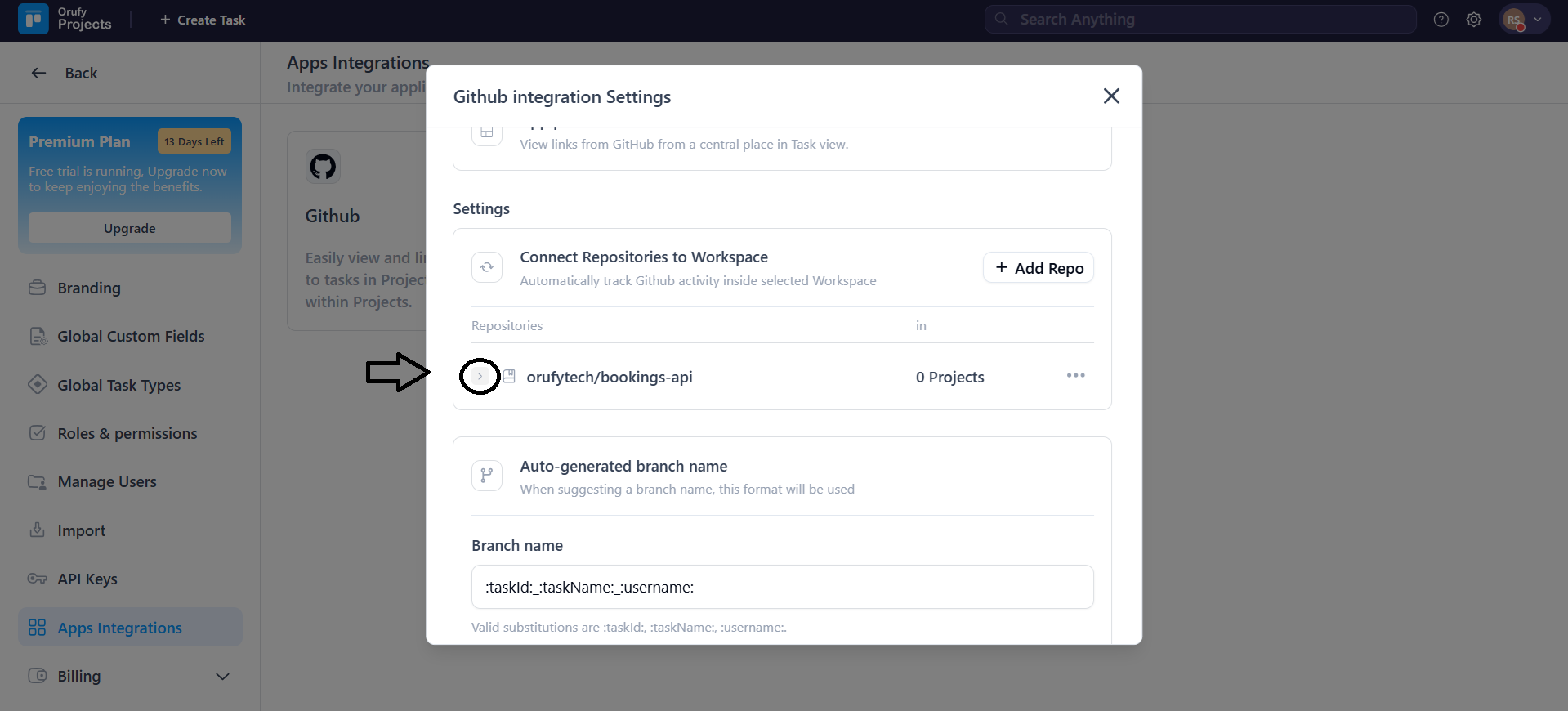
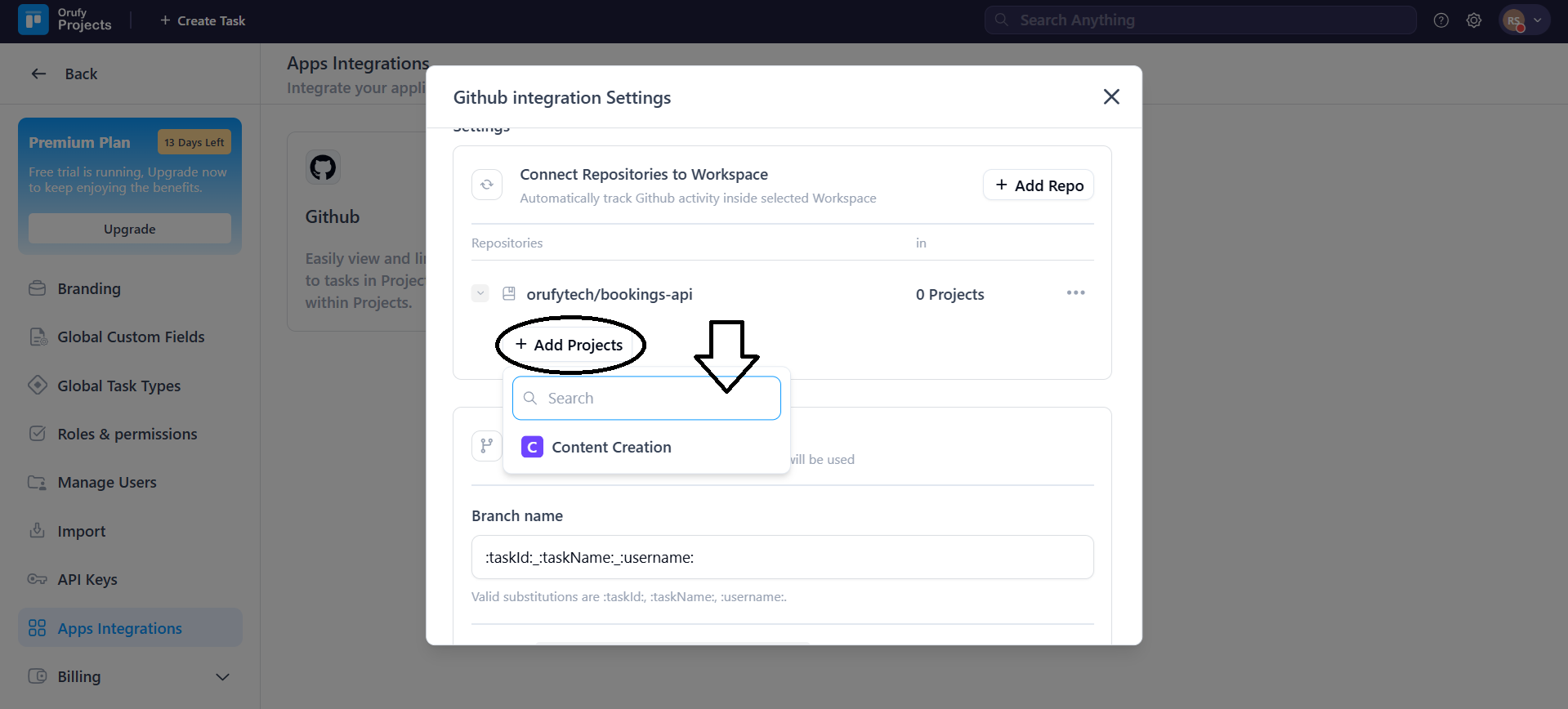
- Click on + Add Projects from the icon.
- Select the project from the drop-down list of projects in Orufy Projects.
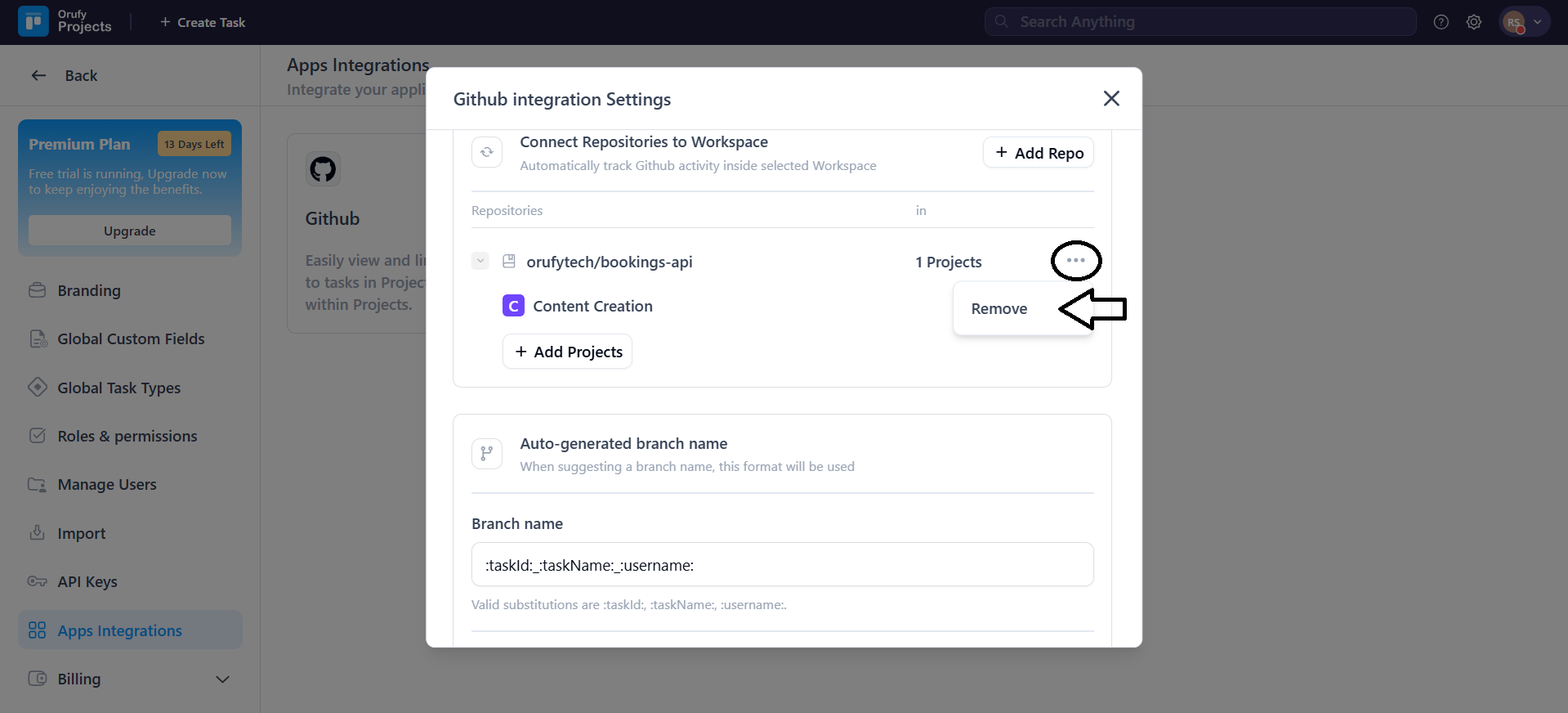
- You can remove the repository from More Options.
Keep in Mind:
-
Only mapped projects will show the GitHub section inside tasks beside comments.
-
If a repository is not mapped with a project, its activity will not appear in the project tasks, even if the task ID is mentioned.
-
GitHub activity syncs only the mapped repositories.
Step 8: Workspace Sync Behaviour
Once a repository is mapped to a project, Orufy Projects automatically syncs GitHub activity to tasks based on the task ID reference.
Orufy Projects detects GitHub activity in the mapped repository and links it to tasks when the task ID appears in any of the following places:
-
Branch name
-
Commit message
-
Pull request
When a task ID is detected:
-
The branch, commit, or pull request is automatically added to the corresponding task.
-
The activity appears under the GitHub section of the task.
Keep in Mind:
-
Only activities from mapped repositories are synced.
-
Activity from unmapped repositories will not appear, even if the task ID exists.
-
Users do not need to manually link items if the task ID is present.


