
Meta Pixel
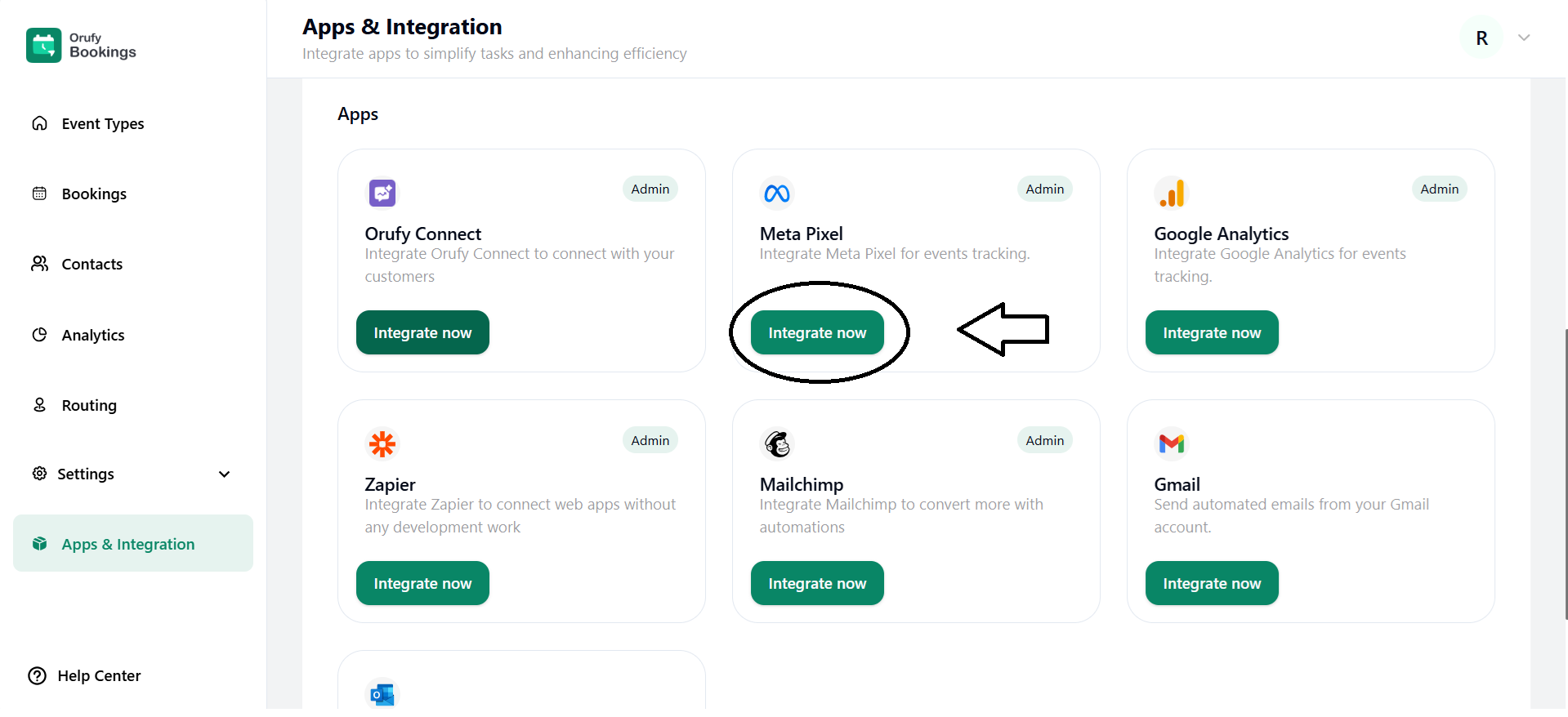
1. Click on Integrate Now.
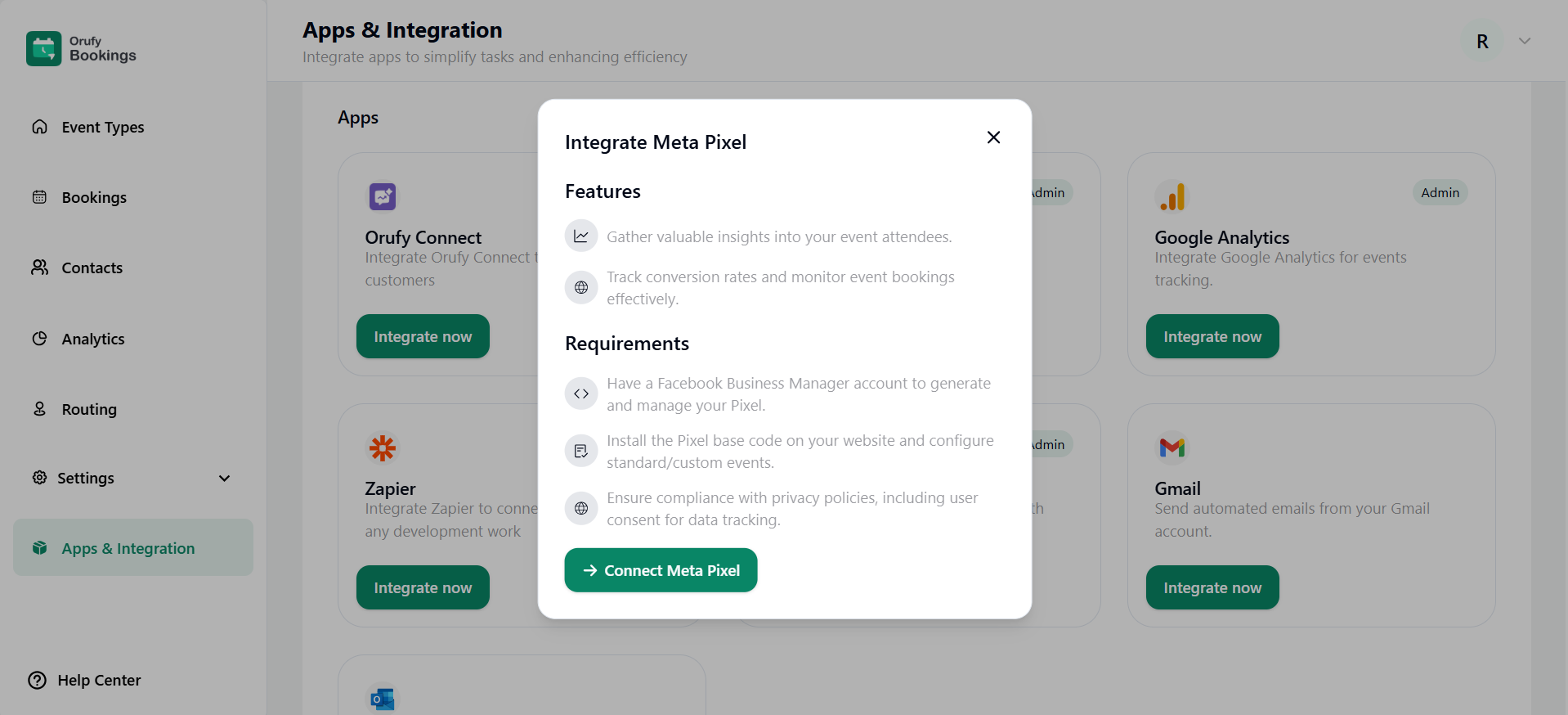
2. Read the features and requirements of Meta Pixel.
3. Now, click on Connect Meta Pixel.
4. Enter the Meta Pixel ID.
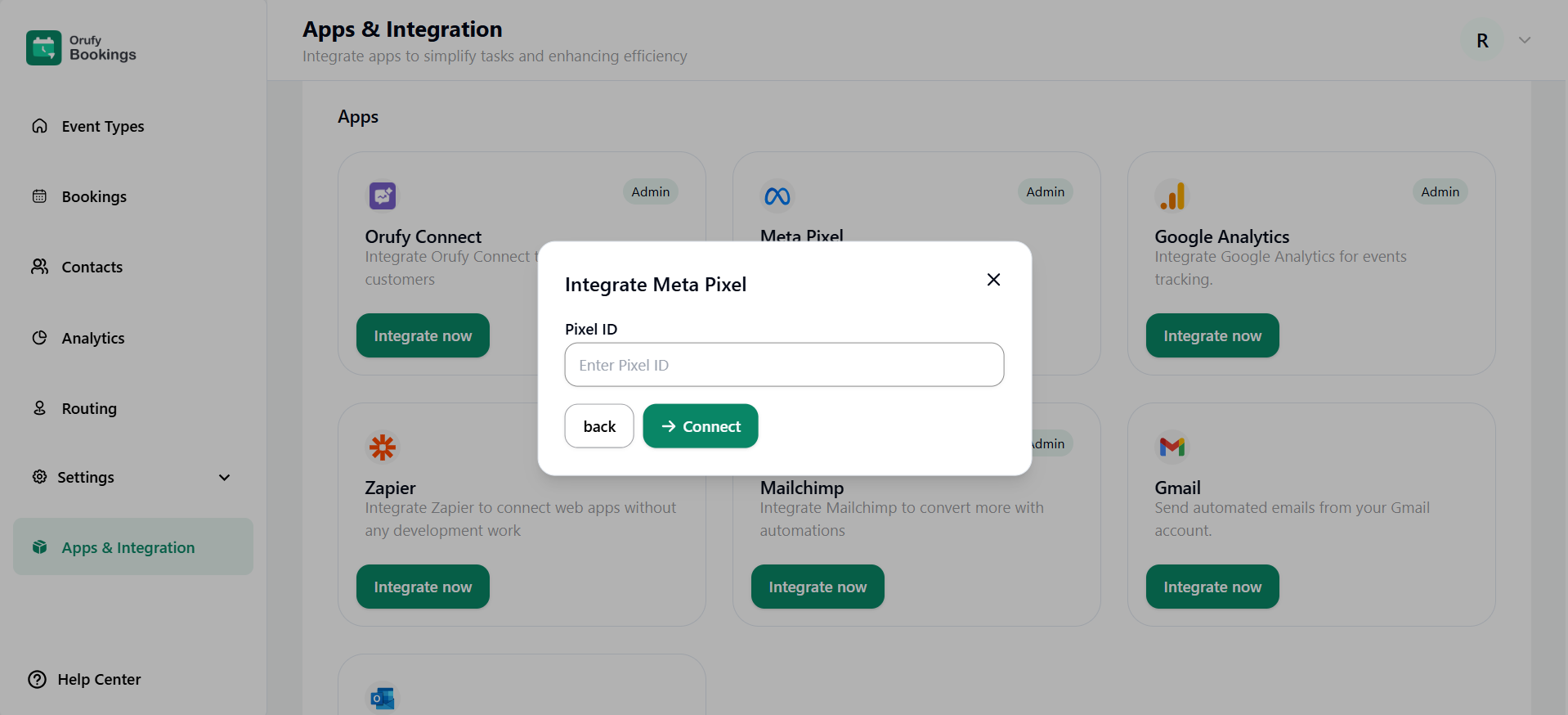
5. Click on Connect.
Listed below are the UTM parameters.
| Event Name | Event Label | Description |
| all_events_page | All Events Page | When a user lands on the main booking events page, all the events are listed. |
| select_date | Date Selection | When the user selects the date. |
| select_time | Time Slot Selection | When the user selects the time. |
| VIEW_BOOKING_DETAILS_PAGE | Enter Booking Details | Enter your name and email, and click on Schedule Event. |
| view_thank_you_page | Attendee viewed the booking thank you page | The user will be redirected after filling in the details on the Event scheduled page successfully. |
| verify_email | Verify Email before Booking | When the admin enables this email verification option from the admin side, before scheduling the event. |
| clicked_reschedule_button | Attendee clicked the reschedule button | When the email is sent to the user for the successful event schedule, and clicks on the reschedule button. |
| view_thank_you_page | Attendee viewed booking thank you page | When the user rescheduled the event again. |
| view_cancel_page | Attendee viewed Cancel Event page | When the user clicks on cancel, it will be directed to the cancellation event page. |
| view_cancel_event_page | - | When the user wants to cancel the scheduled event. |
| submit_routing_form | Attendee submitted the routing form | The user has submitted the routing form. |
| submit_routing_form_success | Attendee successfully submitted the routing form | The routing form submitted by the user is successfully submitted. |
| view_routing_form | Attendee viewed the routing form | When the user opens the link, the routing form will appear. |
| - | SubscribedButtonClick | The user clicks on the submit button to submit the routing form. |
| submit_routing_form_success | Attendee successfully submitted the routing form | The user has successfully submitted the routing form. |


