
Sync Microsoft Teams and Orufy Bookings to block time when holding team meetings. This guarantees the precision of your availability and a more seamless schedule in your working calendar.
How to Sync Microsoft Teams
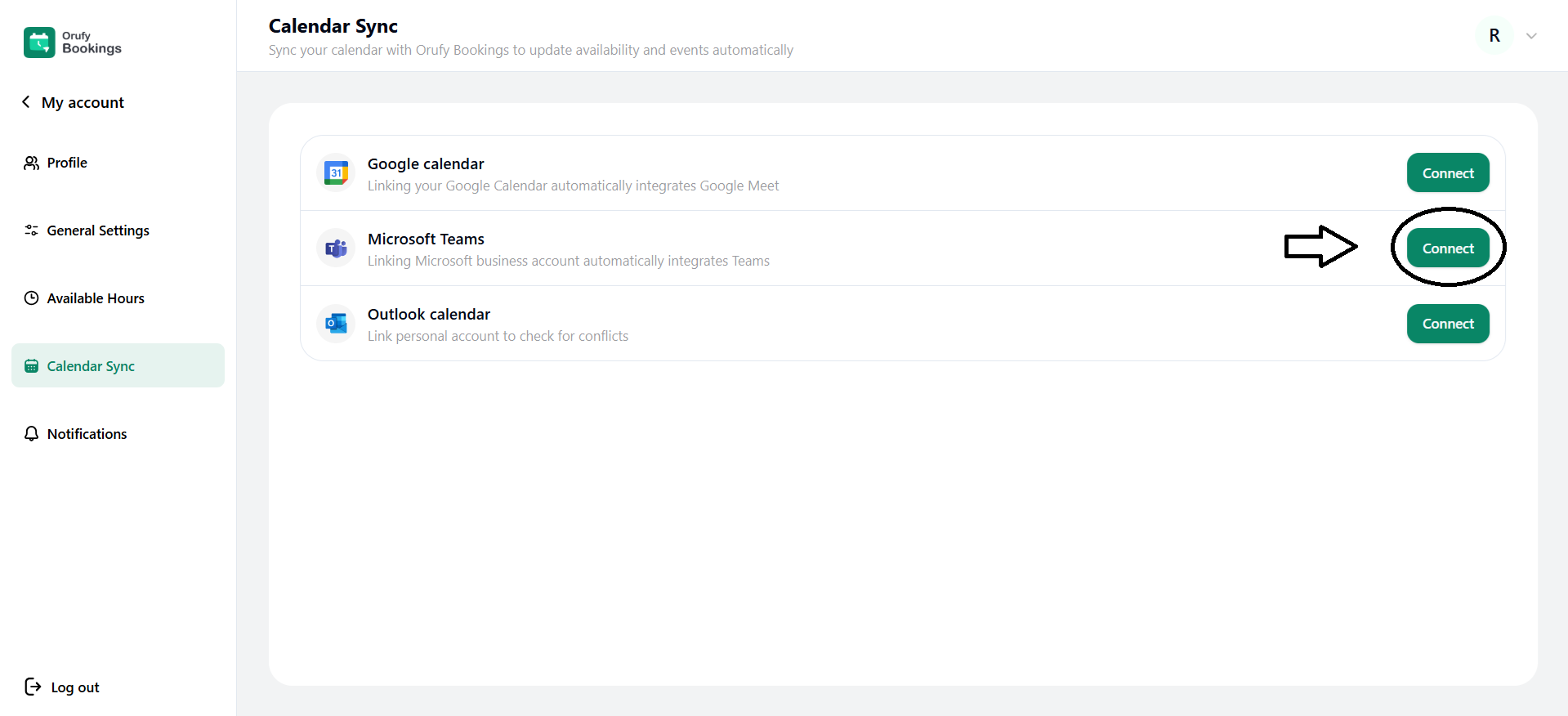
Step 1: Connect Microsoft Teams
Click on Connect to start with the synchronization process.
Step 2: Authorize Microsoft Account
Log in with your Microsoft account and grant the required permissions.
Step 3: Enable Conflict Checking
Turn on the check conflict with the Microsoft Teams option to ensure availability, reflecting team meetings.
Step 4: Add bookings to Microsoft Teams
It uses your Outlook Calendar to create and manage meetings.
To add bookings:
-
Go to Calendar Sync Settings.
-
Locate the Add bookings to section.
-
Select the Microsoft Teams where the Orufy Bookings event should be added.
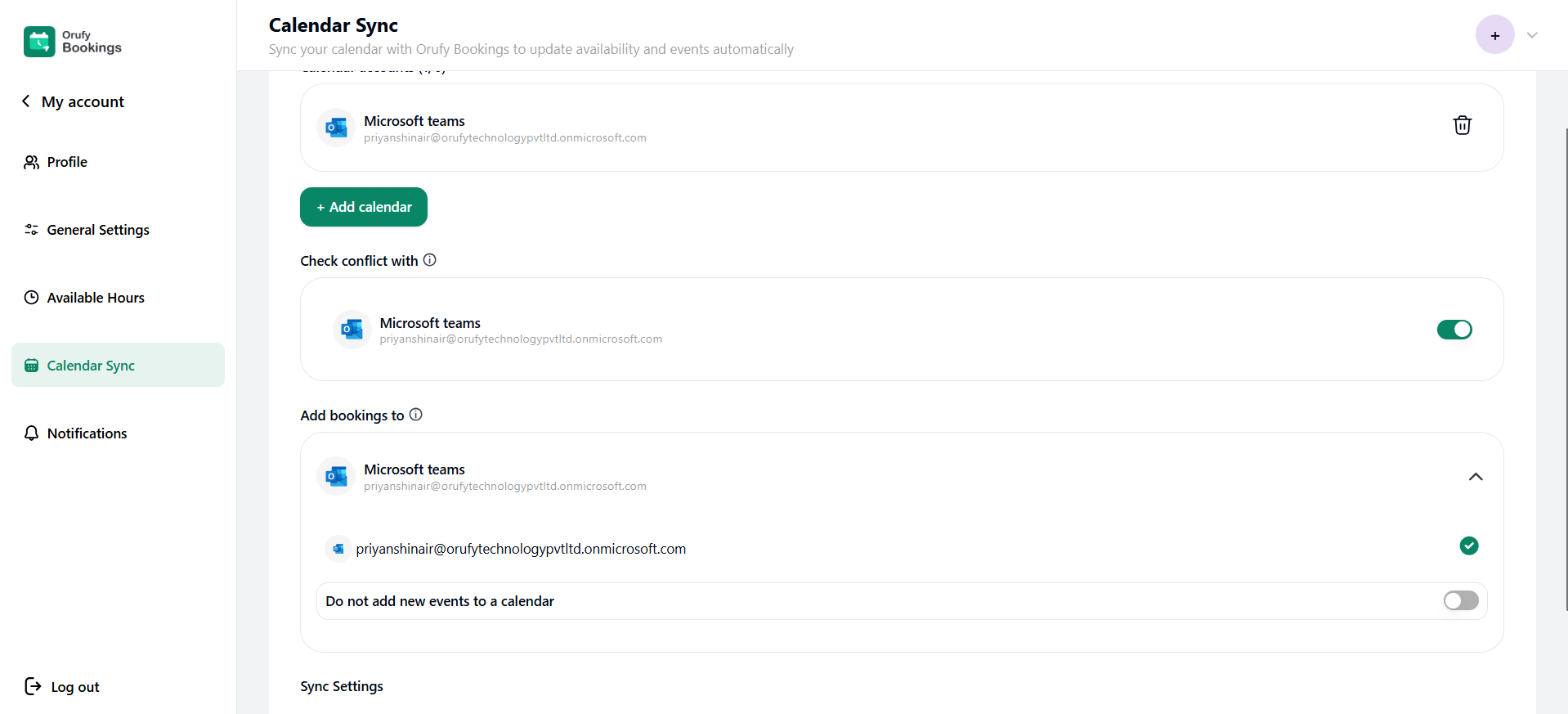
- Automatically sync changes from this calendar to Orufy Bookings: You can check this option if you want the calendar to be automatically synced with the Orufy Bookings.


