
A Group event type involves one host with multiple attendees simultaneously. It is perfect for organising workshops, classes, sessions, or lectures where the host leads the group of attendees to engage them collectively.
How to Create a Group-Type Event?
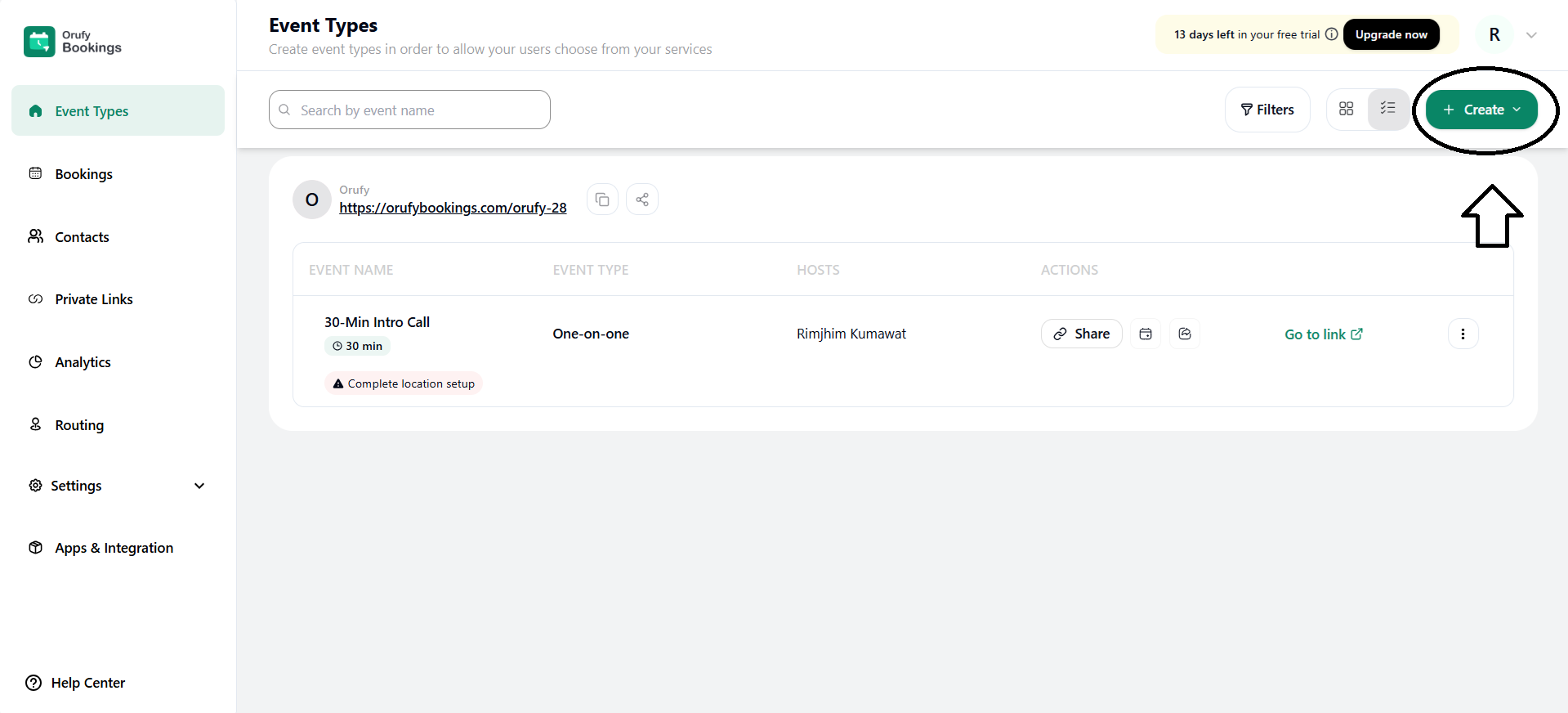
Step 1: Click on + Create.
You must click the Create button to initiate the event type creation process.
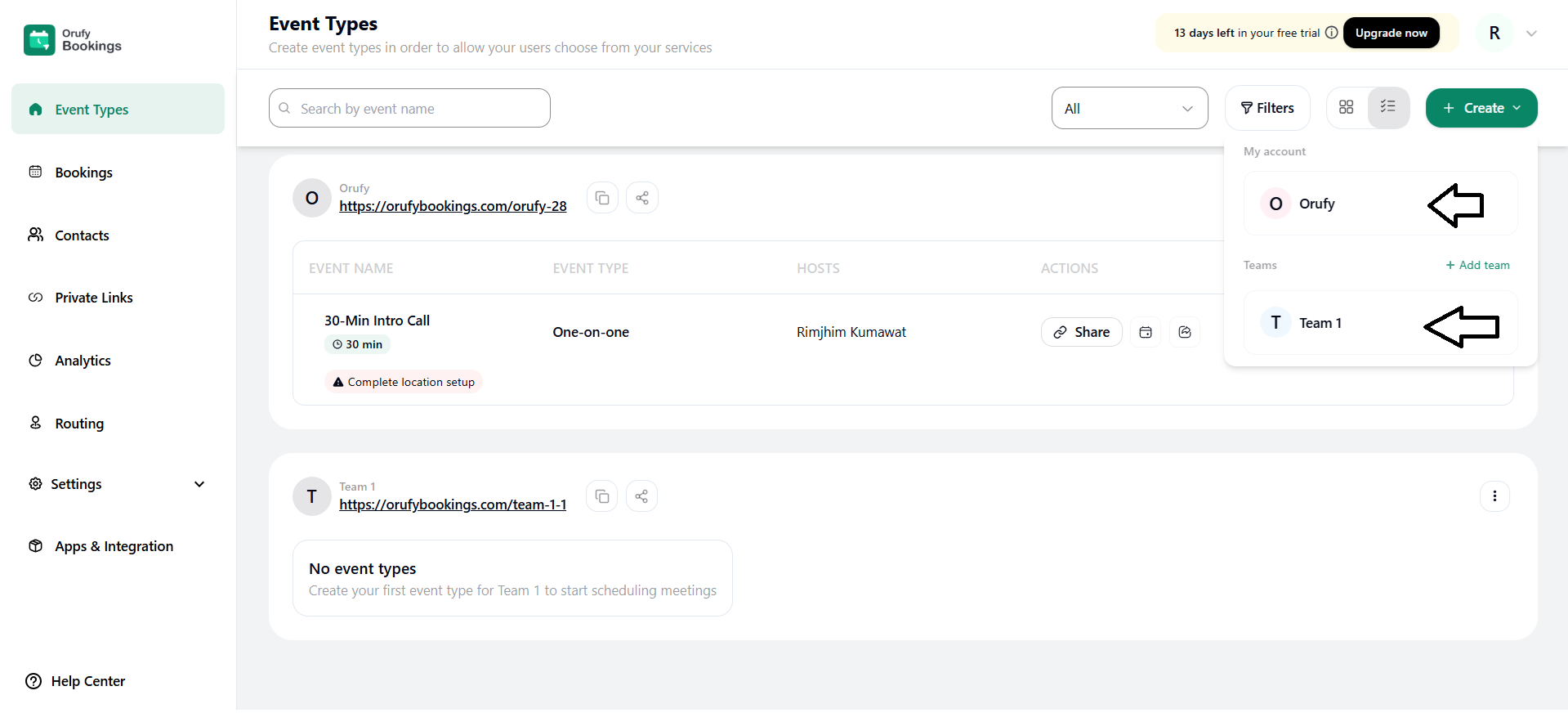
Step 2: Select Account or Teams
You have to select the account or team for which you want to create an event.
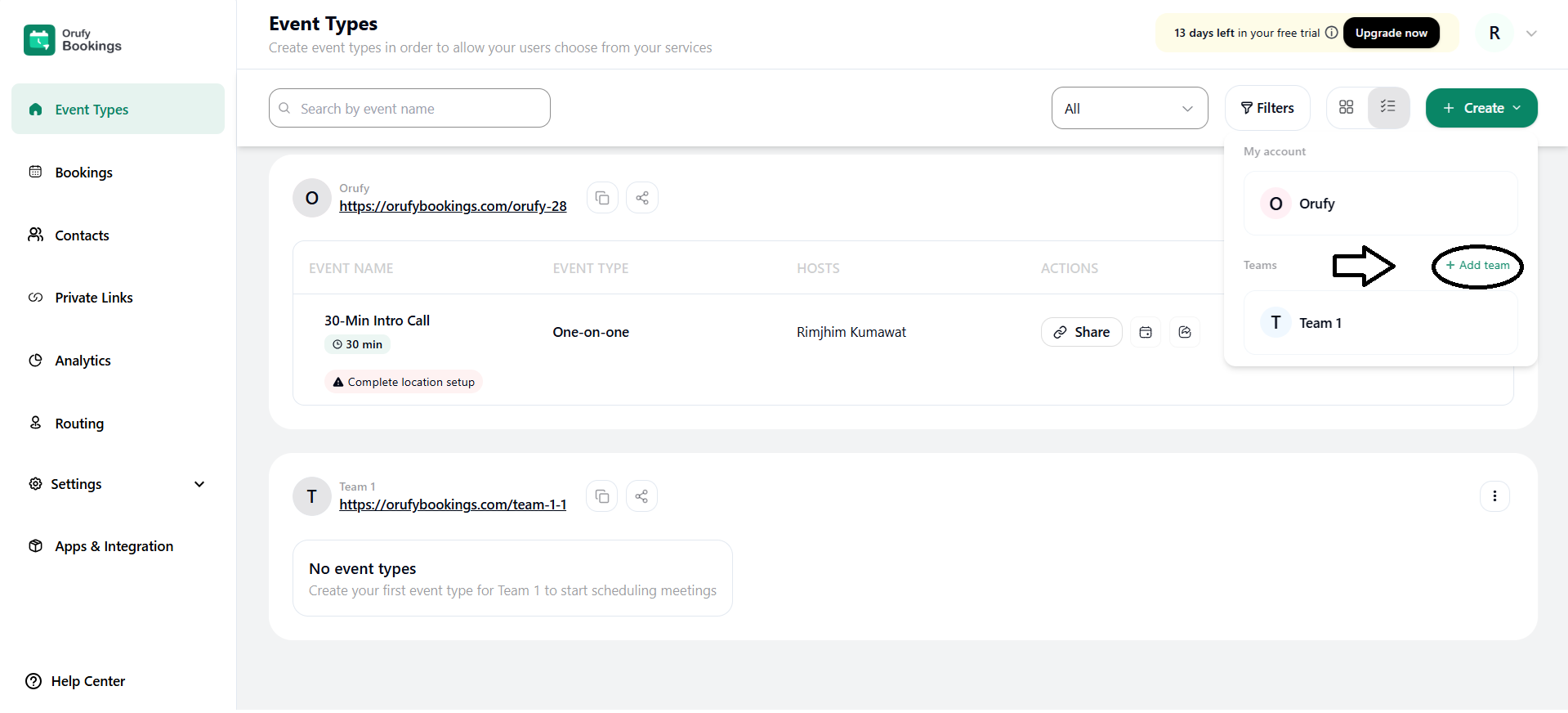
You can also create a team from the + Add Team button.
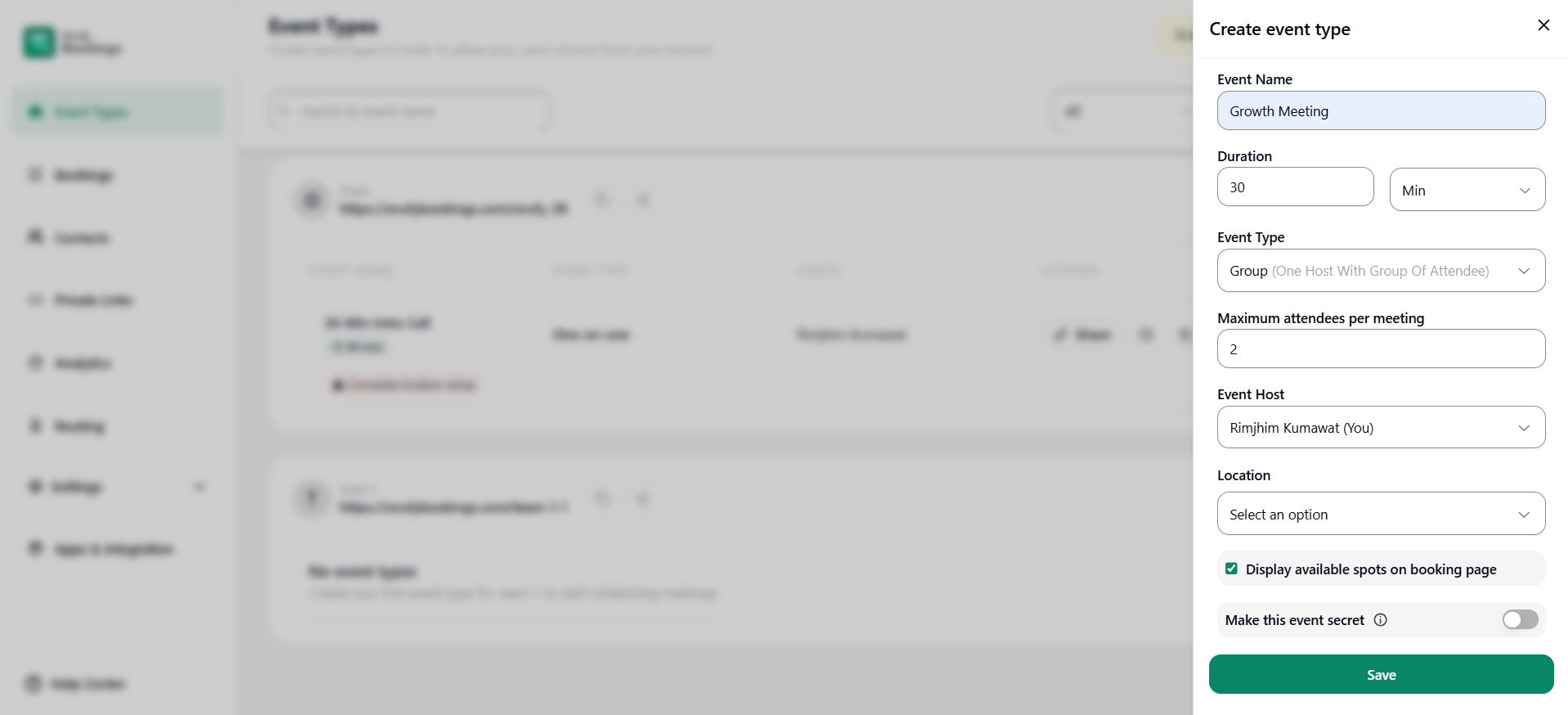
Step 3: Enter Event Details
Enter all the details for the event to be created. It includes name, hosts, members, etc.
-
Event Name: Enter the name of the event you want to create.
-
Duration: Set how long the event will last. Enter the duration of the event.
-
Event Type: Select the type of the event as Group.
-
Maximum attendees per meeting: Enter the maximum number of attendees allowed for the event. Once the entered limit is reached no more attendees can book the same event.
-
Event Host: Select the host from the drop down menu who will host the event.
-
Location: Select from the drop-down where the event will take place. It includes web conference and other platforms where the event can be conducted.
Step 4: Optional Settings
-
Display available spots on booking page: When this option is checked, attendees can see how many spots are available for the event
-
Make this event Secret: Enable this option to hide this event from the public listing of all the events.
Step 5: Save the Event.
Click on Save to save the event created.


