
Outlook
1. Click on Integrate Now.
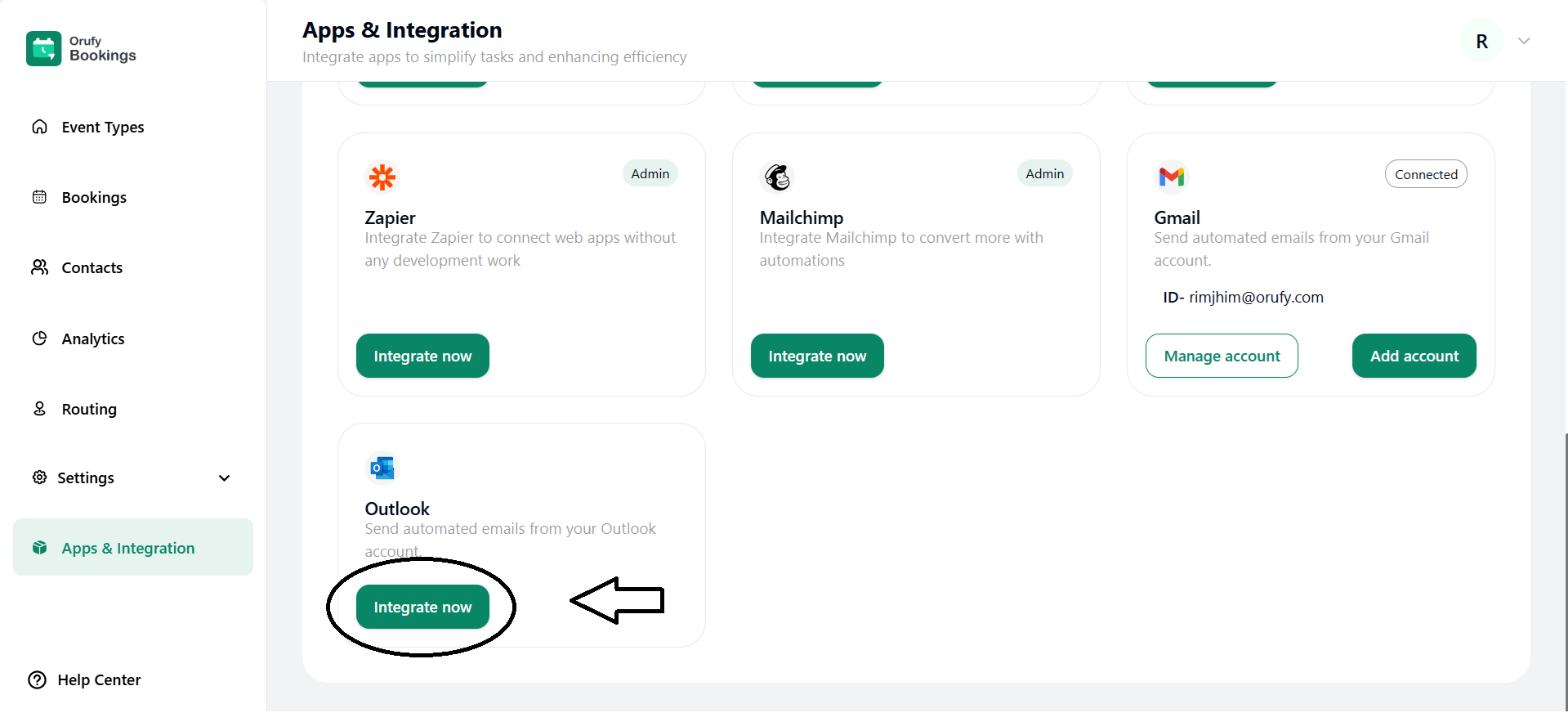
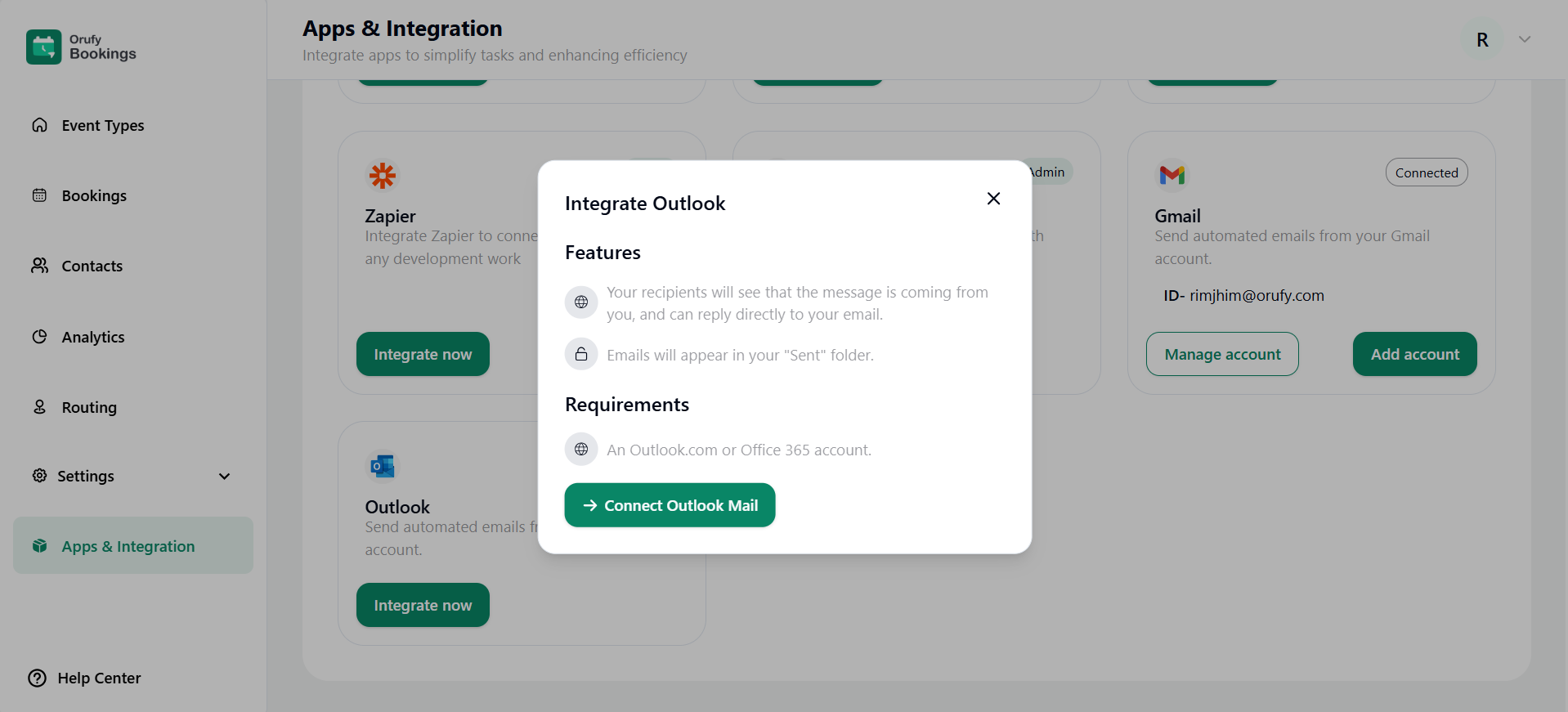
2. Read the features and requirements of Outlook.
3. Now, click on Connect Outlook Mail.
4. You will be redirected to the Microsoft Sign In or Log In page.
5. After signing in and logging in you will be directed towards Orufy Bookings.
6. You can Manage your Account.
- Manage Account
Click on More Options, and there will be two options:
- Assign: You can assign this account to everyone, selected members, or you can toggle enable or disable for the other option managed by another Admin.
- Disconnect: You can disconnect your connected Google account from the bookings.
7. Add Account
Here, you add more Google accounts to your bookings account.
Admin users can send customized emails directly to a particular attendee from Orufy Bookings. It allows you to communicate essential details, follow-ups, and share booking links.


