
Install Orufy Bookings on top of Outlook Calendar to allow one to manage bookings and events. The sync checks harmonize and automatically update your schedule.
How to Sync Outlook Calendar
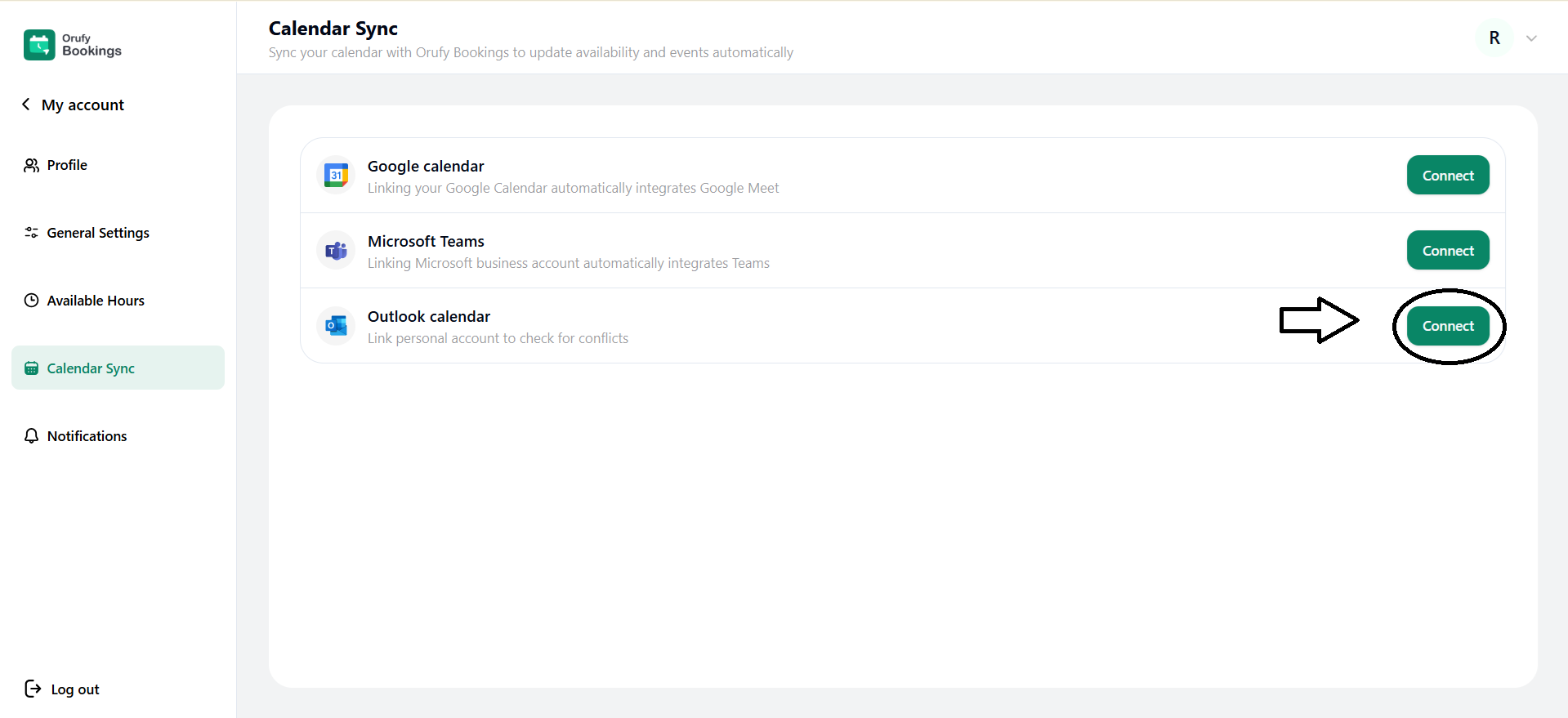
Step 1: Connect Outlook
Click on Connect to start with the synchronization process.
Step 2: Log in Microsoft Account
Log in to your Microsoft account.
Step 3: Confirm Sync Settings
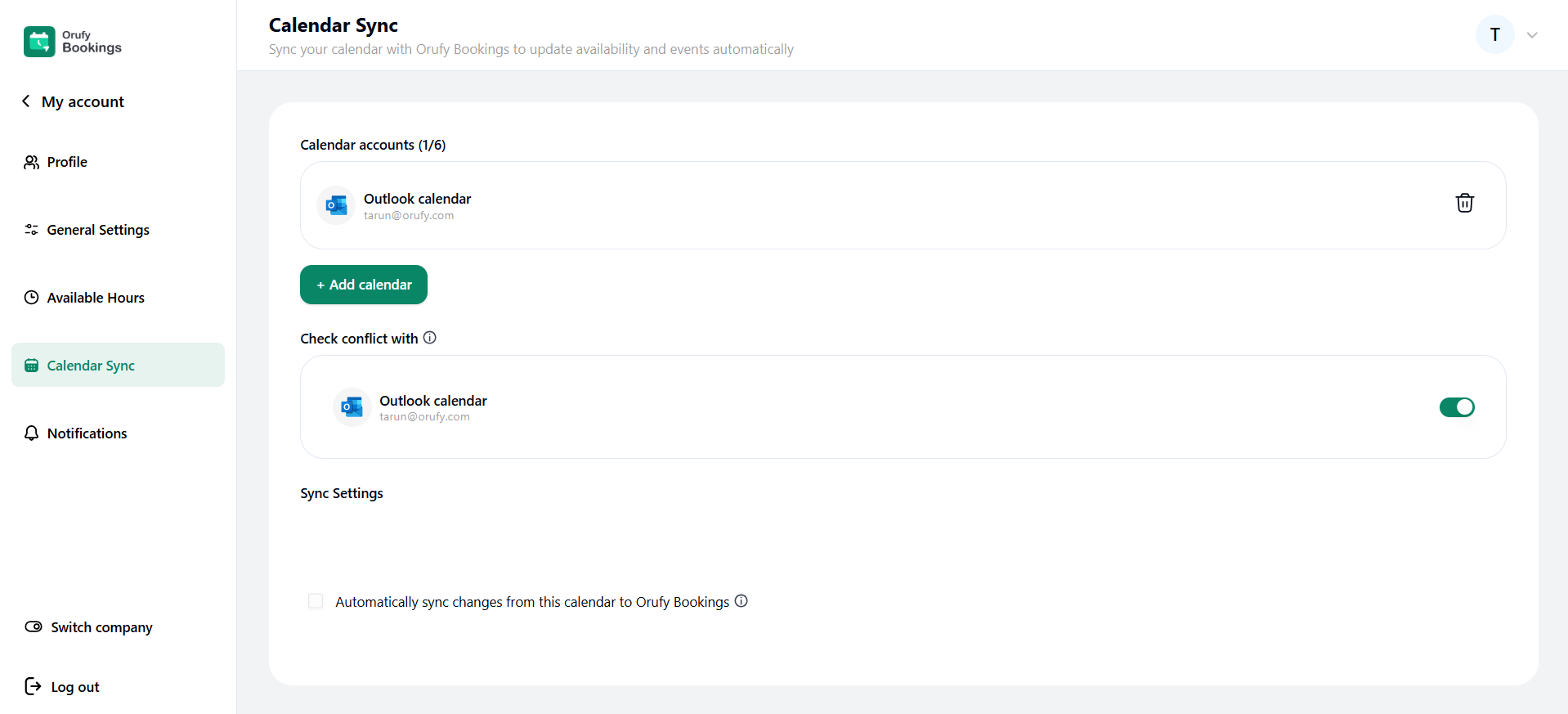
Toggle as on to check conflict with Outlook Calendar to prevent double bookings.
Once completed, Outlook events will be automatically synced with Orufy Bookings.
Sync Settings
Enabling this setting, Orufy Bookings is synced with your connected calendar. Any changes you make in the calendar is reflected in Orufy Bookings in real-time.
- Automatically sync changes from this calendar to Orufy Bookings: You can check this option if you want the calendar to be automatically synced with the Orufy Bookings.


