
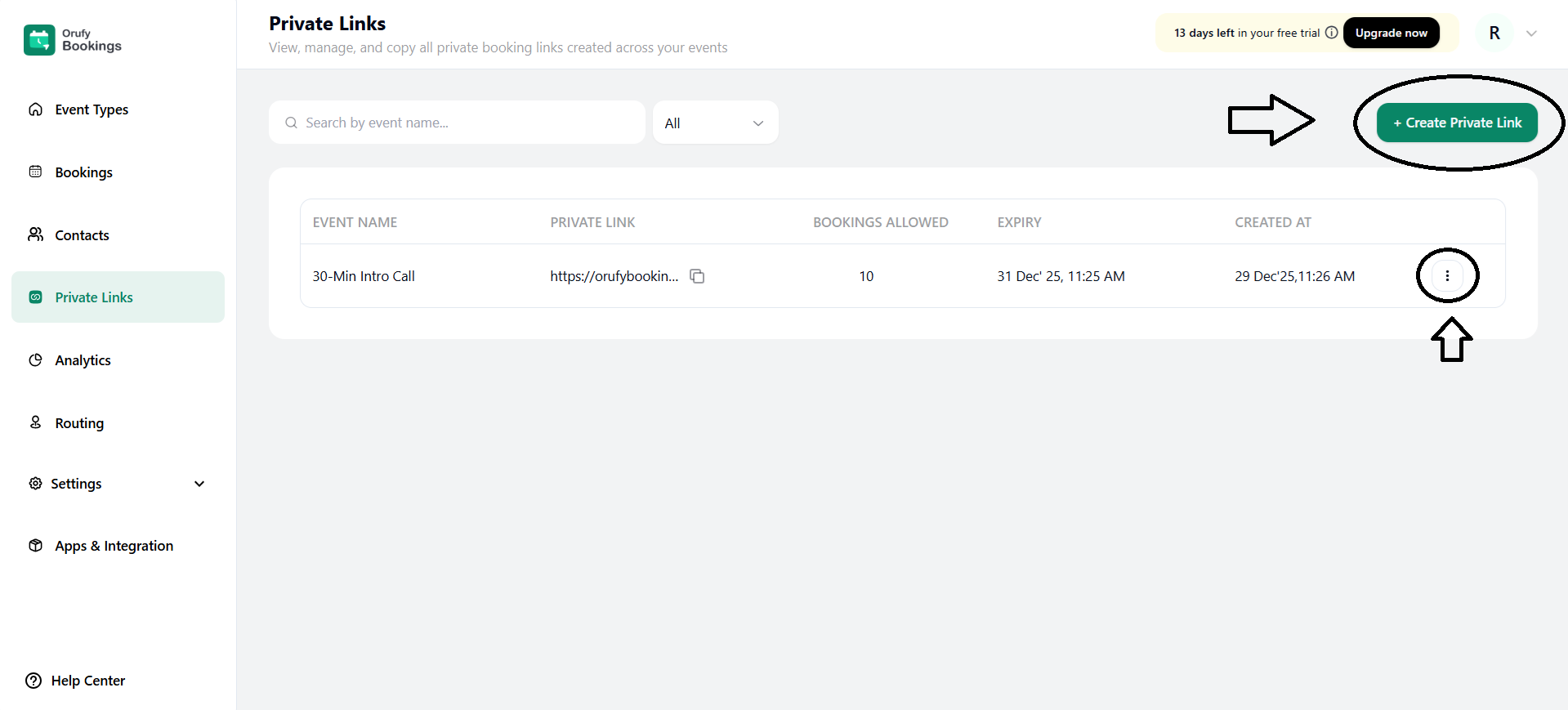
The Private Links section allows you to create and manage private booking links for your existing events. These links are not publicly visible and can be shared only with specific people.
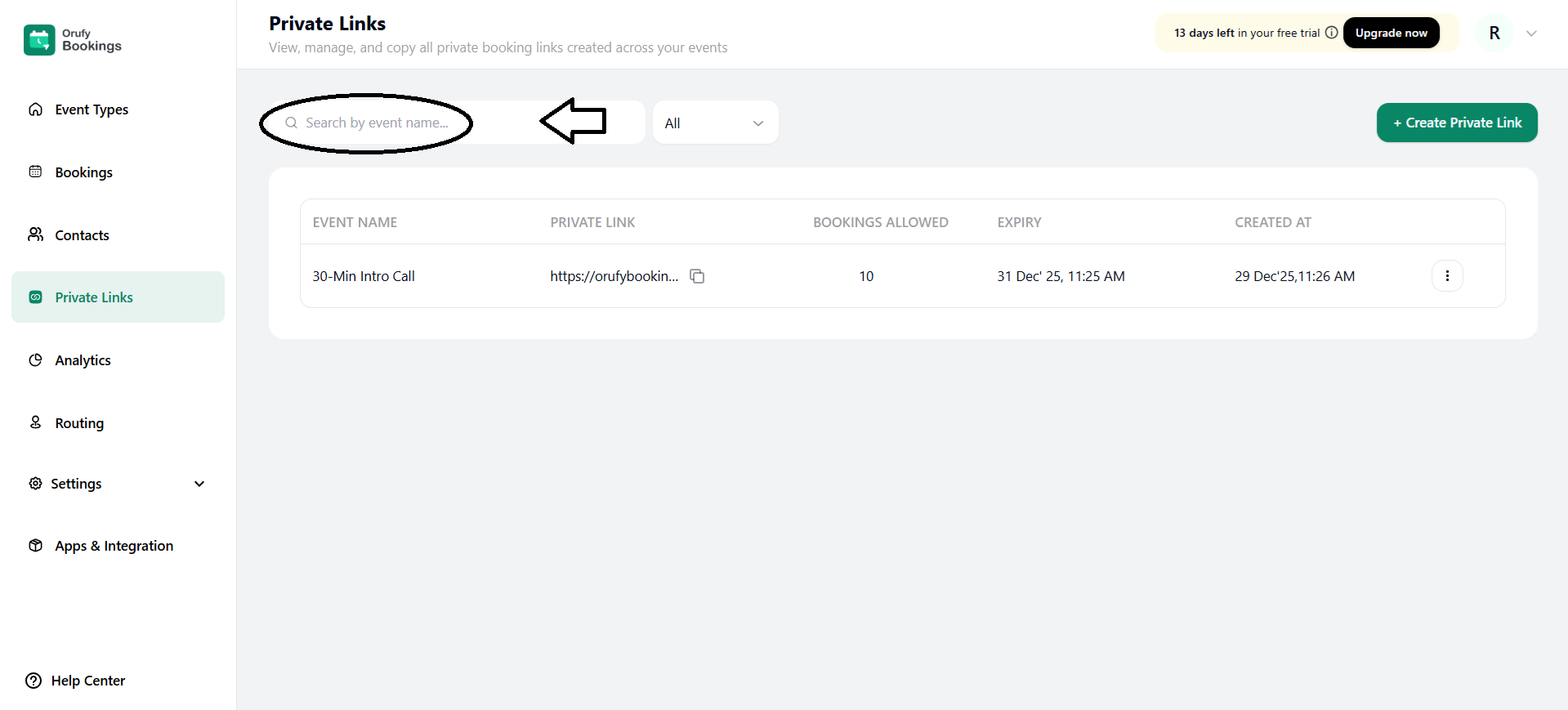
1. Search
You can quickly search private links by entering the event name for which you have created the private link.
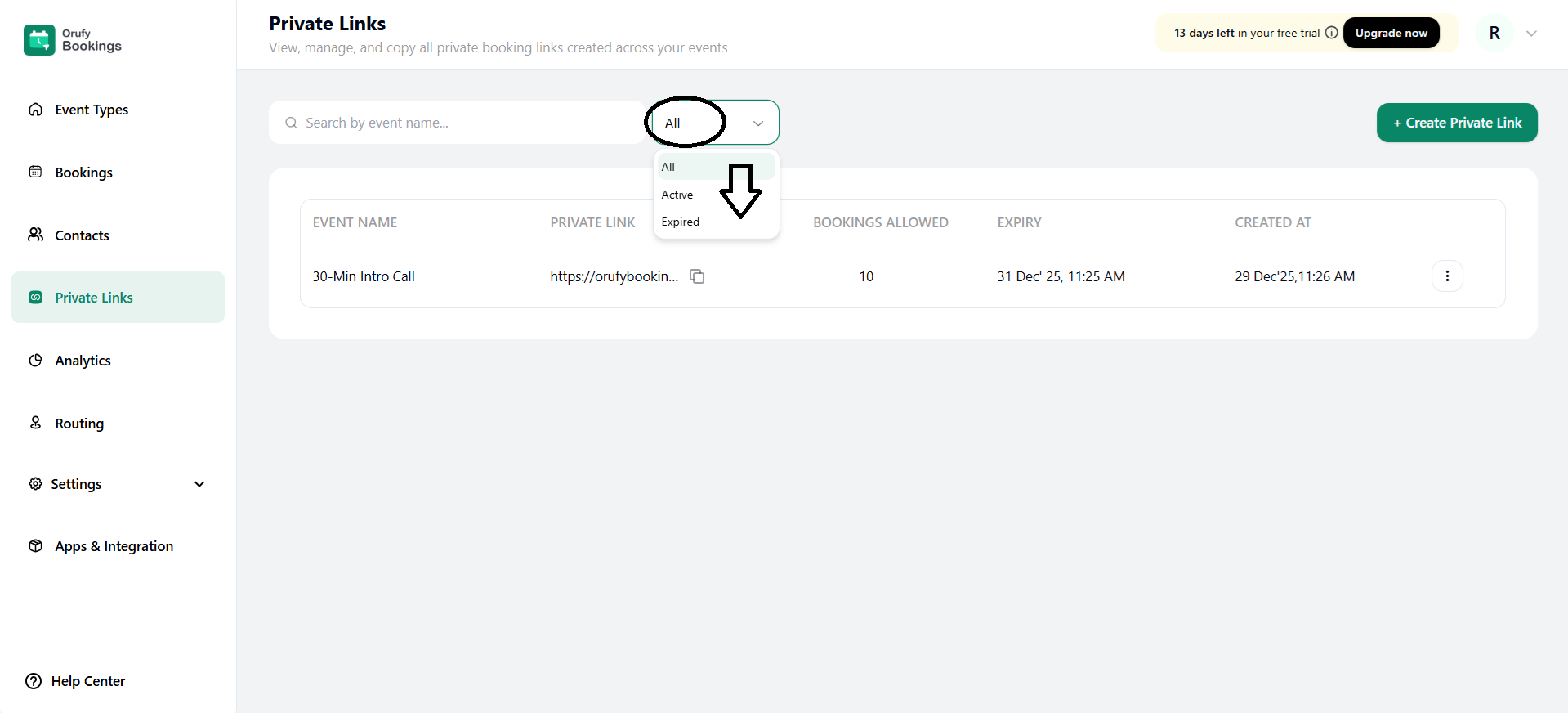
2. Filter Private Links
It allows you to filter private links on the basis of all, active, and expired private links. By default, it shows all private links created across events.
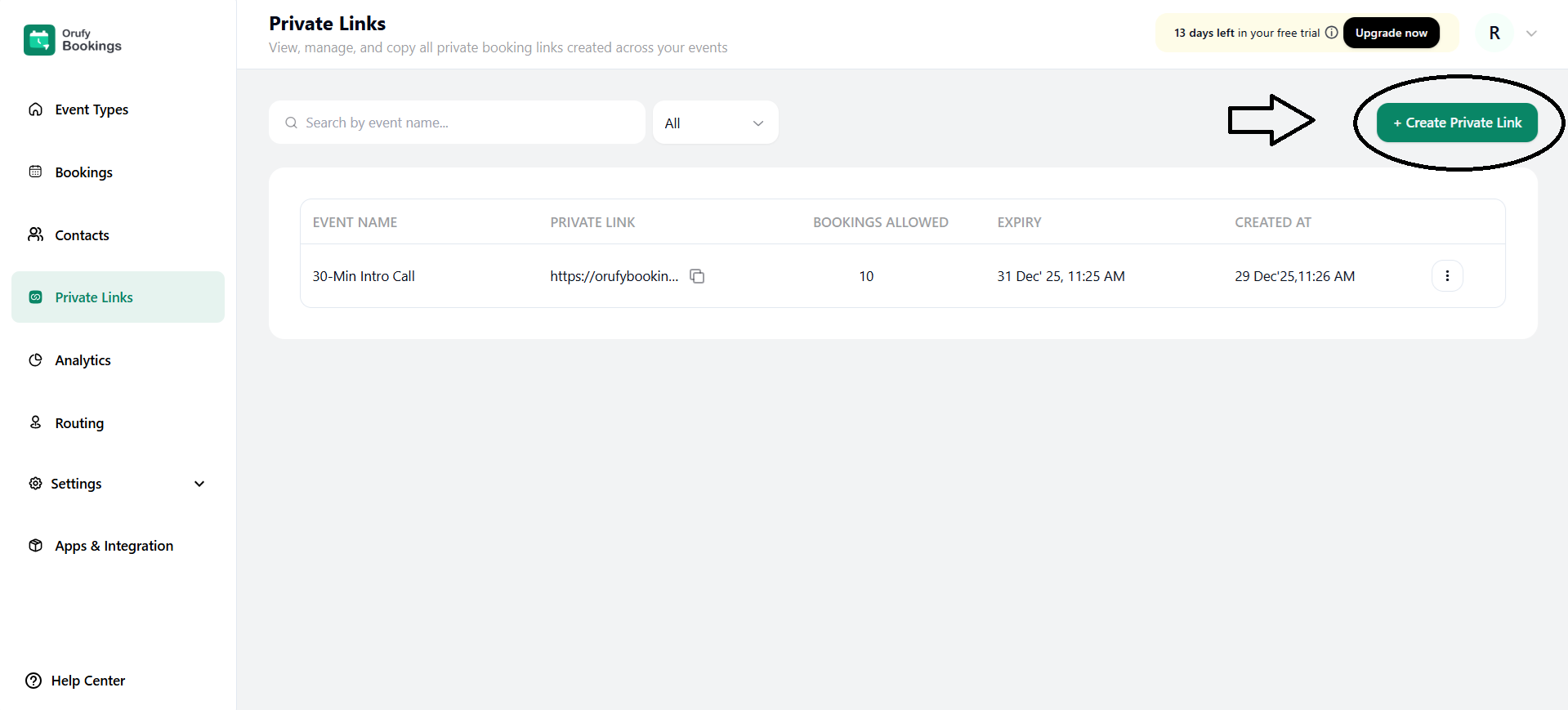
3. + Create Private Link
- Click on + Create Private Link to start the process of creating a private link.
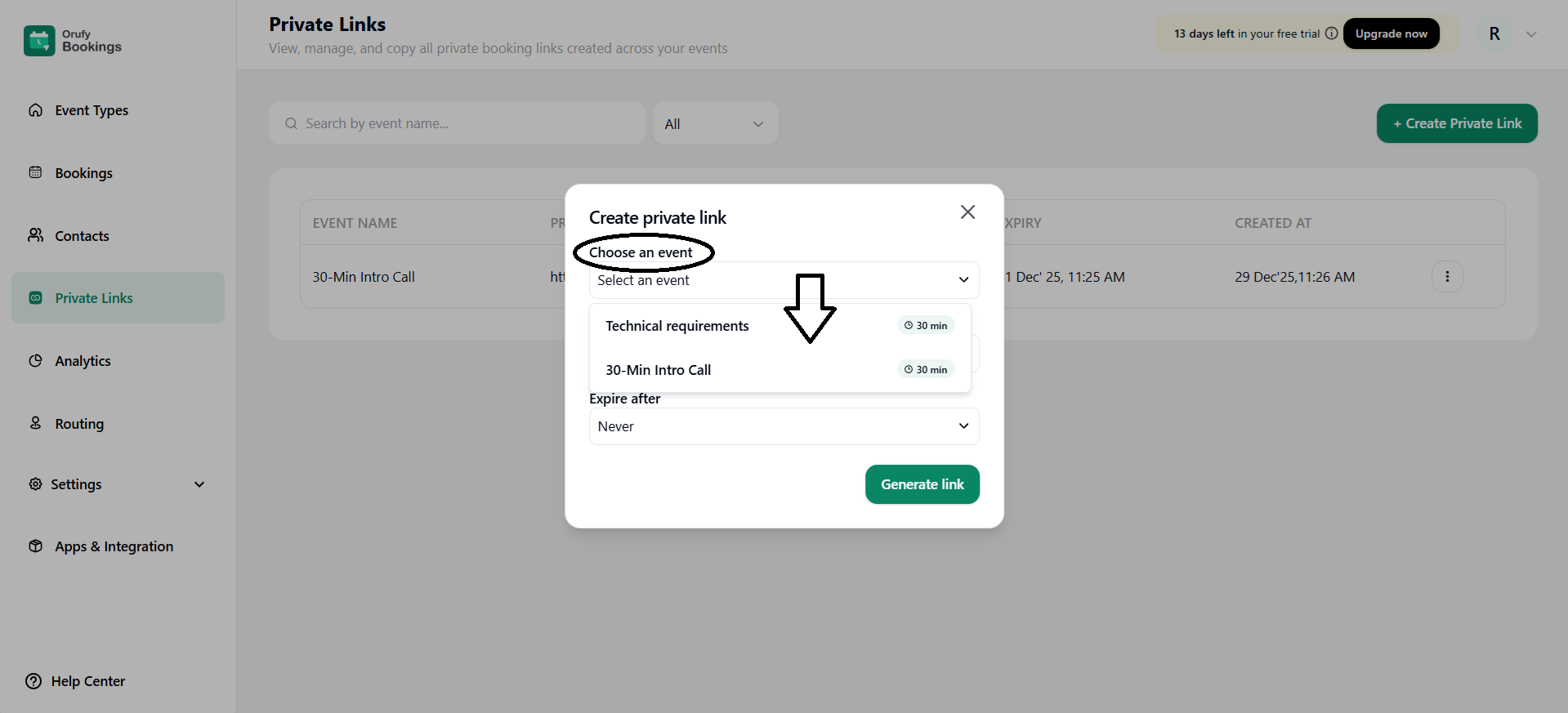
- Choose an event: You have to select an event for which you want to create a private link.
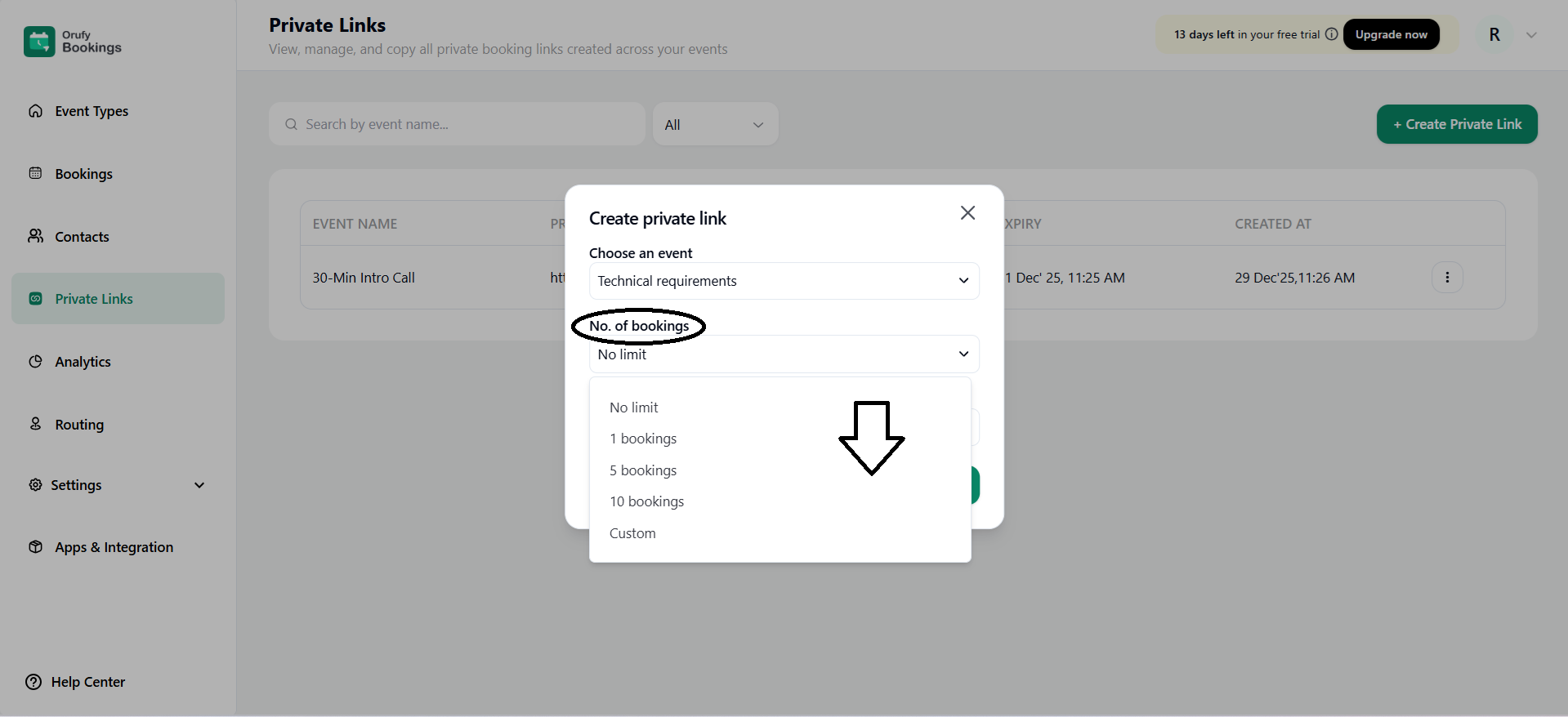
- Number of bookings: You can set the limit for bookings from that particular private link.
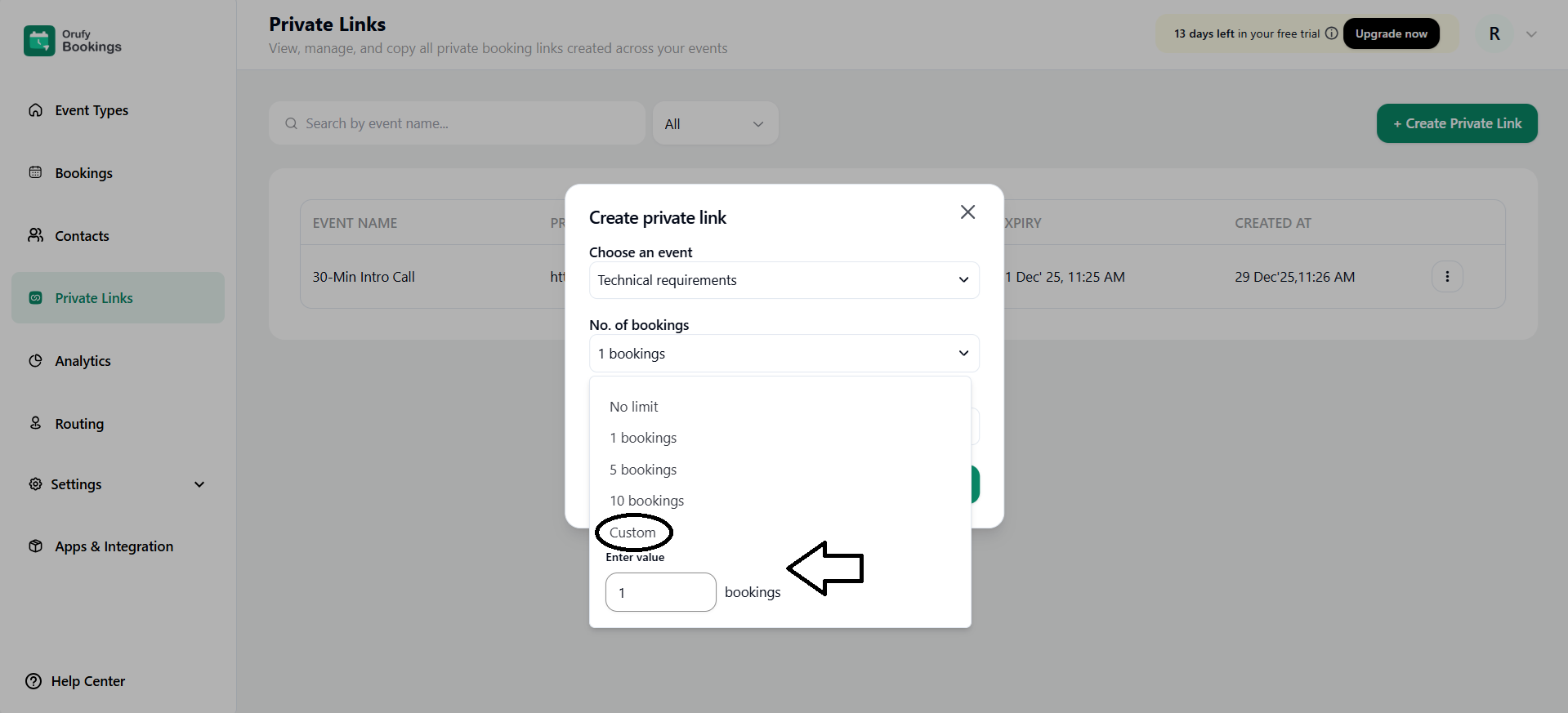
It allows you to add a custom number of bookings for that private link.
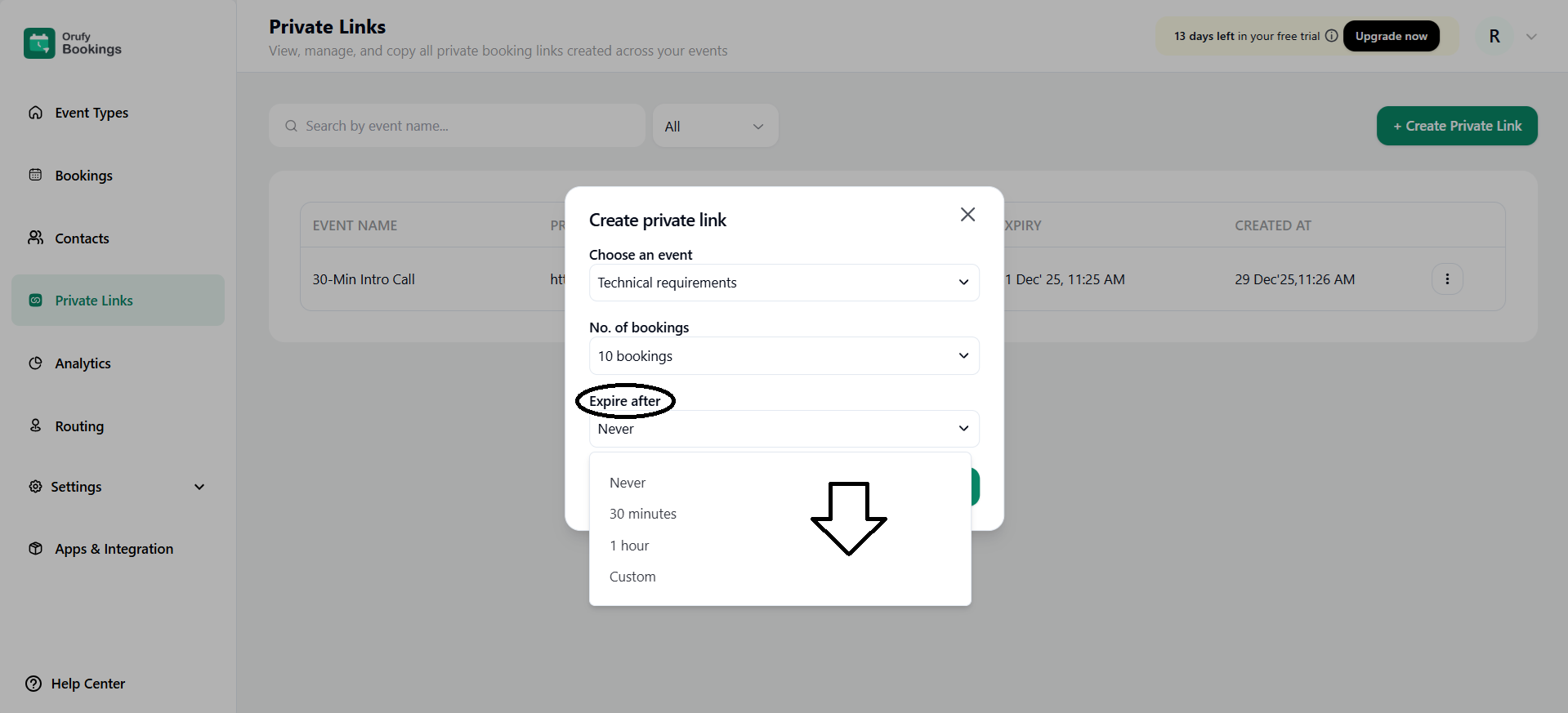
- Expire after: You have to set the expiry date and time for the private link.
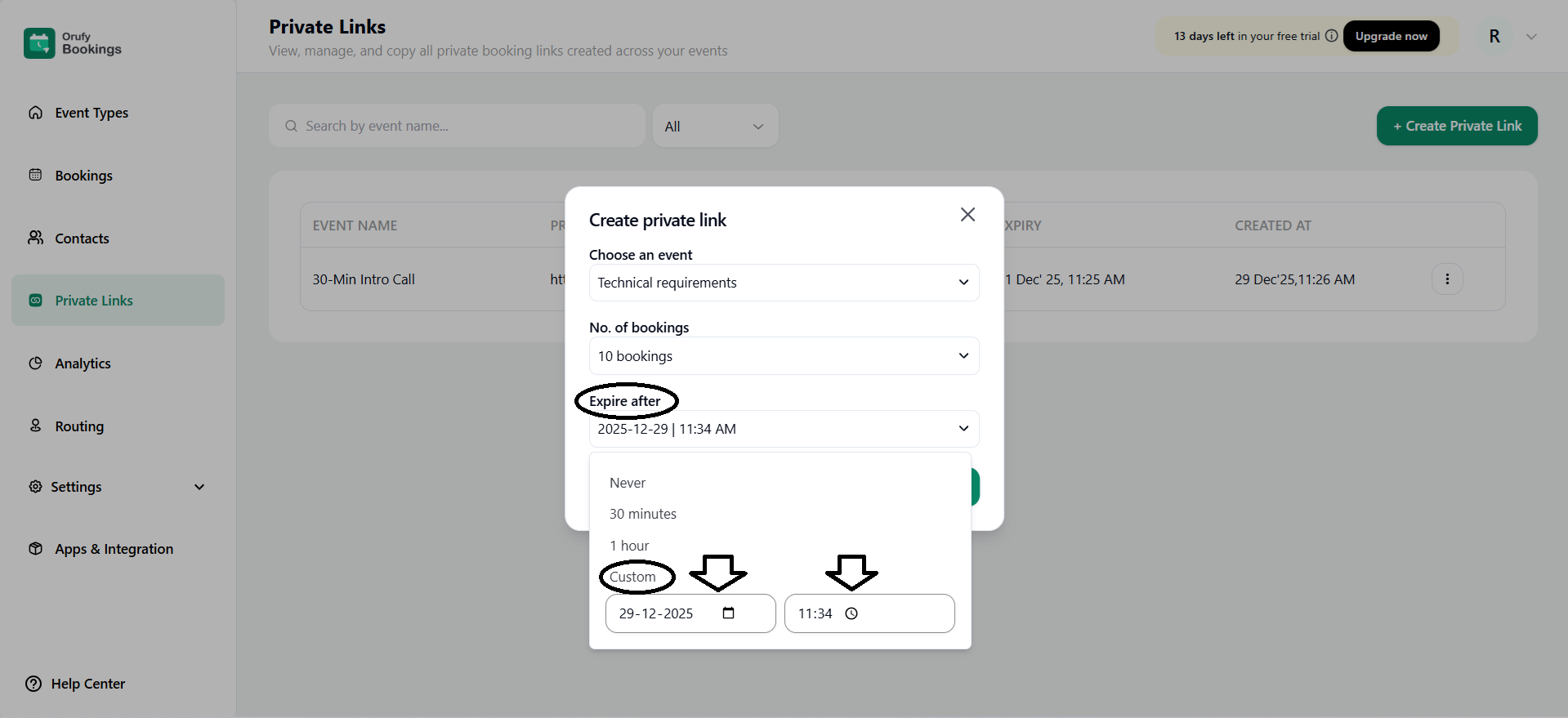
You can add a custom expiry time for the private link.
4. Private Links List
The private links list displays all the created private links in a list format. It includes event name, private link, bookings allowed, expiry date & time, and created at.
- More Options
It allows for advanced options.
- Edit: You can change or edit the number of bookings and expiry after fields only.
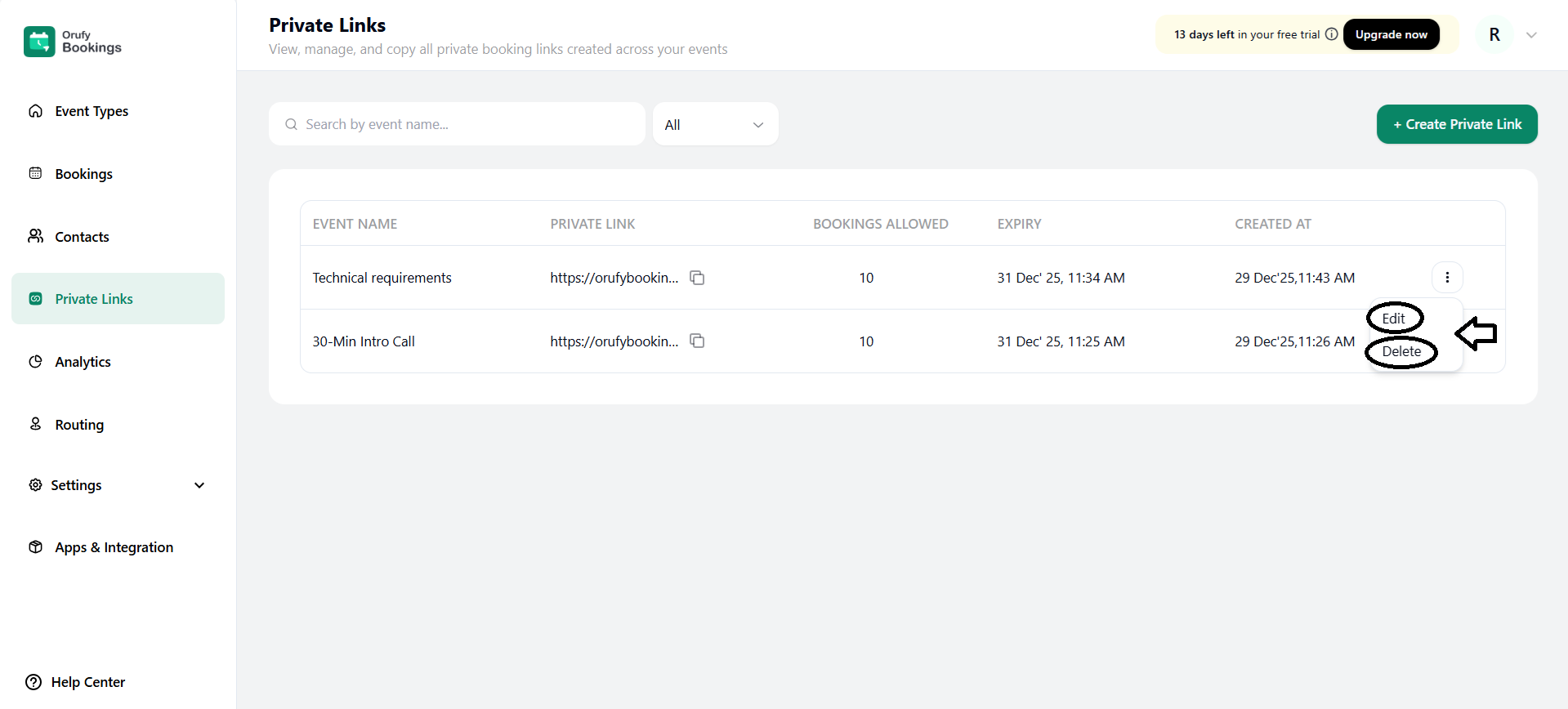
- Delete: It allows you to delete a particular private link for an event.


