
Sync Google Calendar with Orufy Bookings and make your availability automatically updated. This sync will eliminate the possibility of double booking since this shows real time calendar changes.
How to Sync Google Calendar
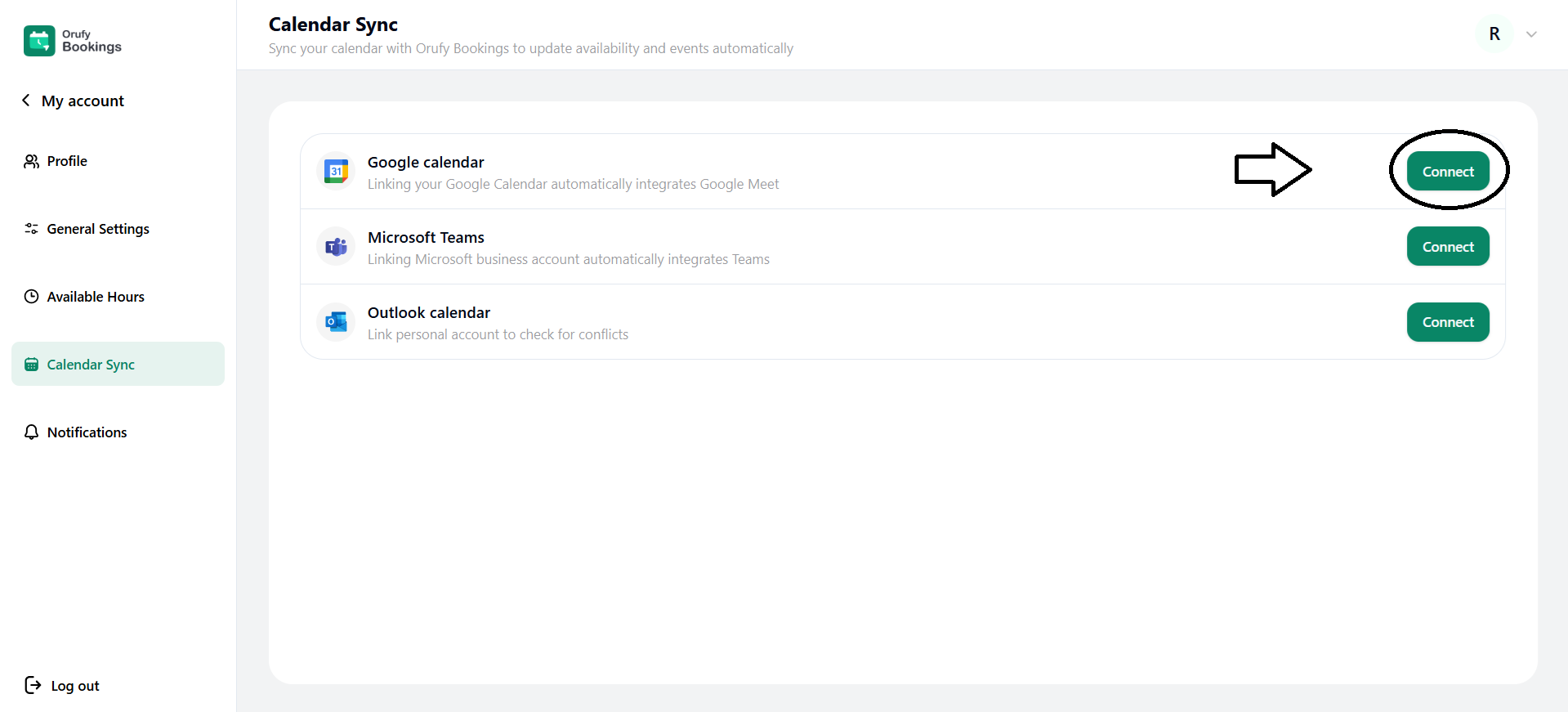
Step 1: Connect Google Calendar
Click on Connect to start the process of synchronization.
Step 2: Choose an Account
You have to choose a Google account to be connected with Orufy Bookings.
Step 3: Grant Google Calendar Permission
You have to check all the checkboxes and click on Continue to grant Orufy Bookings access and allow bookings synchronization with your Google Calendar.
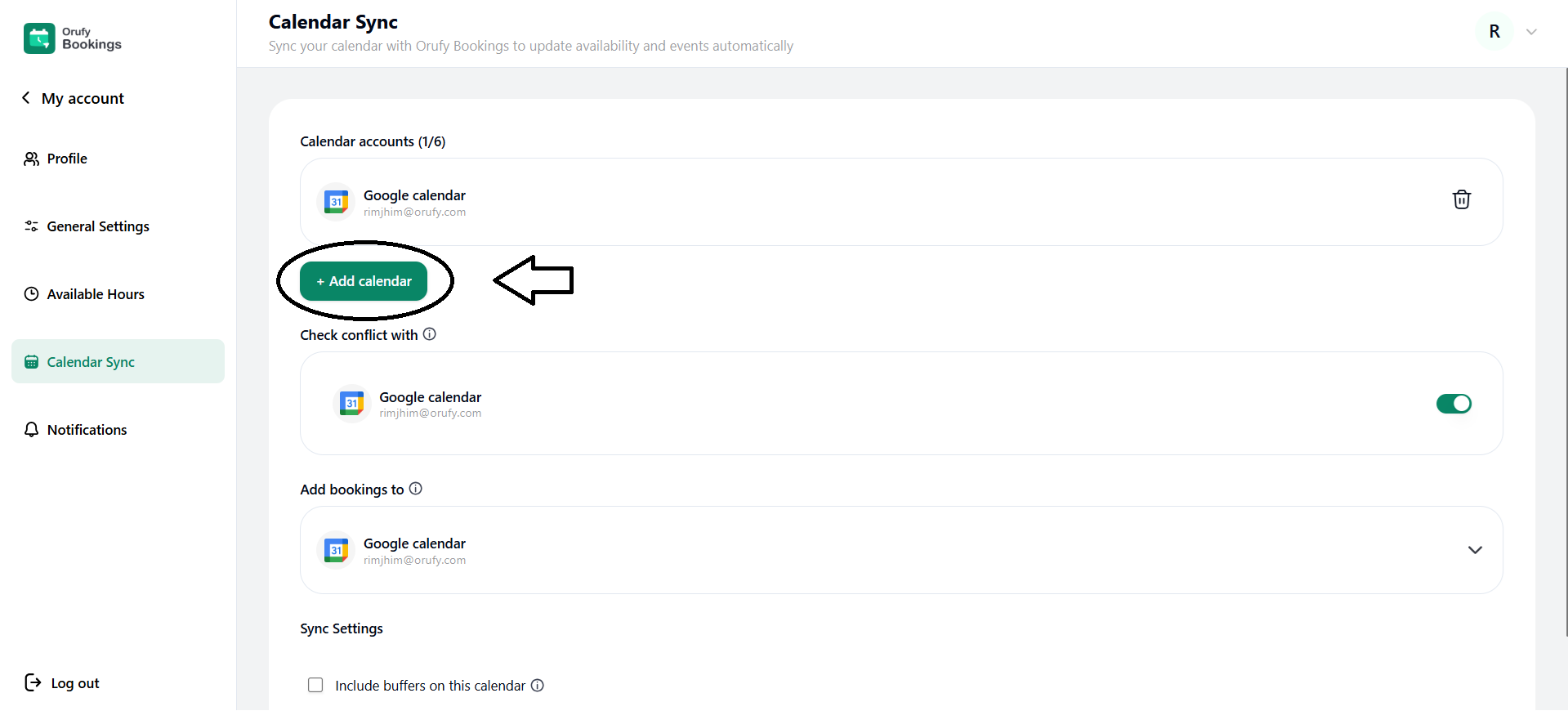
Step 4: Click on + Add Calendar
You can add multiple calendar accounts by clicking on this button.
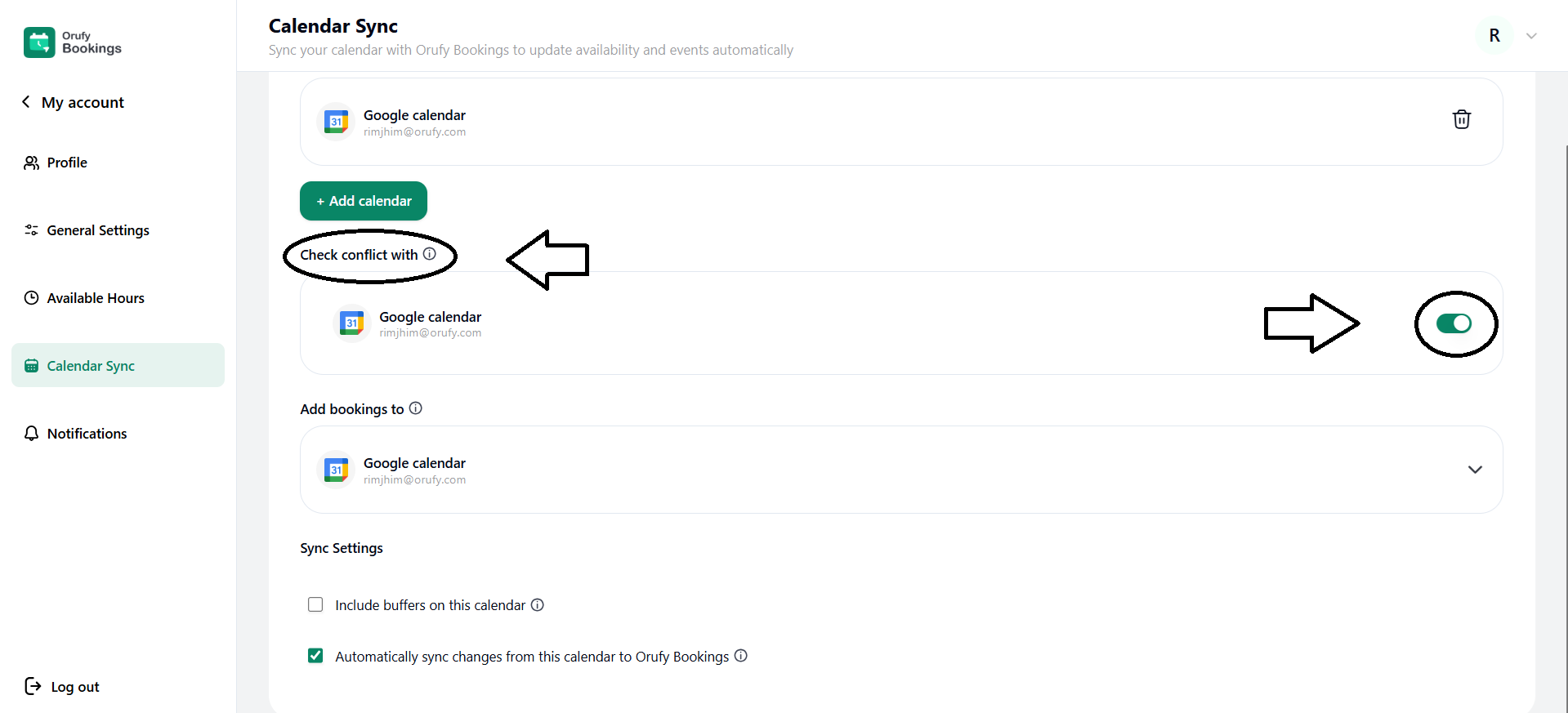
Step 5: Check Conflict With
Toggle as enabled to check conflict with Google Calendar to prevent double bookings.
Step 6: Add bookings to Google Calendar
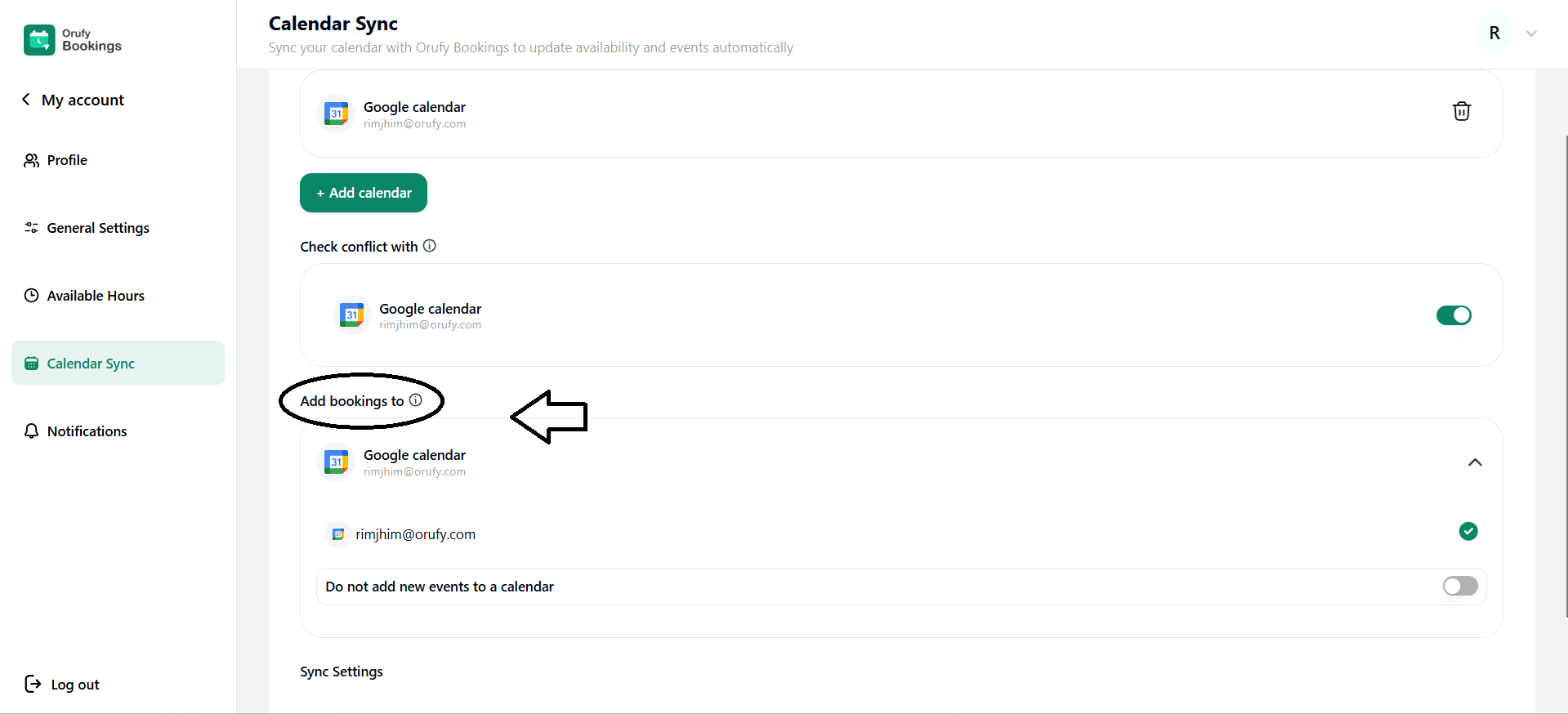
To ensure all scheduled bookings appear in your Google Calendar:
-
Go to Calendar Sync Settings.
-
Locate the Add bookings to section.
-
Select the Google Calendar, where the Orufy Bookings event should be added.
-
Do not add new events to a calendar: You can enable or disable this option to either add or not add new events to a calendar.
-
Automatically sync changes from this calendar to Orufy Bookings: You can check this option if you want the calendar to be automatically synced with the Orufy Bookings.


