Broadcasting
This allows you to send WhatsApp messages immediately to multiple people at the same time.
Create a new broadcast
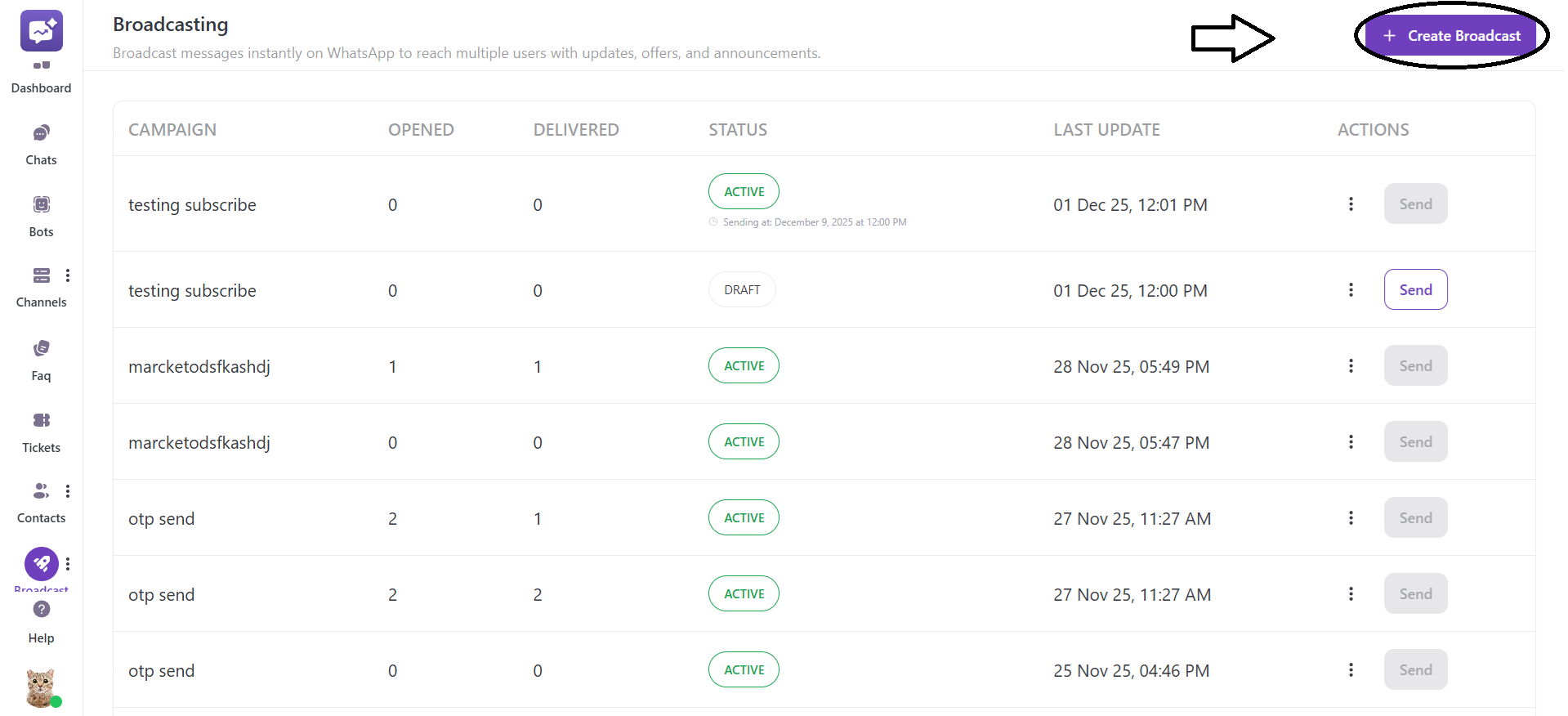
- Click on + Create Broadcast.
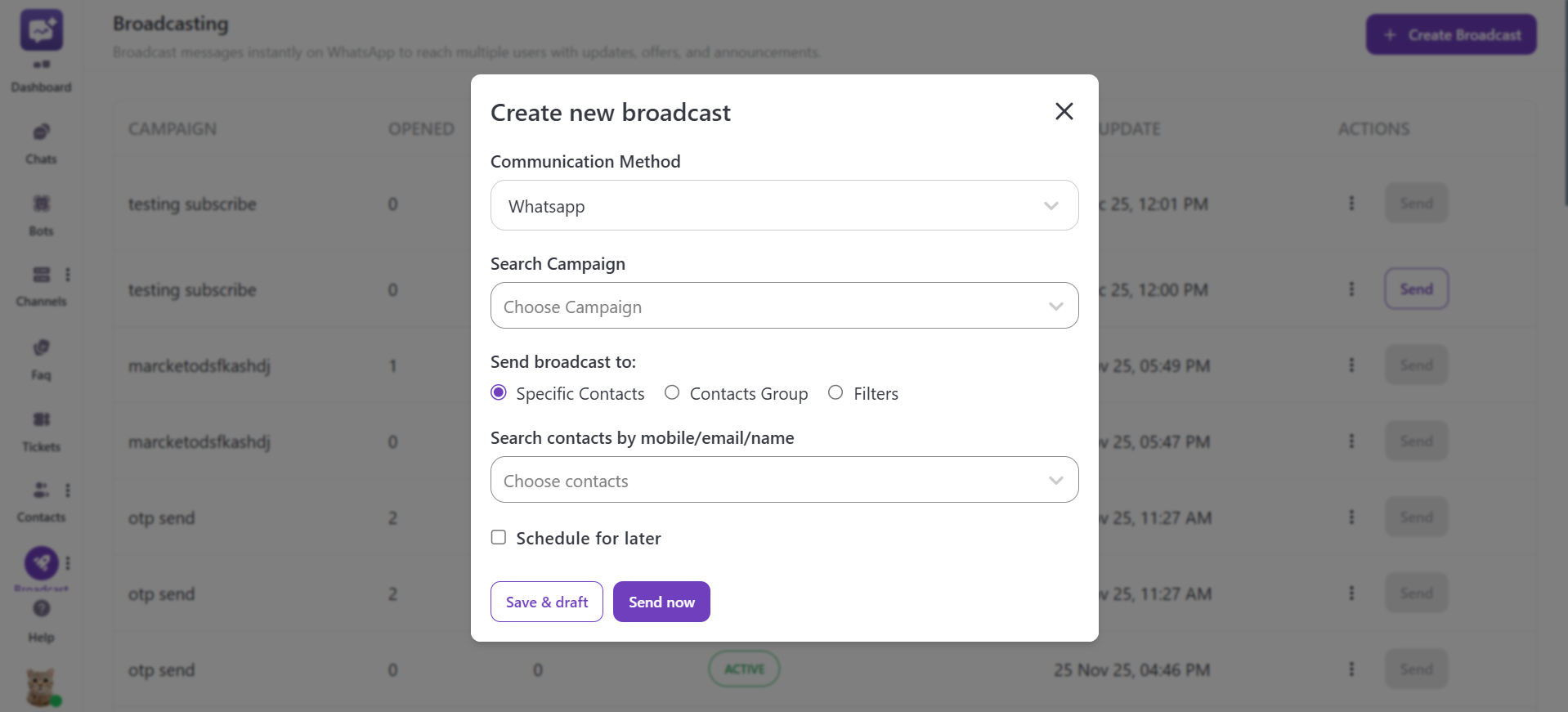
- A pop-up will appear to allow you to set up the broadcast.
-
Communication Method: You have to select the channel through which you want to send the broadcast message.
-
Search Campaign: You have to select the WhatsApp campaign you want for the broadcast. The running or ongoing campaigns will only appear in the drop-down. You can also create a new campaign from the + Create new campaign.
-
Send broadcast to: You have to select the audience to whom the broadcast message will be sent. You can select from the three options below:
1. Specific contacts: You have to manually select contacts either by writing the name and email address or just selecting from the drop-down menu.
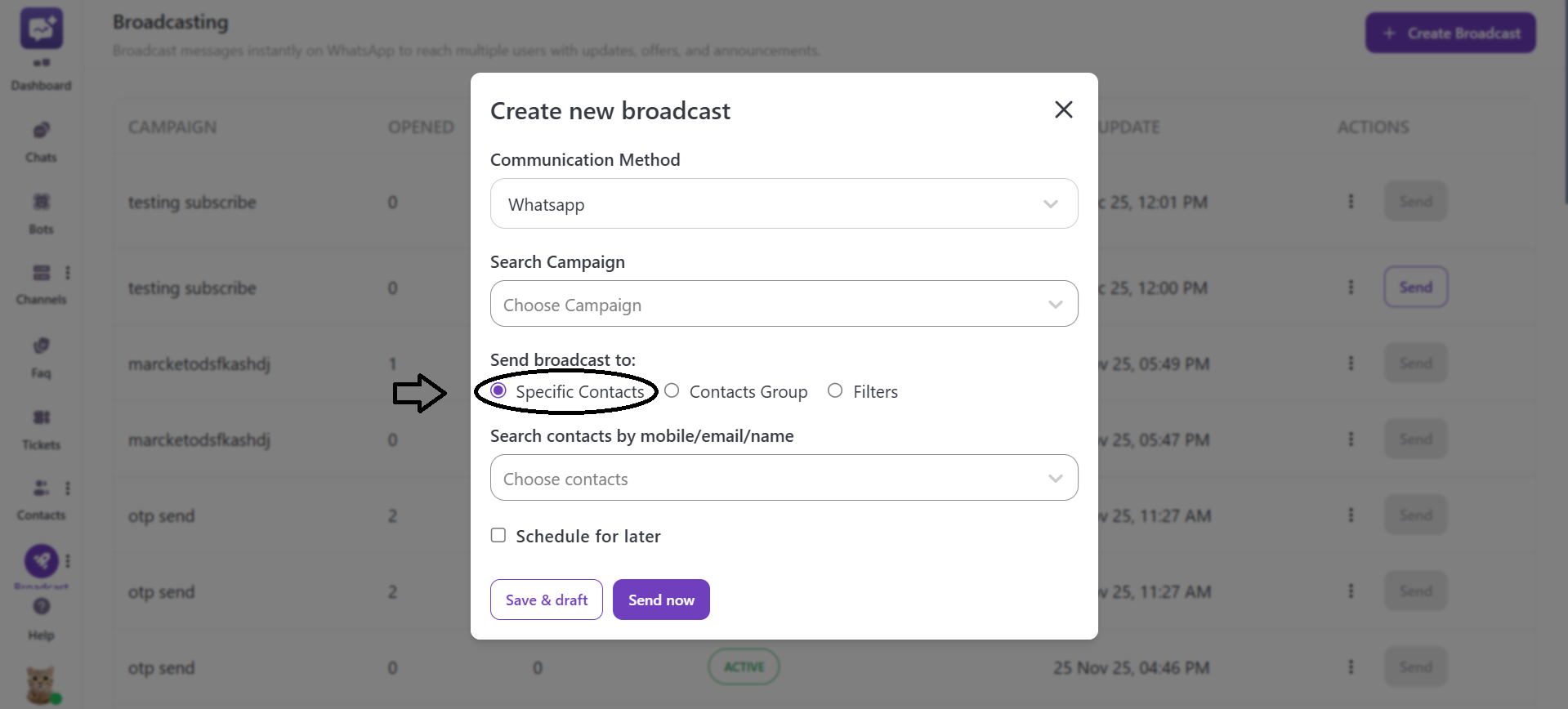
2. Contact groups: You have to select the contact groups from the drop-down or by writing their names.
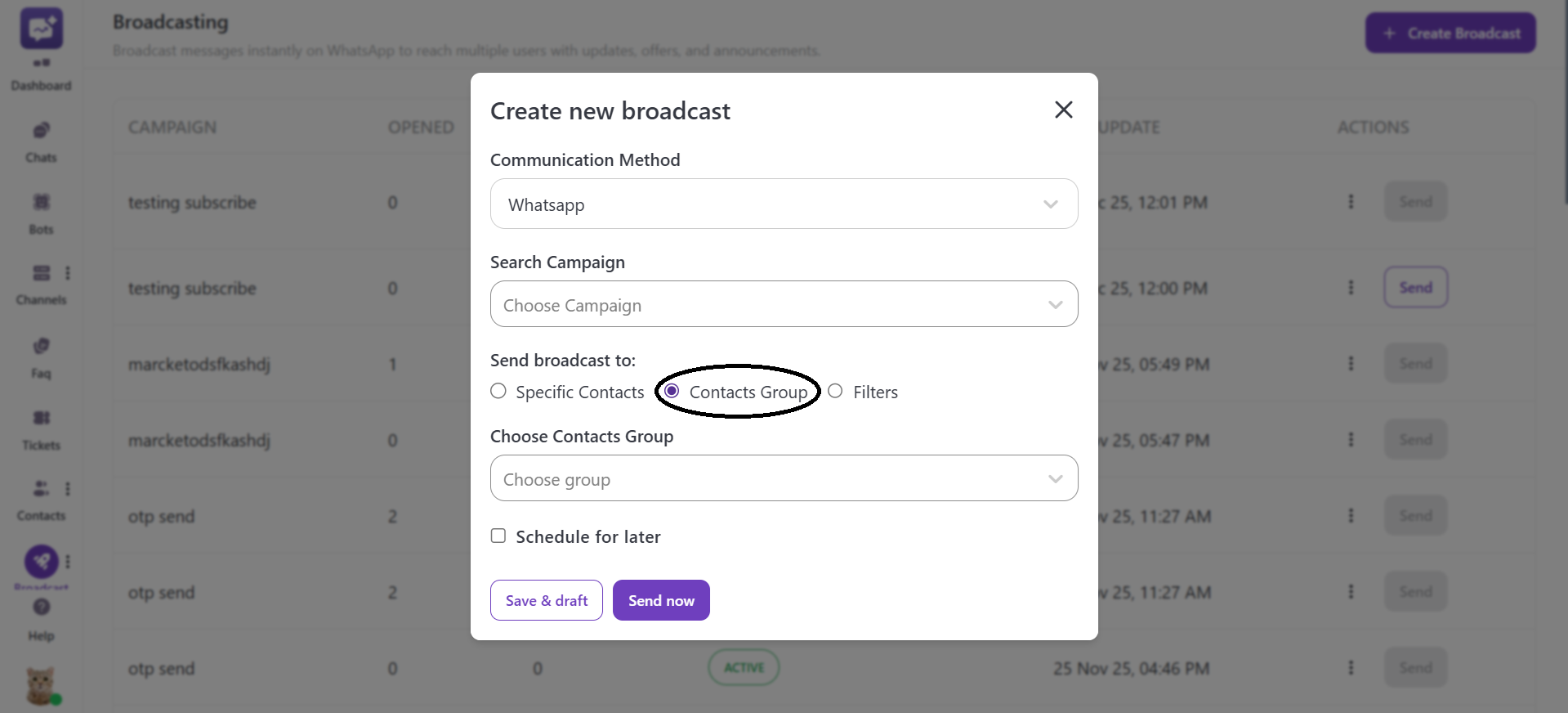
3. Filters: You can select the targeted contacts from saved filters.
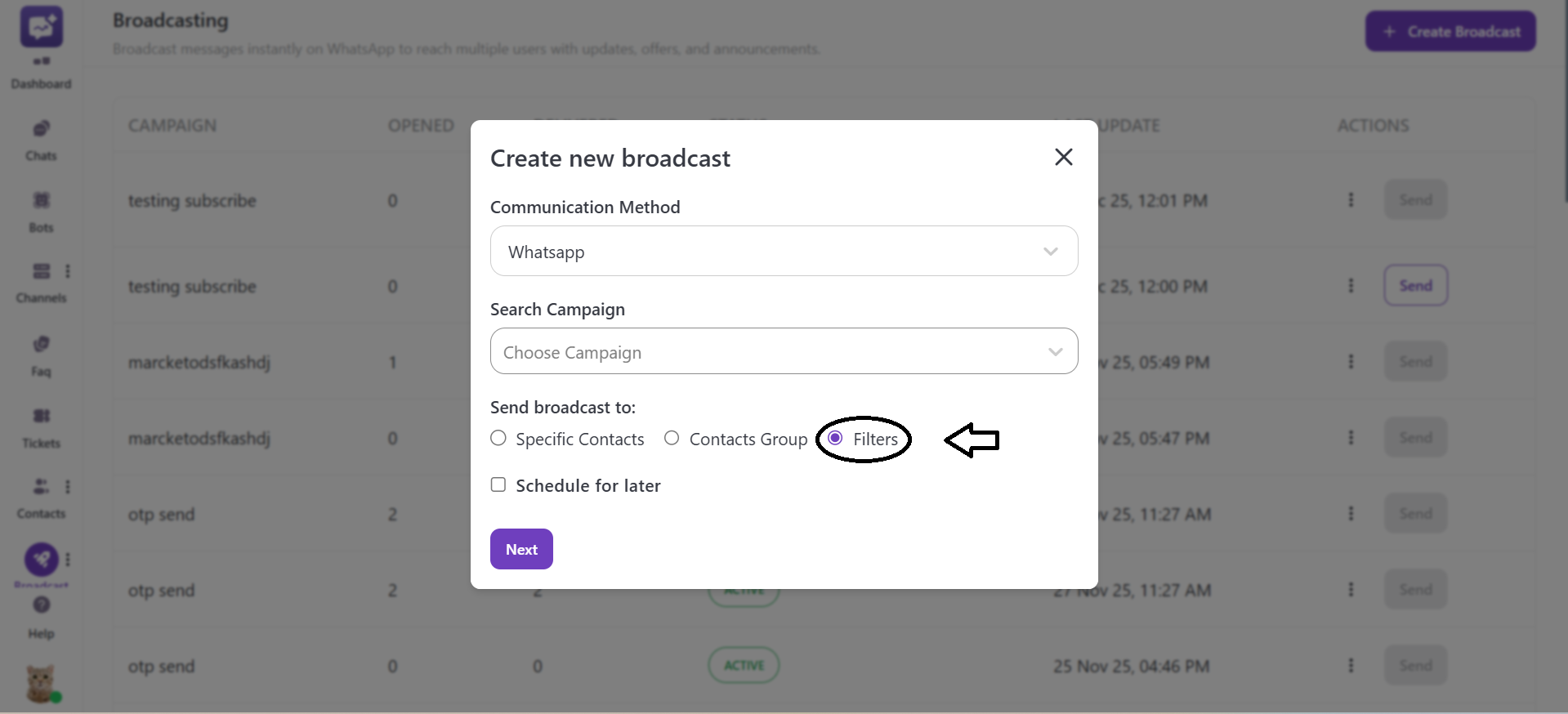
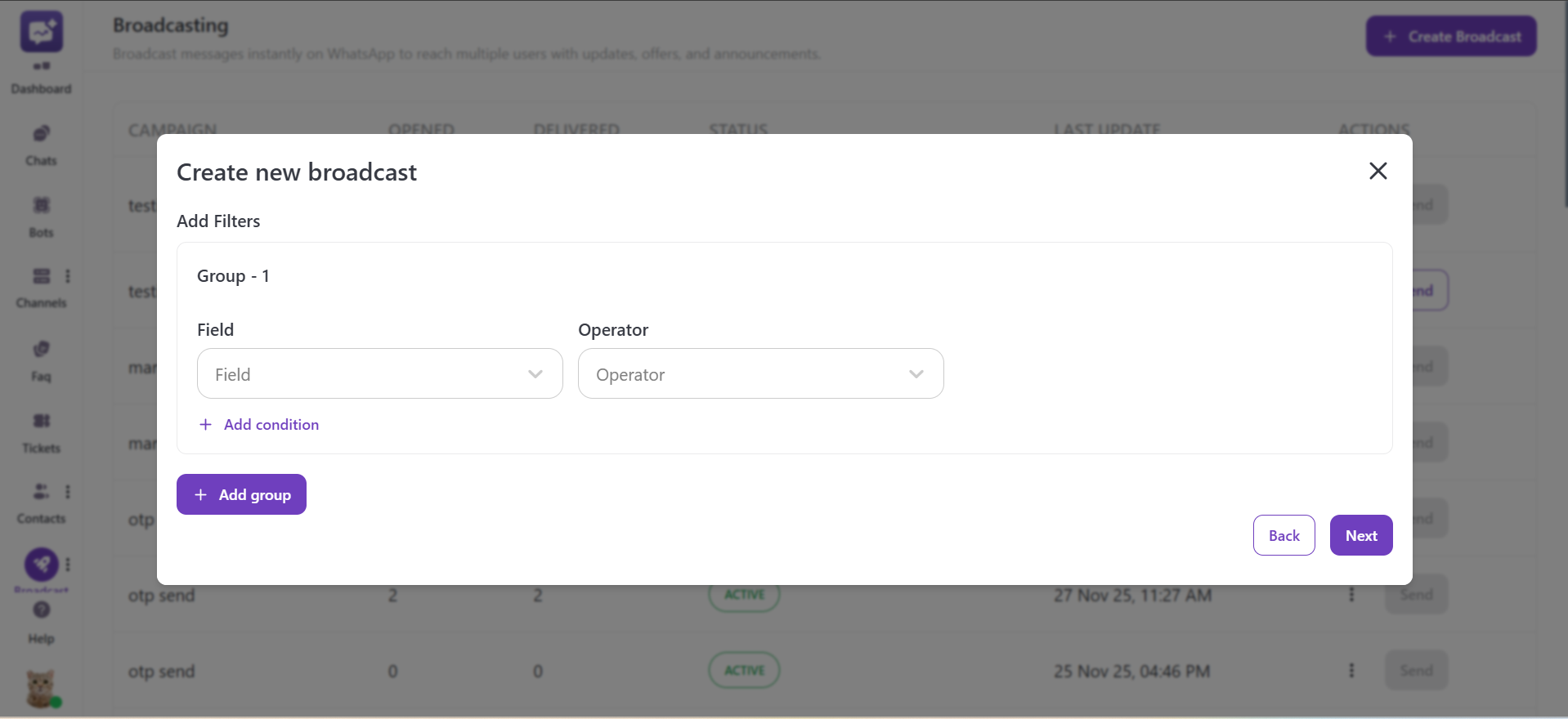
You have to make conditions as per the filter needed. Click on Next to create the filter.
-
Schedule for later: You can toggle this option as checked if you want the broadcast to be sent in the future. It is basically useful for planned promotions, reminders, or time-specific updates.
-
Save as Draft: You can save the broadcast without sending it. You can save it for later use.
-
Send Now: It immediately delivers the broadcasting message to your selected audience.
Broadcast Dashboard
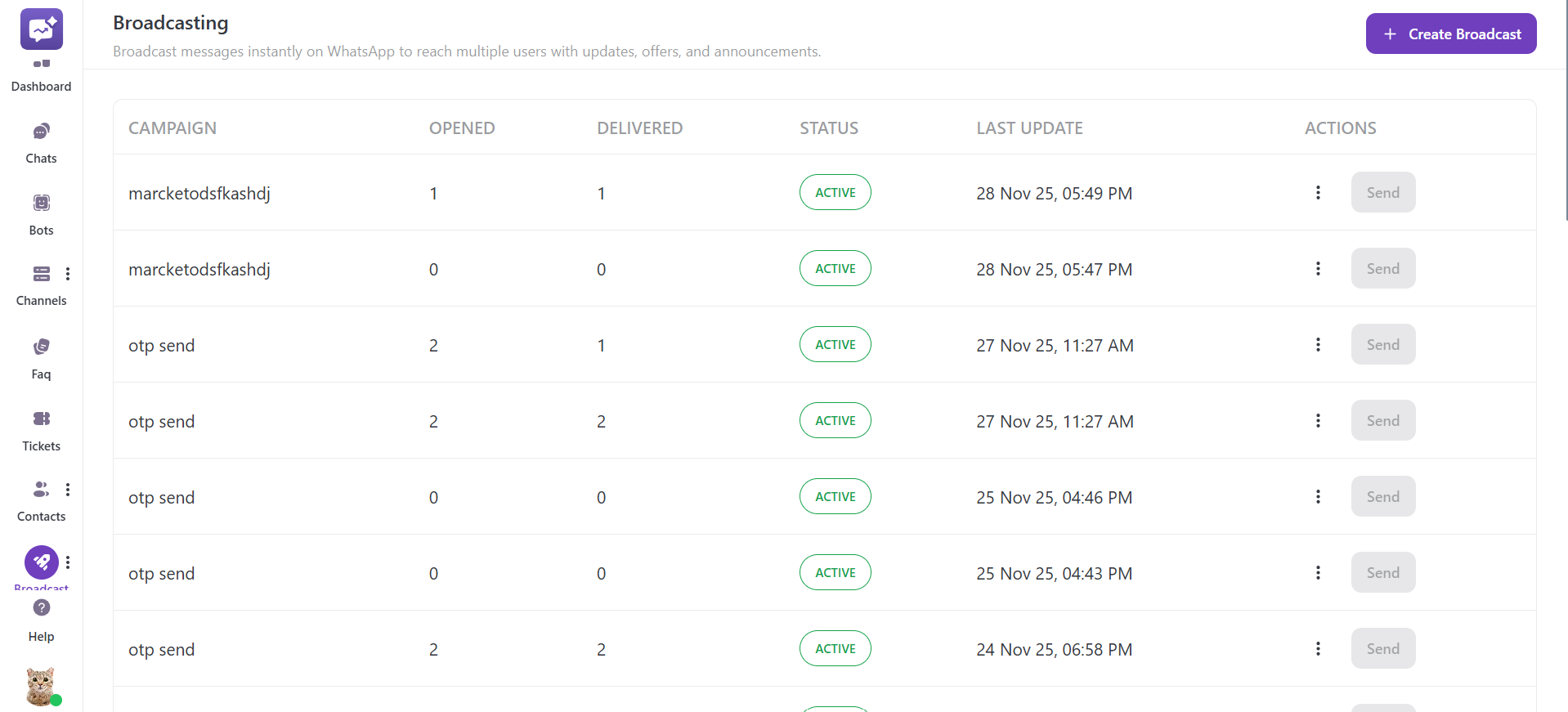
The Broadcast dashboard provides a real-time view of your broadcast messages that helps you track results.
Broadcast List
-
Campaign: It shows the name of the WhatsApp campaign template used for this broadcast.
-
Opened: The number of recipients who have opened the broadcast message. It helps you track user engagement and message interactions.
-
Delivered: It indicates how many contacts have successfully received the broadcasting message.
-
Status: It shows whether the status of the broadcast is currently active or in draft.
-
Last Update: It shows the date and time of the broadcast when last updated.
-
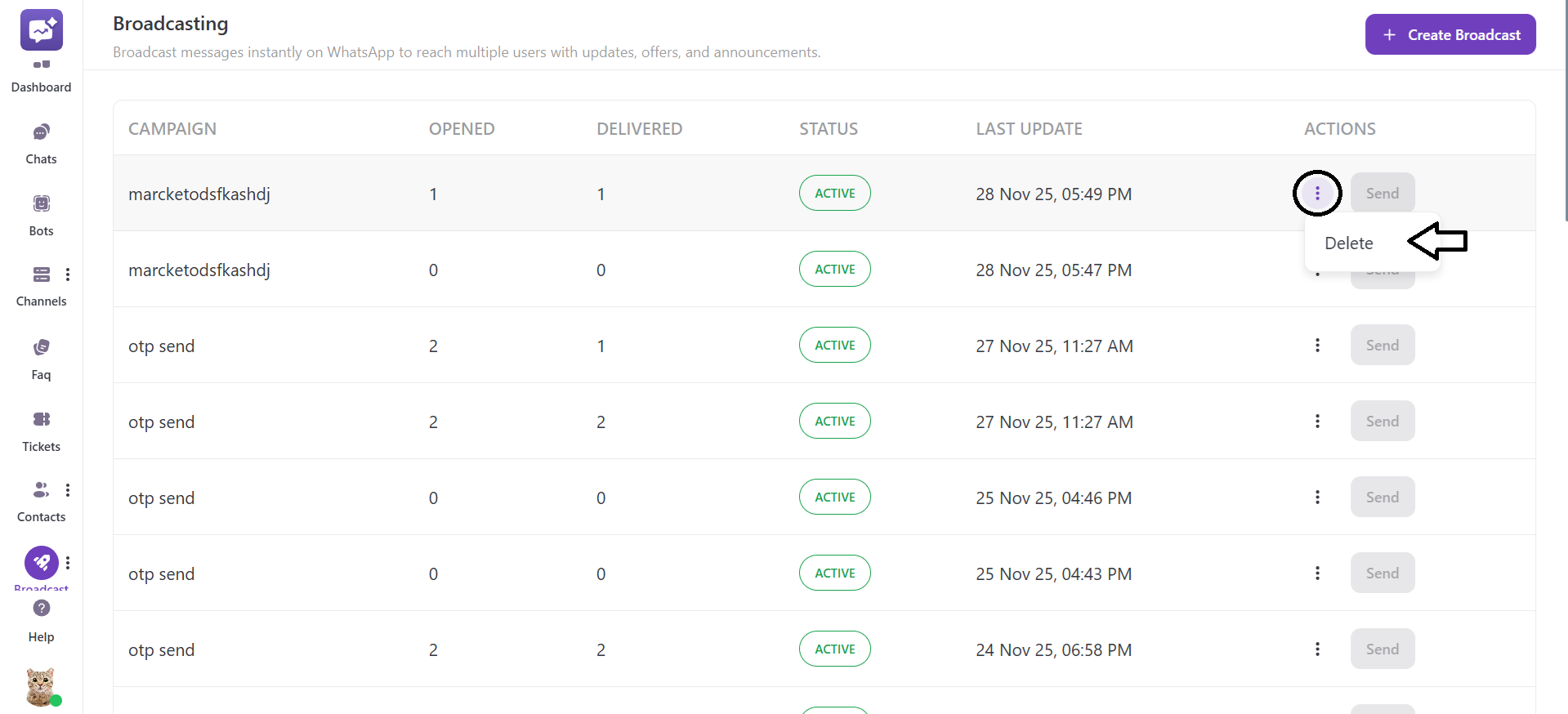
Actions: It allows for quick control to send the broadcast message. You can also delete a specific broadcast from the More Options.