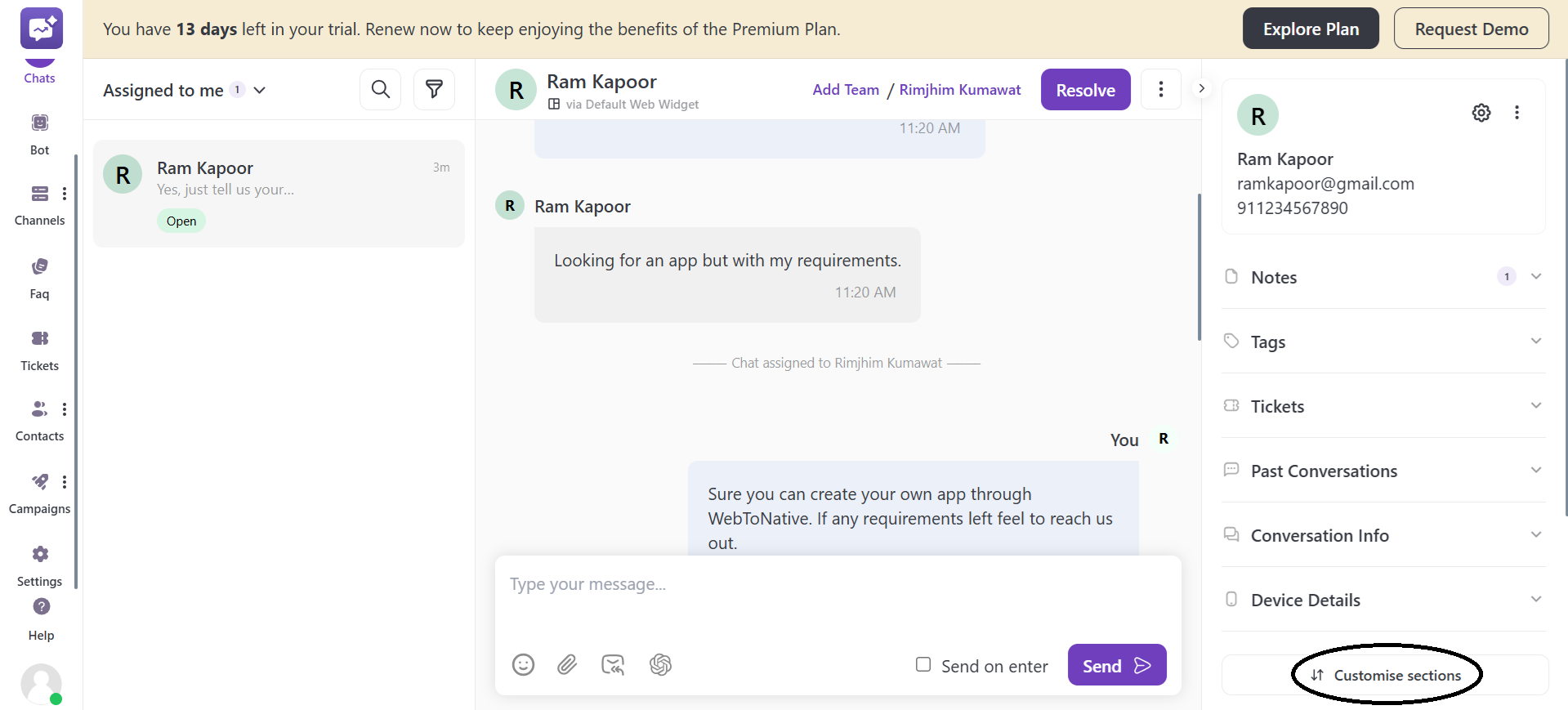
Customer Details
It showcases the customer details such as full name, email address and phone number. It allows the agent to add more information to the customer's details.
Listed below are some of the information that are added by agents:
1. Settings
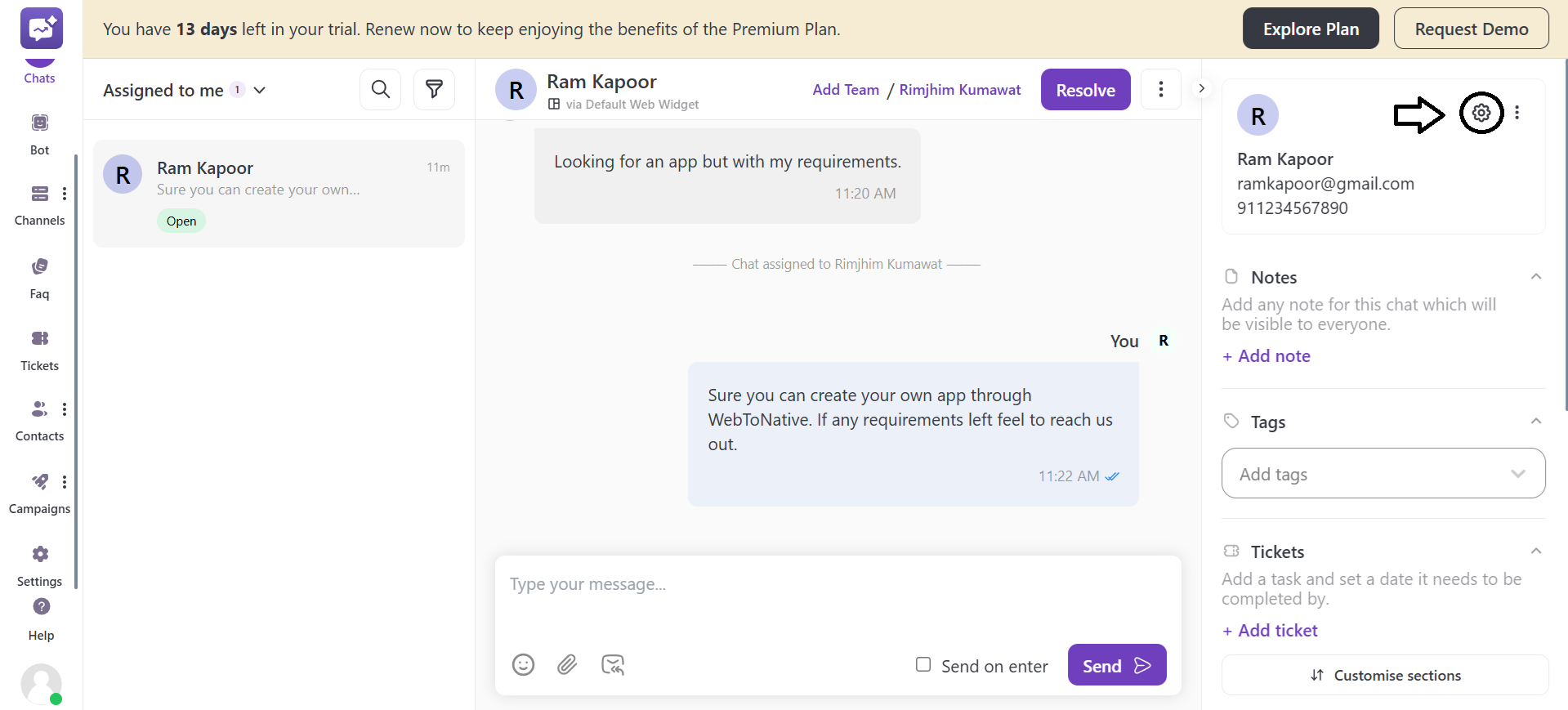
- You can toggle any of the fields to make it appear when you edit the customer’s contact details (but the fields will only appear in this when you have enabled it in customer fields). A few fields are default fields that are toggled enable.
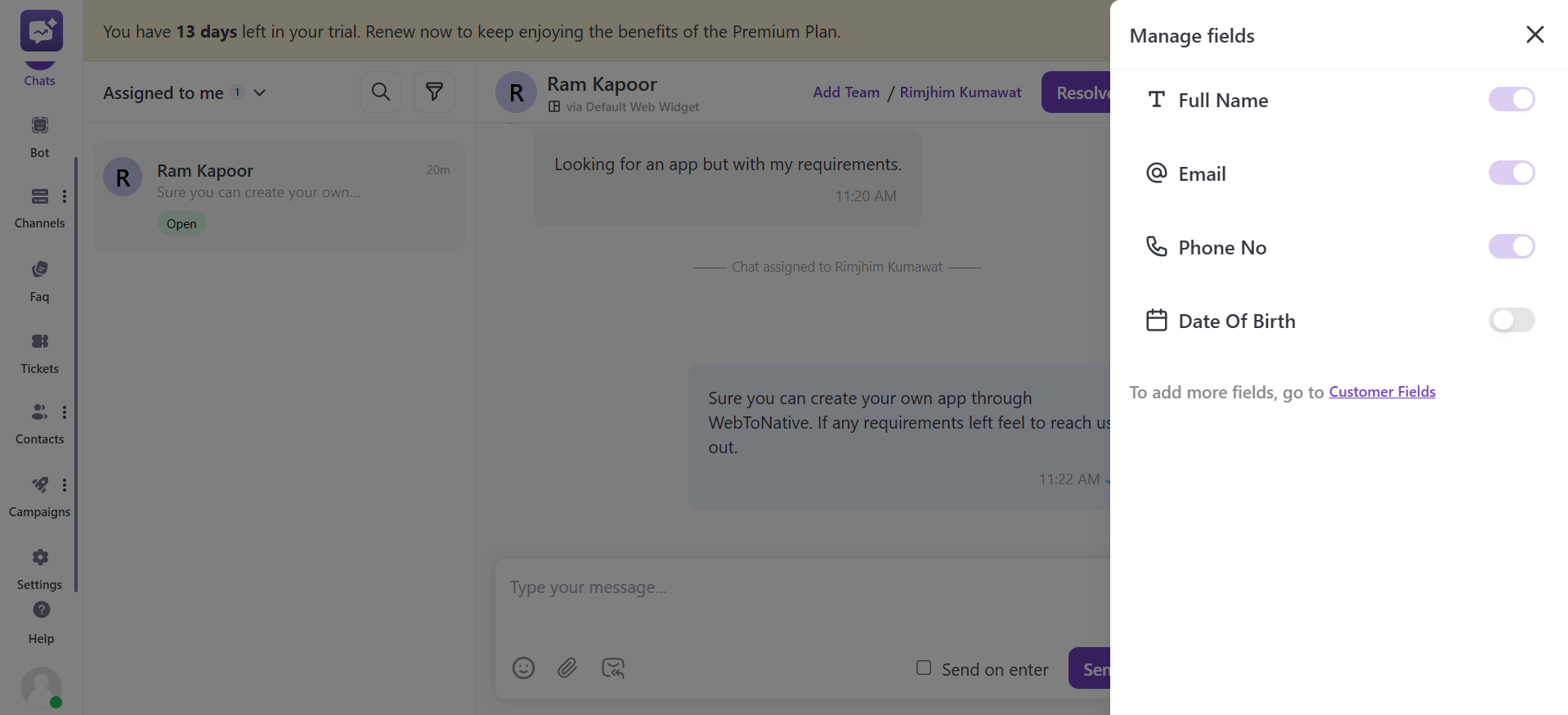
- You can add more fields from the Customer Fields in the settings under chat settings.
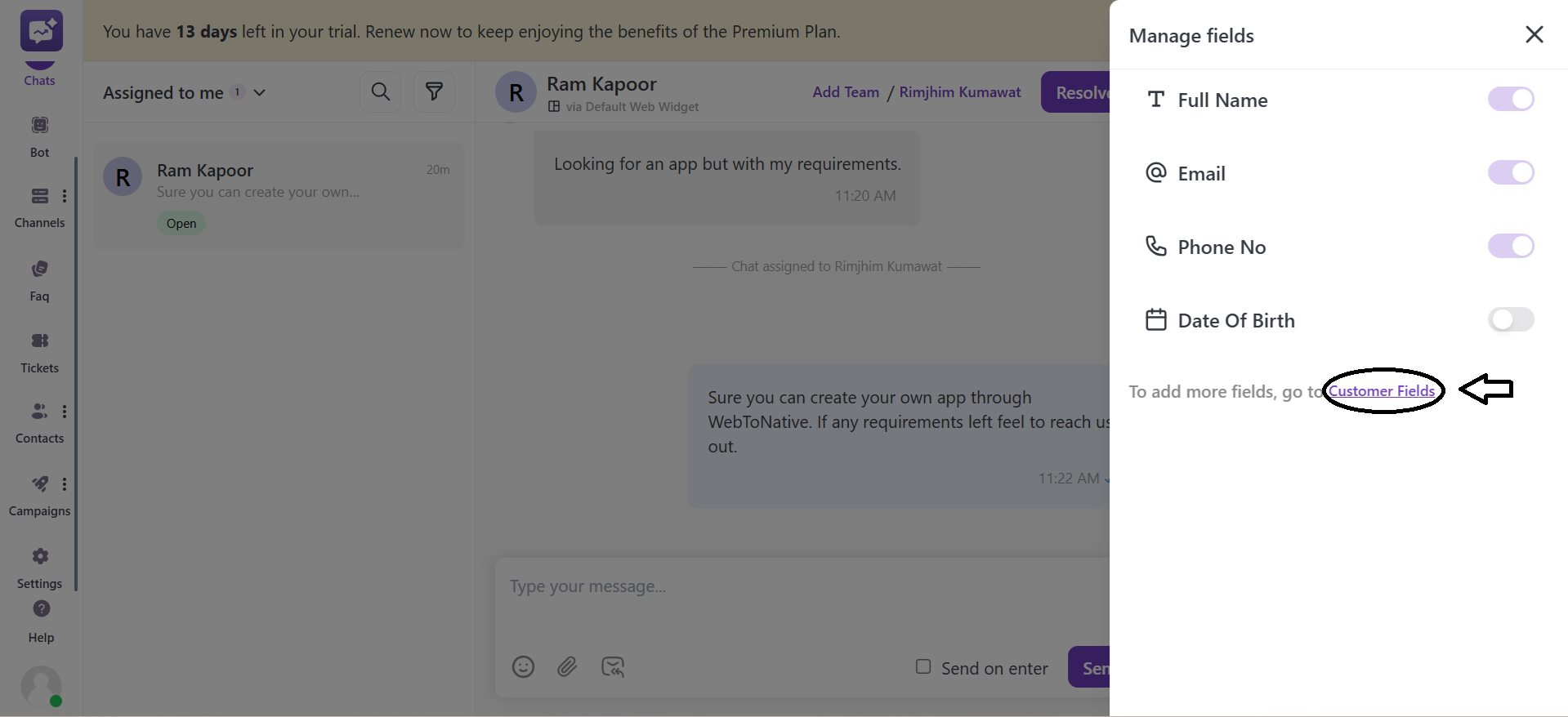
2. Notes
- Notes are the internal messages that will be visible to all the admin level members.
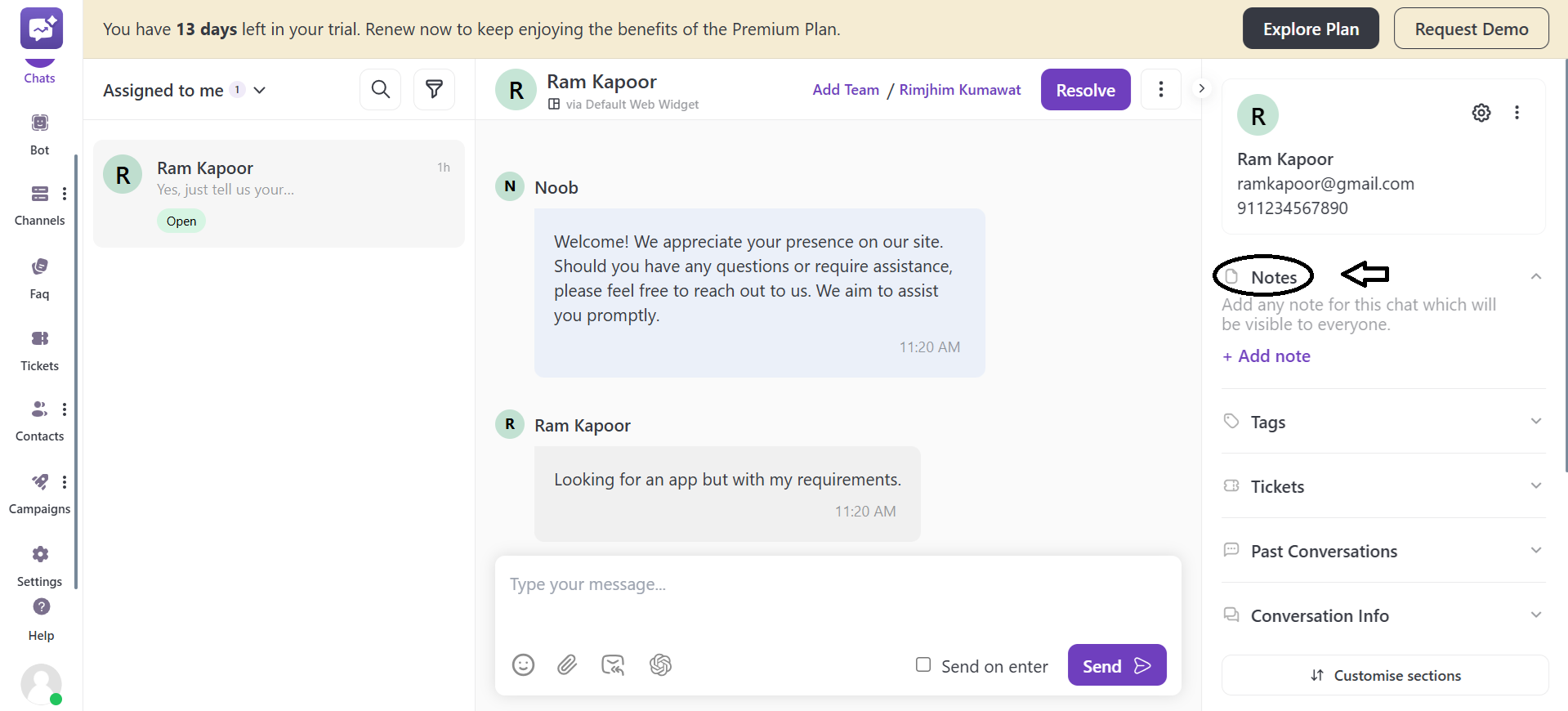
- Click on + Add Note to add a note. You can make the note, such as reminders, instructions, or any other information, for a better understanding.
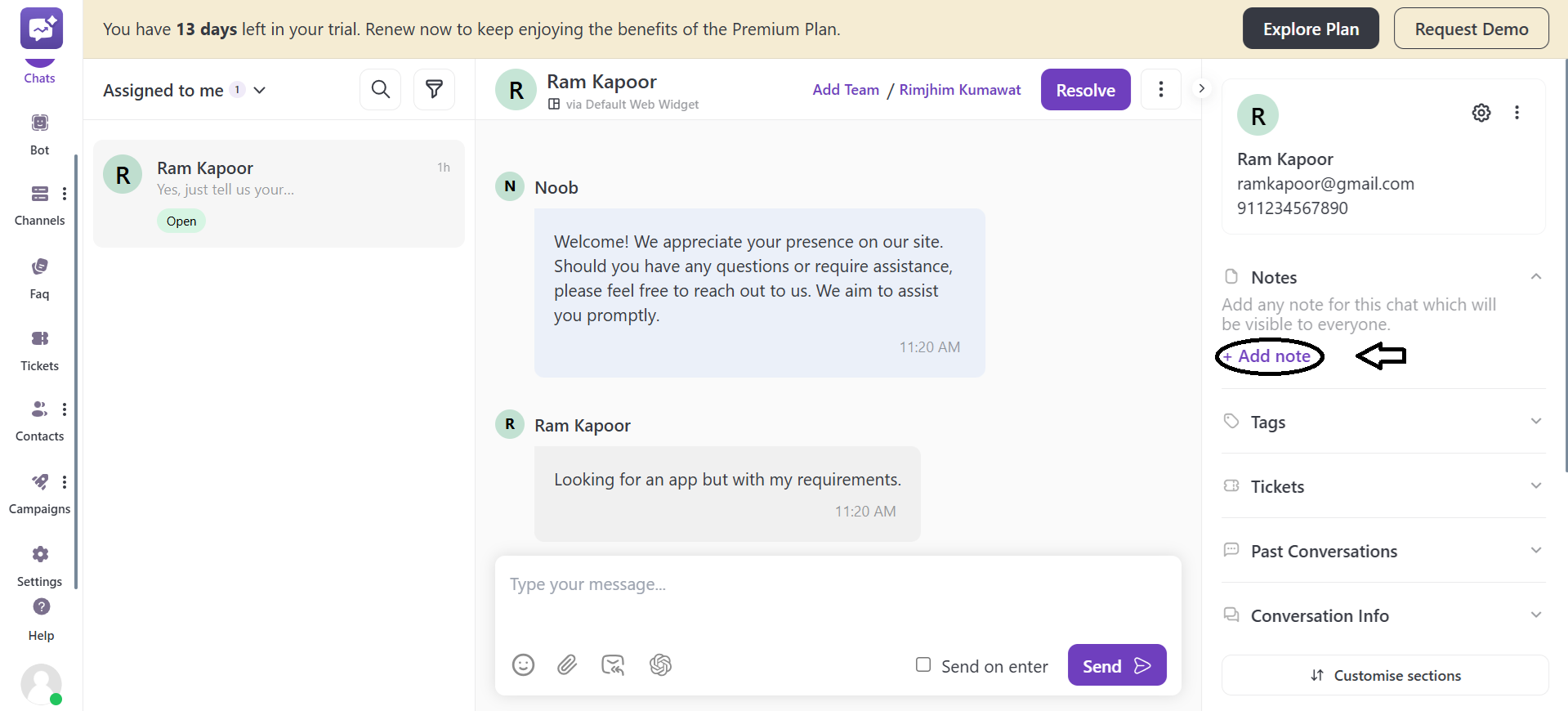
- You can edit or delete the note from the More Options.
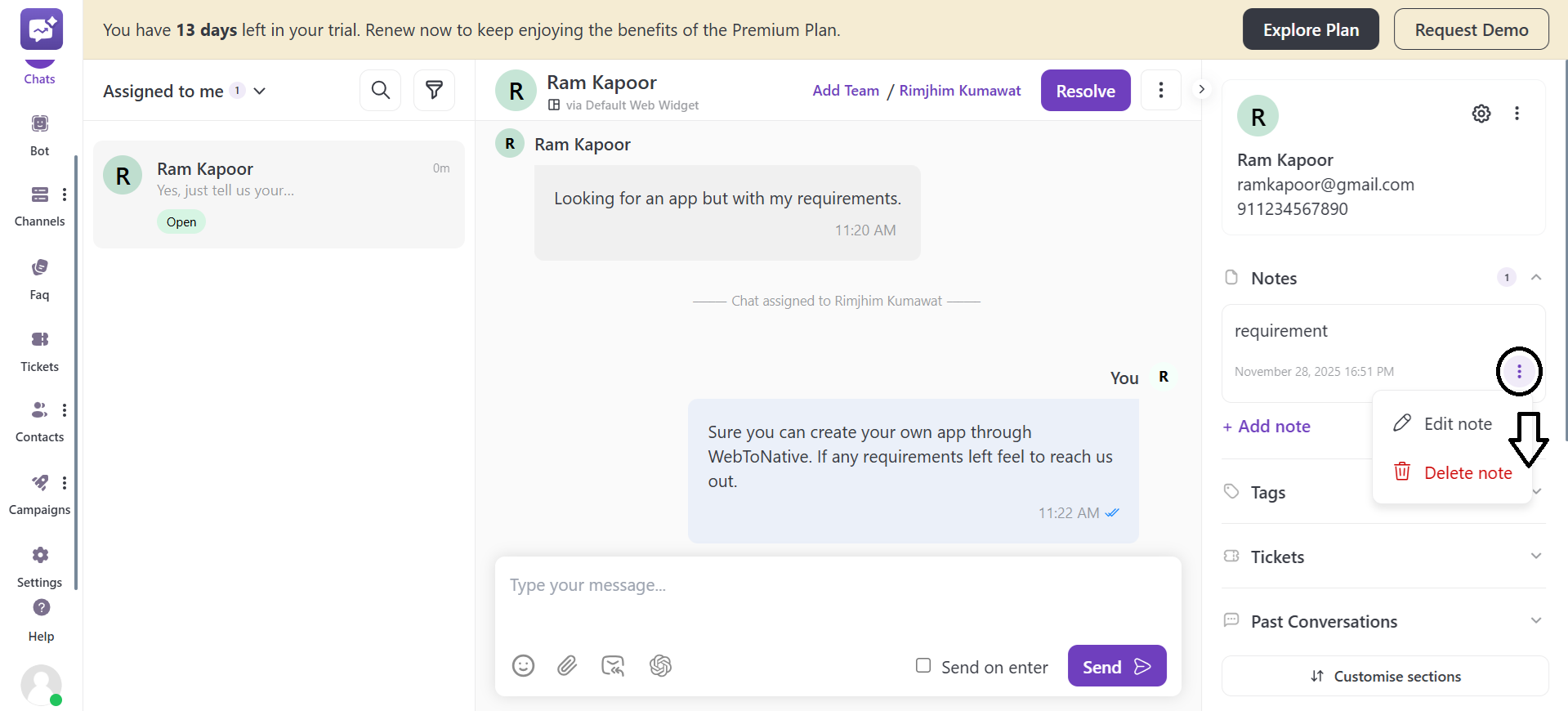
3. Tags
- With Tags, you can categorize or label the conversation.
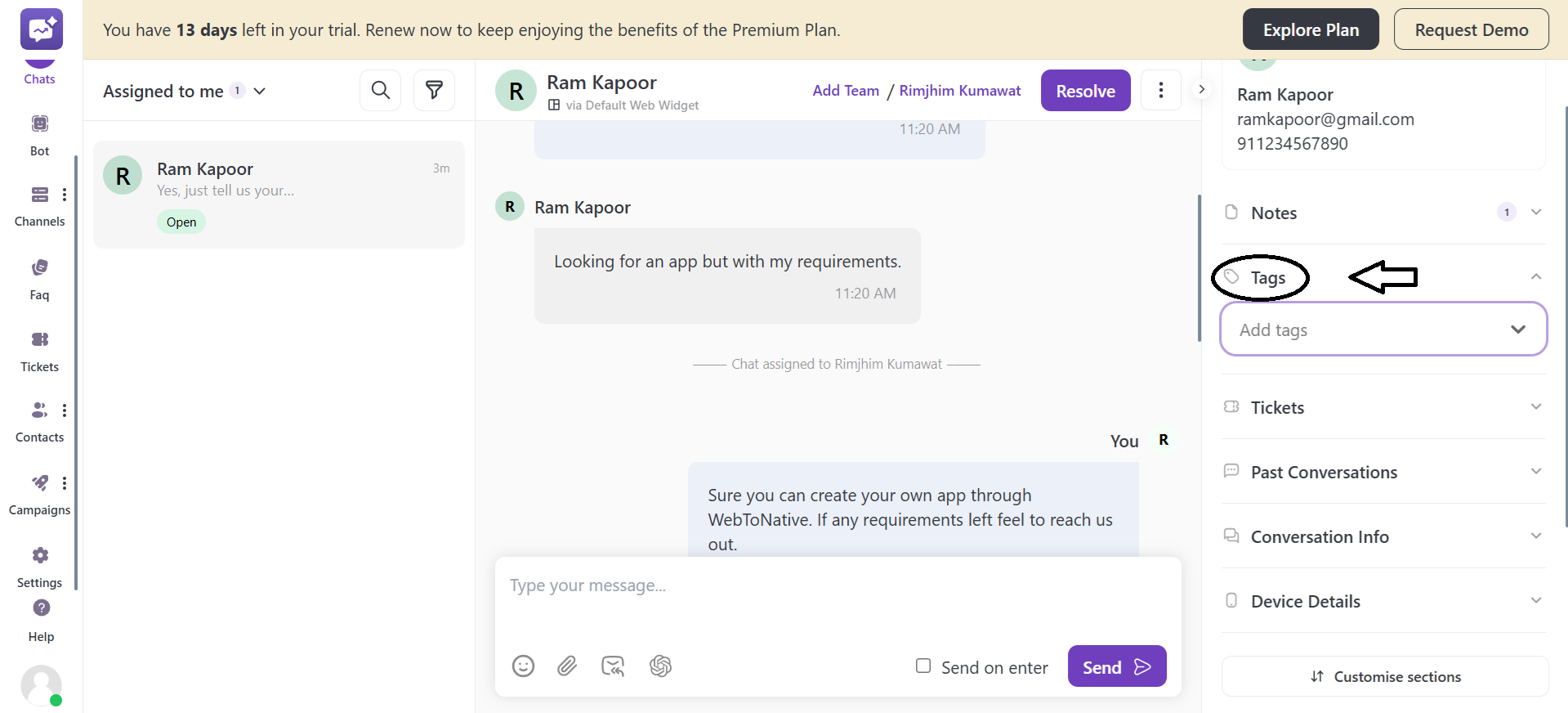
- You can select the tags from the drop-down menu to be used in that specific chat.
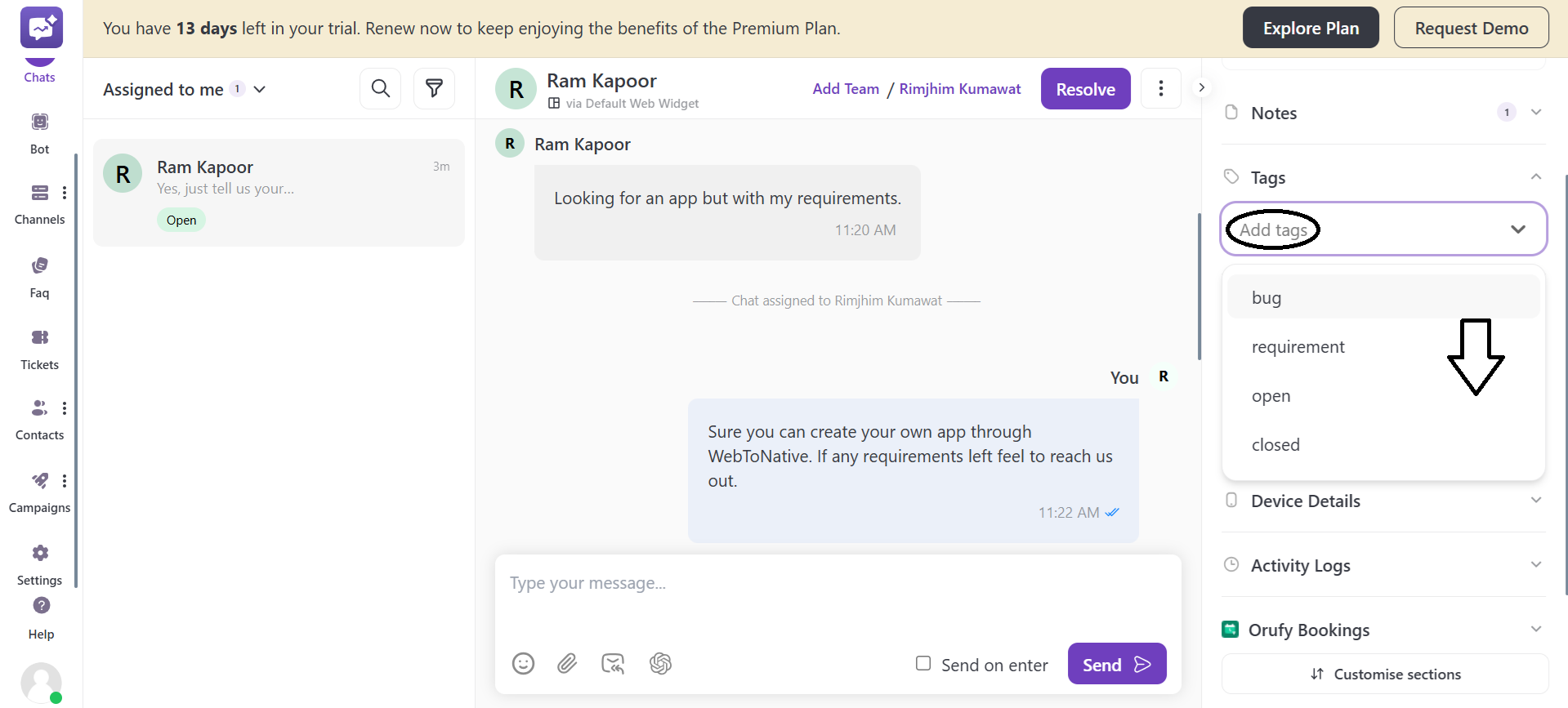
- You can add tags to label, filter or organise chats.
4. Tickets
- Tickets allows you to create a task related to a chat.
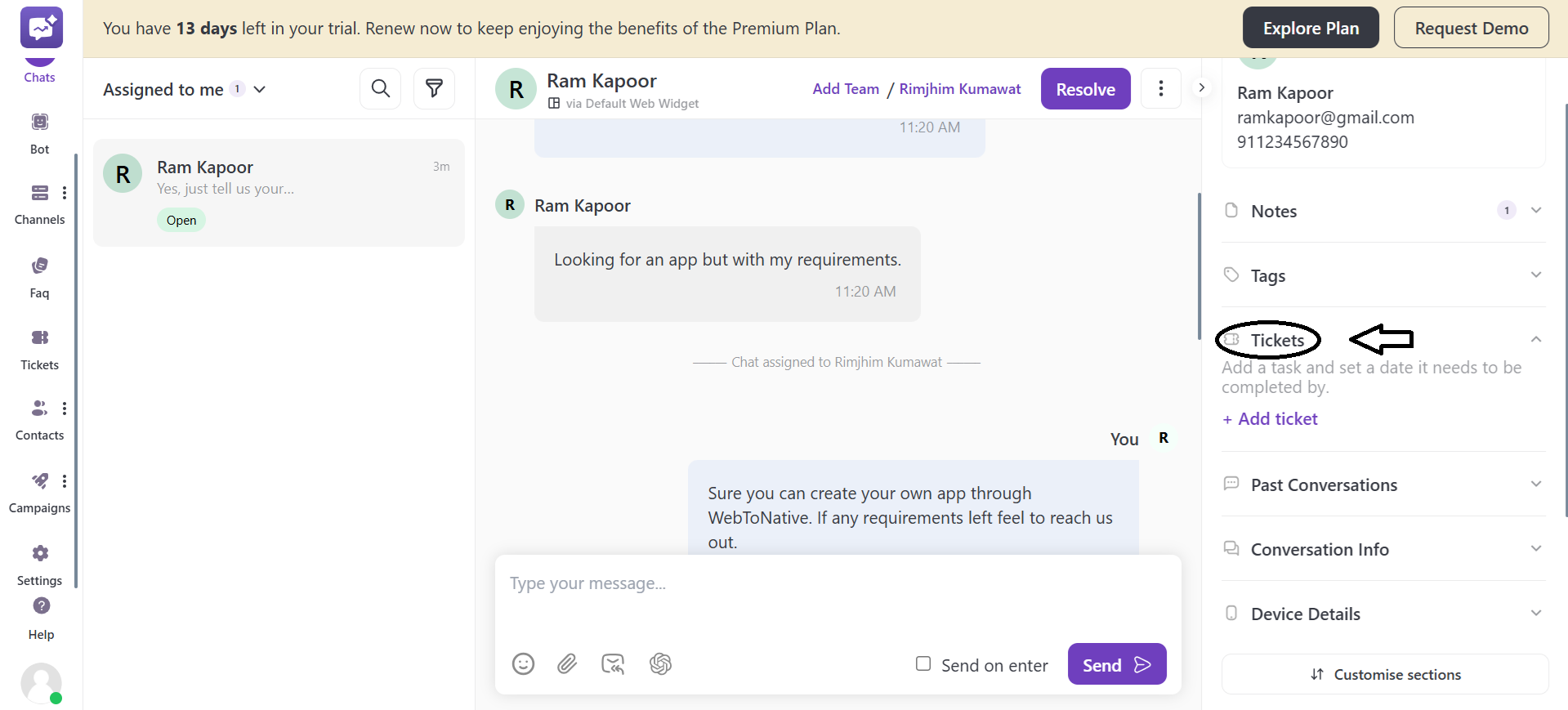
- You can create a ticket from the + Add Ticket option.
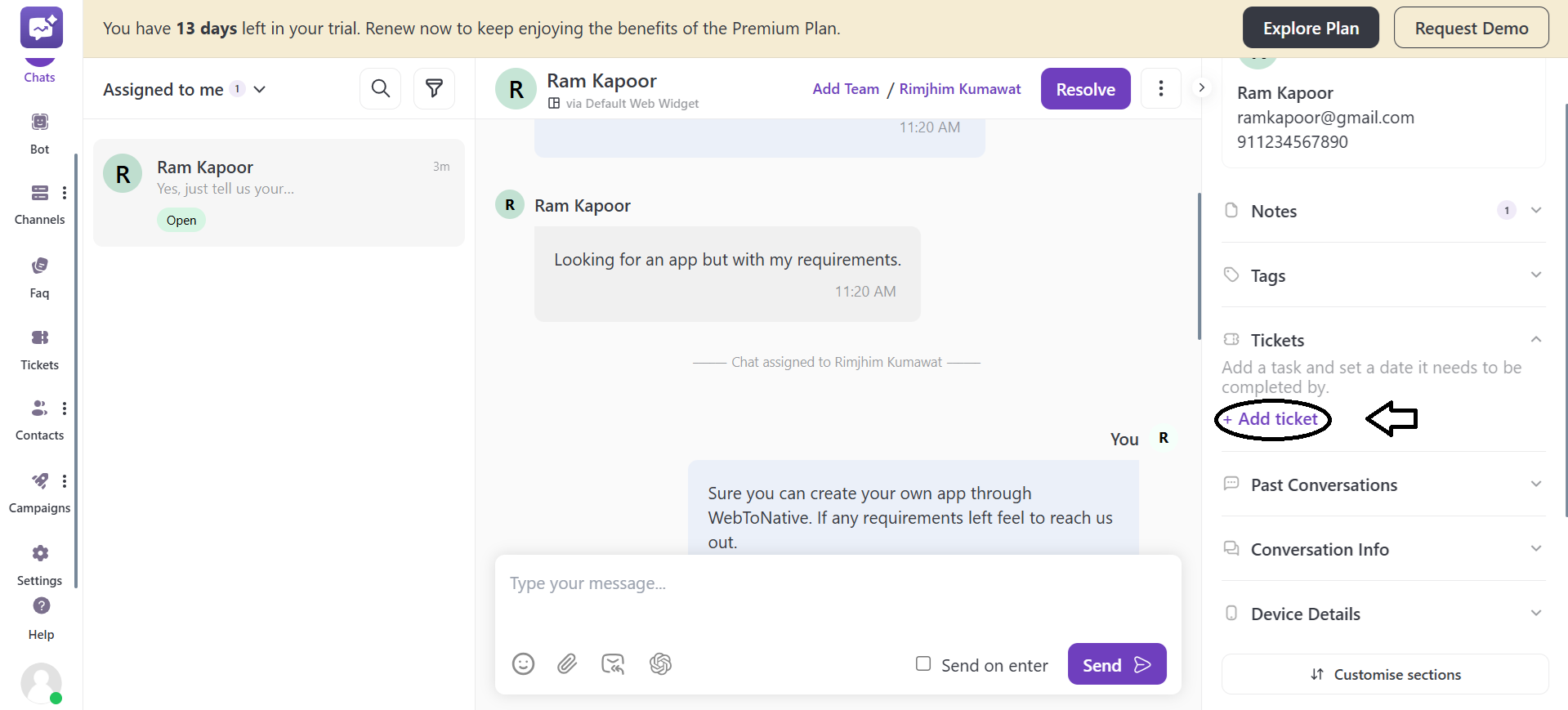
- A pop-up will open to fill in the details about the ticket such as title and description to a ticket or any other attachments to the ticket and many more.
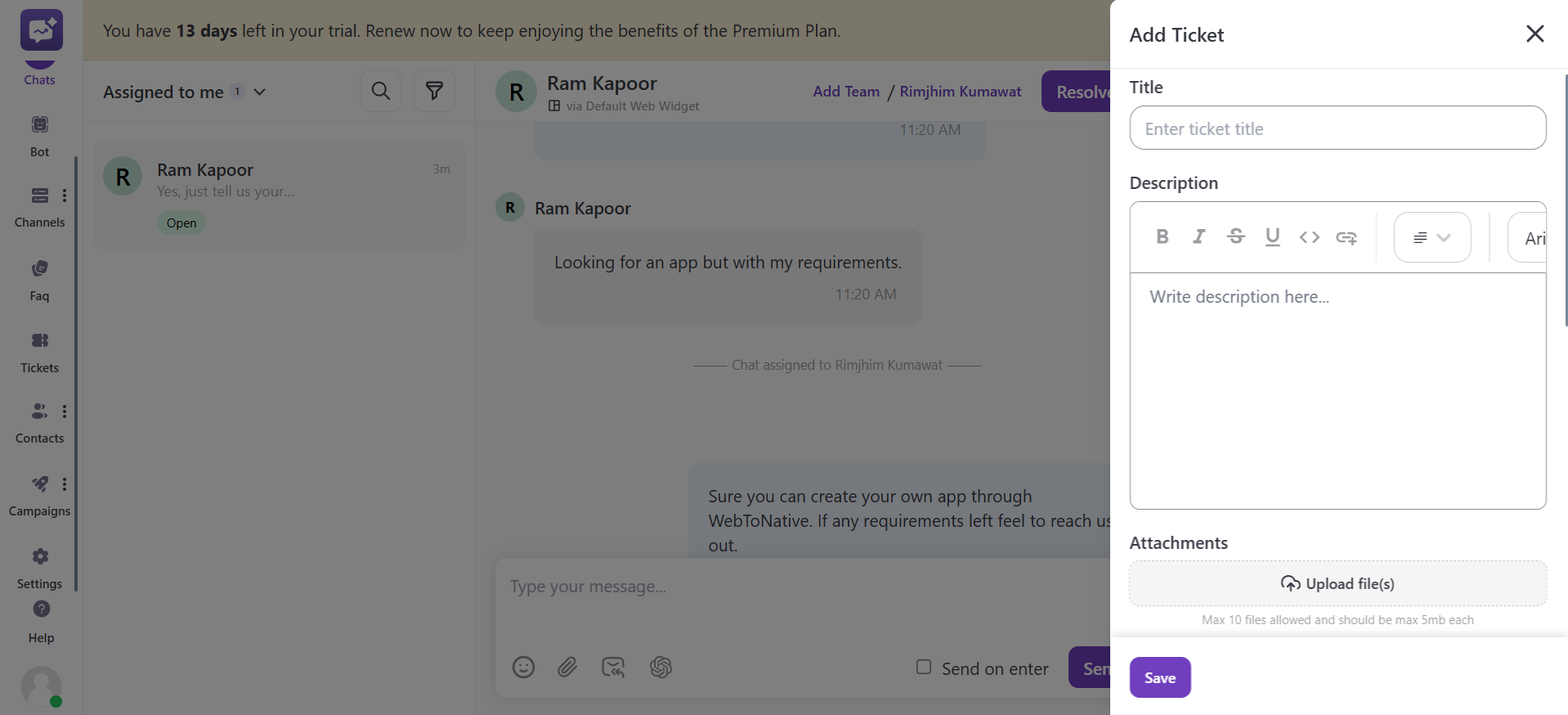
- You can also select the member to whom the ticket assigned with a due date.
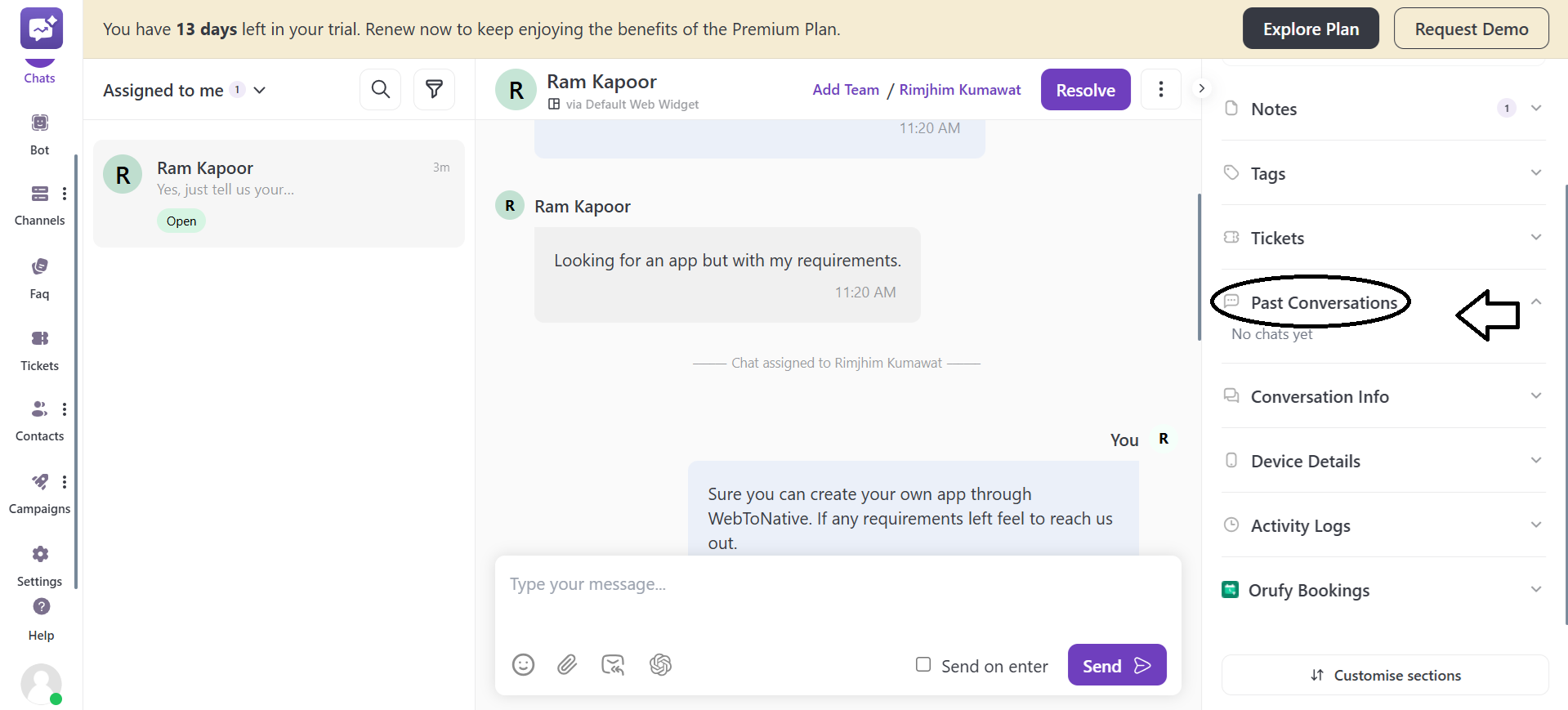
5. Past Conversations
This section shows the customer’s previous chats with your support team. It helps you understand the previous conversations with the customer.
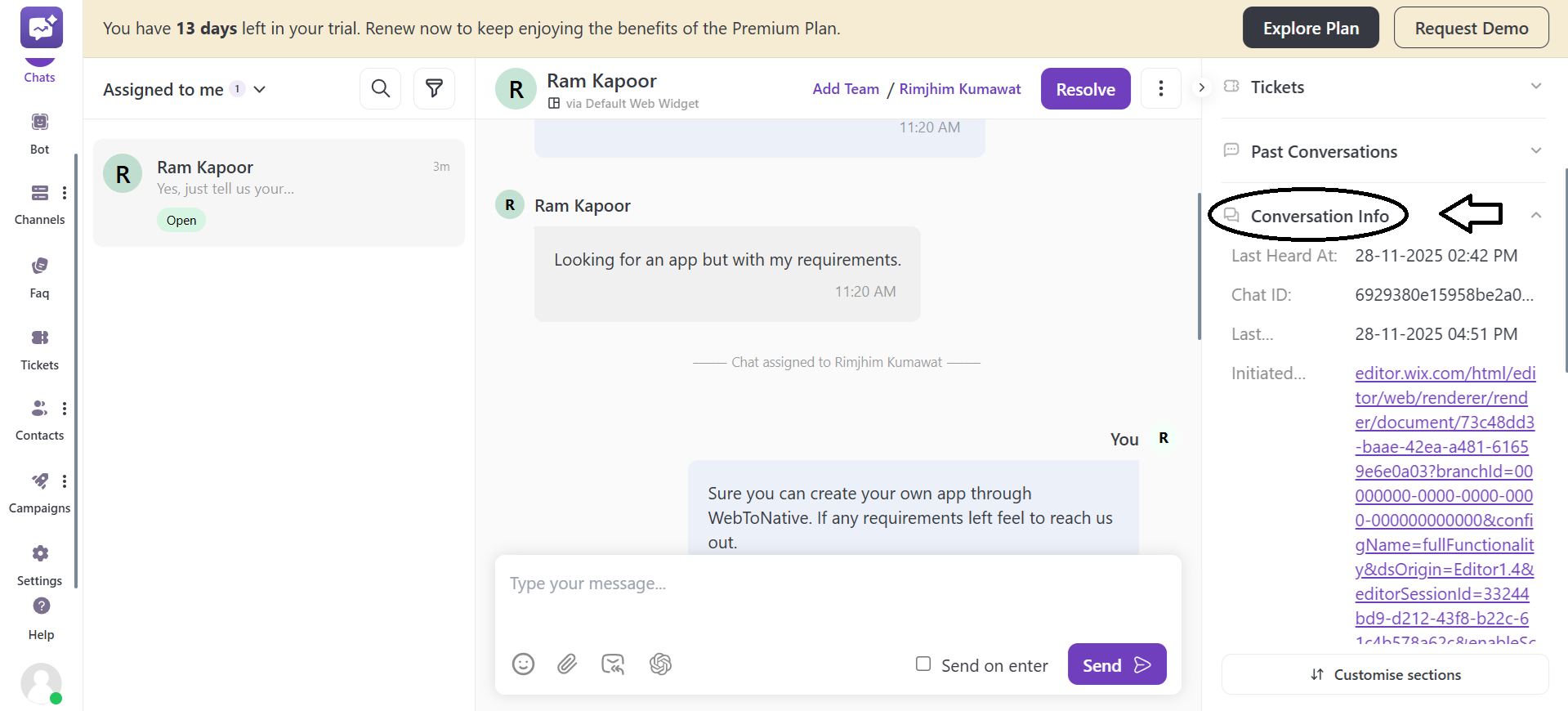
6. Conversation Info
This section shows the important information about the ongoing conversation. It includes last heard at, chat id, last contacted at, initiated form, initiated at, chat session, channel, transferred to agent at, first response time and chat URL.
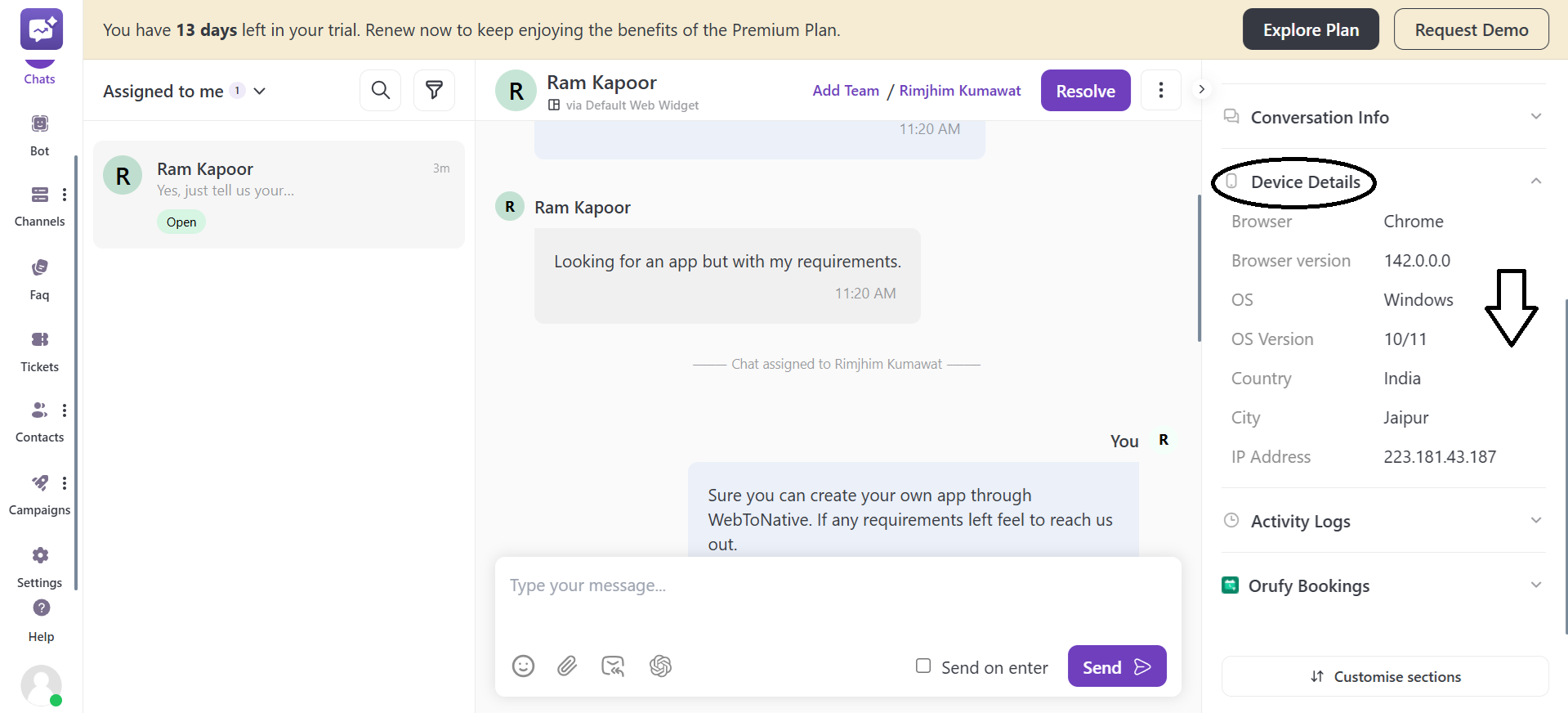
7. Device Details
It shows all the details of the customer’s device. It includes browser, browser version, operating system, operation systmer version, country, city and IP address of the device.
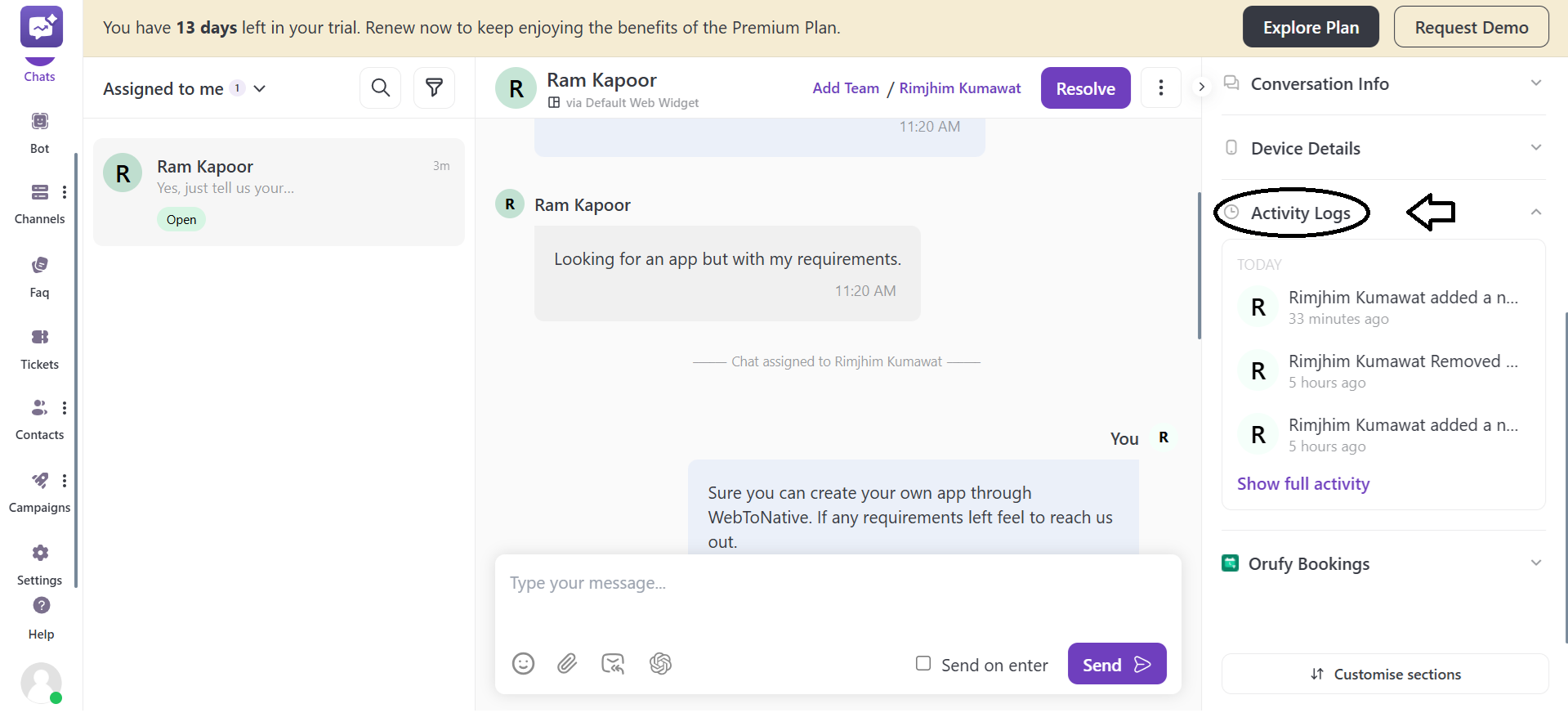
8. Activity Logs
It shows recent actions performed by the agent in a conversation. It includes actions such as, adding a note or assigning a chat.
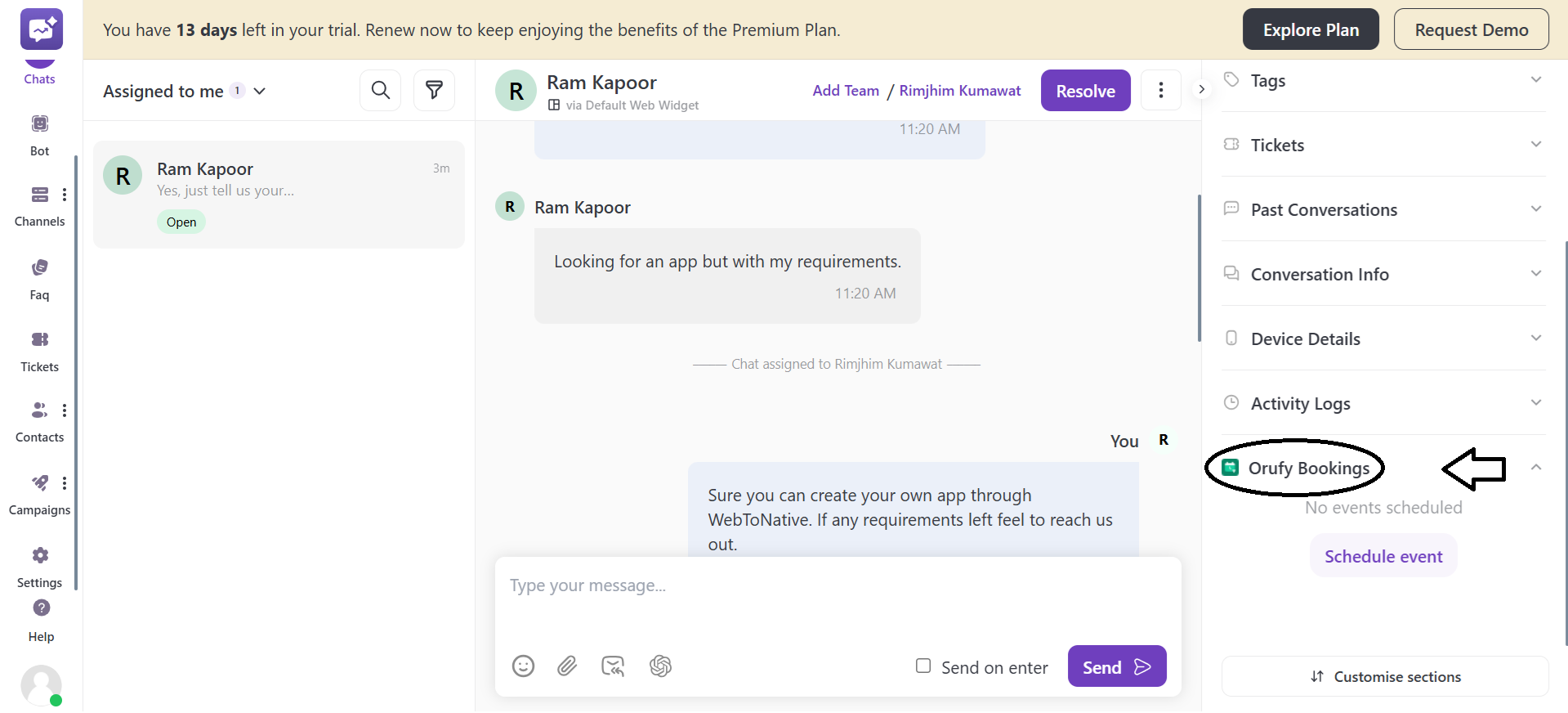
9. Orufy Bookings
It shows the scheduled events or appointments. It also allows the agent to schedule an event or appointment for the customer.
10. More Options
-
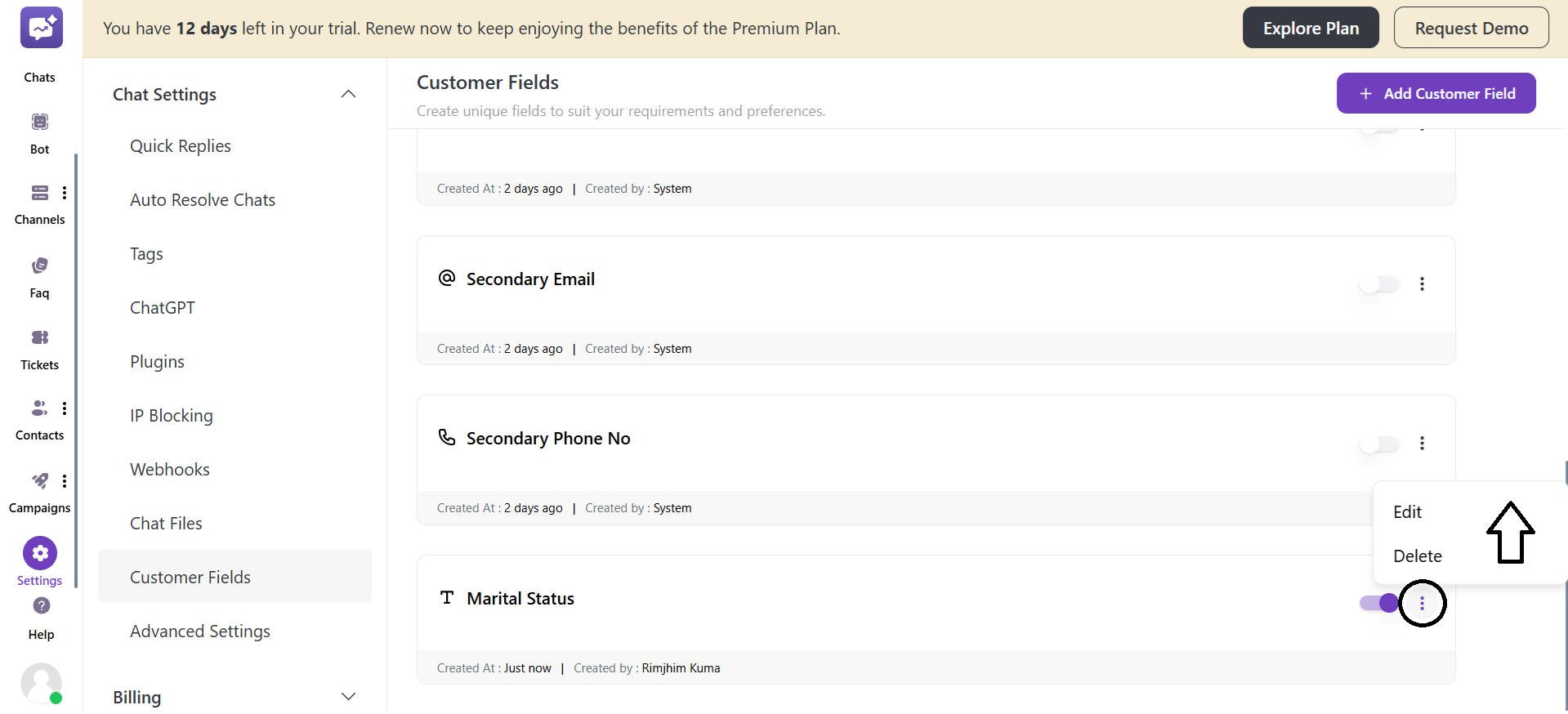
Edit: You can edit the customer details from this section.
-
Block: You can block the customer to restrict them from sending messages.
You can also customise the above sections through Customise Sections. It allows you to adjust the sections with drag and drop functionality.